
A Saturday at the ski counter
A two-store ski shop on its busiest day: walk-ins book on the shop iPad, the desk finds a family by any skier’s name, checks each binding against the chart, hands out to whoever is at the counter, and takes the gear back at either store.
Before the doors open
Two screens at the counter and one look at the day: what to prepare, what is out, what comes back and what is late, store by store.
1. Put the app on every screen
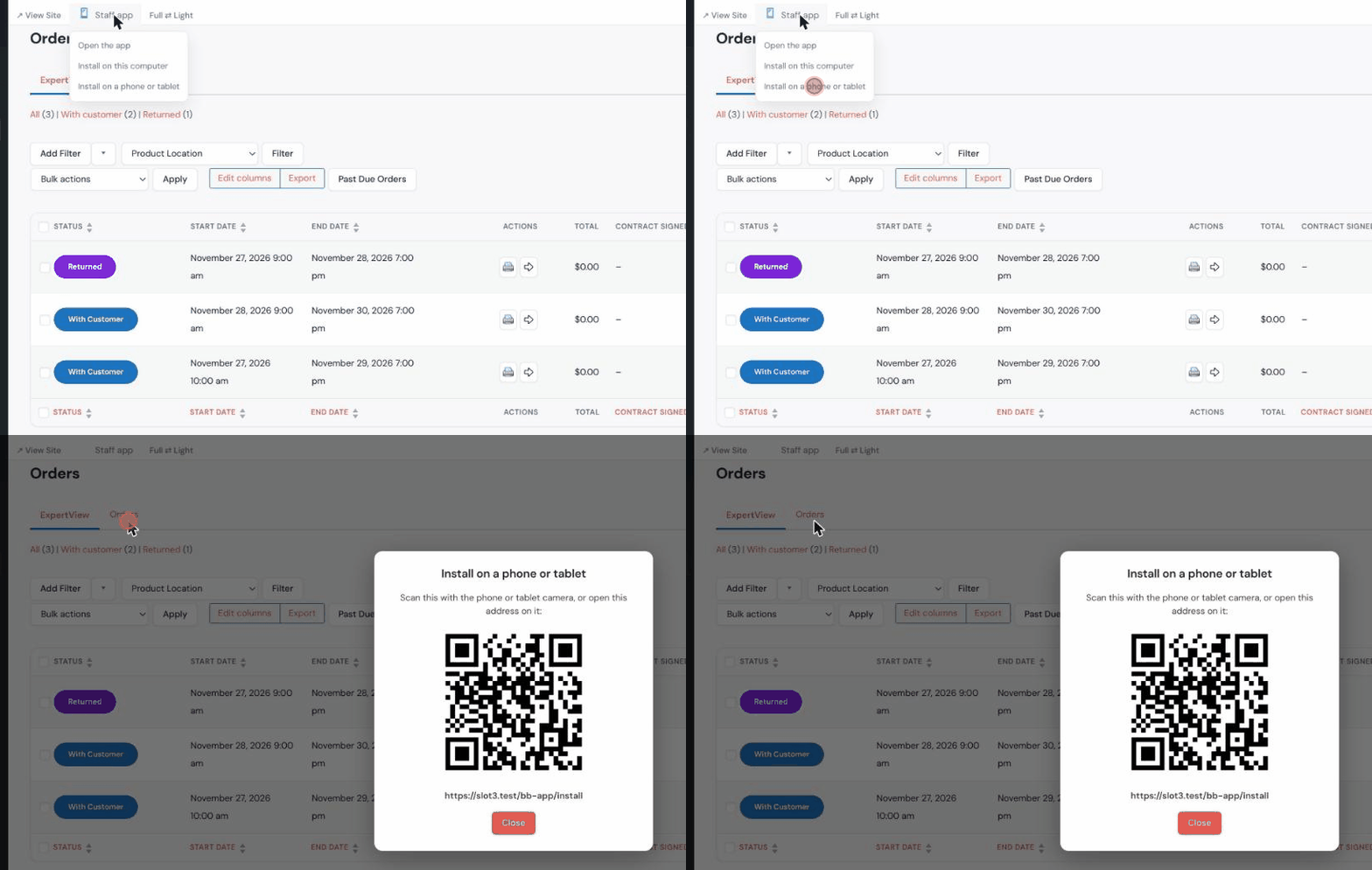
In the top bar, open Staff app. Install on this computer gives the counter computer the app in its own window, next to the normal dashboard. For the shop iPad, pick Install on a phone or tablet and scan the code with its camera.
2. The day, counted
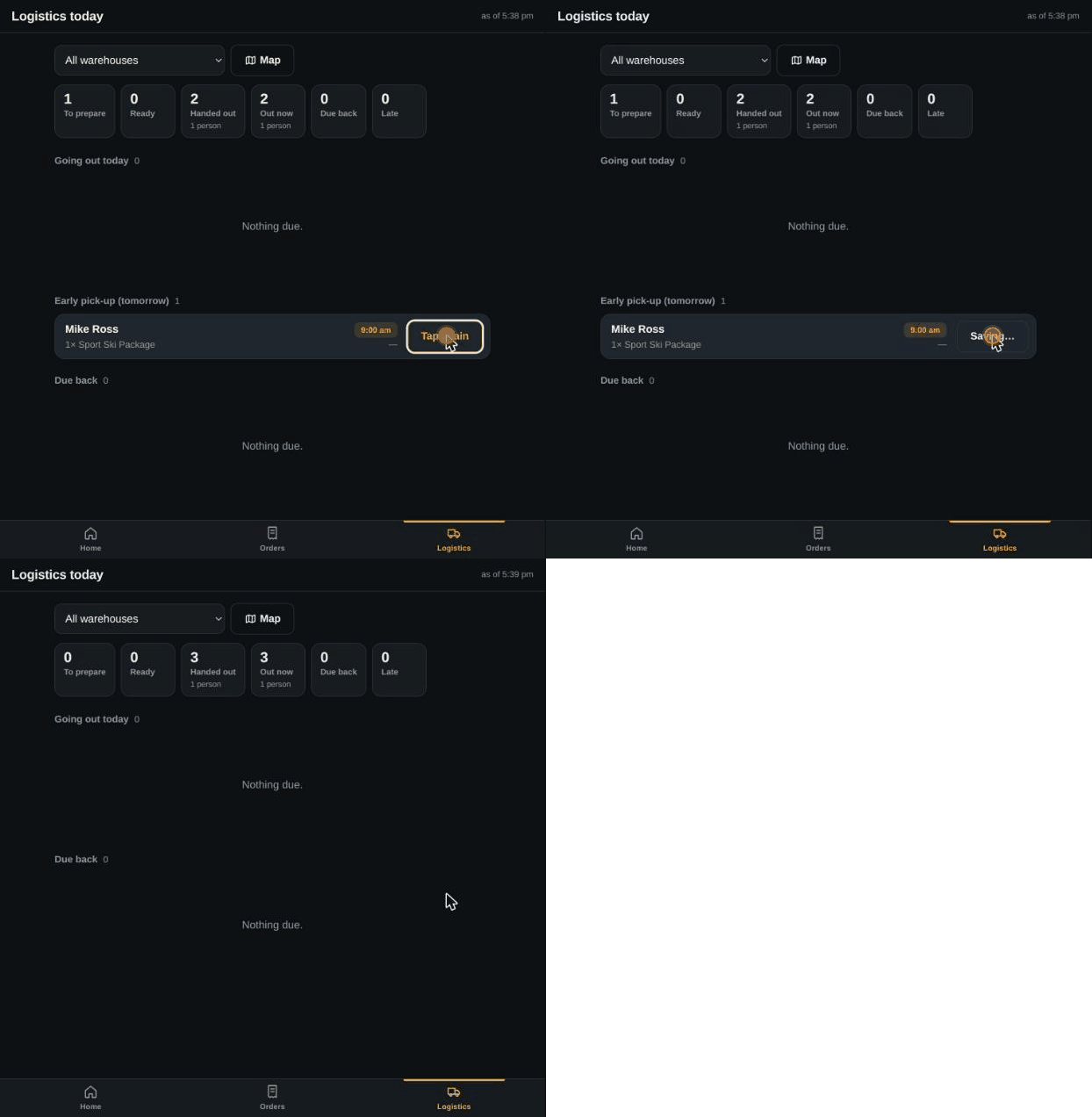
Logistics counts what is waiting and what is out: To prepare, Ready, Handed out, Out now, Due back and Late. The evening before, early pick-ups show up here too. Gear that left without the hand-out screen gets Mark out, tapped twice.
3. Today and tomorrow, store by store
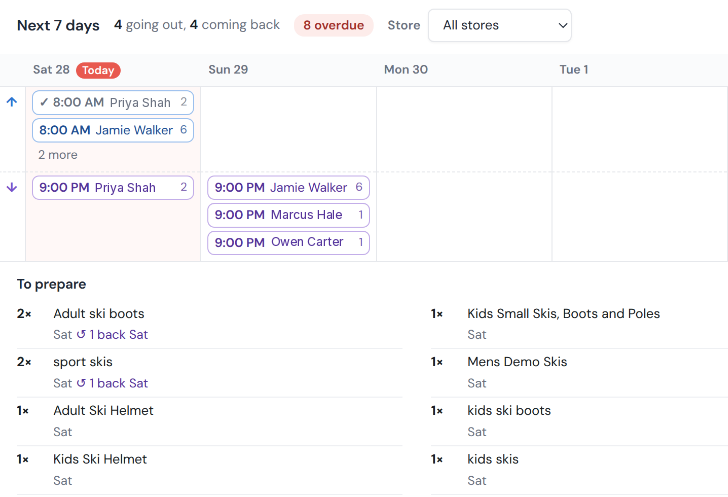
On the Dashboard, the up-arrow row is going out and the down-arrow row is coming back; tap a name to open the booking. Store pick-ups show the customer’s name, never a delivery address. Pick-up starts at 2 pm the day before, so from 2 pm tomorrow’s pick-ups are listed too, and To prepare lists the gear to pull. Pick one store under Store to see only the Village Shop or only the Base Lodge.
Walk-ins
Customers who walk in book on the shop iPad the way they would online, and every skier gives the sizes the binding chart needs.
4. Walk-ins book on the shop iPad
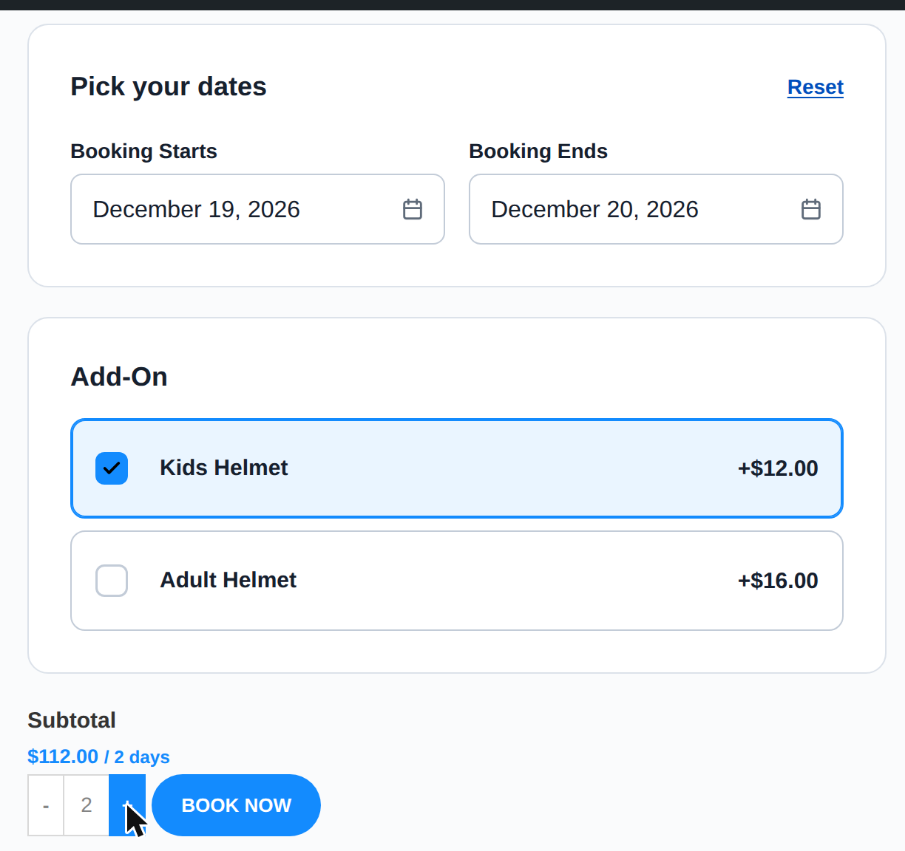
Pick the dates once; they carry over to the next item. Set how many with − and +. A ticked helmet comes with each pair, so two pairs of kids’ skis with Kids Helmet are two helmets. After paying, the customer is signed out on their own, so the next walk-in starts with an empty cart and a blank checkout.
5. Sizes for every skier
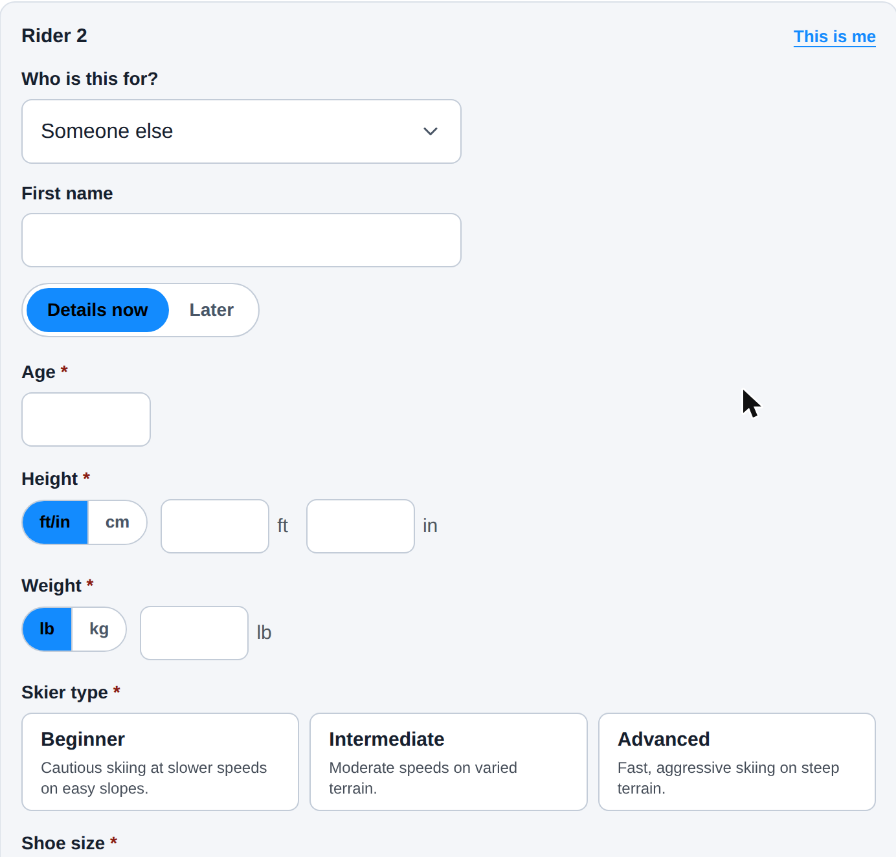
At checkout each person gives age, height, weight, shoe size and skier type: Beginner, Intermediate or Advanced, the three types the binding chart uses. Snowboarders give their ability instead. Booking for a group? Later lets them pay now and share one link, so everyone fills in their own details; the riders use case follows that link.
At the counter
One skier at a time: find the family, check the bindings, hand out to whoever is there, and change the booking when plans change. Every button that changes a booking asks for a second tap within 3 seconds.
6. Find a family by any skier’s name
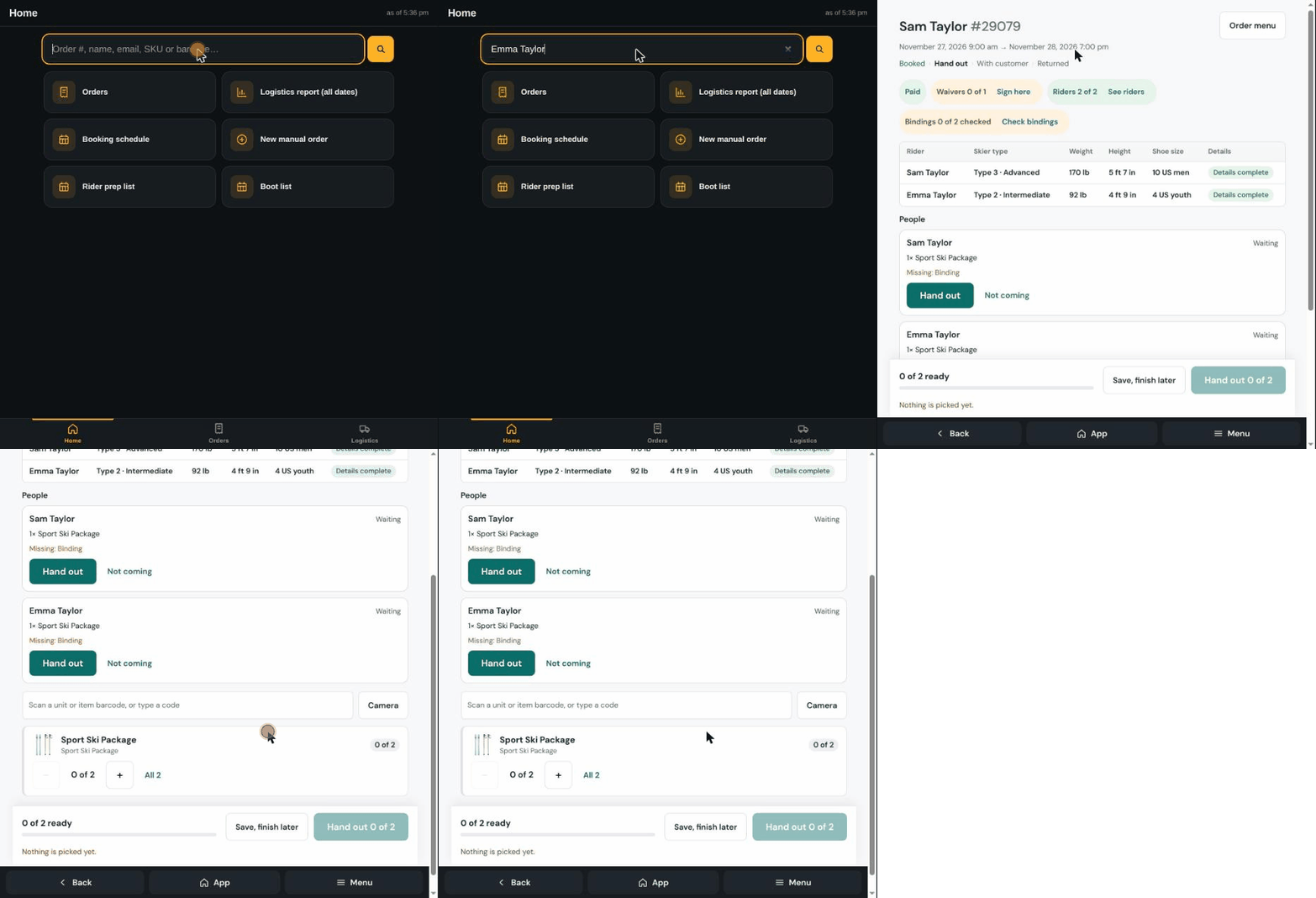
Type any skier’s name in the search box, not only the person who booked. Searching for the child finds the parent’s booking. One match opens it straight away.
7. Hand out one person at a time
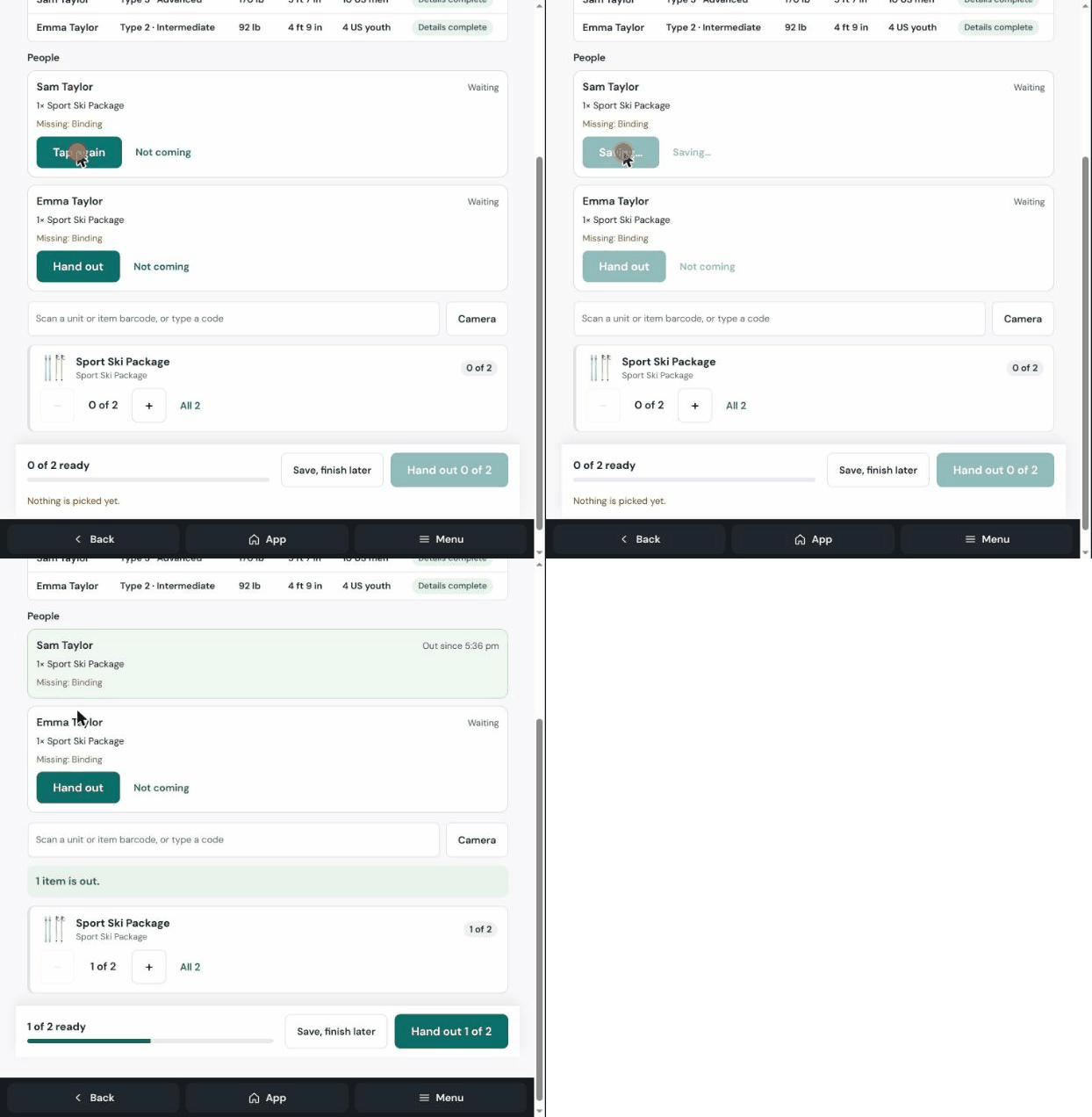
Each skier has a card. Hand out to whoever is at the counter; the rest of the family can come later. A Missing line shows what is still to do for that person. It is a reminder and never blocks the hand-out. Tap Hand out, tap again, and the card turns green with the time it went out.
8. Check bindings
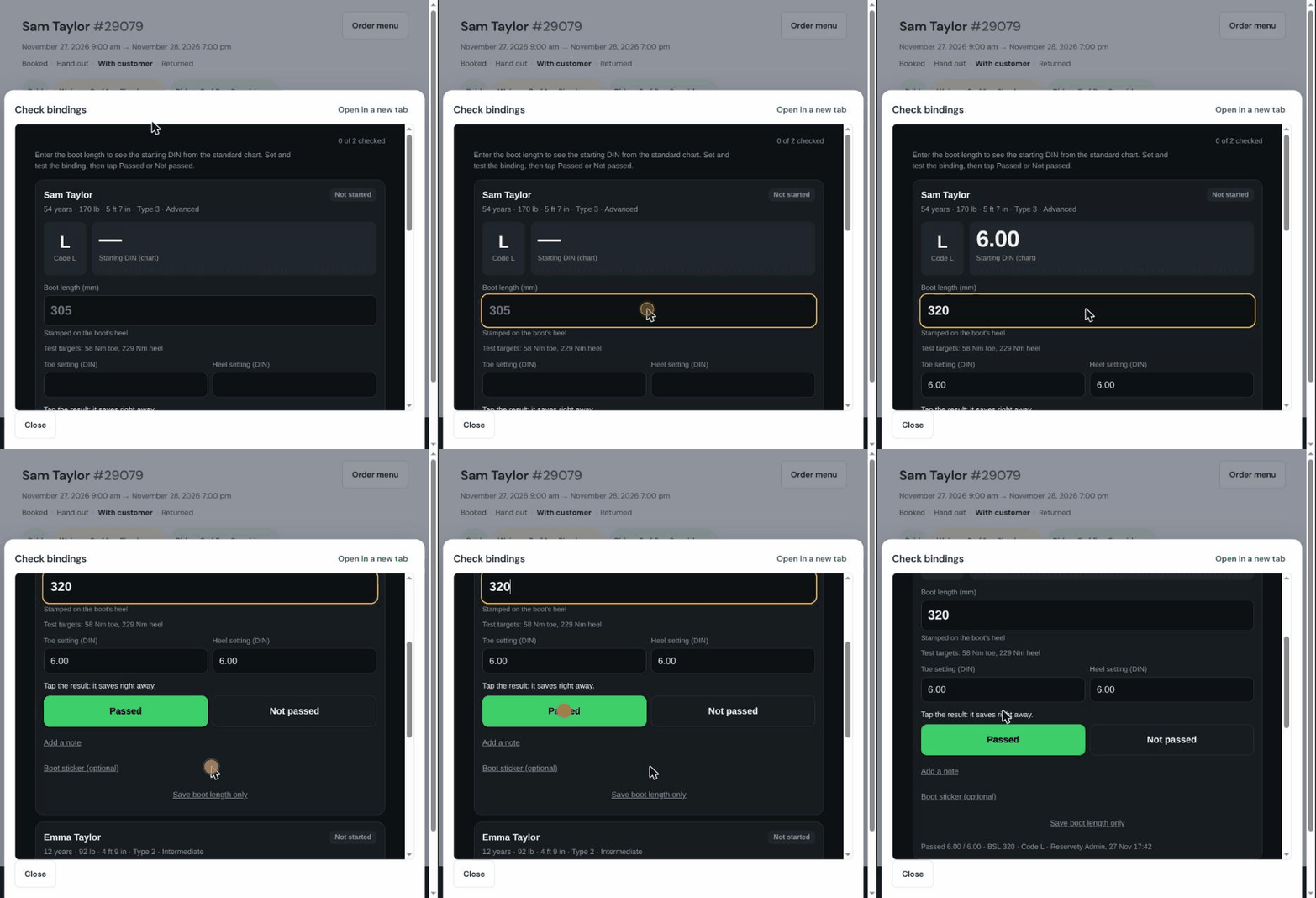
Open Check bindings and type the boot length stamped on the heel. The starting DIN comes from the standard chart, using the skier’s age, height, weight and type: a 320 mm boot on this skier starts at 6.00. Set and test the binding, then tap Passed or Not passed. It saves right away, with the name of whoever checked it and the time.
9. Someone isn’t coming
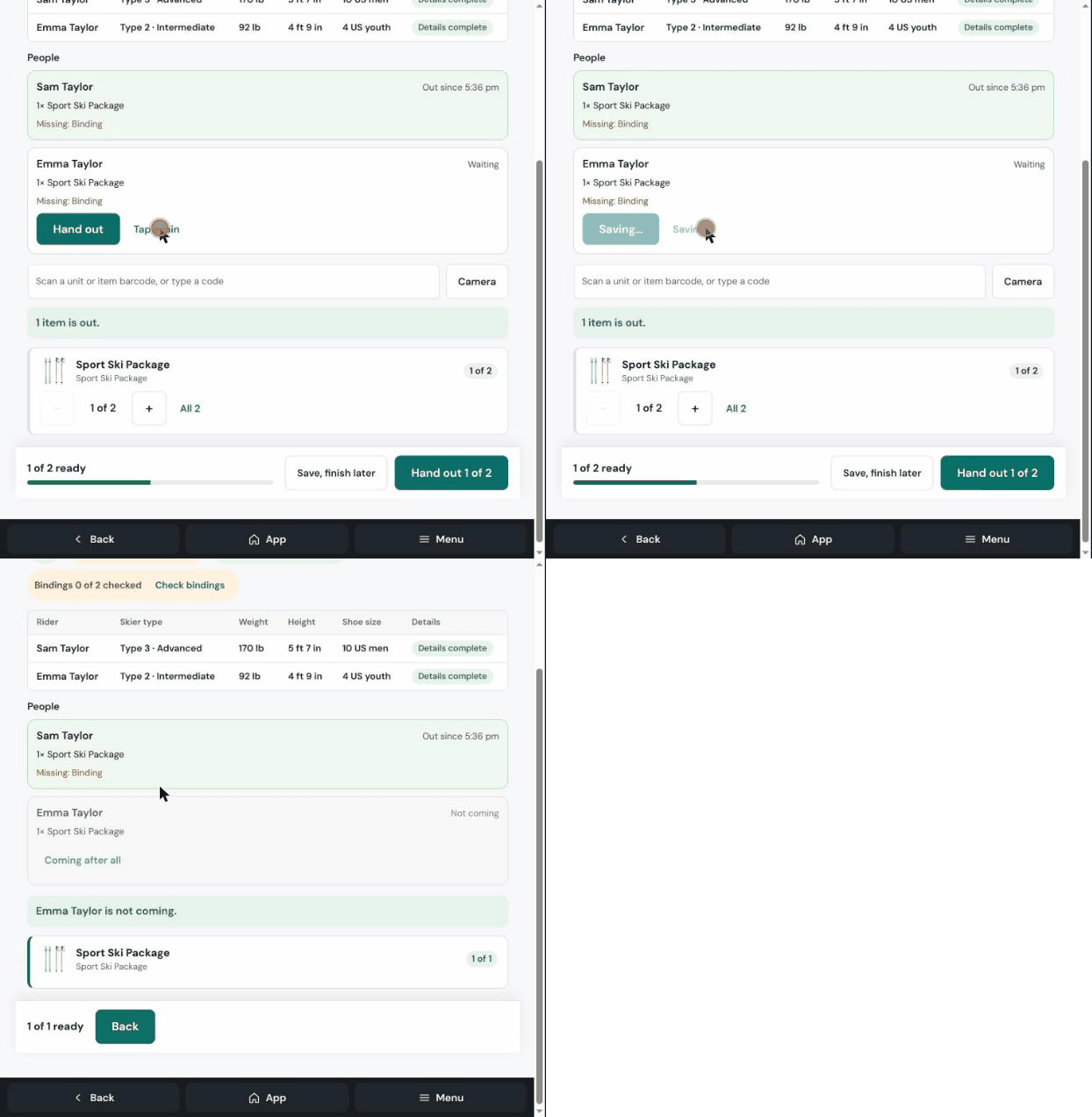
Tap Not coming on their card, then tap again. Their gear goes back on the shelf, free to rent to someone else; the booking price stays the same. Changed their mind? Coming after all brings it back, if it is still free.
10. Leave an item behind
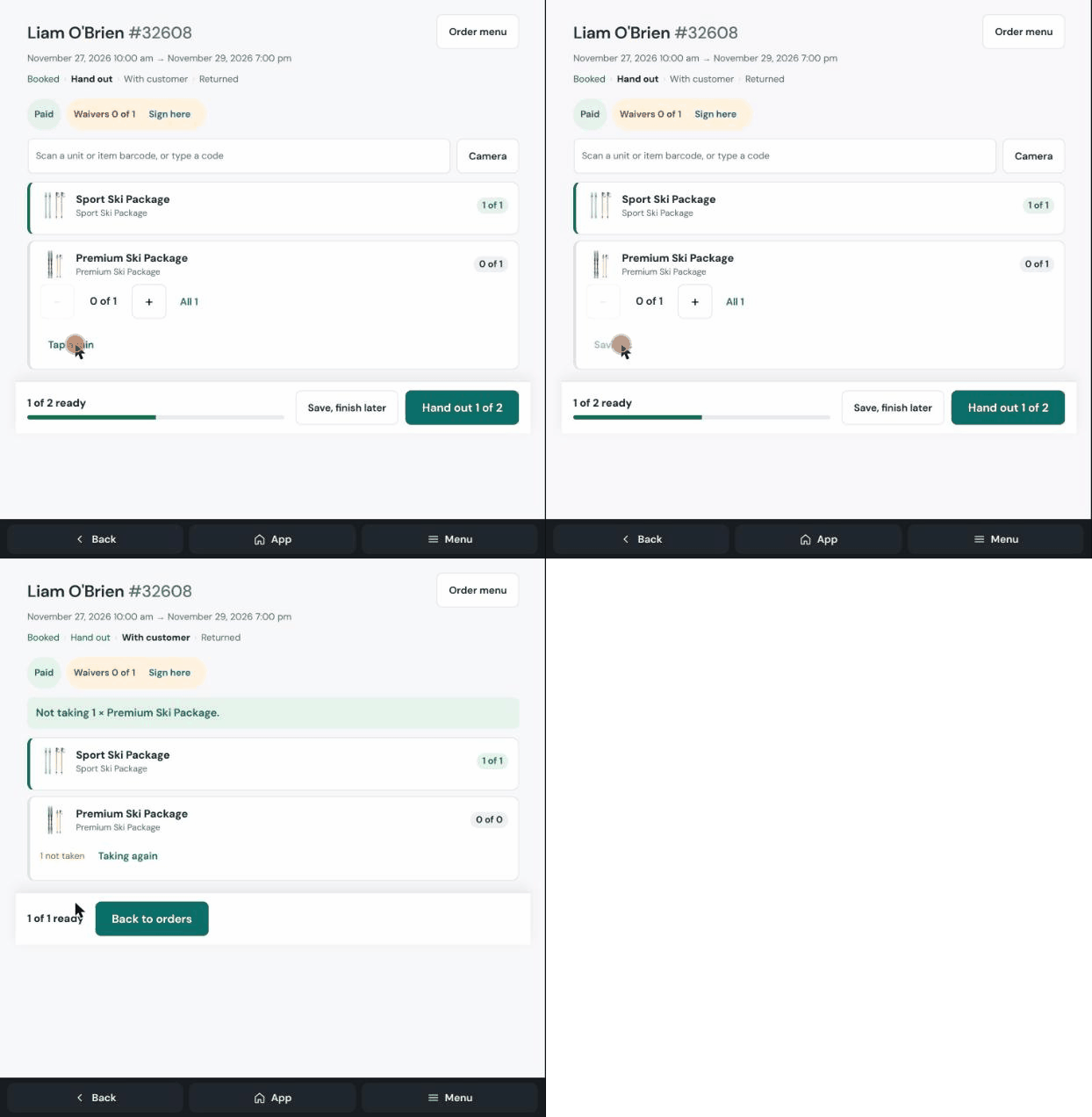
For gear that isn’t tied to one skier, tap Not taking 1 once for each item they leave. Taking again brings it back while it is still free.
Money at the desk
A balance is charged to the card the customer saved, money taken at the register is written down, and a cancellation is refunded first.
11. Take payment for a balance
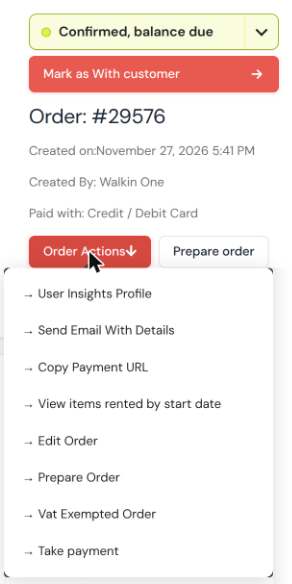
Open the order and choose Order Actions, then Take payment. It opens the customer’s payment page with their saved card, ready to charge. Paid at the register instead? Record it under Transactions as cash, the shop’s till or another card terminal.
12. Cancel and refund
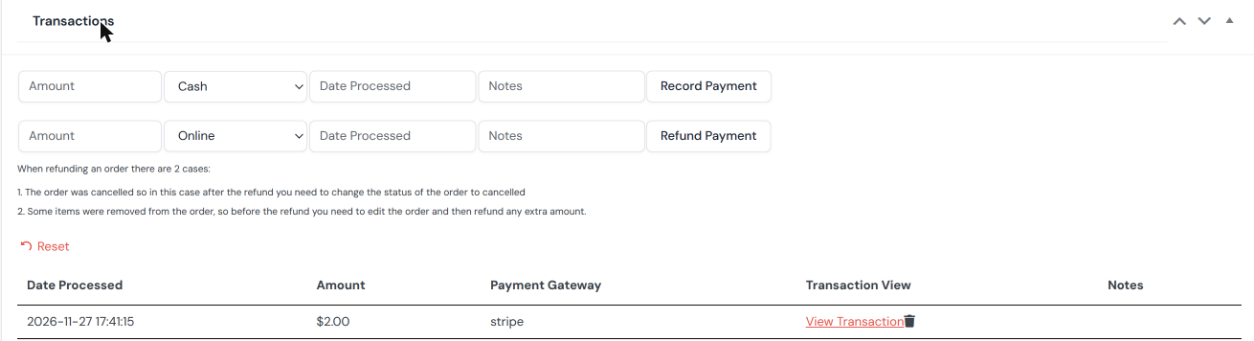
Refund first: under Transactions, type the amount, leave Online selected to send it back to the card, and tap Refund Payment. Then set the order’s status to Cancelled. A deposit refunds the same way.
Coming back
Gear comes back person by person or by scanning, to either store, and damage is written down at the counter.
13. Take it back
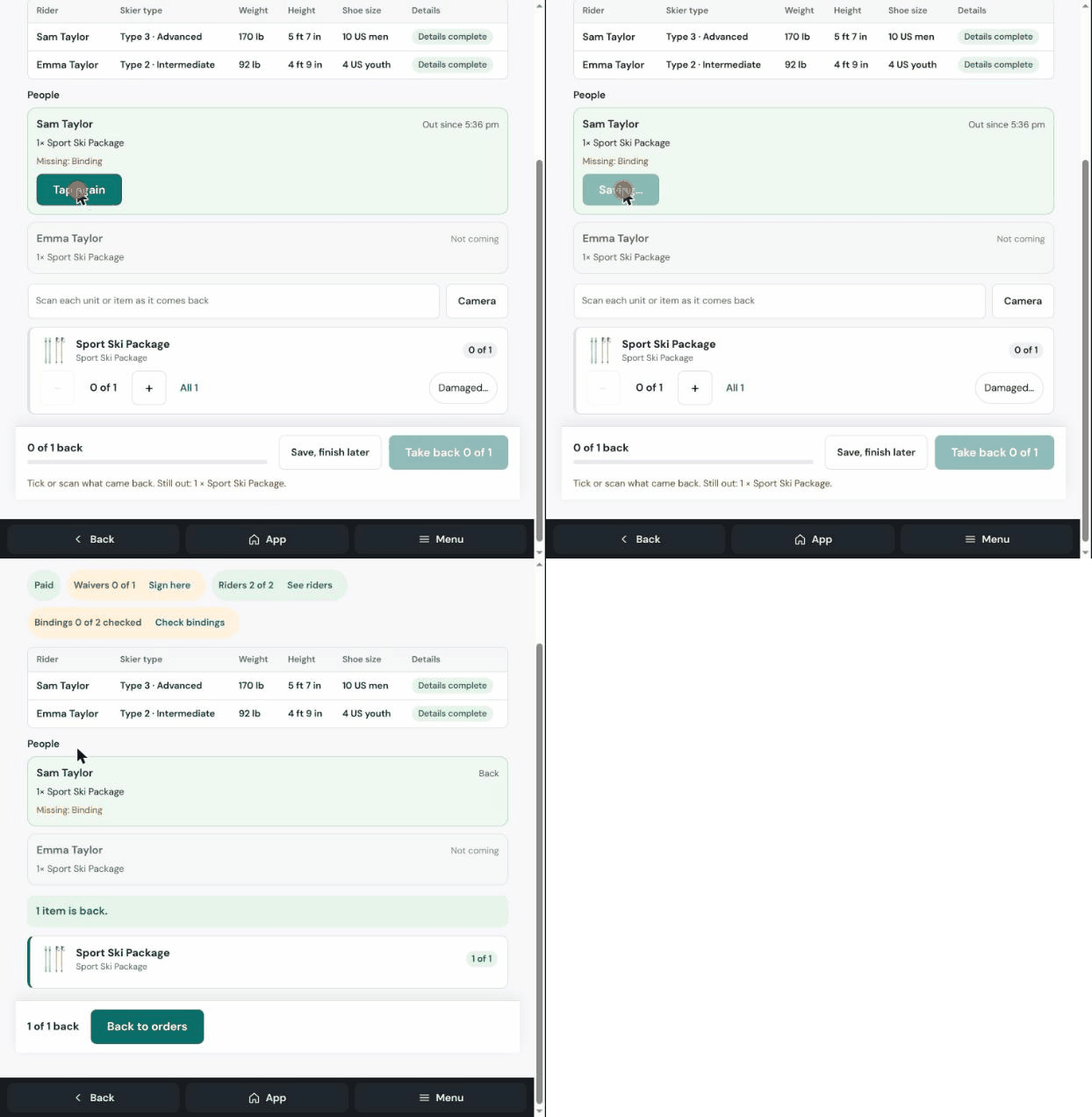
Find them by name again and open Take back. Tap Returned on each person’s card as they come in, or scan the items. Dropped at the other store? Pick it under Returned to, as the riders use case shows. Damaged… records a problem with an item.
What this proves
- A stray tap changes nothing. Every button that changes a booking asks for a second tap within 3 seconds.
- The counter works per skier. Each person is found by their own name, handed out on their own card, and can come later than the rest of the family.
- Bindings are on record. Boot length, the starting DIN from the chart, and Passed or Not passed, with who checked it and when.
- Plans can change at the counter. Gear someone doesn't take goes back on the shelf for the next customer, and the price stays as booked.
- Walk-ins use the same booking. The shop iPad books with the same dates, add-ons and sizes as the website.
- Two stores, one system. Each store sees its own day, and gear can come back to either one.
Made from two staff guides written for a ski rental shop with two stores, renamed: Kestrel Peak Ski & Bike, the Village Shop and the Base Lodge are made up, and so are the skiers. The clips were recorded on a test copy of the system; the still screenshots come from the shop’s own site, with test bookings. Changed: the other customers’ names on the dashboard were replaced with made-up ones, and the order screen is cut to its left column.
Start Your Rental Business the Right Way
Reservety handles your website, bookings, inventory, and payments — so you can focus on growing your business.