Home/Use Cases/Four skiers, sized before they arrive
Use case · Ski & bike shop
Four skiers, sized before they arrive
A day at Kestrel Peak Ski & Bike, a made-up ski and e-bike rental shop: the Bennett family books four ski packages online, gives each skier's sizes before they arrive, and the desk gets their gear ready, hands it out and takes it back; a driver delivers and collects e-bikes. The Reservety team switches rider details on and sets up your forms; this page is about using them every day.
THE SHOP
Kestrel Peak Ski & Bike
STORES
Village Shop, Base Lodge
THE FAMILY
Laura, Tom, Ben, Ella
PICK-UP
Friday, 9 am
PART 1
Before they arrive
The customers do the typing: each rider's sizes and waiver come in at checkout, from the thank-you page, from a reminder, or from one link in the family's group chat.
1. At checkout, everyone gets a card
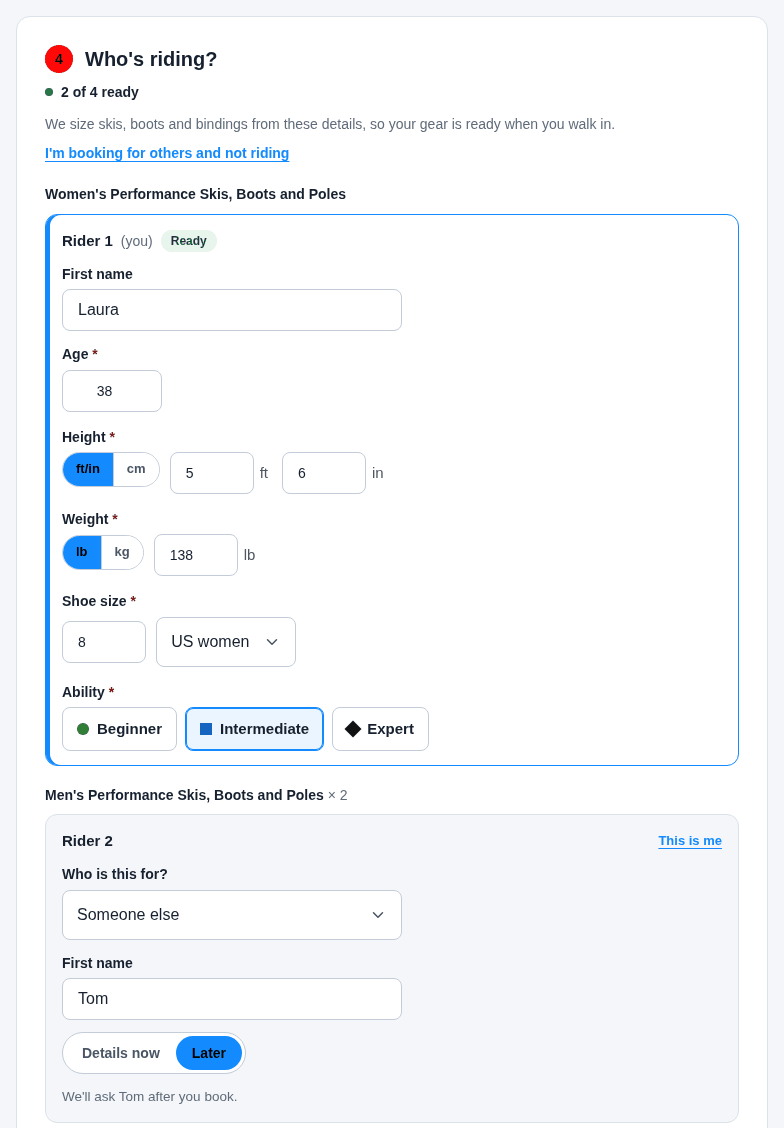
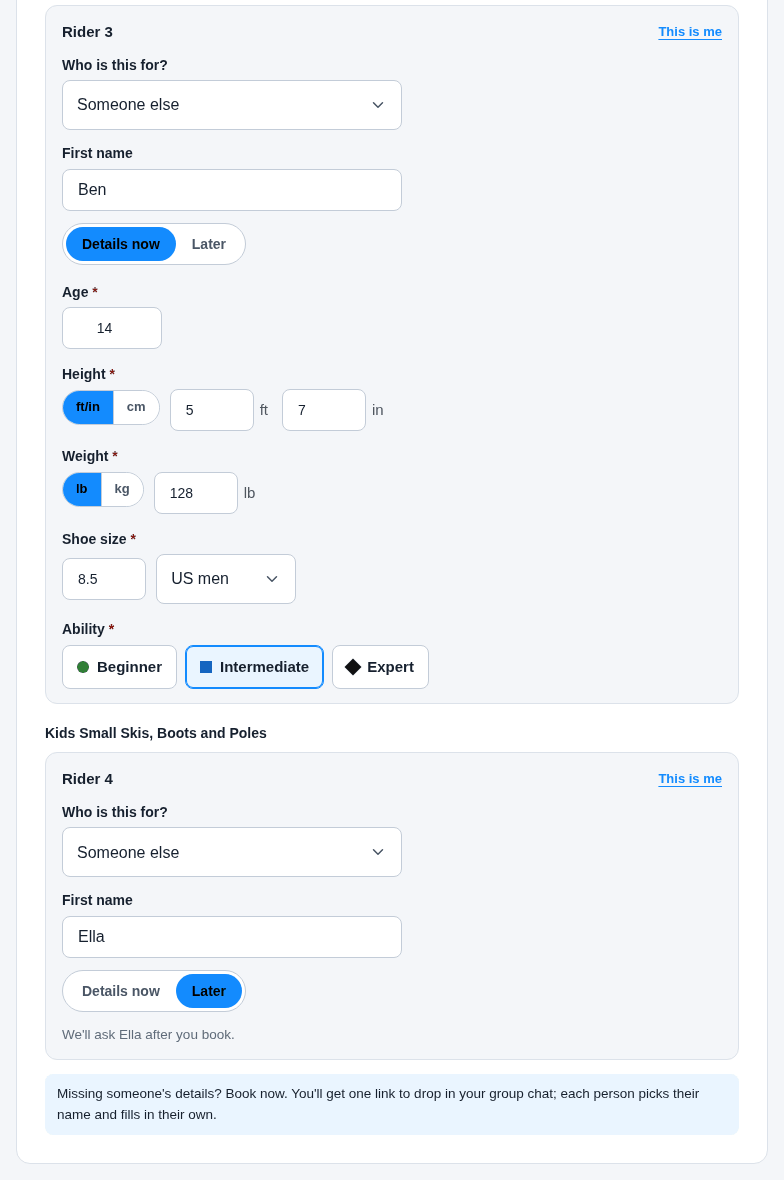
Before paying, the customer sees Who's riding?, with one card per person on the booking. Rider 1 (the person booking) fills in everything: checkout can't be paid until that card is complete. For everyone else, a first name is enough: pick Details now to fill in their sizes straight away, or Later to leave them for afterwards. When one person rents two things, Who is this for? puts both on the same card, so nothing is asked twice. Someone booking only for others clicks I'm booking for others and not riding. The line under the heading counts who is ready.
2. The thank-you page asks for what's missing
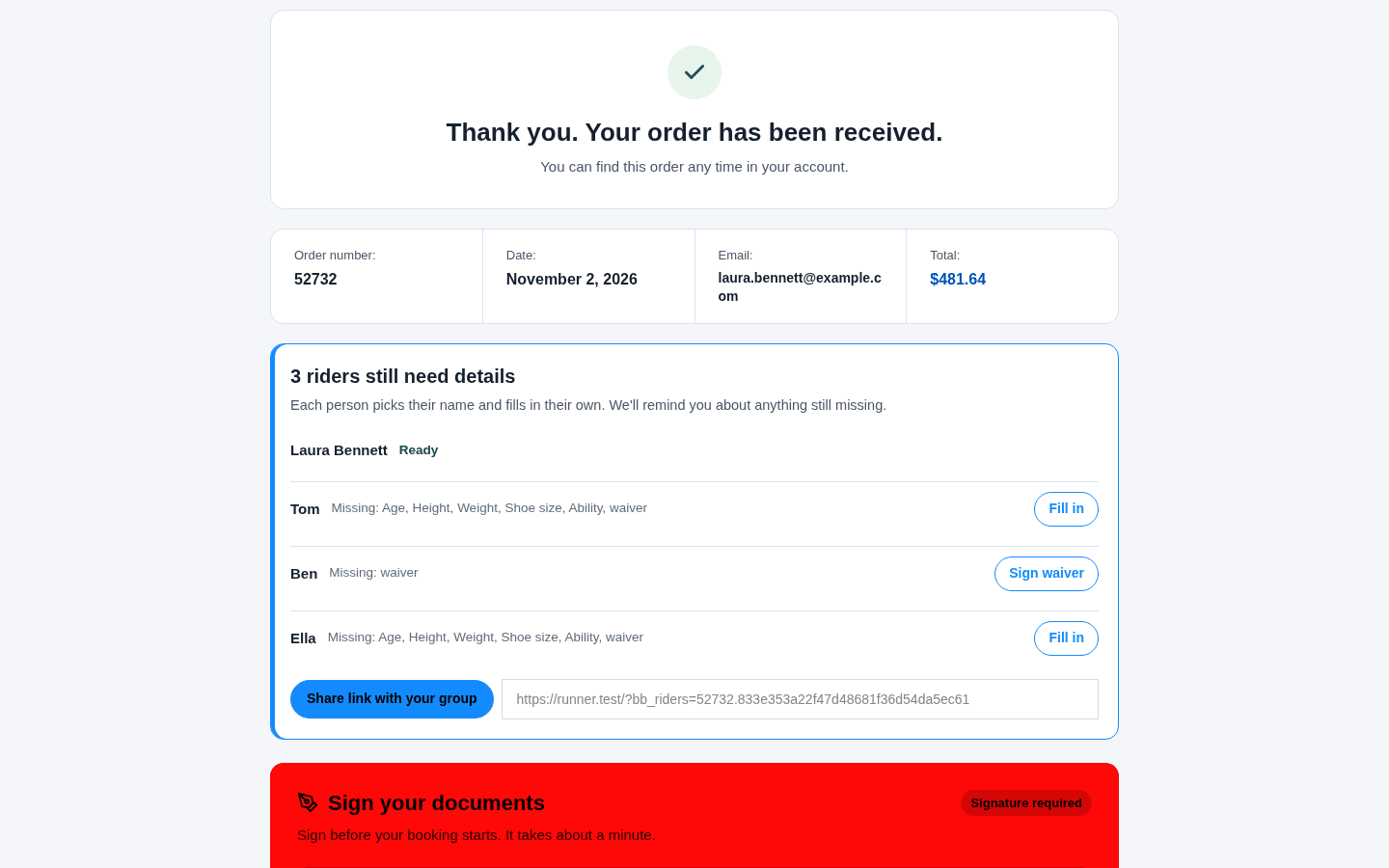
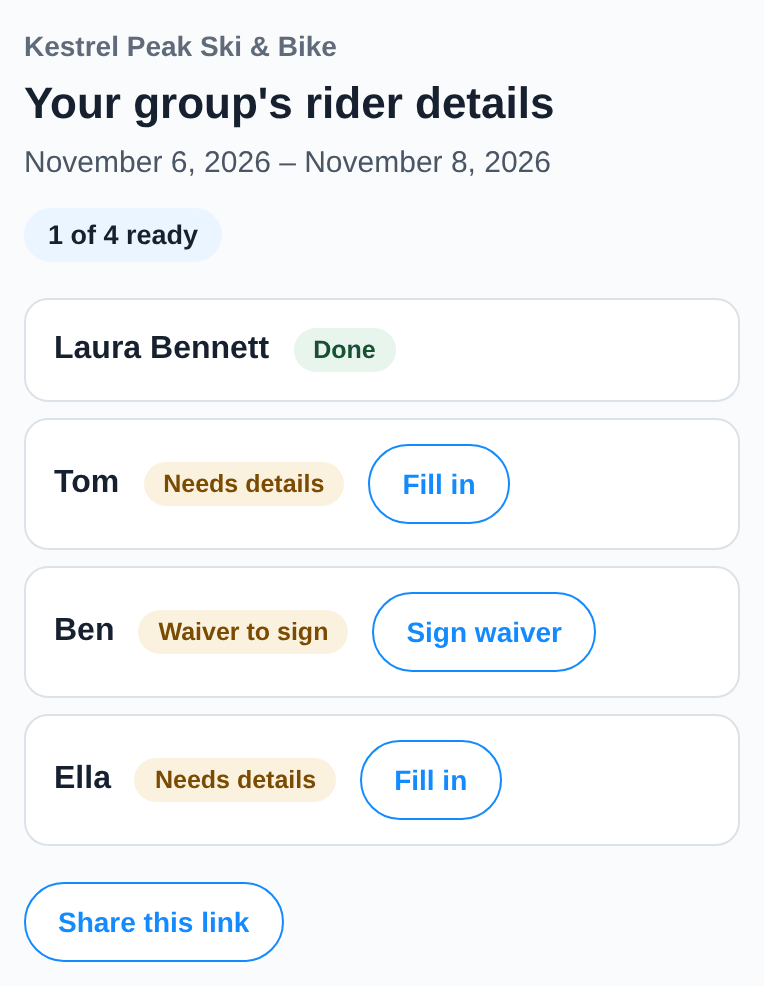
Right after booking, the thank-you page lists every rider and what each one still owes. Laura can Fill in a child's details herself, or click Share link with your group: one link for the whole family's group chat, where each person picks their own name. The same list is in the order confirmation email.
3. Reminders name who is missing what
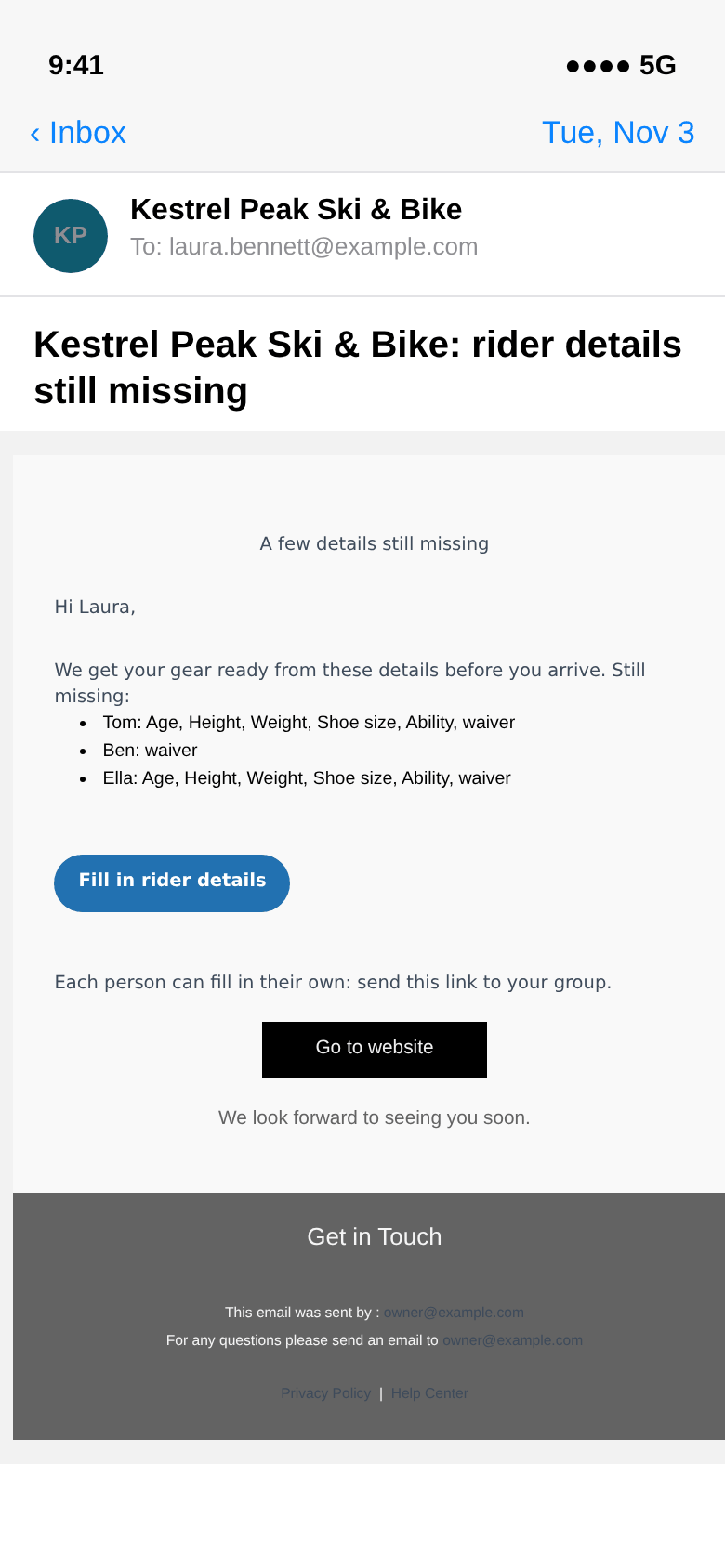
Three days before the booking, and again at 9 am the day before, Laura gets a reminder that names each person and what they still owe, with a Fill in rider details button. Reminders stop as soon as everyone is complete, and nobody is reminded about details that are already in. (The email is the one Reservety sends; the phone around it is drawn.)
4. The group link: pick your name
The group link needs no account. It shows first names and who is done, never anyone's answers. Each person taps Fill in next to their own name. A rider whose details are in but still owes the rental contract shows Sign waiver.
5. Each person fills in their own
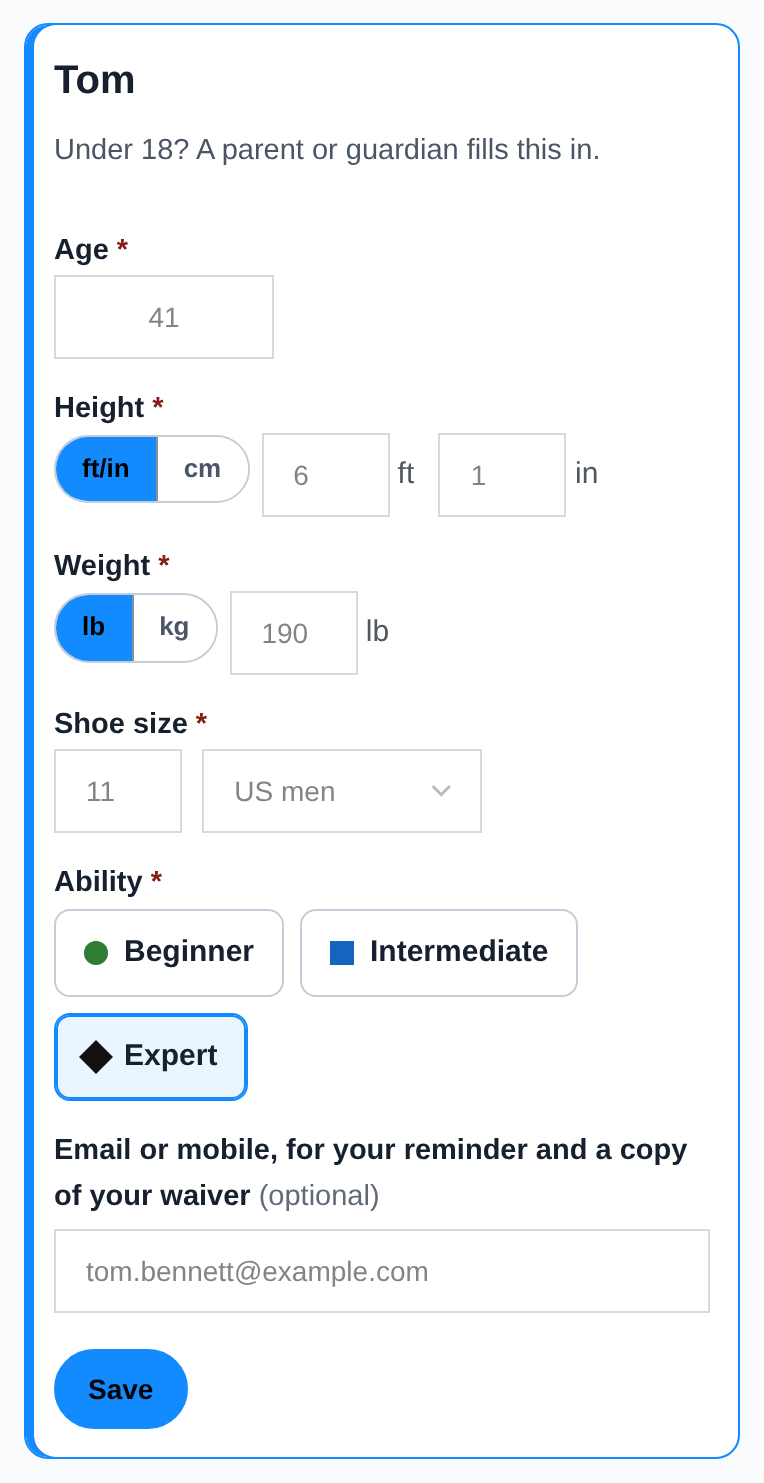
Tom opens his card and gives his age, height, weight, shoe size and ability. Heights and weights can be typed in feet and pounds or in centimeters and kilograms. He can leave an email or mobile number for his own reminder and a copy of his waiver, then taps Save.
6. Then the waiver
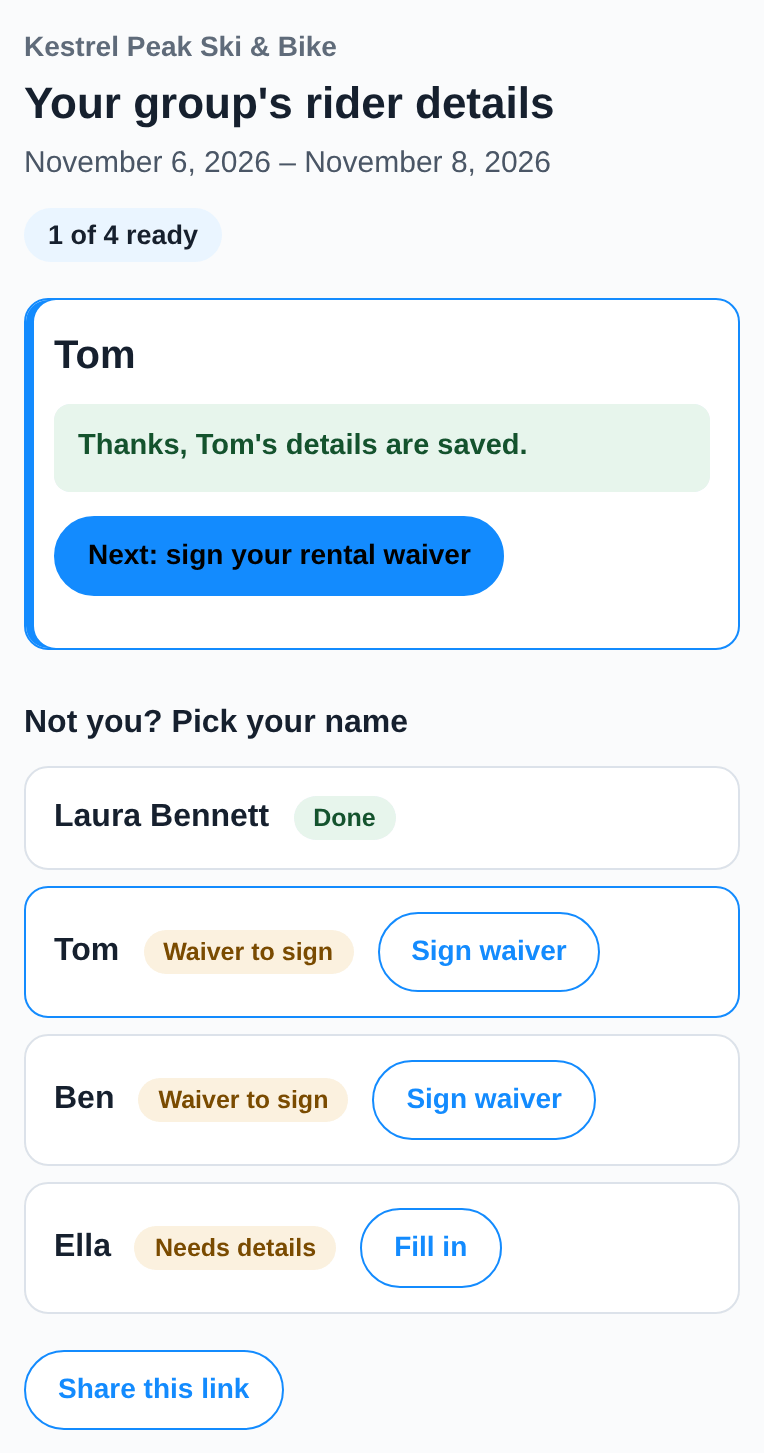
Once his details are saved, the card says so and offers Next: sign your rental waiver. Adults sign their own; for anyone under 18 the card says the person who booked signs, and a locked card can only be changed by the person who booked or by your staff.
7. Signing the contract
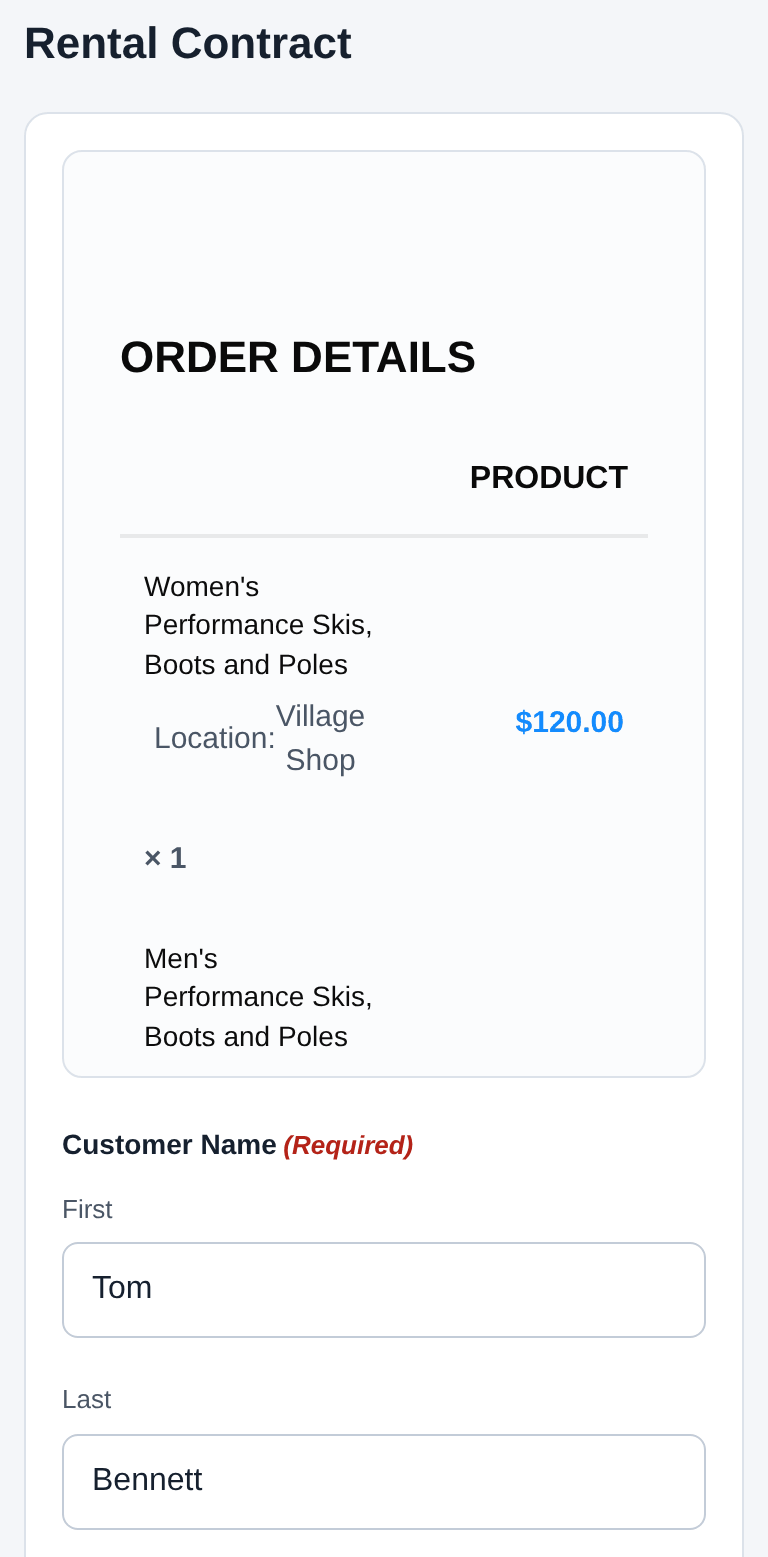
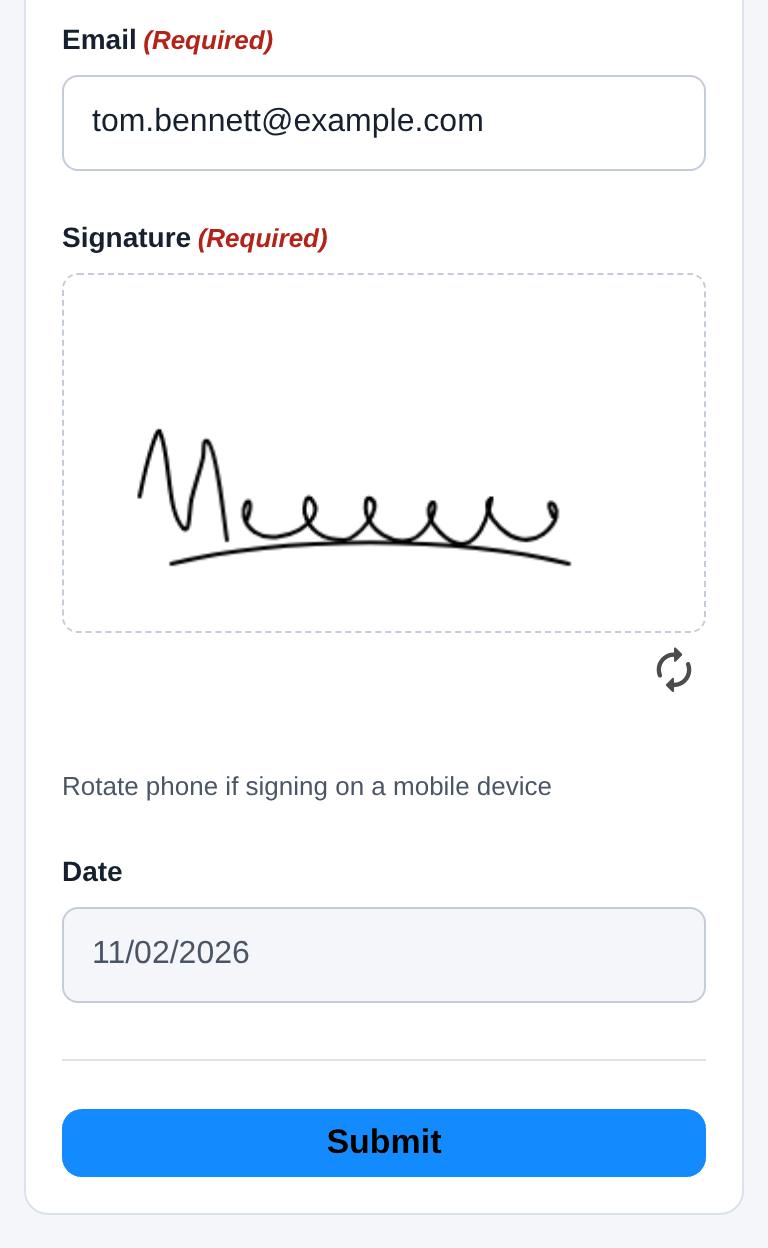
The rental contract opens with Tom's first name already in it. He adds his last name and email, signs with his finger and taps Submit. The signature is counted as his, so the booking knows exactly whose contract is still missing.
PART 2
The day before
The workshop sets the gear from one list, and the desk calls only the families who still owe something.
8. The rider prep list
Where: Bookings → Rider prep list
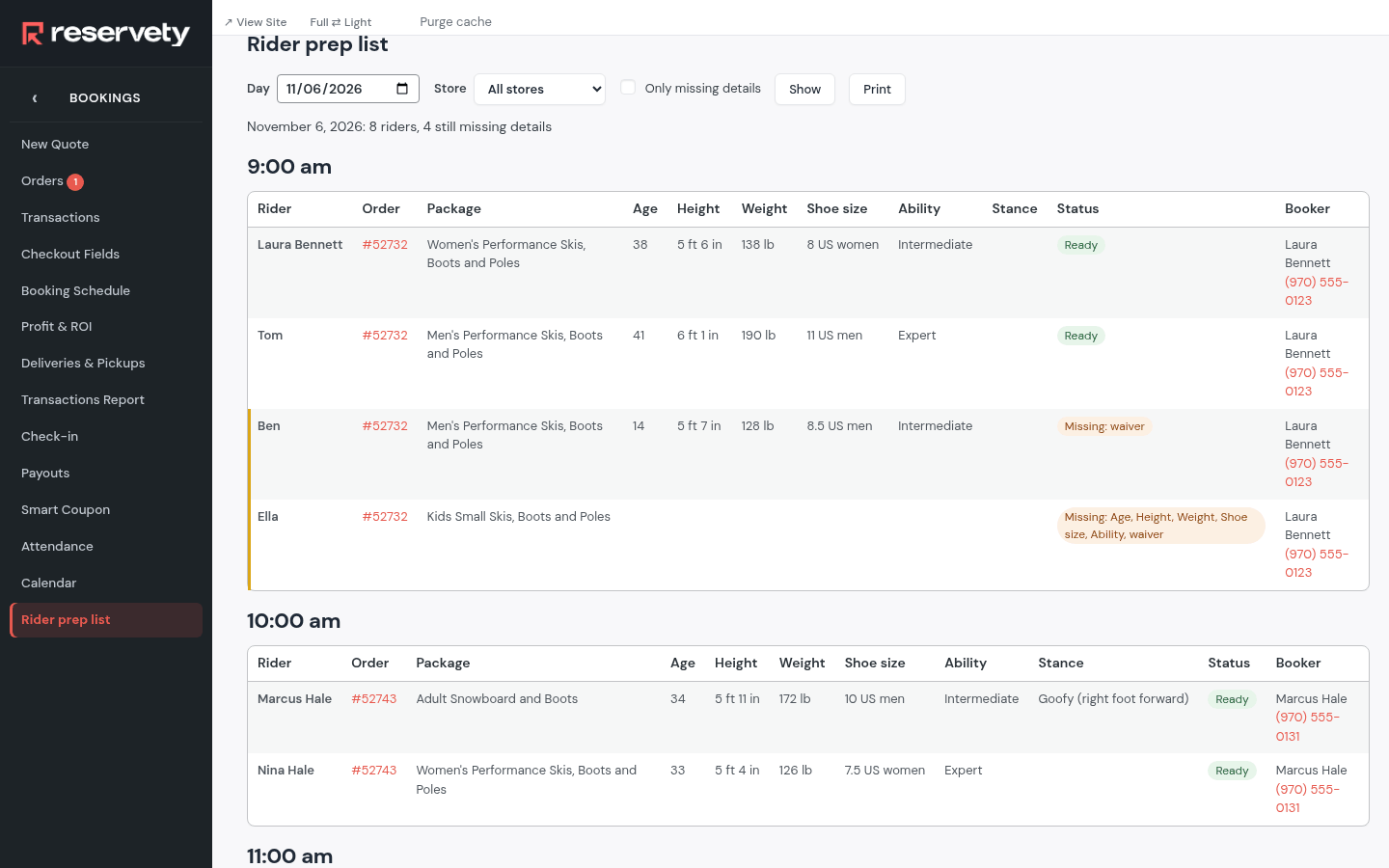
Rider prep list shows one day and one store: every rider grouped by pick-up time, with their sizes in columns, their package, what is missing and the booker's phone. Pick the Day and the Store, then Show. Print gives the workshop a paper copy to set skis and bindings from.
9. Who to call
Where: Bookings → Rider prep list
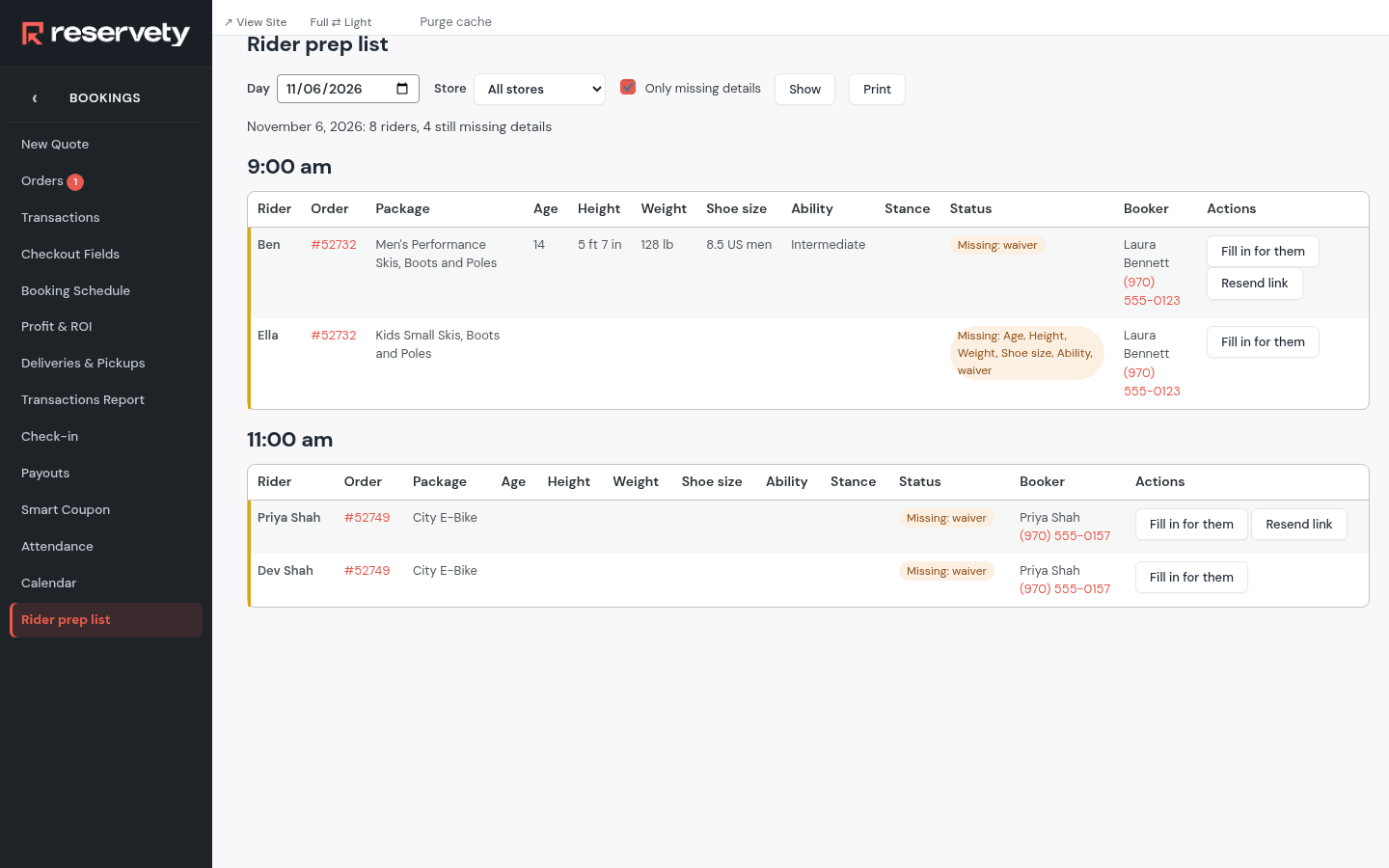
Tick Only missing details for the call list: only the riders who still owe something, with the booker's phone. Fill in for them opens that rider's card while you have the booker on the phone; Resend link emails the booker the group link again.
10. Fill in a size on the order
Where: Bookings → Orders
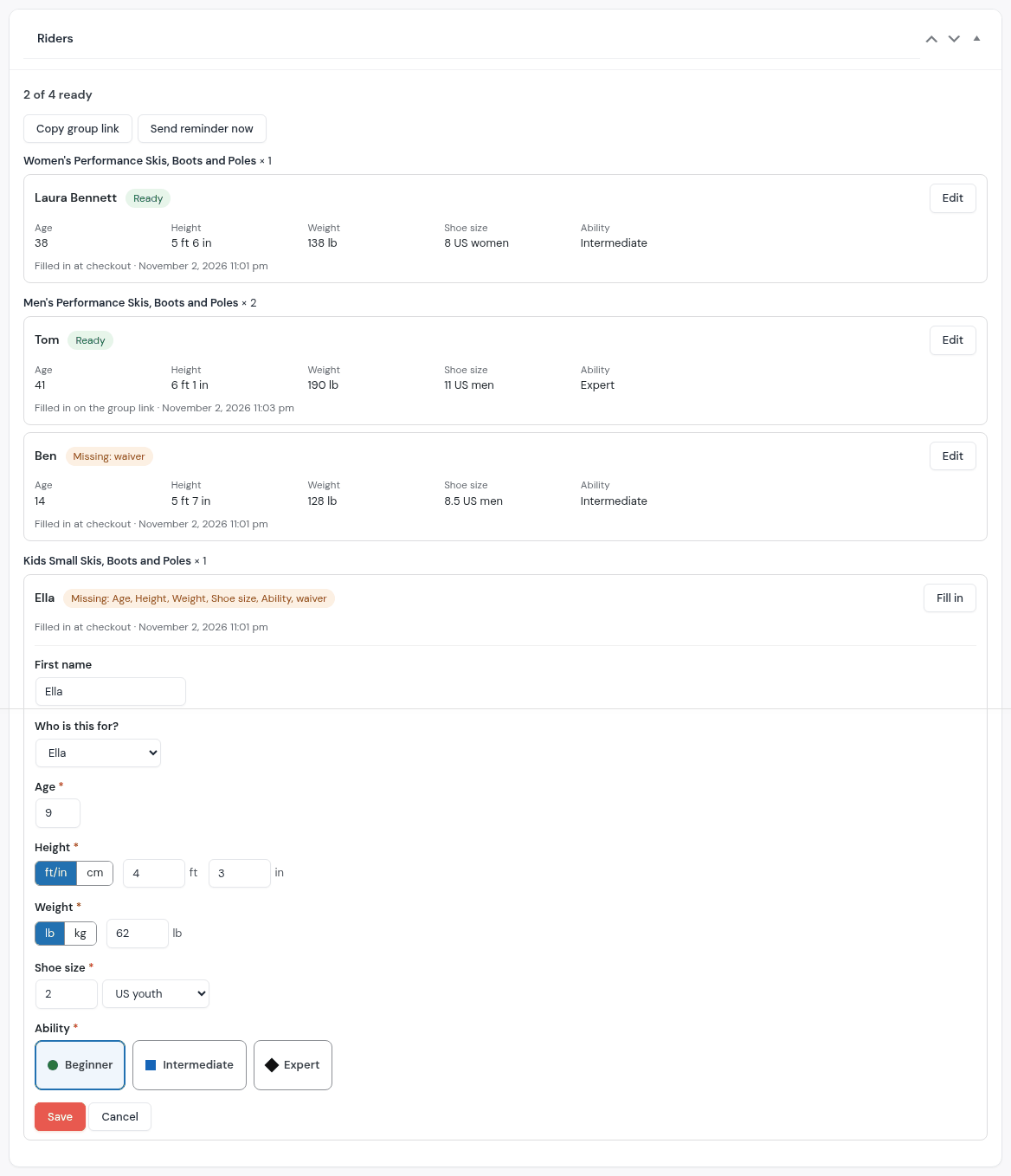
Every order with riders has a Riders box: each person's answers, who filled them in and when. Laura gives Ella's sizes on the phone: click Fill in next to Ella, type them and click Save. Copy group link and Send reminder now are in the same box.
PART 3
At the counter
Prepare order puts what the desk needs on one screen: who still owes what, each rider's sizes next to their skis, then hand out and take back, damage and the deposit.
11. Open the order in the staff app
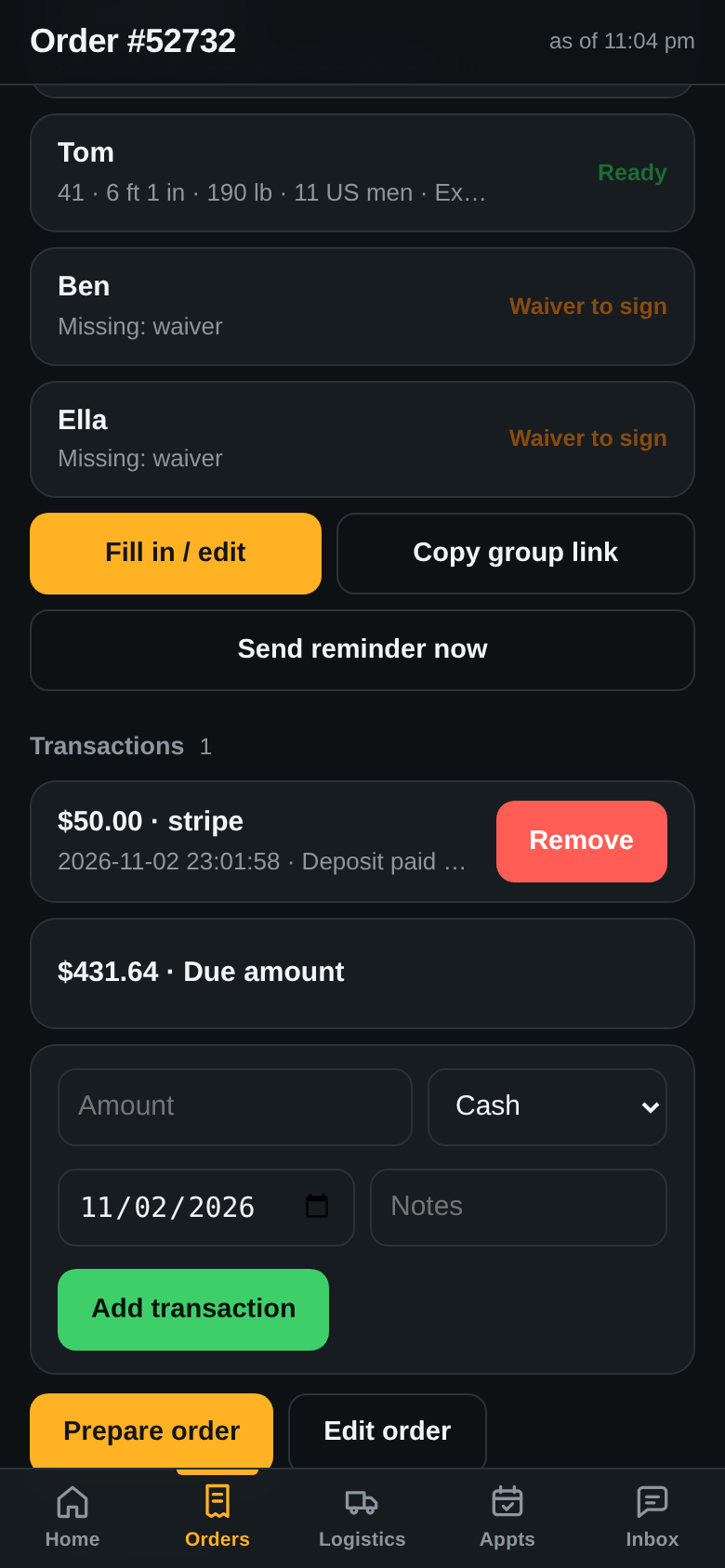
On a phone, tablet or the desk computer, the staff app shows the order with each rider and what they still owe, the payments, and Prepare order to get the gear ready.
12. Open Prepare order
Where: Bookings → Orders
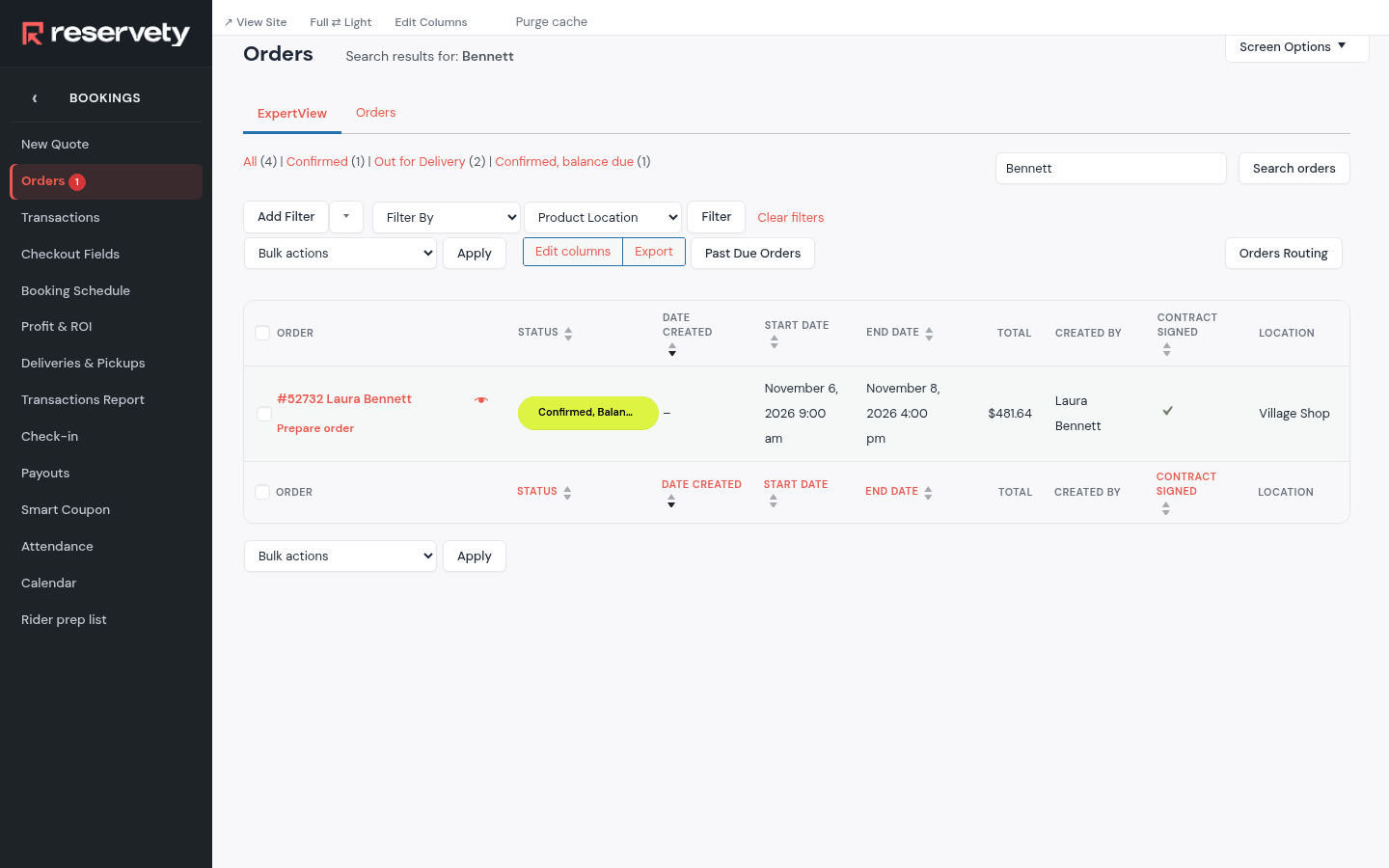
In Orders, Prepare order sits under each order number; on the order's own screen it is a button under the order's details. Both open the screen that gets the gear ready, like the staff app's button.
13. Prepare order: what to check first
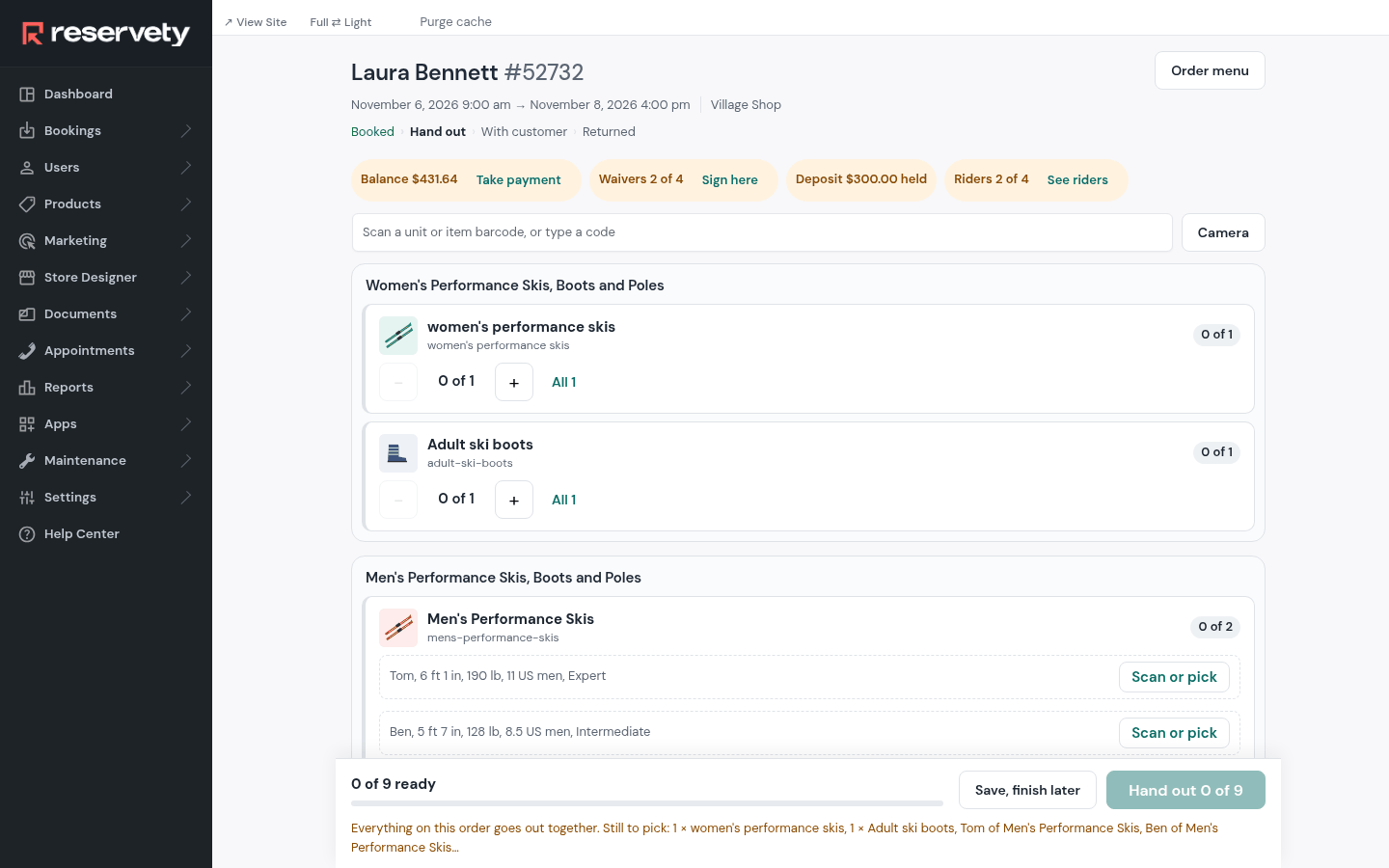
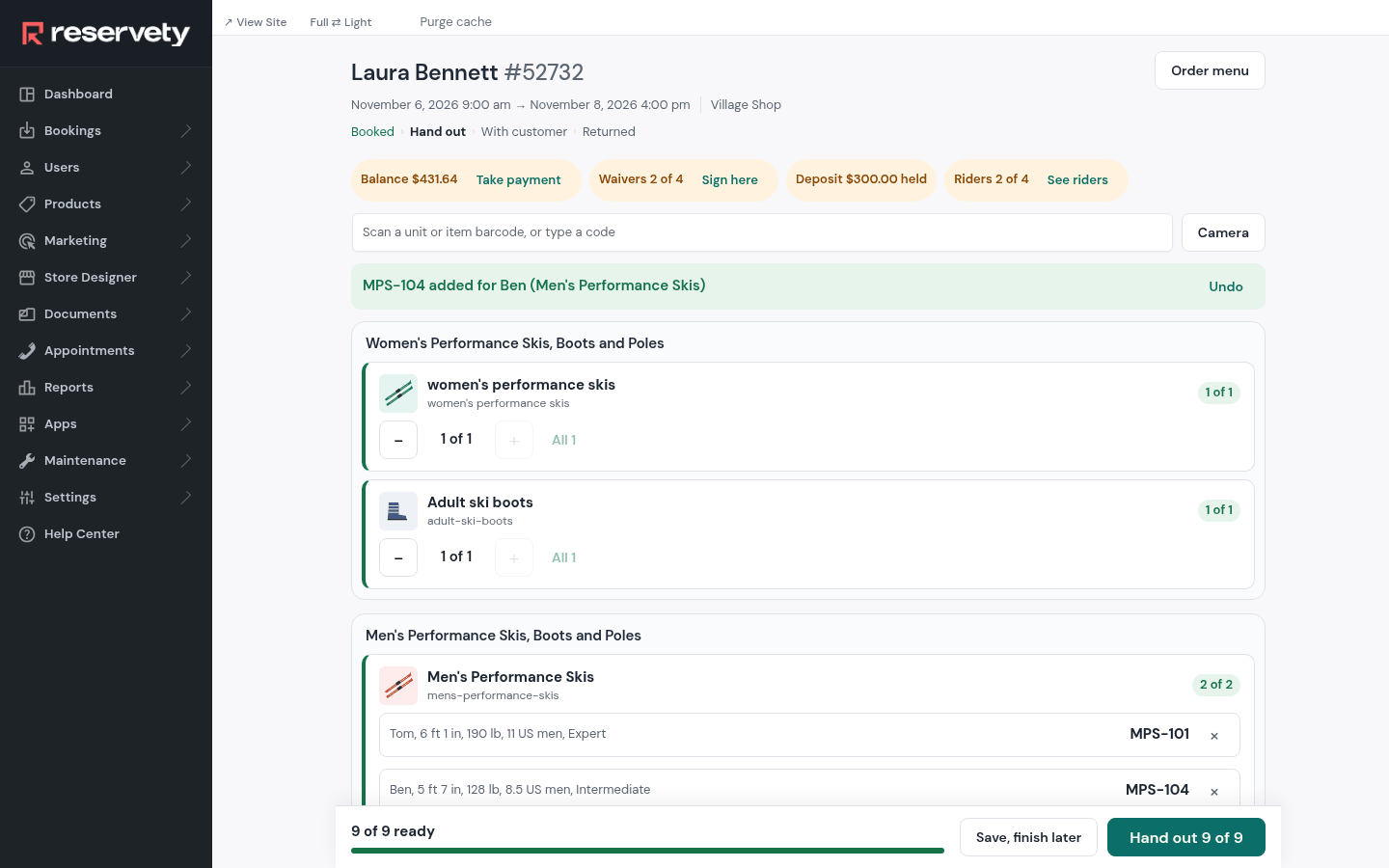
The screen names the job (Hand out) and the order's steps across the top. Under it, the checks: the balance with Take payment, the rental contract, counted per rider (with Sign here while anyone still owes it), the deposit held on the card, and the riders with See riders. They warn but never block the hand-out. Order menu holds the rest: invoice, documents, a private note, Send email, Edit order.
14. The riders, without leaving the screen
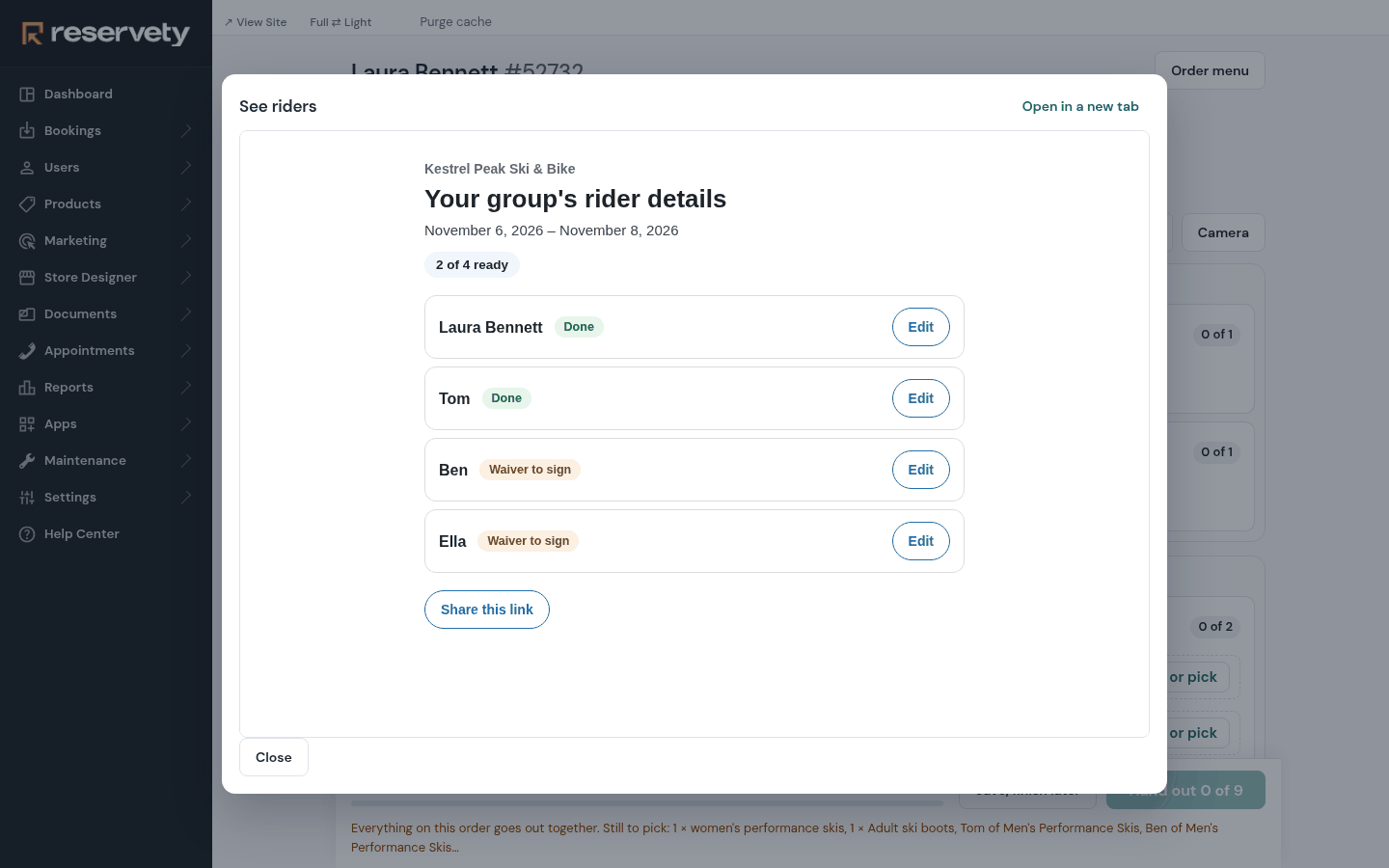
See riders opens the family's riders in a panel on the same screen, so nothing you have picked is lost: who is Done and who still owes details or a contract (Waiver to sign). Ben and Ella are under 18, so Laura signs their contracts at the counter: Edit on their card, then Next: sign your rental waiver; once it is signed the panel closes by itself. Open in a new tab is there if you'd rather hand over a tablet; Close the panel and the checks update.
15. Each rider's skis in their own slot
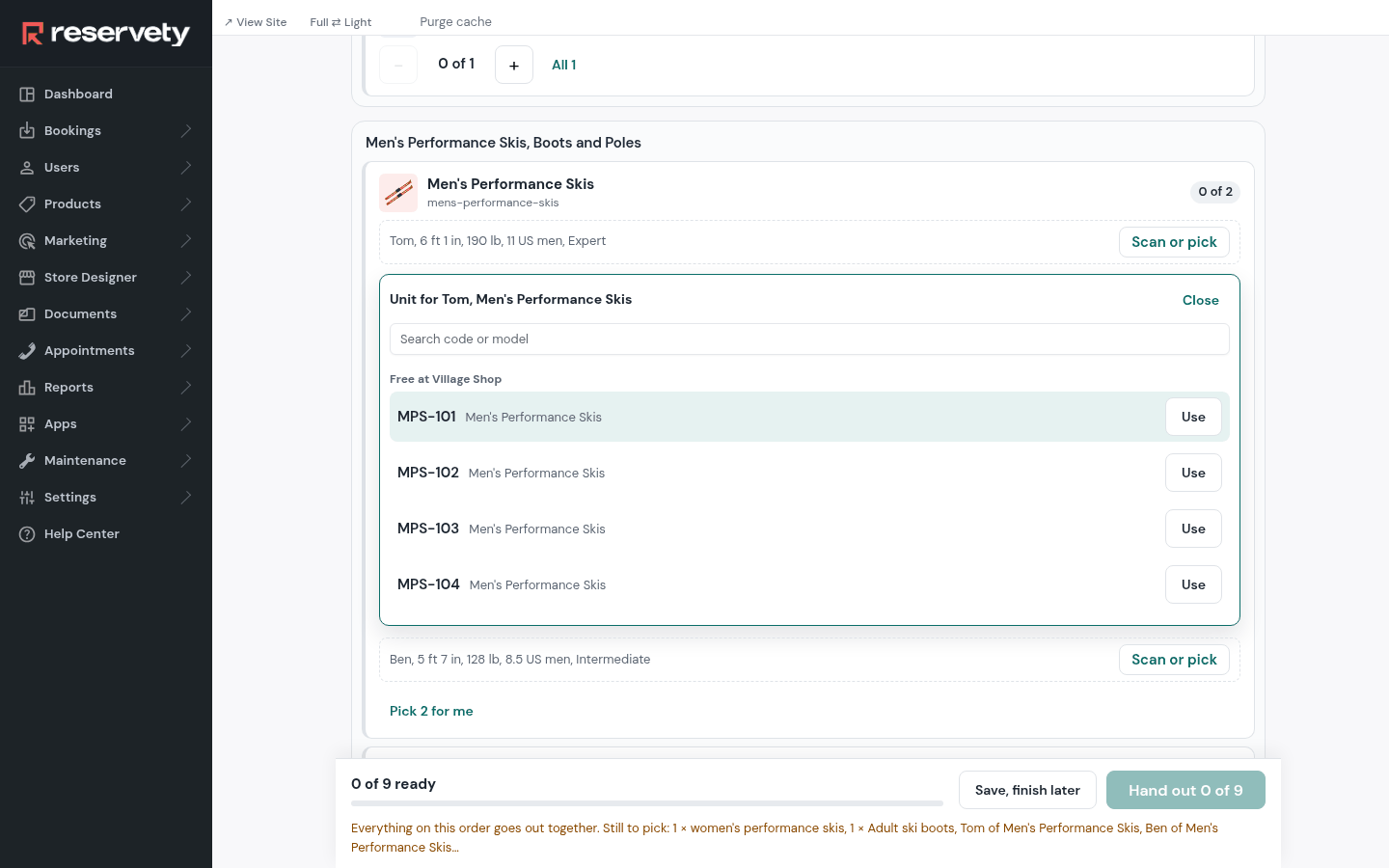
Skis with their own numbers get one slot per rider, labelled with the rider's sizes, so the right length goes to the right person. Click Scan or pick to see the units free at this store and Use one; units that are booked, out of service or at the other store are listed greyed, with the reason. Pick 2 for me fills every empty slot at once.
16. Scan, or count
A scanner gun, the Camera or a code typed in the scan box fills the next empty slot and says so, with Undo. Boots, poles and helmets are counted: − and + change the count, All takes the whole line. The bar at the bottom counts what is ready.
17. Hand out asks once
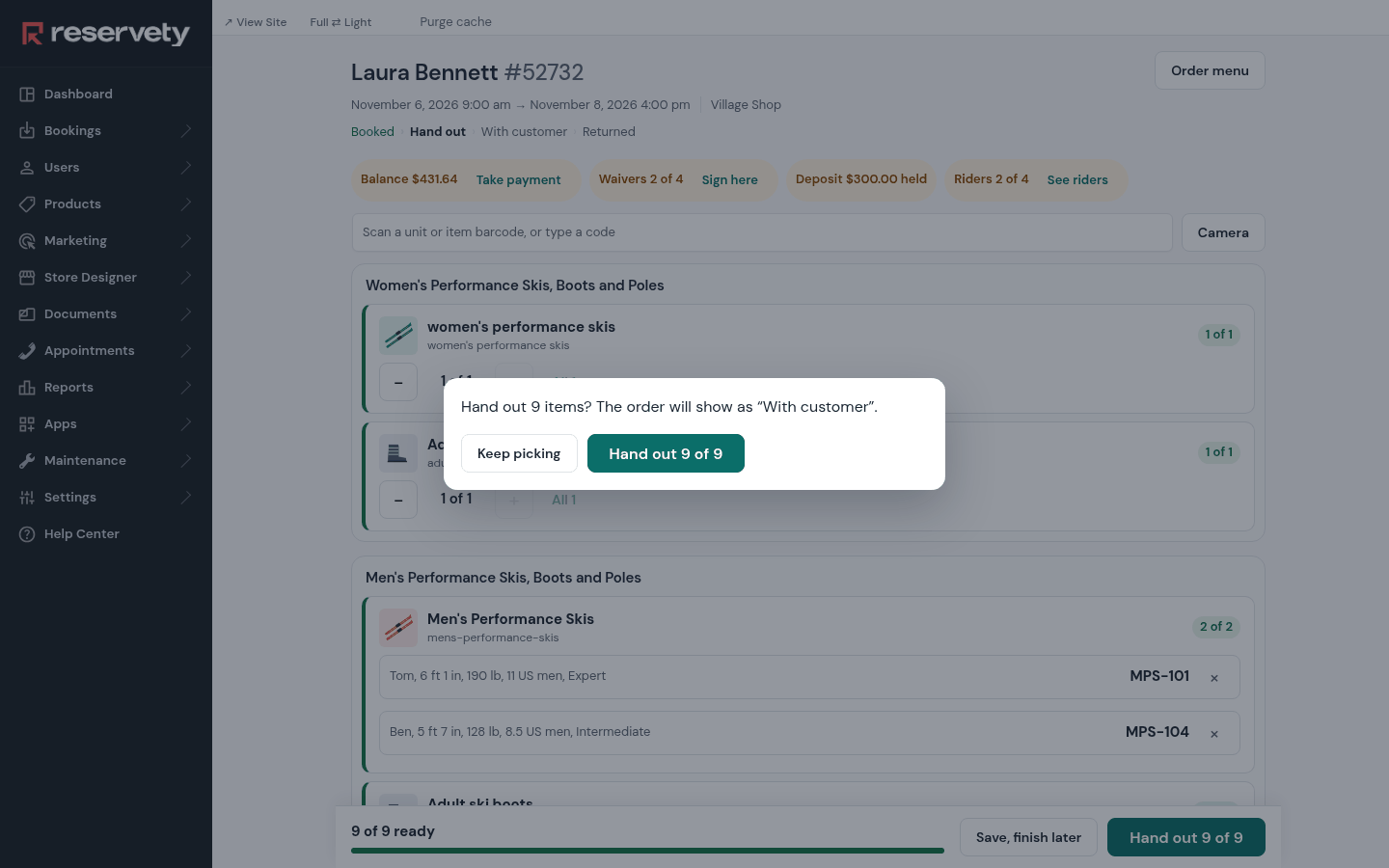
The one main button names the job and the count. It asks once, saying what will happen, then the order shows With customer. Here everything on the order goes out together: until every line is ready, the button stays off and says what is left. If your shop allows partial hand-outs (a setting), it asks "Hand out 7 of 8?" instead and the rest goes out later.
18. Take back on a phone
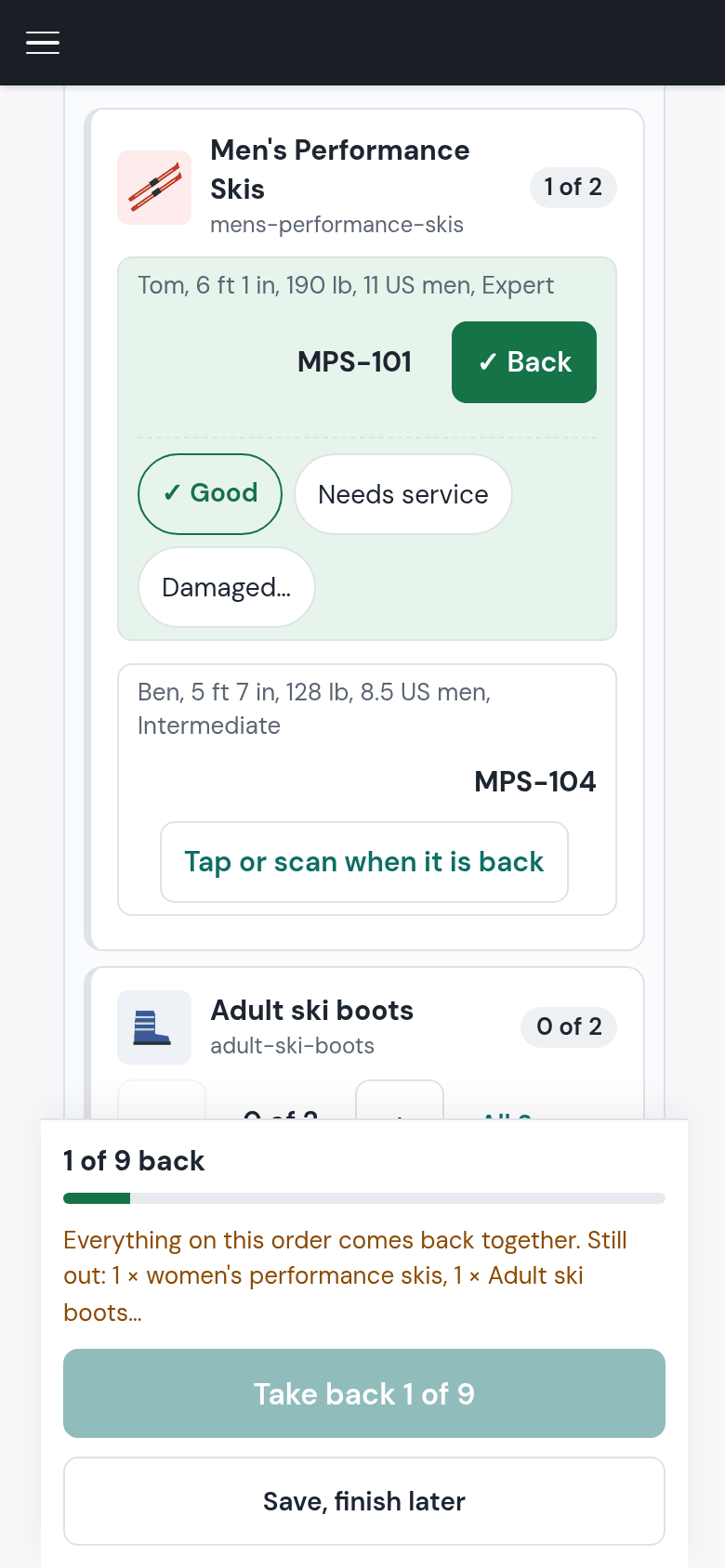
On Sunday the same screen takes the gear back. Each unit shows who had it: tap Tap or scan when it is back, or scan it, and it is ticked; tap again to untick. It works the same on a phone walking the racks.
19. Damaged gear
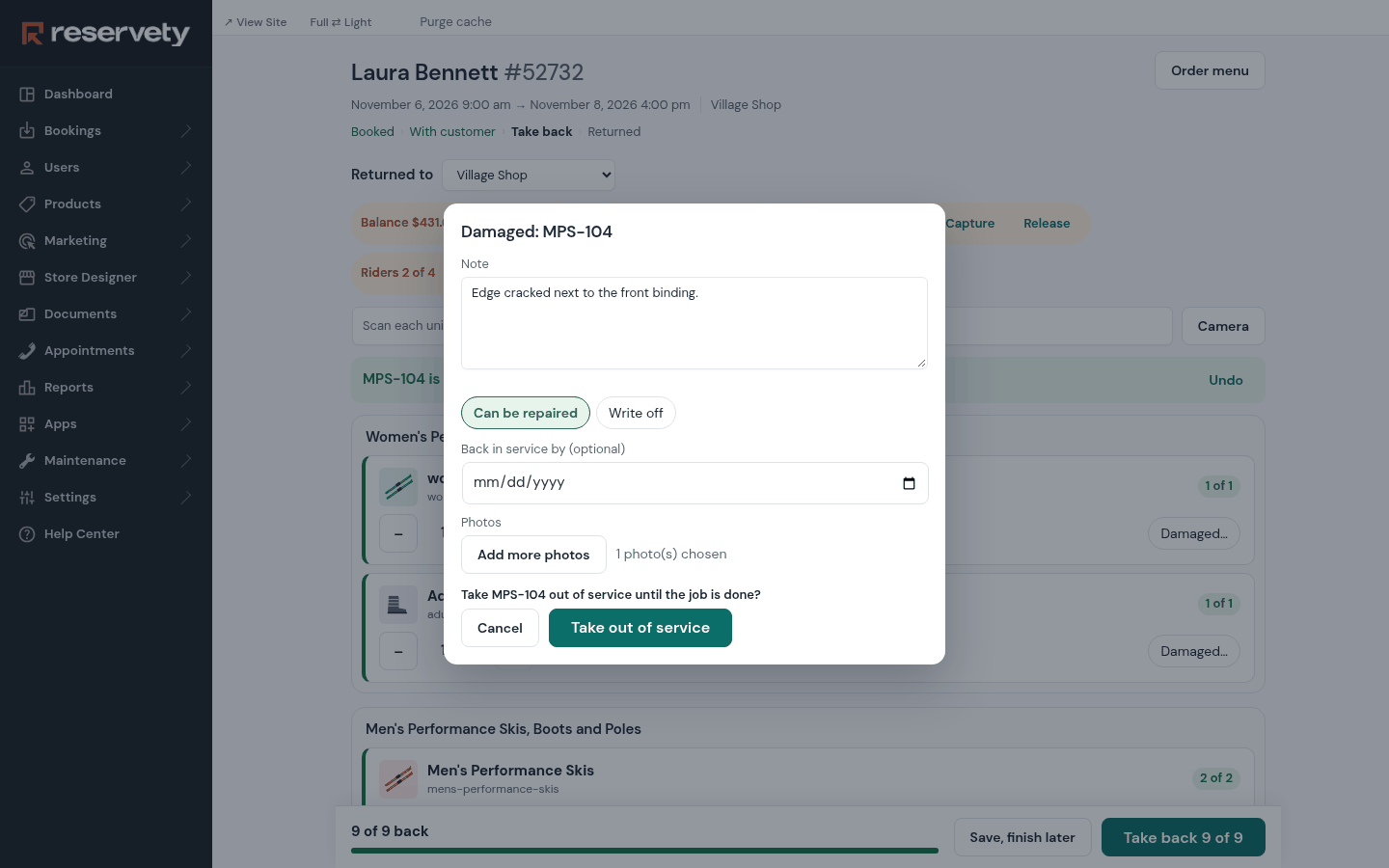
Each unit coming back is Good, Needs service or Damaged…. Damaged opens a note, Can be repaired or Write off, and photos (taken with the phone, or chosen from the computer); Take out of service keeps the unit off the shelf until the workshop job is done.
20. The deposit
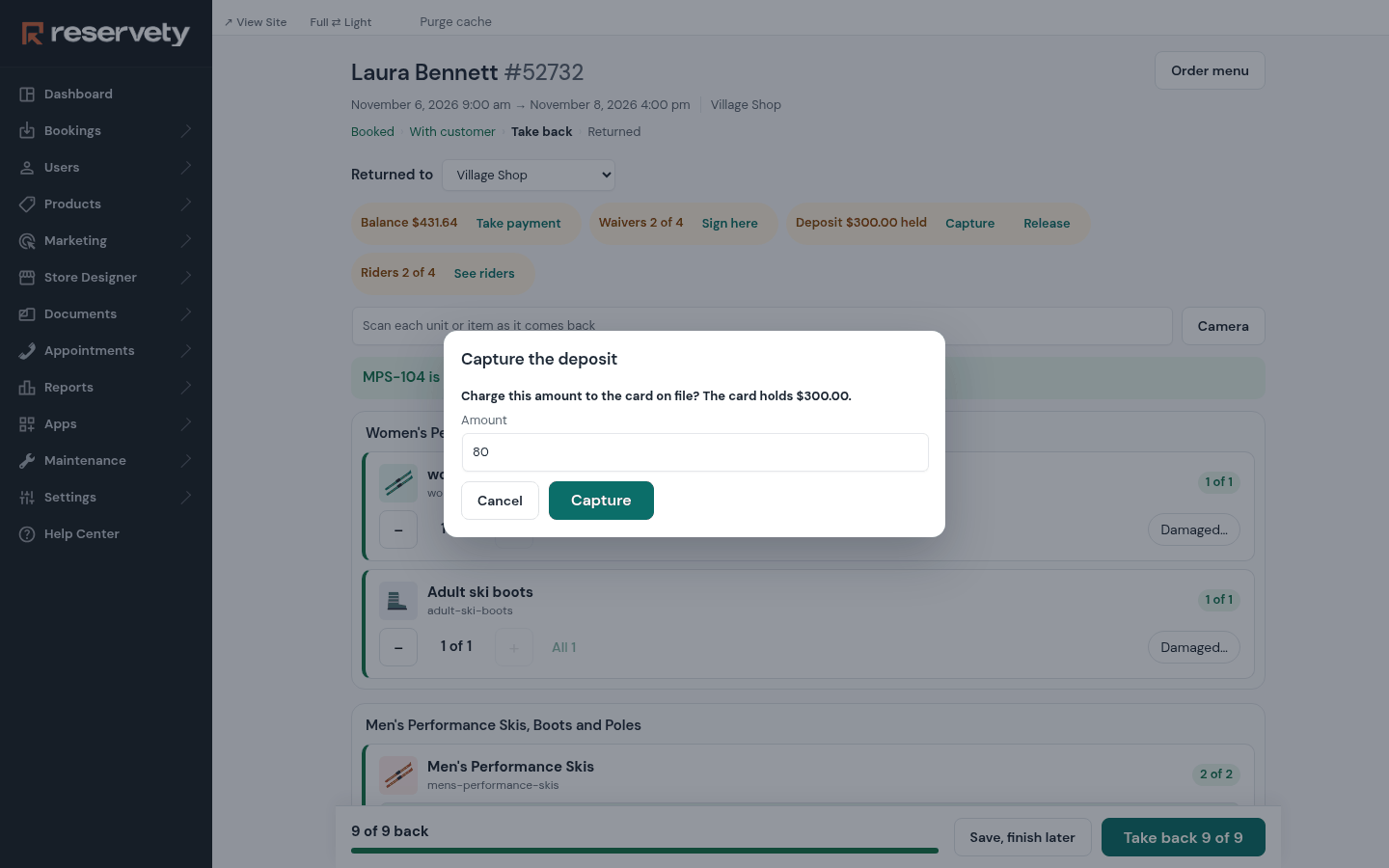
On take back, the deposit held on the card shows Capture and Release. Capture charges all or part of the hold (here, the repair of the damaged ski); Release lets it go and the customer is not charged.
21. Returned to the other store
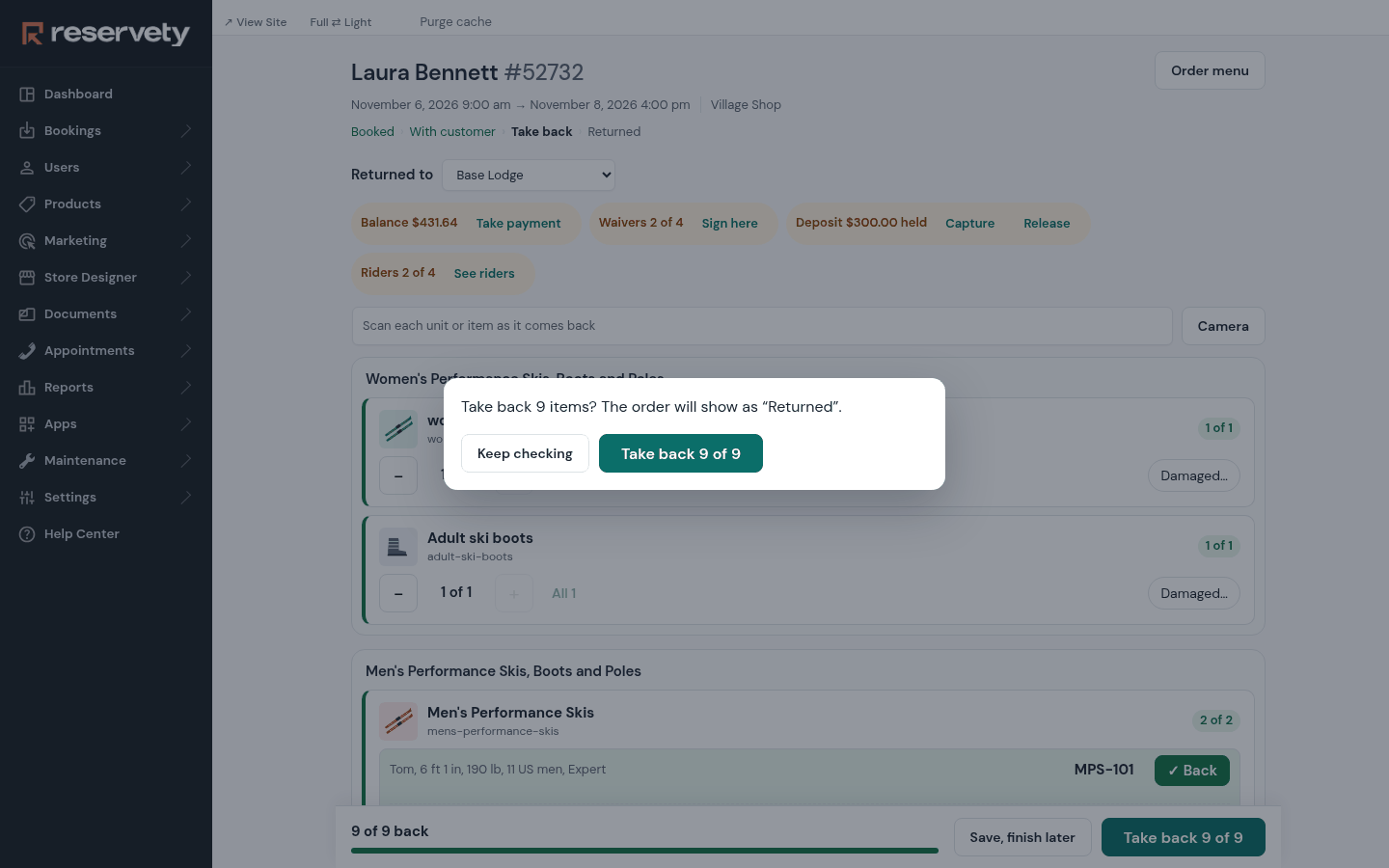
Returned to starts at the order's own store. The family dropped the gear at the Base Lodge, so pick it there: the units now belong to that store. Take back asks once, then the order shows Returned.
PART 4
On the road
Orders with a driver are loaded at the desk and handed over at the door, with a signature on the phone.
22. A driver's order at the desk
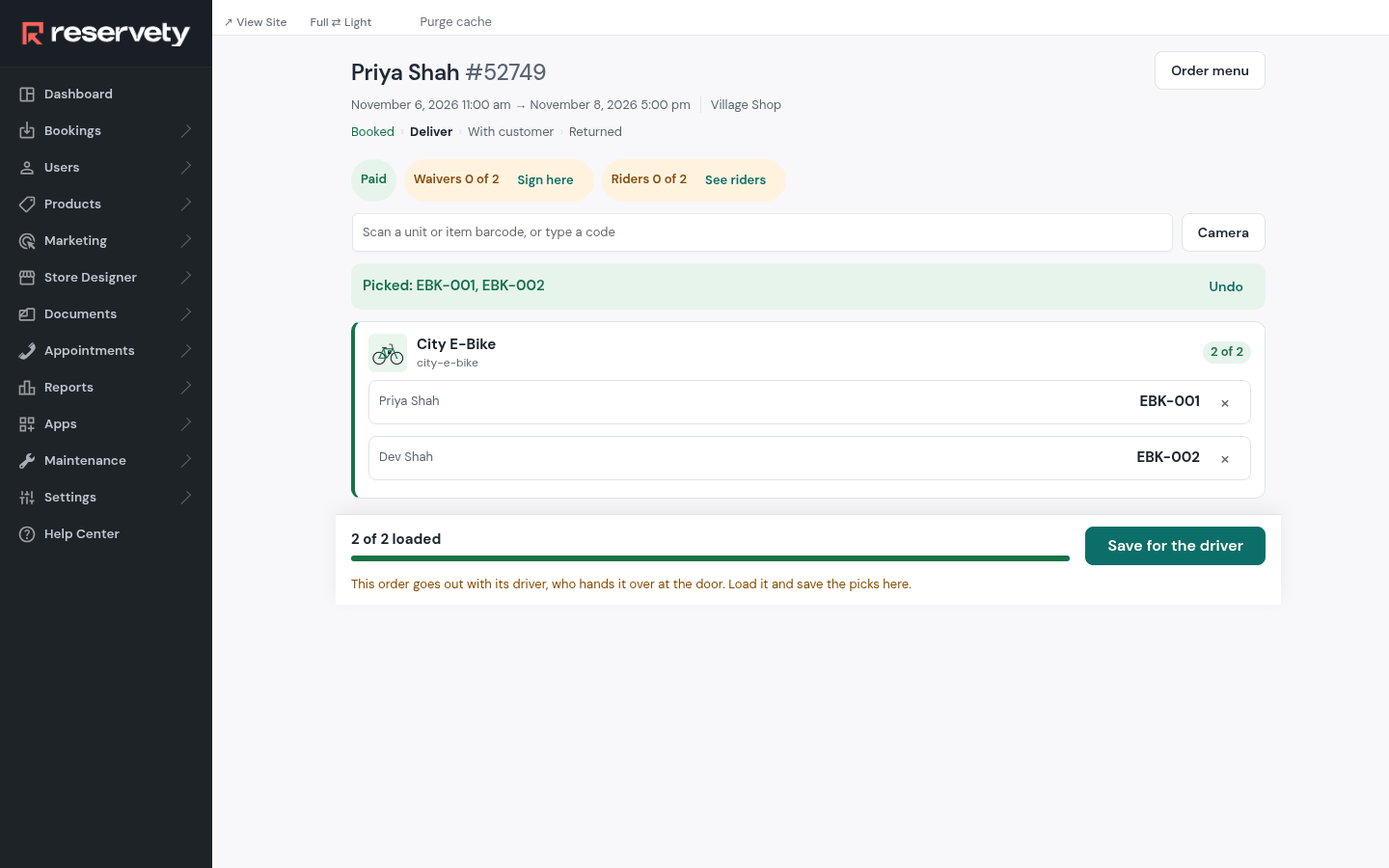
Orders with a driver are handed over at the door, not at the desk. The desk loads them: pick the units (Pick 2 for me took both e-bikes here) and click Save for the driver. Nothing is marked as out until the driver delivers.
23. Delivered, at the door
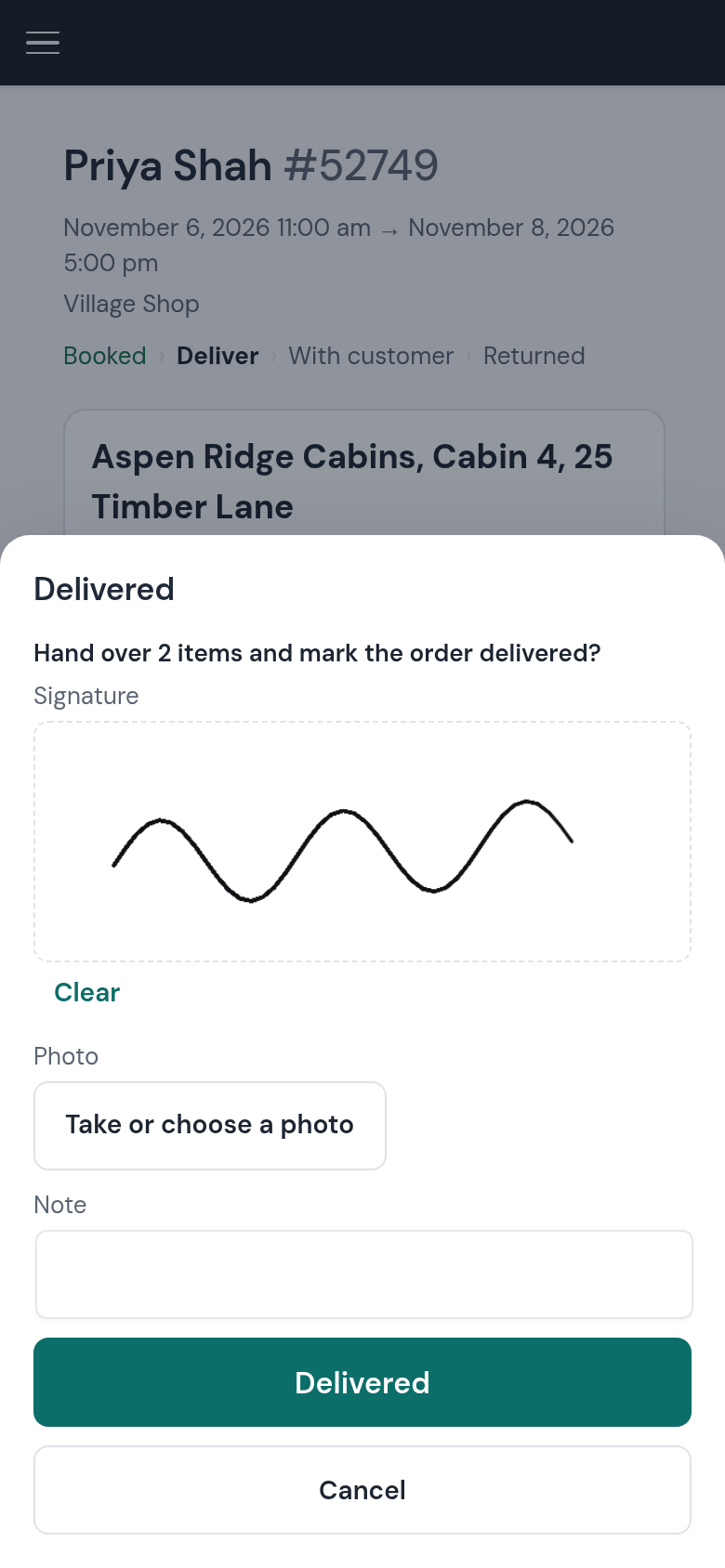
The driver sees the address, the customer's note, Map and Call, and what is loaded. At the door, Delivered, get signature hands everything over in one go: the customer signs on the phone (a photo and a note are optional). If nobody is there, Couldn't deliver marks nothing as delivered and opens the driver app to say why.
24. Collected, at the end
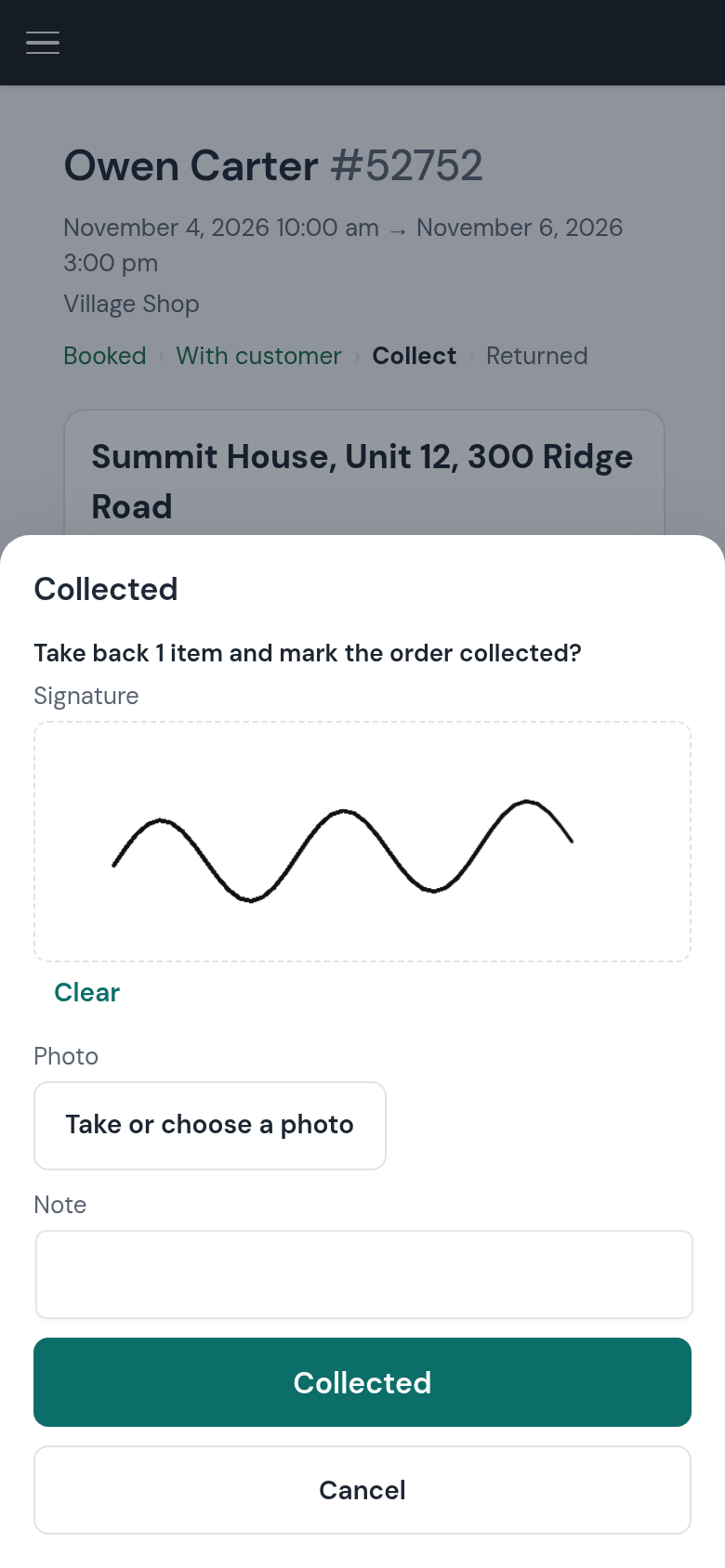
At the end of the rental the same screen collects: tick each unit, then Collected, get signature: the order shows Returned. Couldn't collect marks nothing as back and opens the driver app to say why.
What this proves
Riders do their own typing. Sizes, ability and the waiver come from each person, at checkout or from one group link, with no account.
Reminders name names. They say who still owes what, and they stop once everyone is done.
The workshop works from one list. One day, one store, every rider by pick-up time with their sizes, printed for the bench.
The desk calls only who it must. The call list shows just the riders still missing something, with the booker's phone.
Hand out and take back happen on one screen. Each rider's gear in its own slot, scanned or counted; damage and the deposit at take back, even when the gear comes back to the other store.
The driver closes the order at the door. Delivered and collected with a signature on the phone.
Built on a test copy of a ski and bike rental shop’s site, renamed: Kestrel Peak Ski & Bike, the Village Shop and the Base Lodge are made up, and so are the people, their phone numbers and e-mail addresses. Every figure is a screenshot of the running system taken while the story happened. Drawn: the phone around the reminder e-mail (its text and button are the system’s own), the product pictures and the damage photo. The deposit hold has no card behind it, so nothing was charged.
Start Your Rental Business the Right Way
Reservety handles your website, bookings, inventory, and payments — so you can focus on growing your business.