Reservety
Settings 12 steps

How to View and Export Detailed Reports

Learn how to access, filter, and export detailed reports from your Reservety dashboard. This guide covers product summaries, order reports, monthly sales, refund details, customer performance, stock levels, and more.

Video thumbnail
Watch the video walkthrough

Step-by-step guide

1
To view reports with complete details, click All Details on the left sidebar.
Step 1
Step 1
2
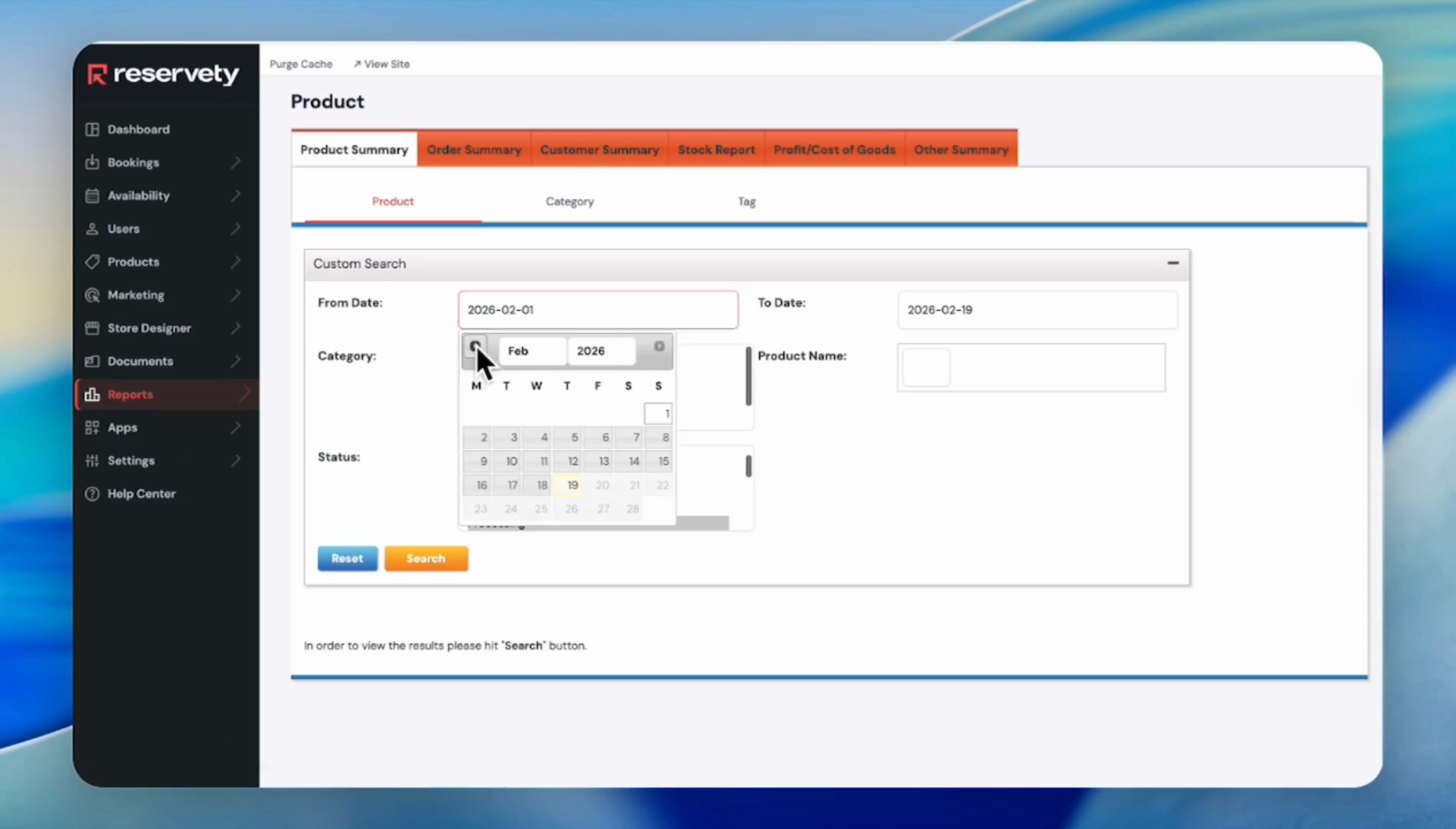
To generate a general report on rental products, click the Product Summary dropdown. You can also select a specific category or status to filter the results.
Step 2
Step 2
Step 2
3
To view recent orders, click Order Summary then Recent Order. Set the date range and click Search.
Step 3
Step 3
Step 3
4
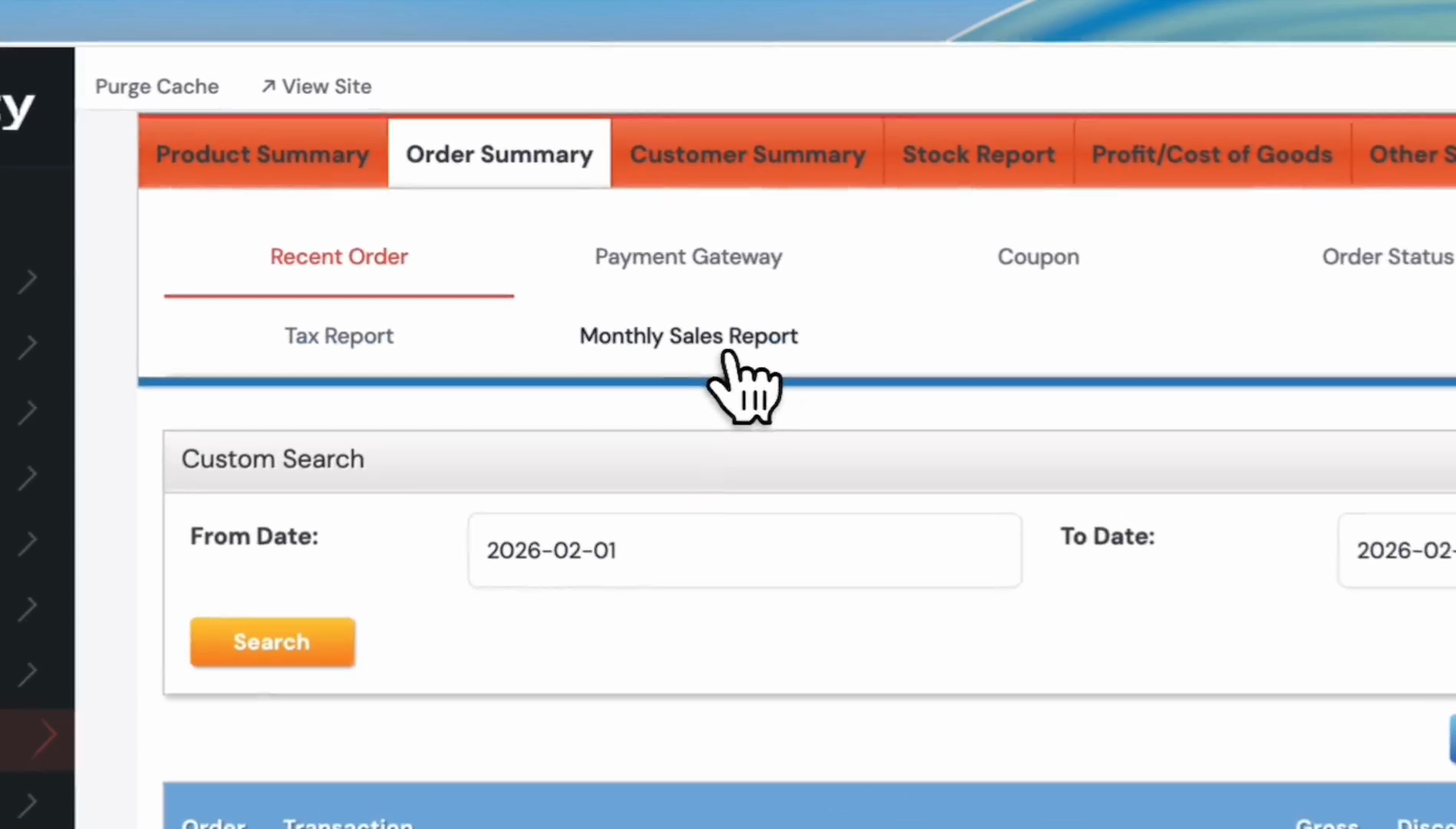
Click Monthly Sales Report to view the current month's sales. You can adjust the dates as needed. The report shows total orders and sales amounts.
Step 4
Step 4
Step 4
5
To export a report to CSV or Excel, click the export buttons shown at the top of the report.
Step 5
6
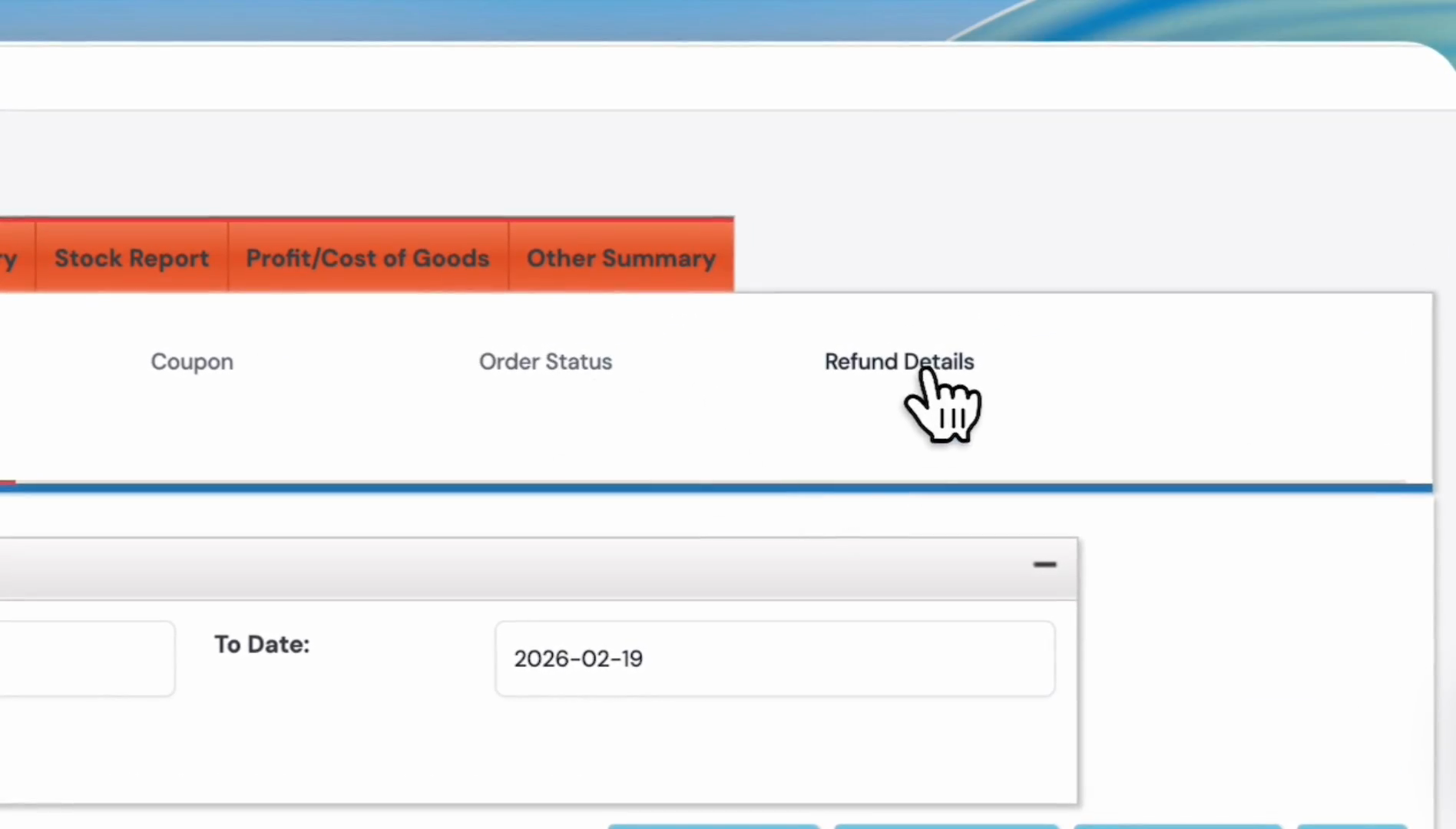
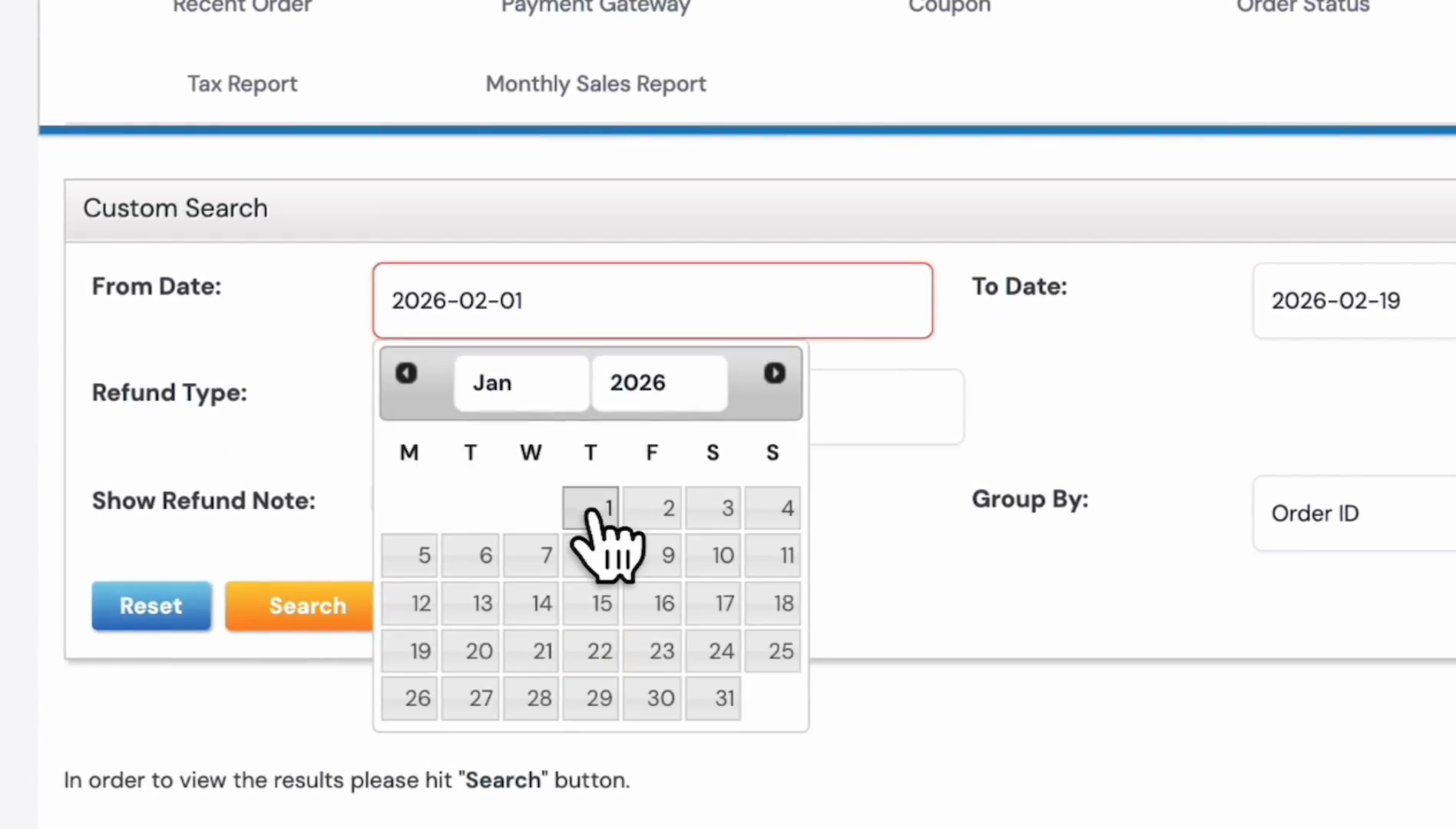
To view refund details, click Refund Details and select the date range. The report shows which orders received refunds during that period.
Step 6
Step 6
Step 6
7
You can also access reports on coupons, payment gateways, and taxes from the same section.
Step 7
8
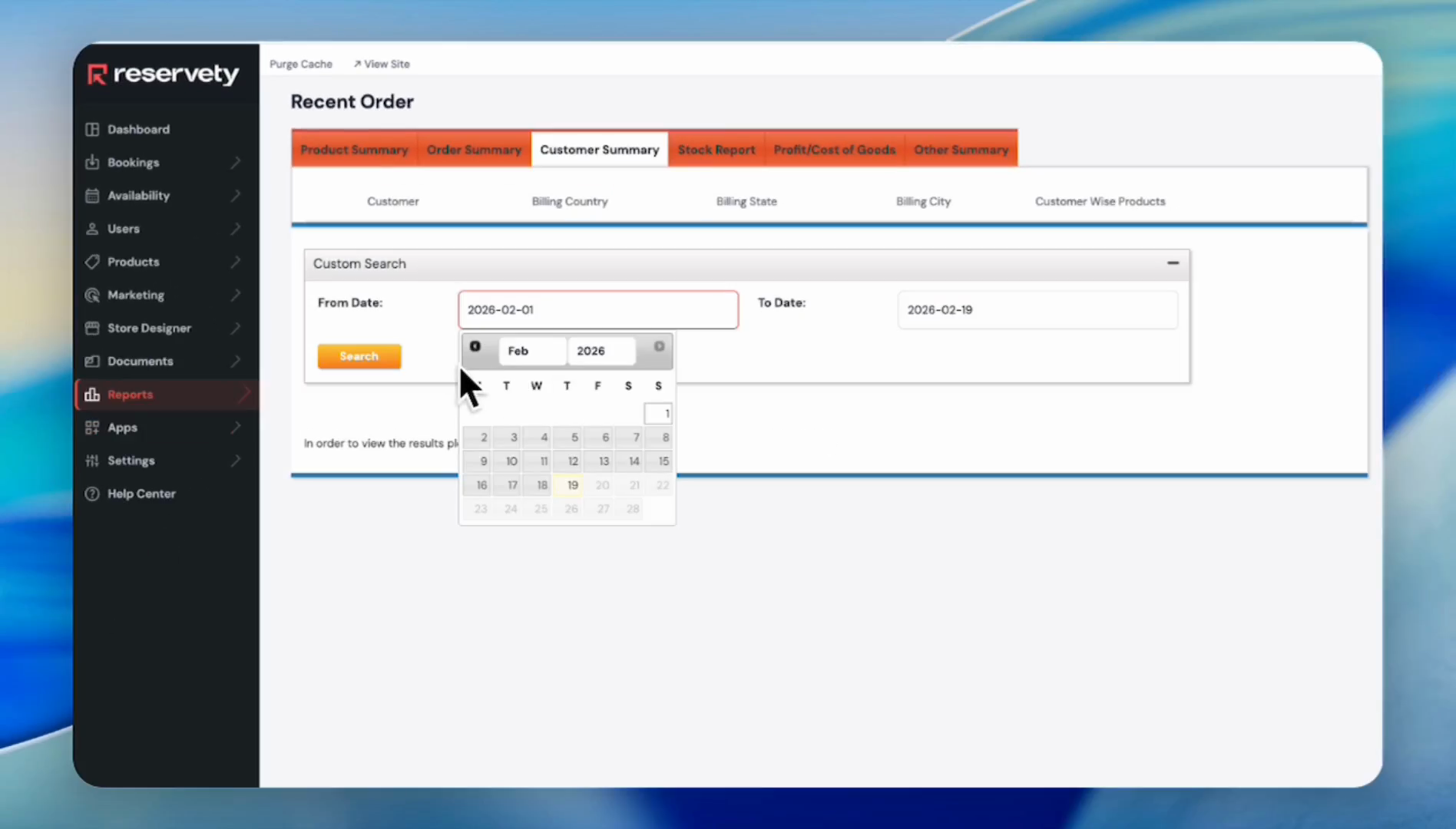
To view each customer's performance, click Customer Summary and set the date range.
Step 8
Step 8
Step 8
Step 8
9
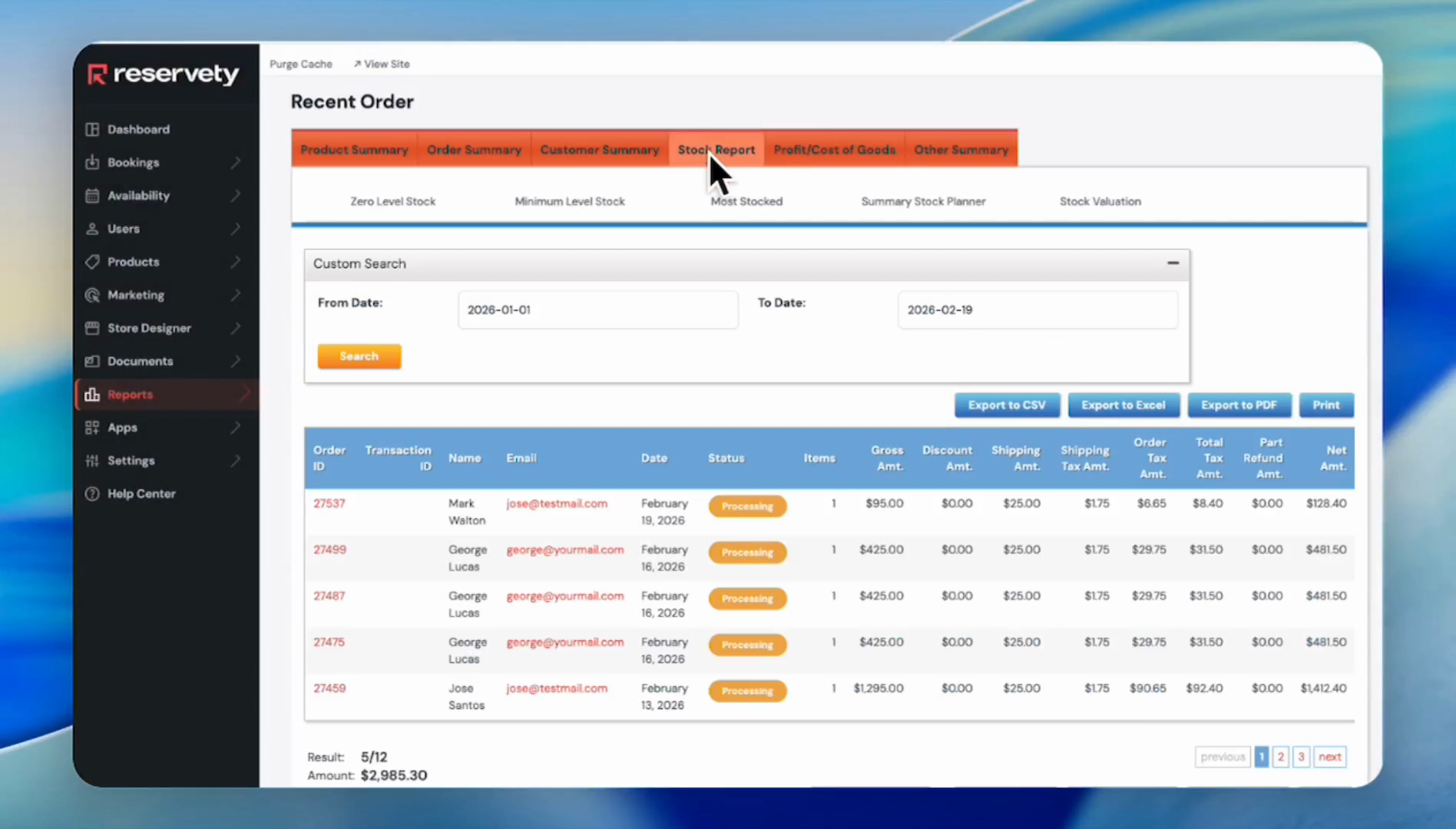
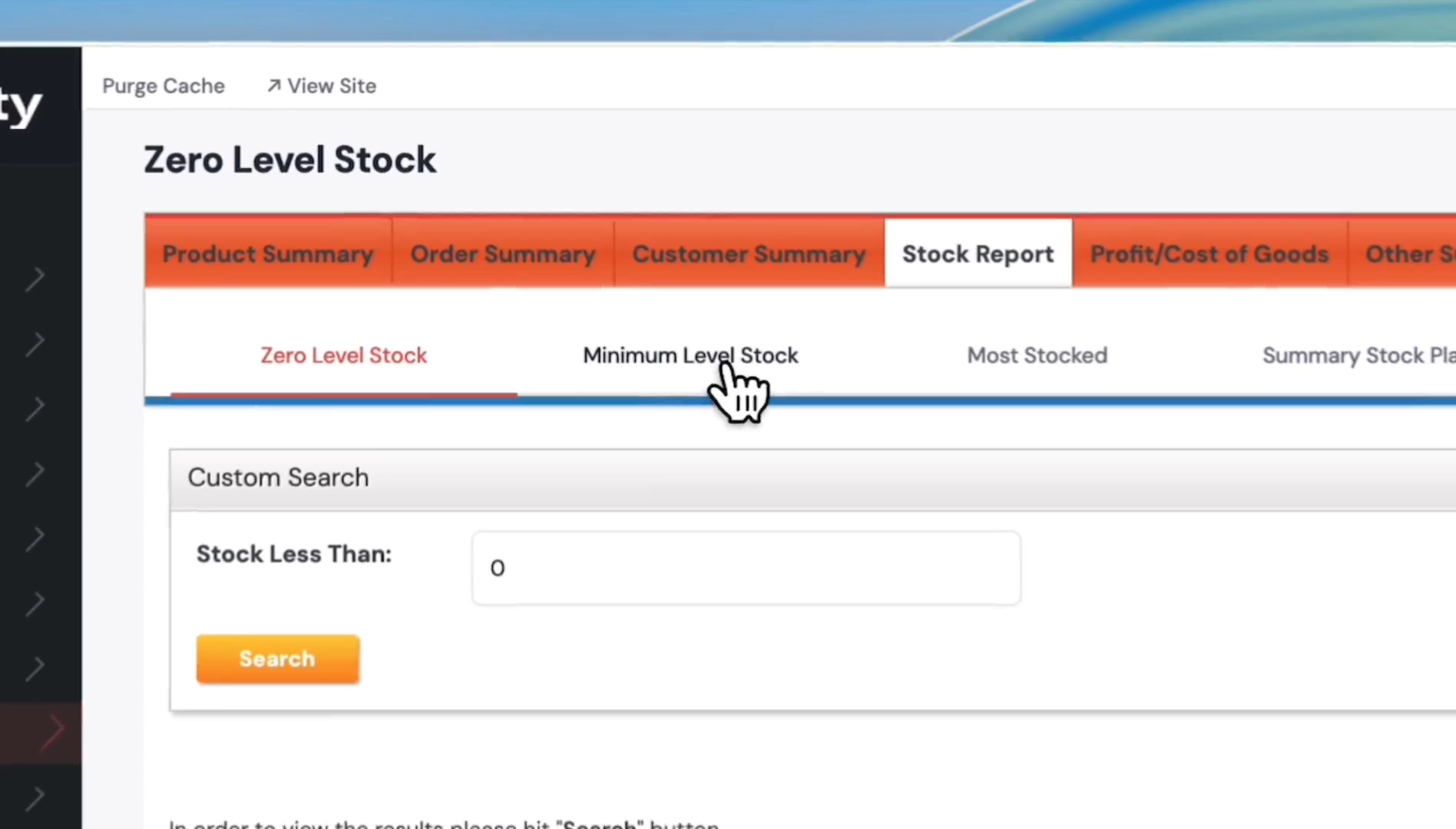
To view the stock report, click Stock Report. Click Zero Level Stock to see items with zero inventory.
Step 9
Step 9
10
Click the Minimum Level Stock tab to view products with low quantities.
Step 10
Step 10
11
Click Most Stocked to view products with the largest quantities in your inventory.
Step 11
Step 11
12
Click Other Summary to access additional reports such as Customer and Price Point, Customer Non-Purchase, and more.
Step 12
Step 12
Step 12
🛎️

Don't see what you need?

Remember, your plan includes Concierge Support. You don't need to learn technical settings. Just message us, and Ashish will configure it for you.

Chat with Support