Reservety
Settings 7 steps

How to View the Resources Calendar

Learn how to view the rental resources calendar in your Reservety dashboard. This guide covers the full schedule, monthly resources, and weekly resources views to help you track bookings and availability.
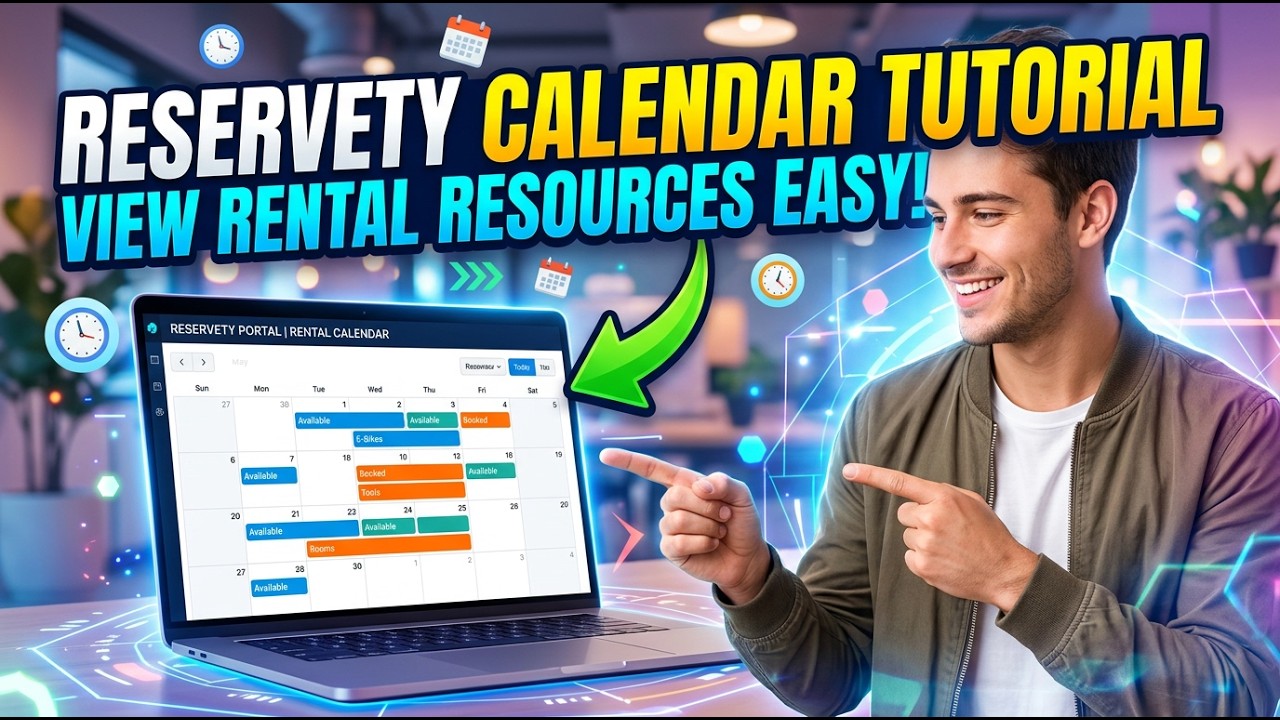
Video thumbnail
Watch the video walkthrough

Step-by-step guide

1
Click the Calendar menu item in the left sidebar.
Step 1
2
Click Availability in the left sidebar to view the general inventory and booking reports on the calendar.
Step 2
3
On this page you will see the general inventory and booking reports conveniently placed on the calendar.
Step 3
4
Click Full Schedule in the left sidebar to view the complete inventory of events, including customer information and booking details.
Step 4
5
Click Monthly Resources in the left sidebar to view the monthly rental resources calendar.
Step 5
6
Click Weekly Resources to view the weekly inventory and order schedules.
Step 6
7
Click on any booking in the calendar to view the full order details.
Step 7
🛎️

Don't see what you need?

Remember, your plan includes Concierge Support. You don't need to learn technical settings. Just message us, and Ashish will configure it for you.

Chat with Support