Reservety
Setup guide

Take payments with PayPal

Open a PayPal Business account, then connect it to Reservety so customers can pay with PayPal, Venmo or Pay Later, or by card, at checkout and through pay links. Not sure PayPal is the one for you? Choosing a payment provider compares it with the others. Shown on Front Range Iron Rentals, an equipment rental yard near Denver.

Don't see this in your menu? Ask us and we'll switch it on.

1. Open a PayPal Business account

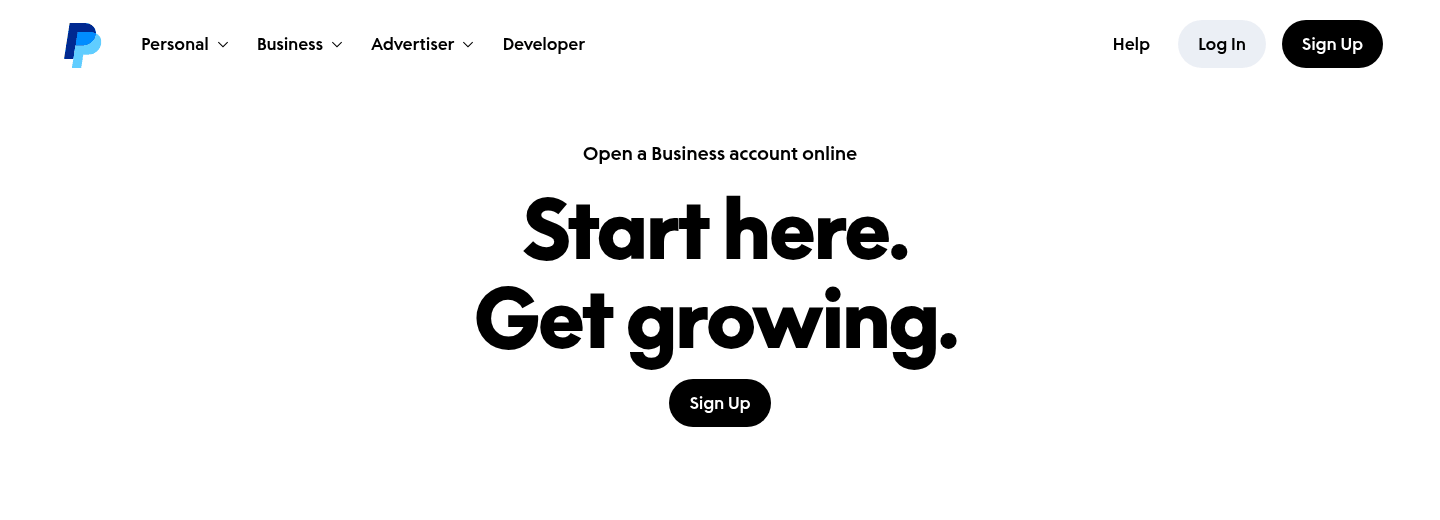
On PayPal's business page, click Sign Up and choose a business account (a personal account can be upgraded instead). PayPal asks for your legal name, email, a password, your business details and tax ID (a sole proprietor can use a Social Security number). Opening the account is free, with no monthly fee. Then confirm your email from PayPal's message and link your business bank account. Checked on 2026-10-25 against PayPal's business sign-up page.

Open a PayPal Business account

2. Open your payment settings

Where: Settings โ†’ Store

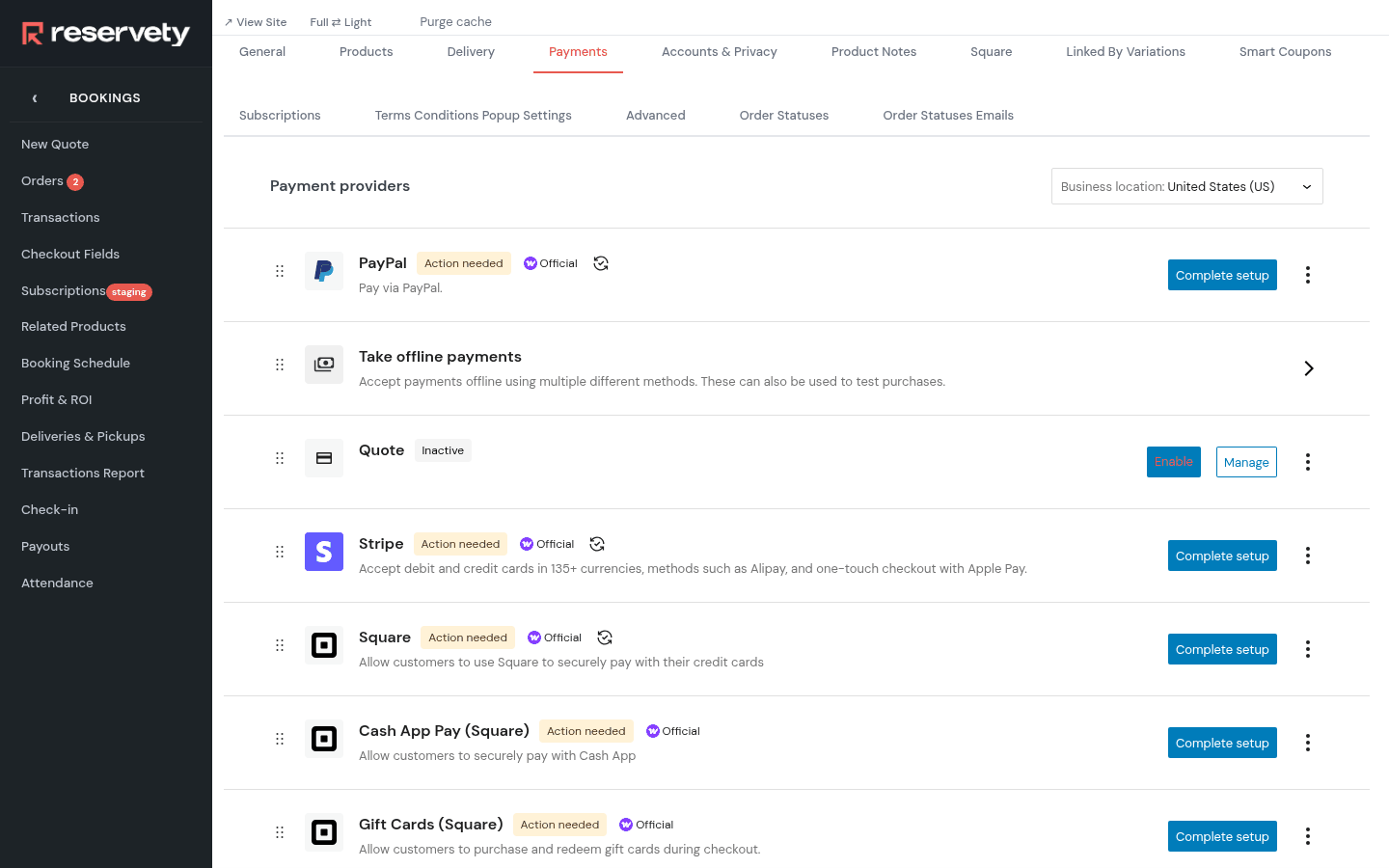
Open the Payments tab. On the PayPal row, click Complete setup.

Open your payment settings

3. Connect your account

Where: Settings โ†’ Store

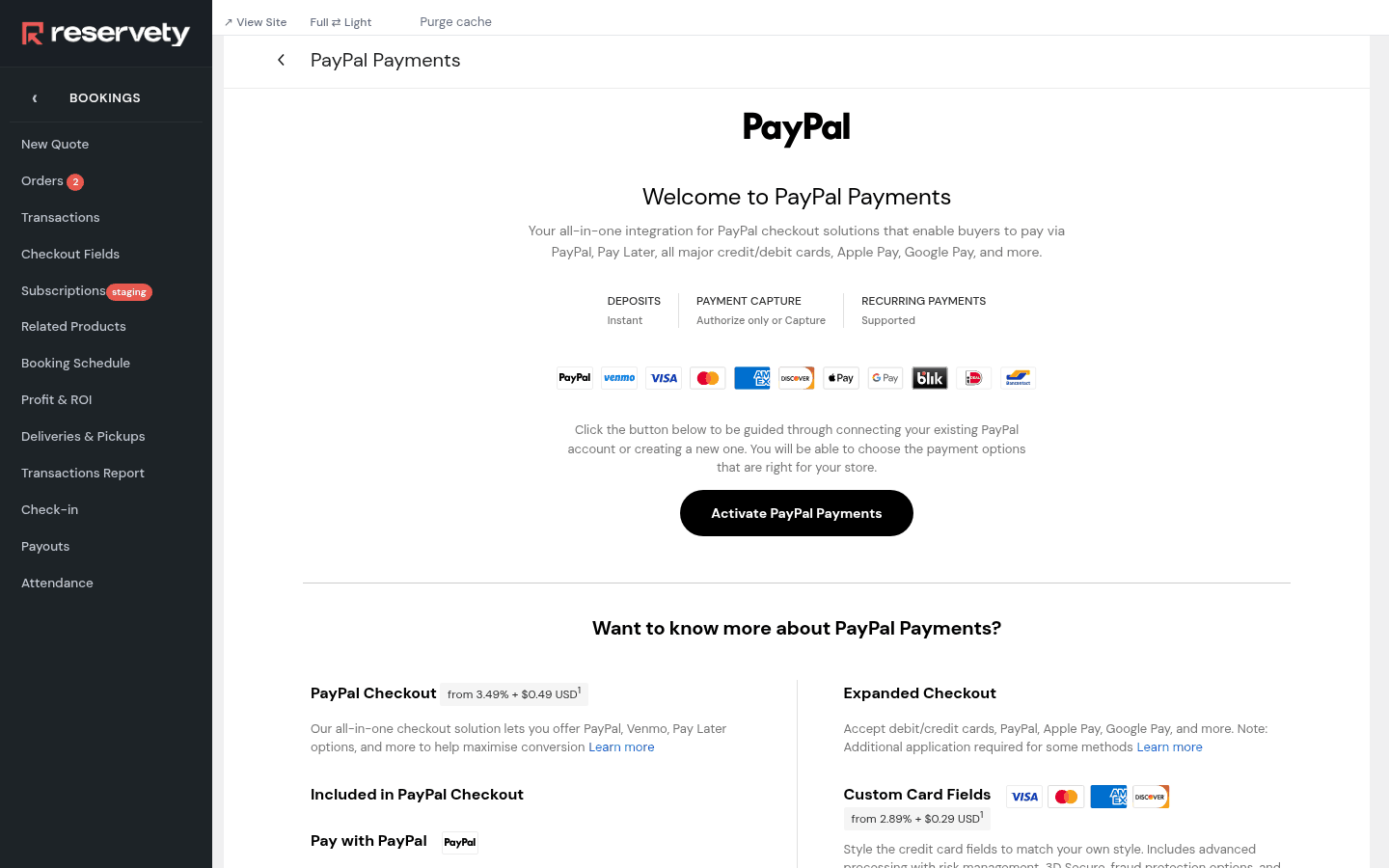
Click Activate PayPal Payments. PayPal opens and guides you through connecting your business account. The screen also lists PayPal's fees for each way to pay.

Connect your account

4. Finish on PayPal

Sign in to your PayPal Business account, agree to connect it and choose the ways customers can pay: the PayPal button, Pay Later, Venmo and card fields. PayPal sends you back to Reservety when it's done.

Set it up on your own Reservety site

Reservety handles your website, bookings, inventory, and payments — so you can focus on growing your business.

Start Free Trial View Pricing
Free 14-day trial No credit card required Zero commission