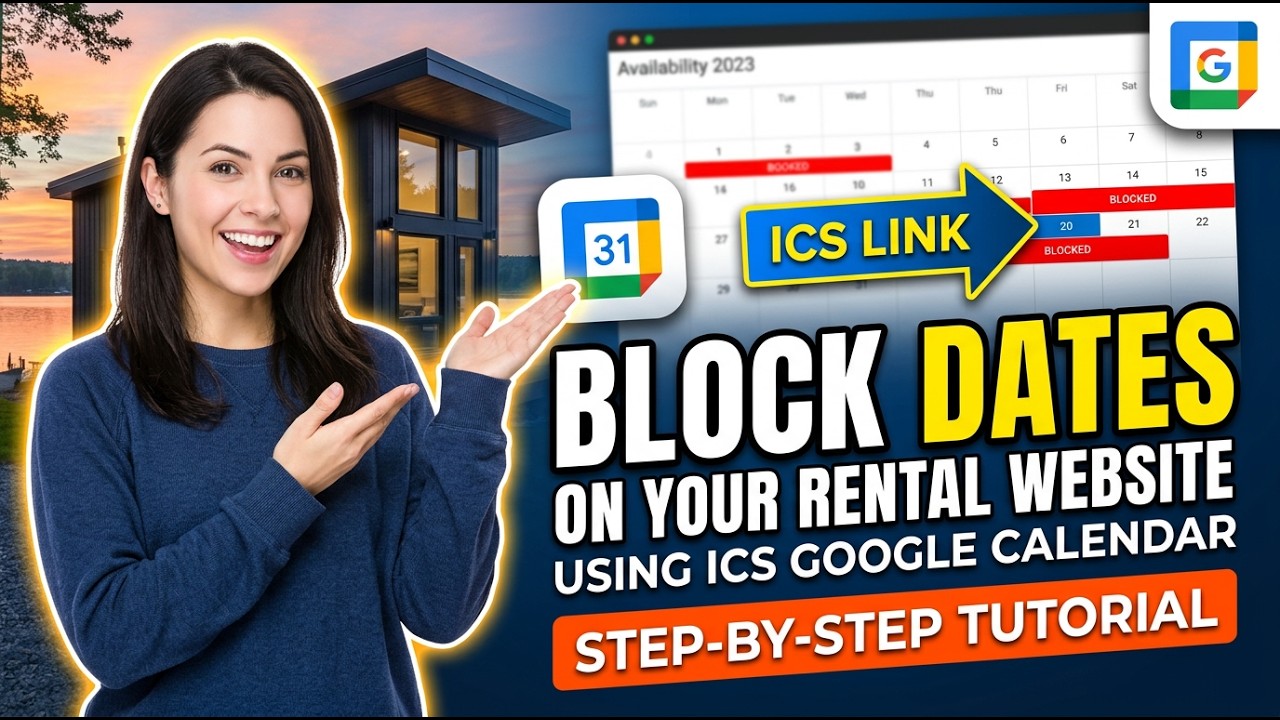
Learn how to block dates on your Reservety rental website using ICS Google Calendar. This guide covers creating a dedicated calendar, setting up recurring blocked dates, making the calendar public, and syncing it with your rental products.
Watch the video walkthrough
Step-by-step guide
Step 1: Set Up Google Calendar
1
Navigate to Google Calendar in your browser.
2
Click the settings icon in the top menu bar.
3
Click Settings from the dropdown menu.
4
Click the Primary time zone dropdown to select your time zone.
5
Click Add calendar on the left sidebar, then click Create new calendar.
6
Enter a name (e.g., "Camping Rental Calendar") and click Create calendar.
7
Click the back arrow to return to the calendar view.
Step 2: Create Blocked Date Events
8
Ensure the checkbox for your new calendar is selected in the left sidebar.
9
Click the Create button and select Event.
10
Click on the date and time range to set when dates should be blocked.
11
Select the start date from the calendar.
12
Click the Does not repeat dropdown and select Custom.
13
Under "Repeat on", select the days you want to block (e.g., Friday) and uncheck unwanted days.
14
Click the date field to set the end date for the recurring event.
15
Click Done and then Save.
Step 3: Share and Sync with Reservety
16
Click the three-dots icon next to your calendar name.
17
Click Settings and sharing from the dropdown.
18
Check the Make available to public checkbox and click OK on the warning.
19
Scroll down and copy the Public address in iCal format link.
20
Navigate to your Reservety dashboard and click Products > All Items.
21
Click Edit on the product you want to sync the calendar with.
22
Paste the ICS URL and click Sync ICS Now.
23
Click Update to save the product settings.
24
Click the calendar button on your product page to verify the blocked dates appear correctly.
🛎️
Don't see what you need?
Remember, your plan includes Concierge Support. You don't need to learn technical settings. Just message us, and Ashish will configure it for you.