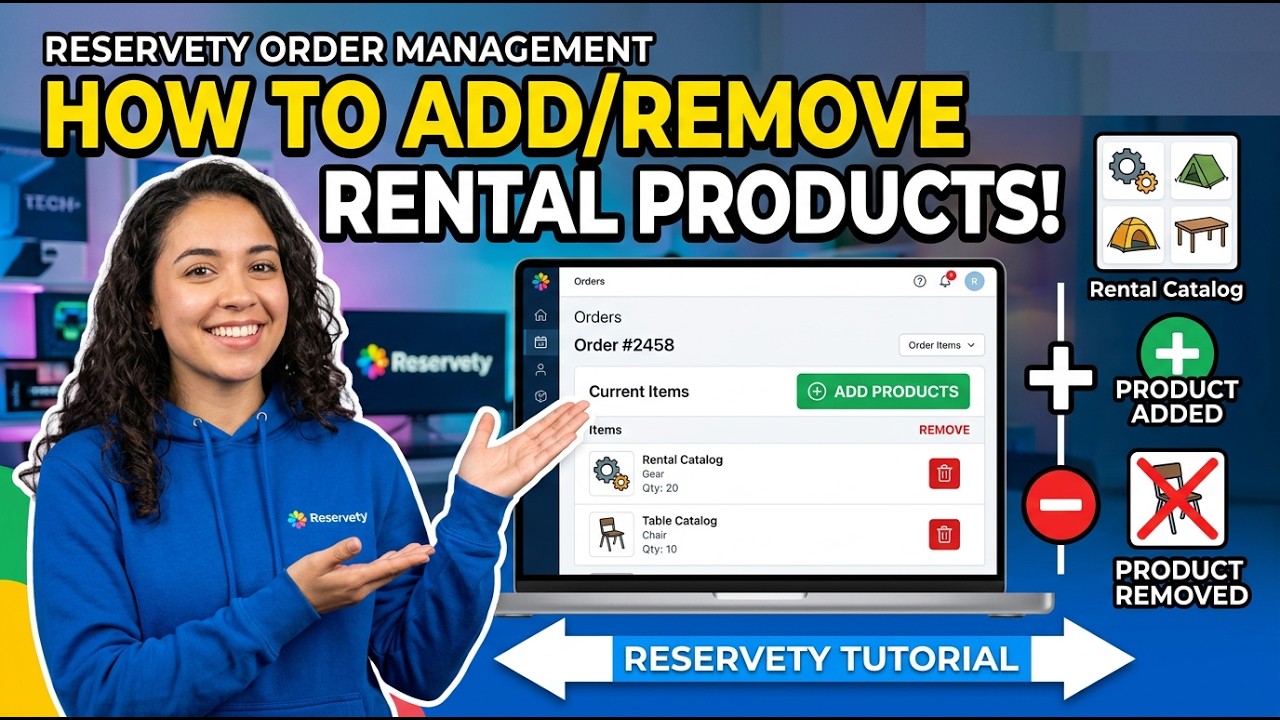
How to Add or Remove Products from Existing Orders
Learn how to edit existing orders in your Reservety dashboard. This guide covers adding new products to an order, setting booking dates, processing additional payments, removing items, and handling refunds.
Watch the video walkthrough
Step-by-step guide
Adding Products to an Order
1
Click on the order you want to edit (e.g., the order for Jose Santos).
2
Click the Order Actions button.
3
Select Edit Order from the dropdown menu.
4
Click the Order button next to the product you want to add (e.g., 6x10 Enclosed Cargo Trailer).
5
Select the end date from the calendar for the new item.
6
Click the Reserve Now button to add the product to the order.
7
Enter the Amount Paid for the additional item.
8
Click the payment method dropdown and select the method (e.g., Cash).
9
Check the Record checkbox and click SAVE & GO TO PAY.
Removing Products from an Order
10
Click Order Actions and then Edit Order.
11
Click the remove icon next to the product you want to remove.
12
Click the Refund Payment button to process the refund for the removed item.
🛎️
Don't see what you need?
Remember, your plan includes Concierge Support. You don't need to learn technical settings. Just message us, and Ashish will configure it for you.