A private lesson is sold by the half day or the whole day, often on two or three days in a row, with or without the equipment. This page shows how that runs in Reservety: the hours go on the product, a lesson of several days becomes one lesson per day, the desk picks the instructor on the week screen, and the instructor reads the day on their phone.
THE WEEK
15–21 Feb 2027
MORNING
09:30–12:30
AFTERNOON
13:30–15:30
ALL DAY
09:30–15:30
INSTRUCTORS
Kenji, Aya, Liam, Mia
THE APP
/bb-app/
Until now a lesson product knew the days a customer booked, not the hours. “Lesson time is 9.30am – 12.30pm” was a sentence in the product text, so a morning lesson and an all-day lesson looked the same to the system, a three-day lesson was one block, and nobody at the desk could see at a glance which instructor was on which morning.
Four small things change that. The hours live on the product (Use Standard Times with a start and an end). A product can say One lesson per day, so a Monday-to-Wednesday booking is three lessons on the week screen. The assign rule can say Pick at the desk, so nobody is chosen at checkout and the desk picks on the week screen. And a product can carry an Equipment included note, so the instructor sees what the customer has.
This page follows one week at the Miura Snowsports School, 15 to 21 February 2027, with four instructors and eight bookings, on a test copy of the school’s own site. Every figure is a screenshot taken while it was happening, and every switch shown is one any school that sells lessons by the half day can set.
PART 00
The whole idea
Nothing changes for the customer. Everything changes for the desk and the instructor.
The customer still picks days on the product page and answers two questions. The product, not the customer, says what hours a lesson has. From there the week screen draws a card per lesson per day in the right row (Morning, Afternoon, All day), the desk taps a card and picks who teaches it, and that instructor’s phone shows the lesson with the customer’s name, ability and equipment.
Who decides the hours
the product
Who picks the instructor
the desk, on Trainer week
A lesson of three days
three cards, one hold per day
What the instructor sees
their own lessons, read-only
Lessons and rentals in one order
same days, yes
PART 01
Lesson hours
Nine steps on the products and the settings, including one that makes a lesson product from nothing. The table at the end lists every lesson product as it is set.
1. How a lesson books today
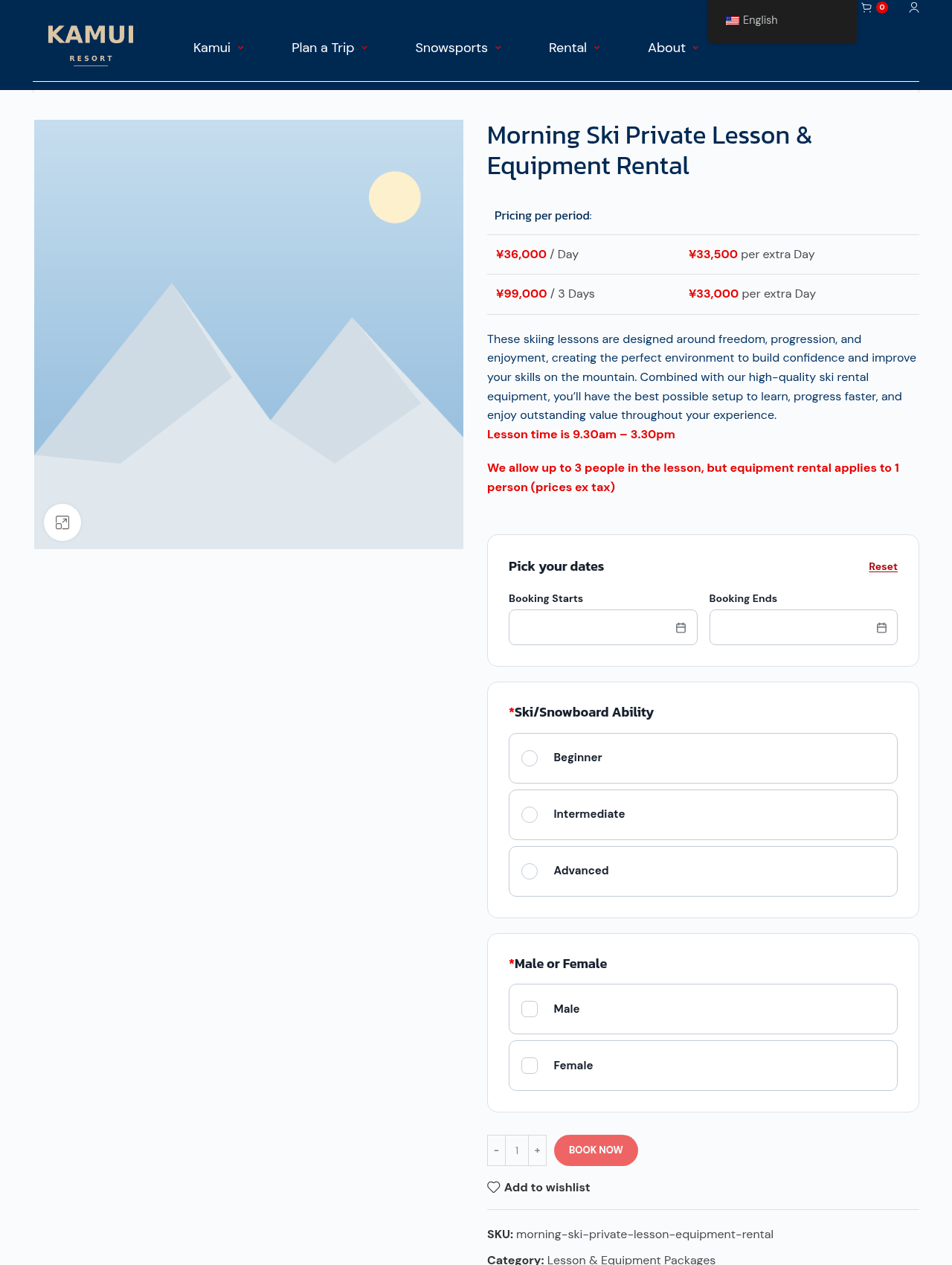
The product page of a morning lesson, before any change. The customer picks a start day and an end day, nothing else. The hours exist only as a red sentence in the text, and on this product the sentence is even wrong: it says 9.30am to 3.30pm on a morning lesson. The system cannot know, because nothing on the product says 09:30 or 12:30.
Days, not hours. Booking Starts and Booking Ends are dates. The ability and gender questions already exist on the product and stay as they are.
2. Name the parts of the day
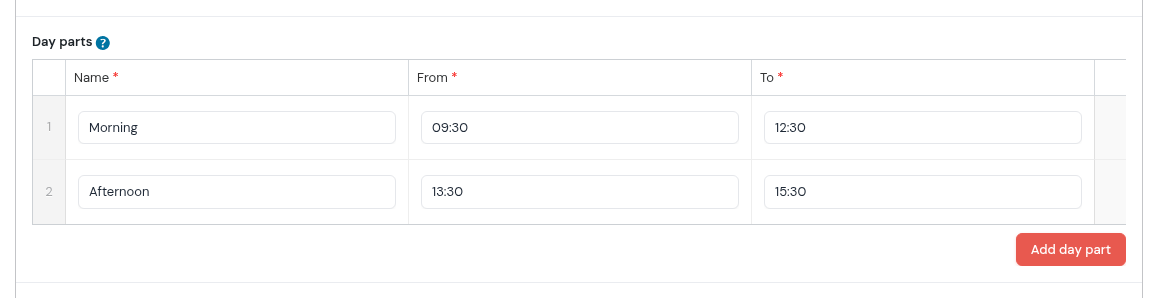
On the Rental Settings page, the Day parts table tells the week screen which rows to draw. Two rows are enough: Morning 09:30 to 12:30 and Afternoon 13:30 to 15:30. With two or more parts the week screen adds an All day row by itself, from the first start to the last end, so 09:30 to 15:30 here.
Two rows, one derived. Morning, Afternoon, and the All day row the screen builds from them. Leave the table empty and the week screen plans by the hour instead.
3. Create a lesson product from nothing
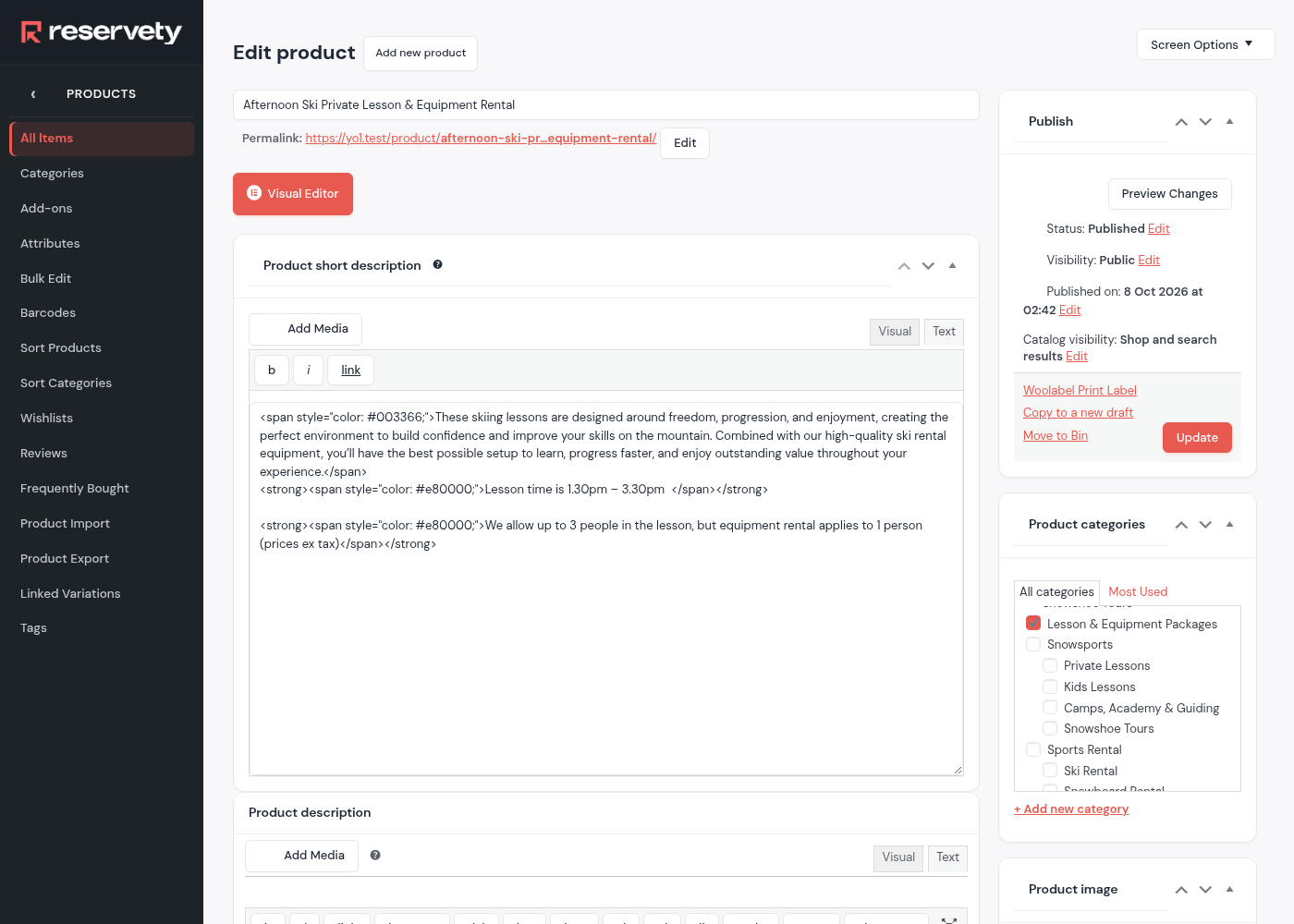
The school has no afternoon ski lesson yet, so this is the one we make. Products → Add new product. The title, a short description that carries the lesson-time sentence and the people note, the long description, the product image. In Product categories tick Lesson & Equipment Packages: the assign rule of step 13 reads the category, so a new lesson needs nothing added there.
Title, text, category. The lesson-time sentence is still worth writing for the customer; the system reads the hours from the fields in the next step, not from the sentence.
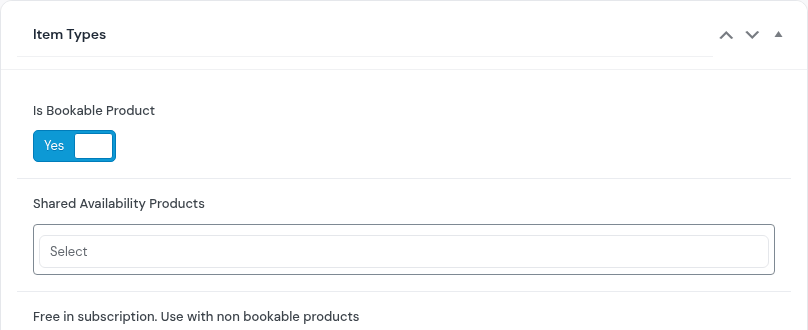
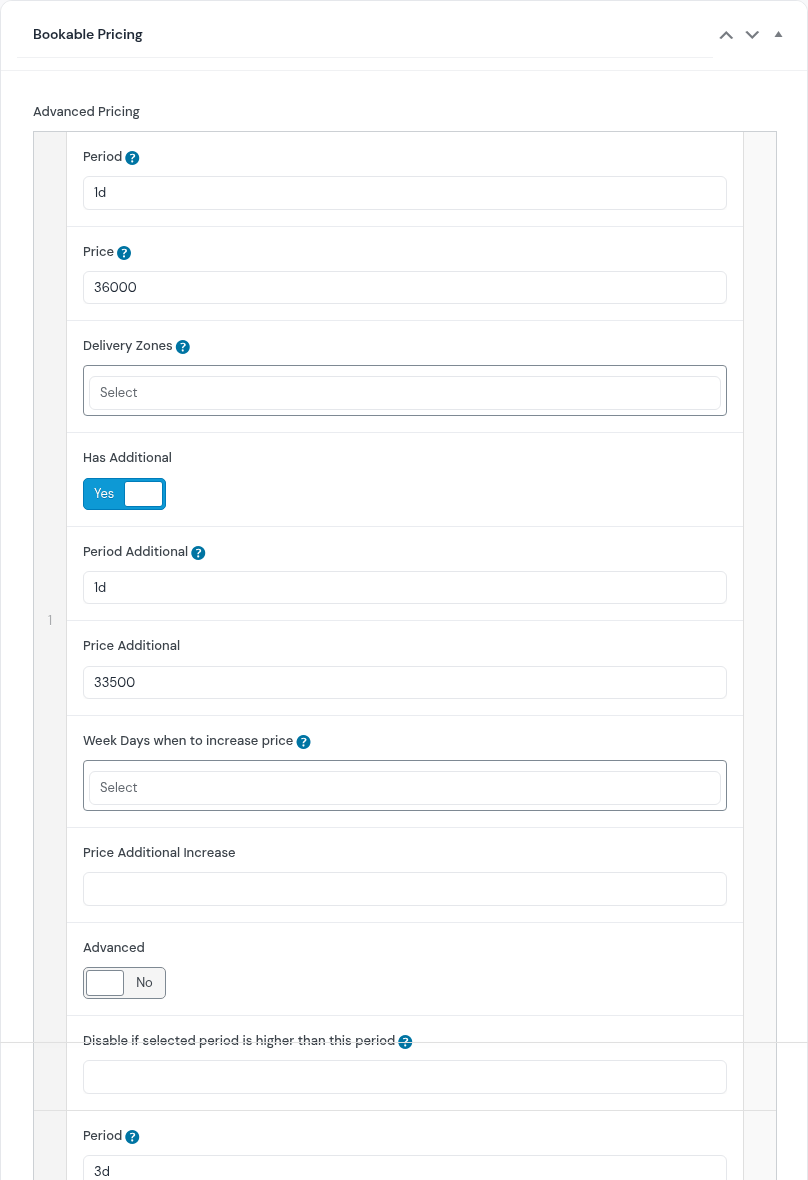
Further down the same screen, two boxes make it a lesson that books by the day. Item Types: Is Bookable Product on. Bookable Pricing: one row per price, each with a period and a price, and Has Additional for the extra days. The two rows of every lesson here are 1d at 36000 with each extra 1d at 33500, and 3d at 99000 with each extra 1d at 33000; that is the “Pricing per period” table the customer sees.
Item Types. One switch; the rest of the box stays off.Bookable Pricing. Row 1: a day, and what each extra day costs. Row 2: three days, and each extra day after that.
The two questions are not typed on this screen. Ski/Snowboard Ability is an options element stored with the product, and Male or Female is a shared add-on form that keeps a list of the products it covers. A new lesson gets the first one by being copied from a lesson that has it, and the second one by being added to the shared form’s product list. This afternoon lesson has both, as step 7 shows.
The fast way. Open an existing lesson and use Copy to a new draft in its Publish box. The copy carries the pricing rows, the bookable switch, the ability question, the hours, the per-day switch and the equipment note. Rename it, change what differs (here the hours), add it to the shared Male or Female form, publish. That is how this afternoon lesson was made on the test copy.
4. The new lesson gets its hours
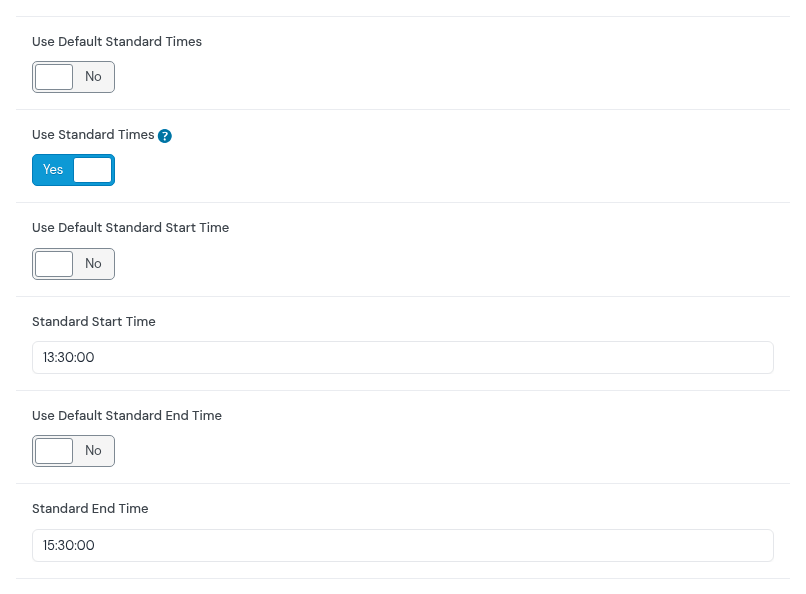
Still on the product, in the Turnover Padding Min Max box, the standard-times fields. Use Default Standard Times off, so the product decides for itself. Use Standard Times on. Then the start and the end, each with its own Use Default switched off: 13:30:00 and 15:30:00 for this afternoon lesson. A morning lesson gets 09:30:00 and 12:30:00 the same way.
Six switches, two times. 13:30 to 15:30 lands this lesson in the Afternoon row. The three Use Default switches must be off, or the product keeps reading the site-wide standard times instead of its own.
5. The all-day lesson
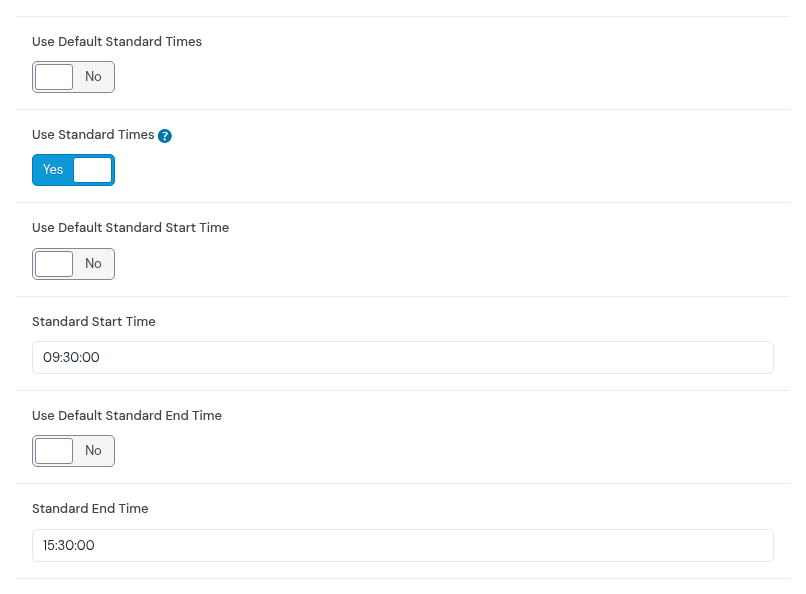
Same fields on an existing all-day lesson, different hours: 09:30:00 to 15:30:00, the whole span of the two day parts, which is why it lands in the All day row.
09:30 to 15:30. The week screen matches a lesson to a row by its hours: start of the first part to end of the last part means All day.
6. One lesson per day
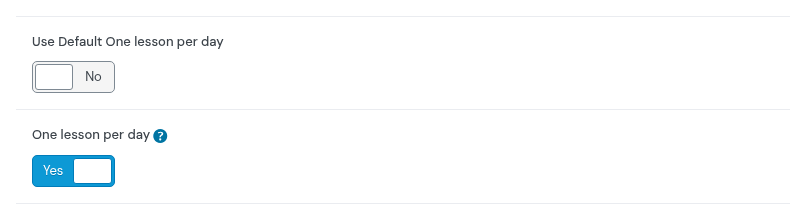
Right under the standard times sits the new switch. Use Default One lesson per day off, One lesson per day on. From now on a booking of this product from Monday to Wednesday is drawn as three lessons, Monday, Tuesday and Wednesday, each with the hours above, each with its own instructor. The booking itself stays one order line with one price.
The switch that splits the days. Its help text: a booking of several days is one lesson per day with the hours above, for the week screen, the staff holds and the app; the booking itself stays one row. It only works together with Use Standard Times.
There is a site-wide switch too. The same One lesson per day exists on the Rental Settings page. Switch it on there and every product that keeps Use Default One lesson per day follows it. This school switched it per product, because the rental products must not split.
7. The product page after
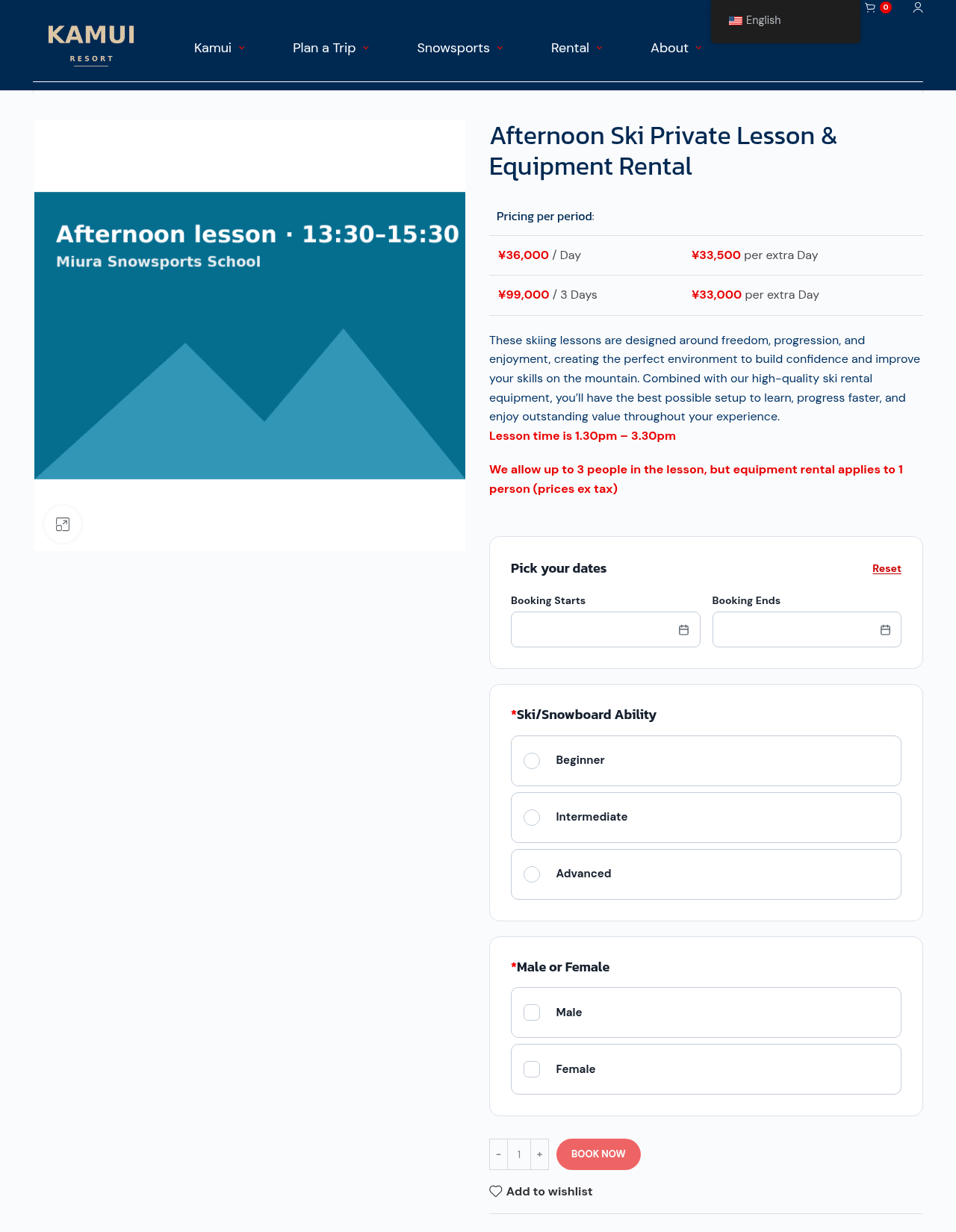
The new lesson on the shop, and for the customer every lesson page looks like this: the price table, two date pickers, the two questions, Book now. What is new is underneath. A booking is stored with the product’s hours, so a Tuesday afternoon on this product is 16 February 13:30 to 15:30 in the system, and Emma Clark’s morning lesson in Part 3 is 16 February 09:30 to 12:30, not just 16 February.
Nothing to re-learn. Both questions are there, the shared one included. The placeholder image with the hours was added on the test copy only, so the three lengths can be told apart; the real photos stay yours.
A lesson and skis in one order. The shop keeps Allow Different Dates In Cart off, so one order is one set of dates. A morning lesson (09:30 to 12:30) and a day’s ski rental on the same day used to count as different dates, because the minutes differed. They no longer do: for products with fixed hours, the same calendar days are the same dates. Two different days are still refused, as before.
8. Equipment included, for the instructor
One more field on the product: Equipment included (shown to staff). Write what the lesson comes with, in the words the instructor needs. It never reaches the customer. It appears on the week sheet and in the instructor’s app, together with the customer’s answers and anything else they rented for that day.
Staff words. “Skis or snowboard, poles, boots” on the lesson-and-equipment products, the full set on the full-equipment ones. The Miura Freedom lessons leave it empty, and then no equipment block is shown at all.
9. Every lesson product and its hours
The eleven published lesson products on the test copy, set exactly like this. Every one has Use Standard Times on and One lesson per day on; only the hours and the note differ. A new lesson product needs the same six switches, the two times, the per-day switch and, if it comes with equipment, the note.
Product
Hours
Equipment included (shown to staff)
Morning Ski Private Lesson & Equipment Rental
09:30–12:30
Skis or snowboard, poles, boots
Morning Ski Private Lesson & Full Equipment Rental
09:30–12:30
Full set: skis or snowboard, poles, boots, helmet, jacket, pants
Miura Freedom – All Day Private Lesson – Snowboard
09:30–15:30
—
PART 02
Instructors
Four people on the test copy: Kenji Sato (ski and snowboard), Aya Tanaka (ski), Liam Walker (snowboard), Mia Nakamura (ski, off on Wednesday 17 February).
10. An instructor is an employee
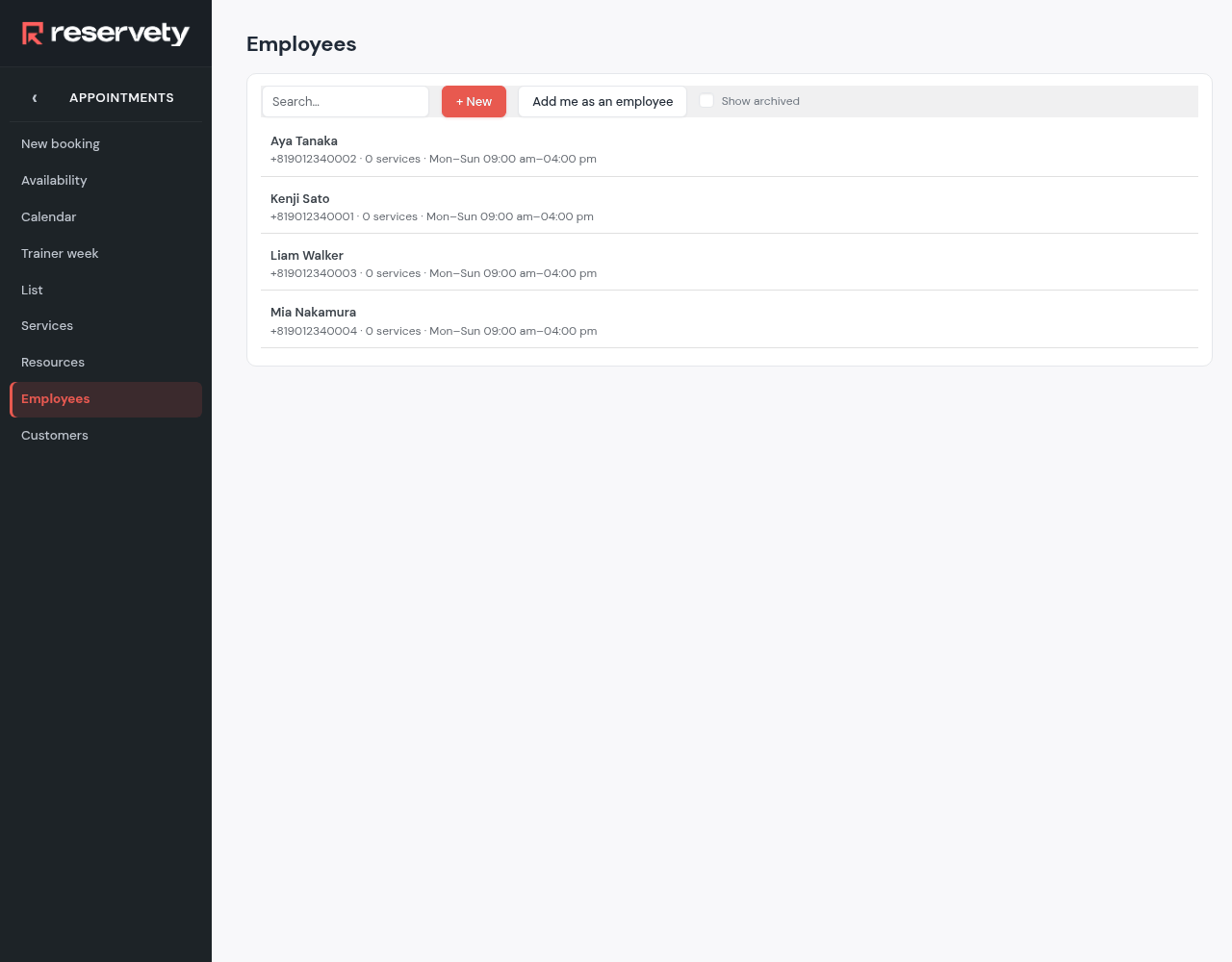
Appointments → Employees, then + New. A name and a phone number are enough to start; the email is optional. Each instructor also gets a login, paired on the full record, and that login is what they use in the app. The list shows the phone, the services and the weekly hours of each person.
Four records. The phone number is where the schedule and the reminders go. “0 services” is right: lessons are matched to instructors by the assign rule, not by attaching services.
11. What each of them teaches
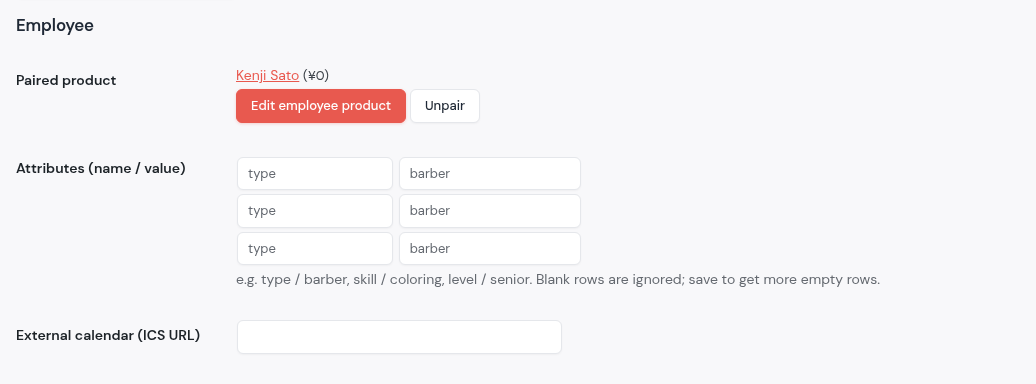
Every instructor carries tags, entered as name and value rows on their Reservety user profile: Users, open the instructor, the Employee section, Attributes (name / value). Here skill / instructor, which the assign rule looks for, plus skill / ski and skill / snowboard as they apply: Kenji has both sports, Aya and Mia have ski, Liam has snowboard. The same section pairs the login with the employee record. The tags show as chips on the week sheet once someone is picked, so the desk sees at a glance who does what.
Kenji’s profile. Three rows, one per tag; the Paired product row is the link between the login and the employee record.Chips on the sheet. Kenji with ski, snowboard and instructor. The rule on this server asks for “instructor” only, so the picker offers all four for every lesson; the sport is the desk’s call.
12. Weekly hours and a day off
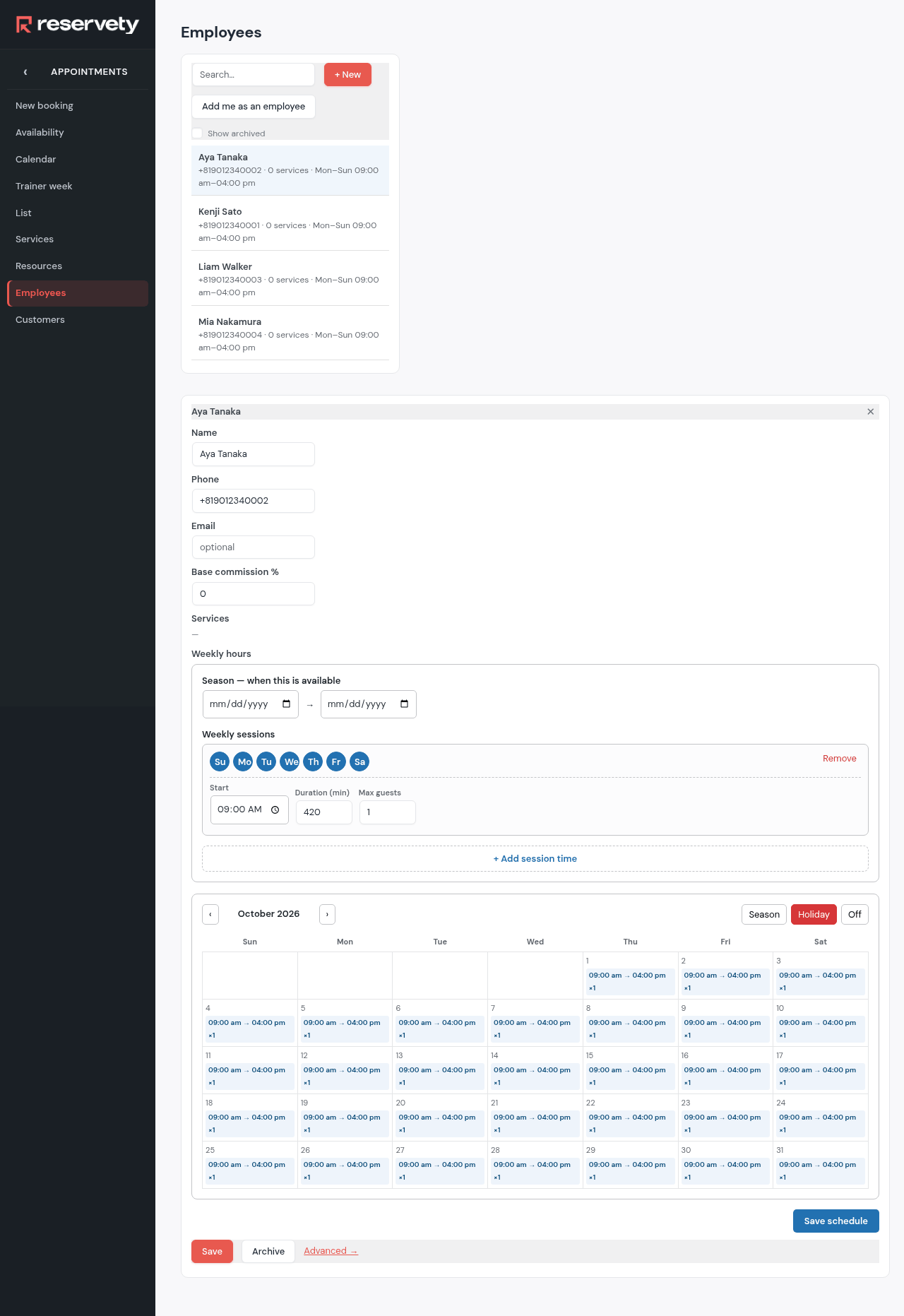
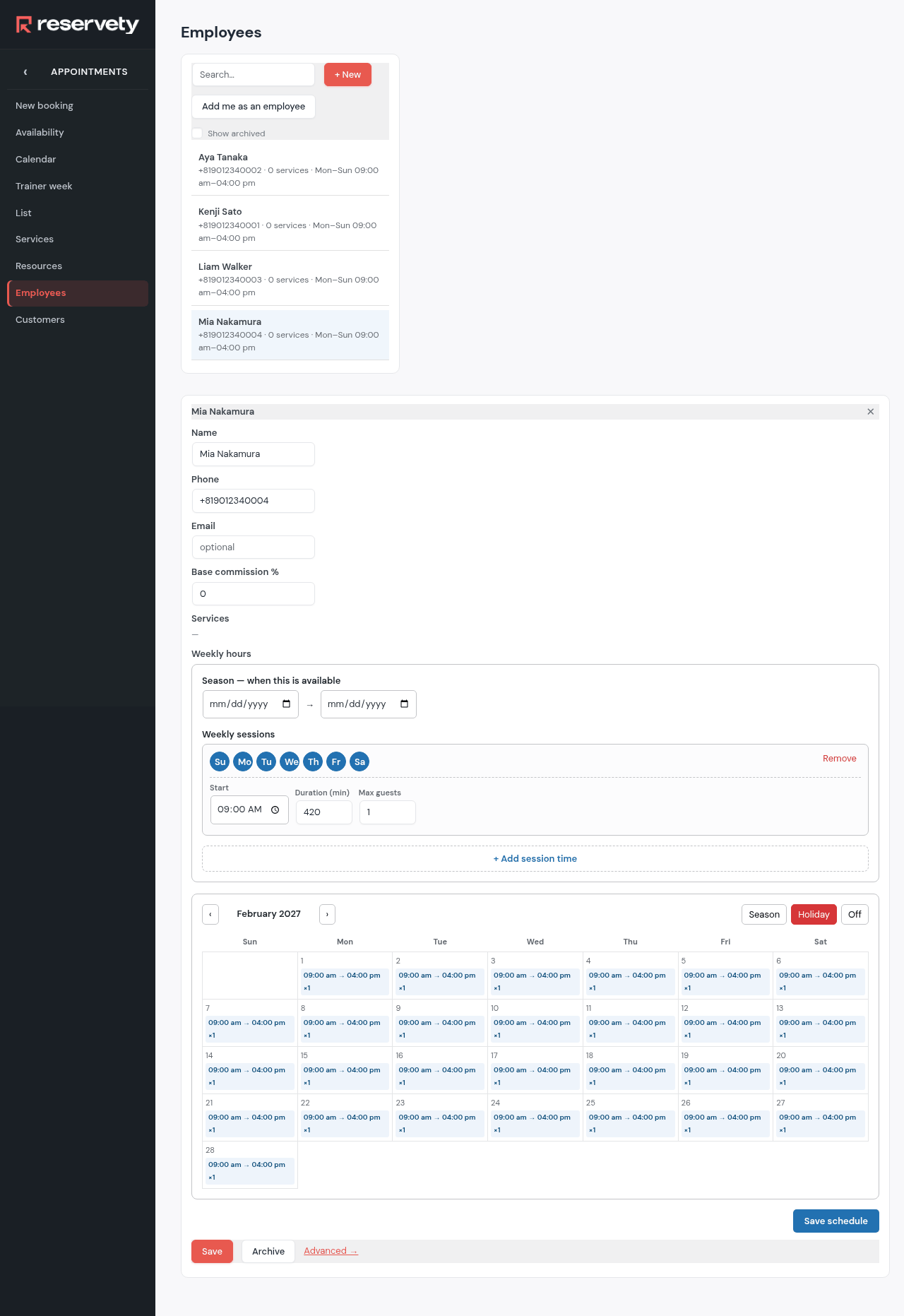
Open a record. Under Weekly hours, one weekly session covers the whole working day: every day of the week, start 09:00 AM, duration 420 minutes, max guests 1. Save schedule paints it on the calendar as 09:00 am to 04:00 pm, one person. A day off is a block on the Appointments calendar: open Calendar, the instructor’s column, Block time for that day, with a reason. Mia has Wednesday 17 February blocked as “Day off”, and that is what the picker and her app will show.
Aya’s record. One session row, seven days, 420 minutes. The calendar below is what the week screen reads as “free”.Mia in February. The same pattern. Her 17 February is time off on her record, not a hole in the pattern: the picker greys her out that day (step 18) and her app lists it under Time off (step 27).
13. The assign rule, with Pick at the desk
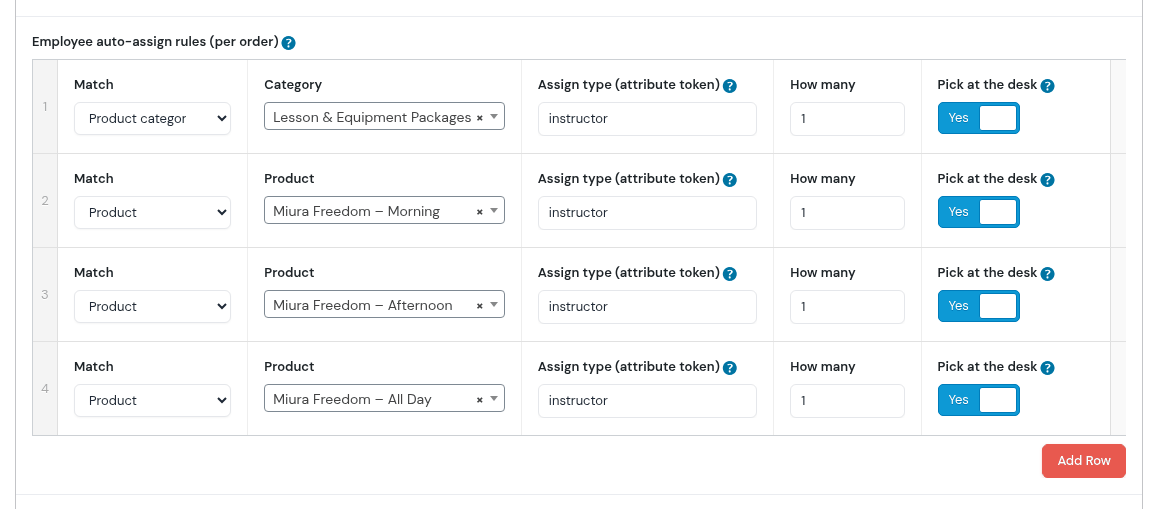
On the Rental Settings page, Employee auto-assign rules (per order). One row covers the whole Lesson & Equipment Packages category: assign type instructor, how many 1, and the new switch Pick at the desk on. The three Miura Freedom lessons sit in another category, so they get a row each, matched by product. Without the switch, checkout would pick a free instructor by itself; with it, the booking is marked as needing an instructor and nobody is chosen until the desk does it on the week screen.
Four rows, one meaning. Every lesson needs one instructor, chosen at the desk. The switch’s help text: mark the booking as needing this person but choose nobody at checkout; the desk assigns on the week screen.
PART 03
A week in February
Eight bookings arrive for 15 to 21 February. The desk staffs them on Trainer week, one tap per lesson.
14. A booking arrives
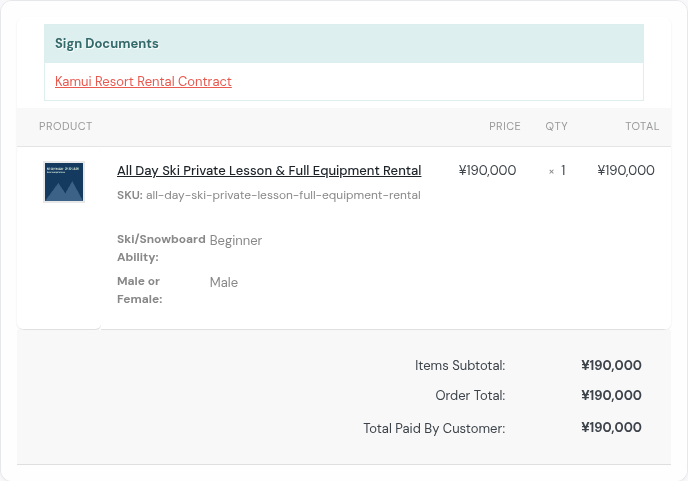
Daniel Brown books the all-day ski lesson with full equipment for Monday 15 to Wednesday 17 February, beginner, male. The order is an ordinary order: the product line, the two answers, the rental contract waiting for a signature. Nothing on it says who teaches; that is the week screen’s job.
Order #53606. The ability and gender answers travel with the line and reach the instructor; the three days are priced from the product’s own table and were paid at the desk.
15. The week screen
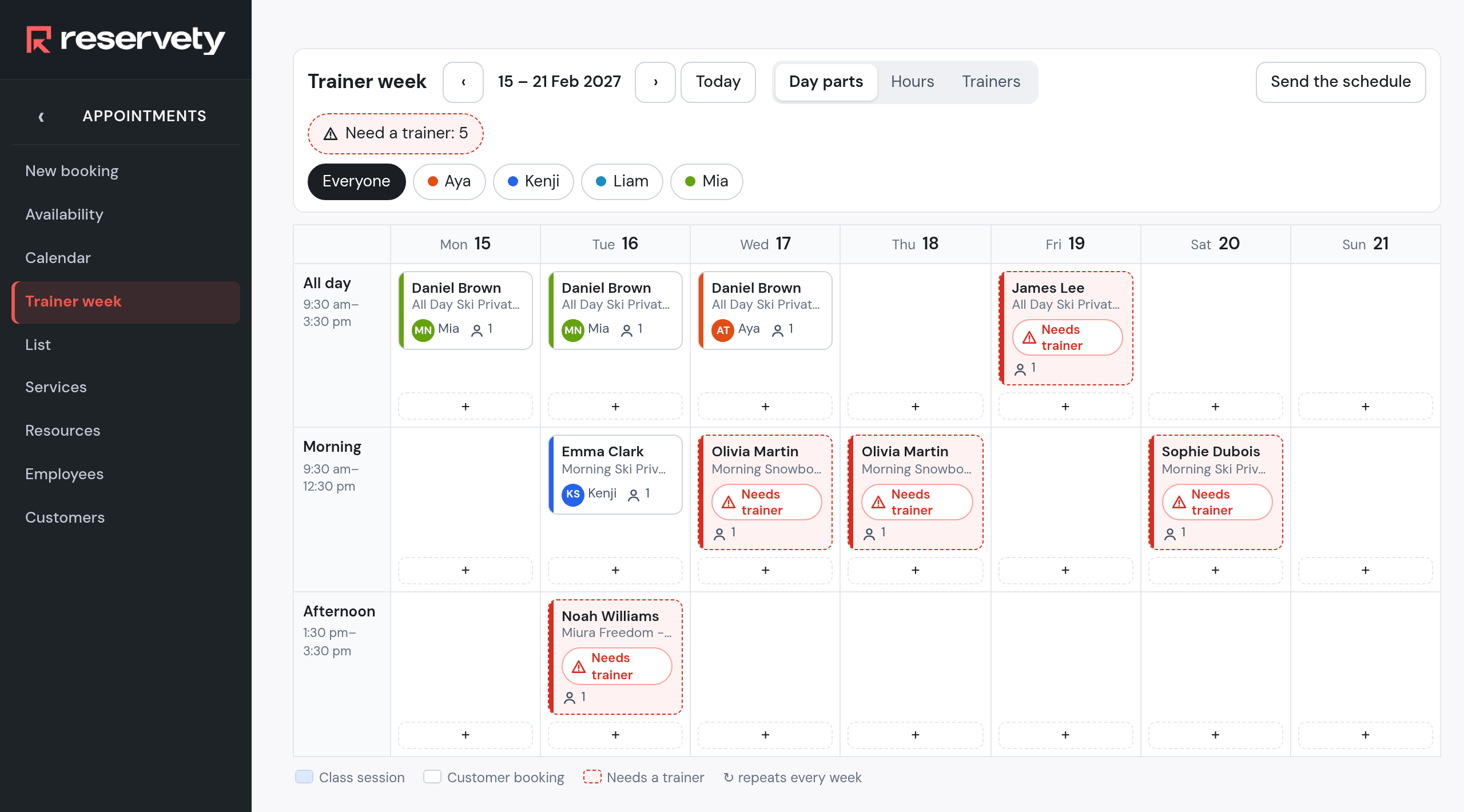
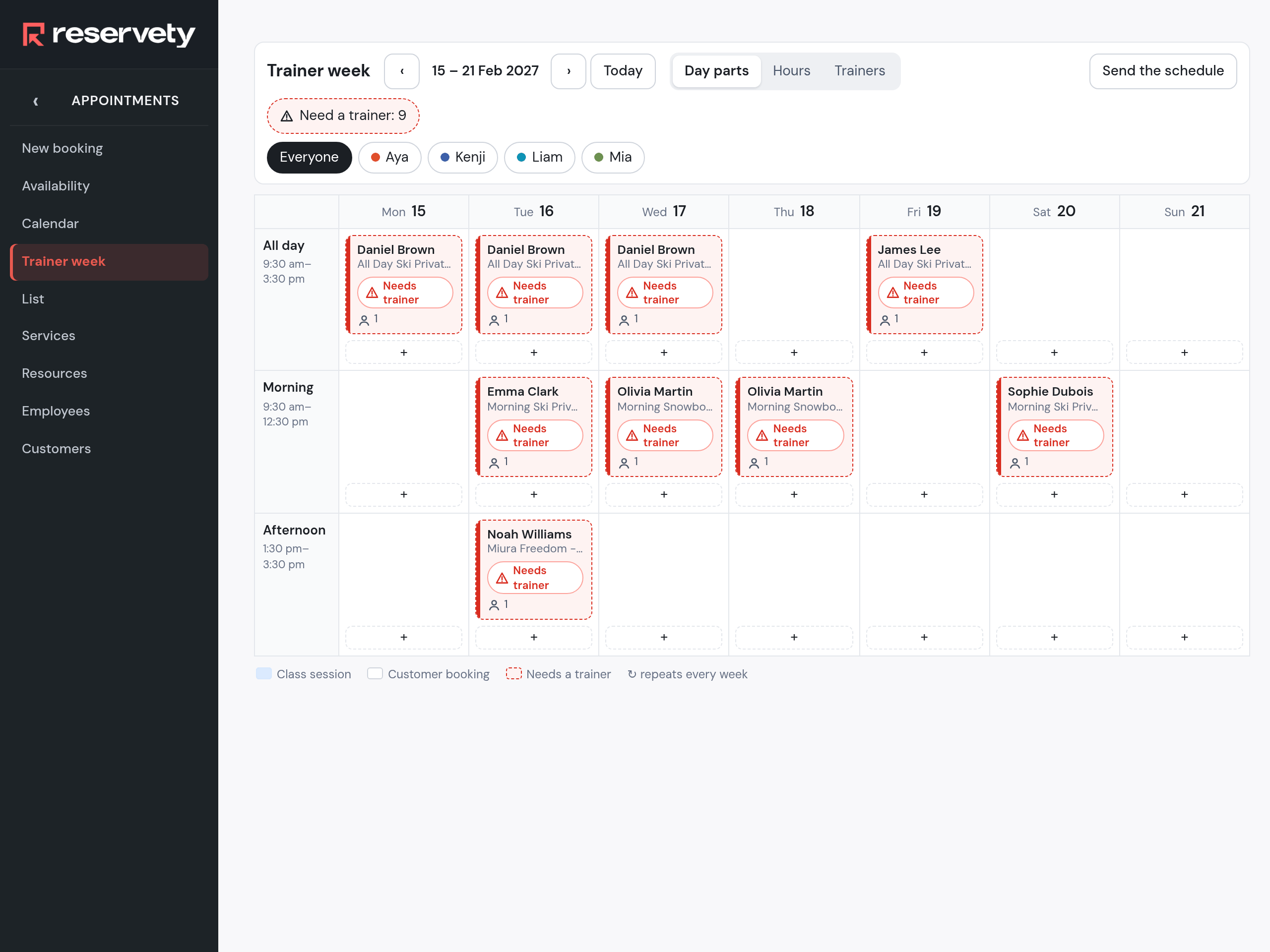
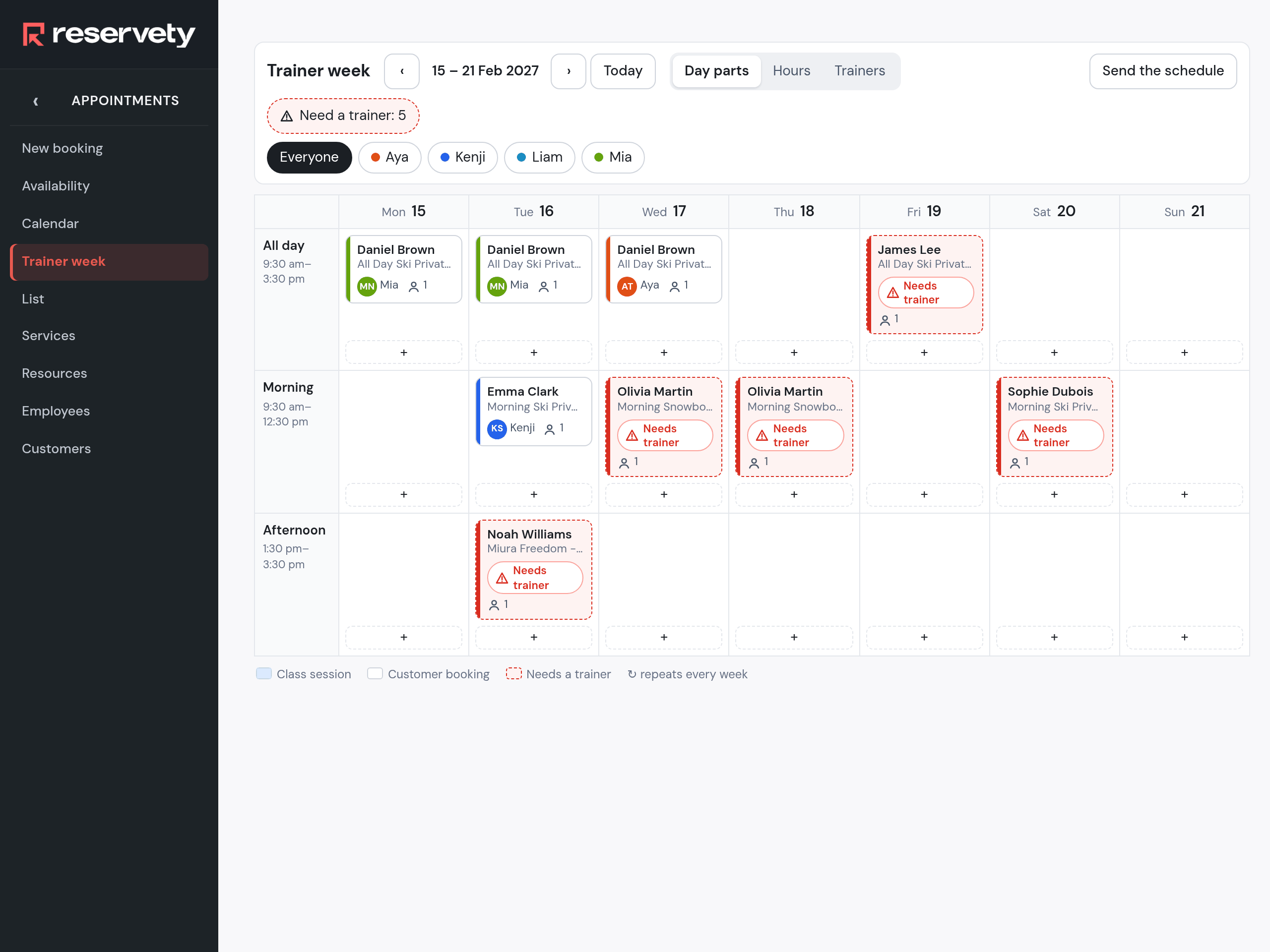
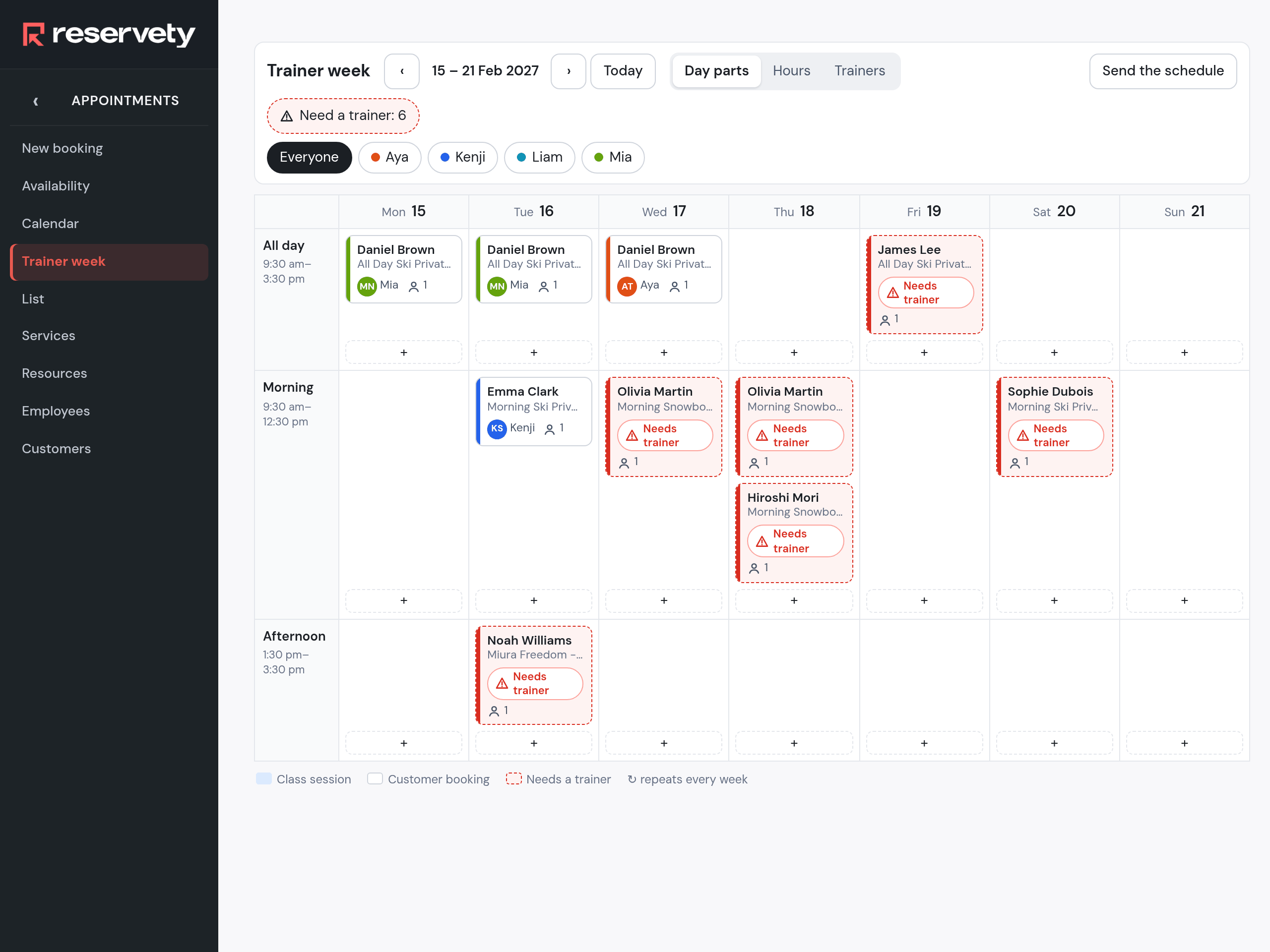
Appointments → Trainer week, on the Day parts view. Three rows: All day, Morning, Afternoon, with the hours under each. Daniel Brown is on Monday, Tuesday and Wednesday, one card each. Every card is red with Needs trainer, and the chip at the top counts them: nine. The chips next to it filter the grid to one instructor; Send the schedule sends everyone their week.
Nine cards, nobody on them yet. A three-day lesson is three cards. The legend at the bottom: class session, customer booking, needs a trainer, repeats every week.
16. Pick an instructor
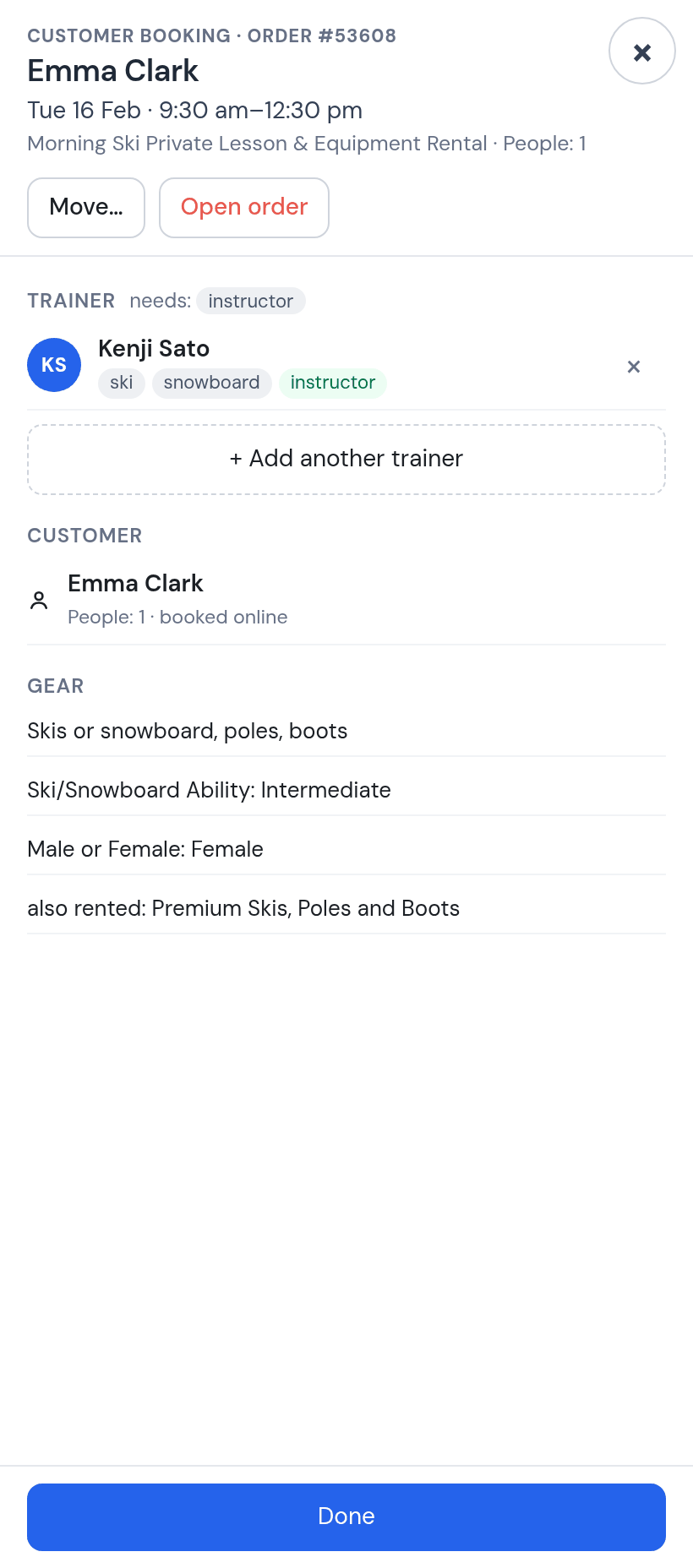
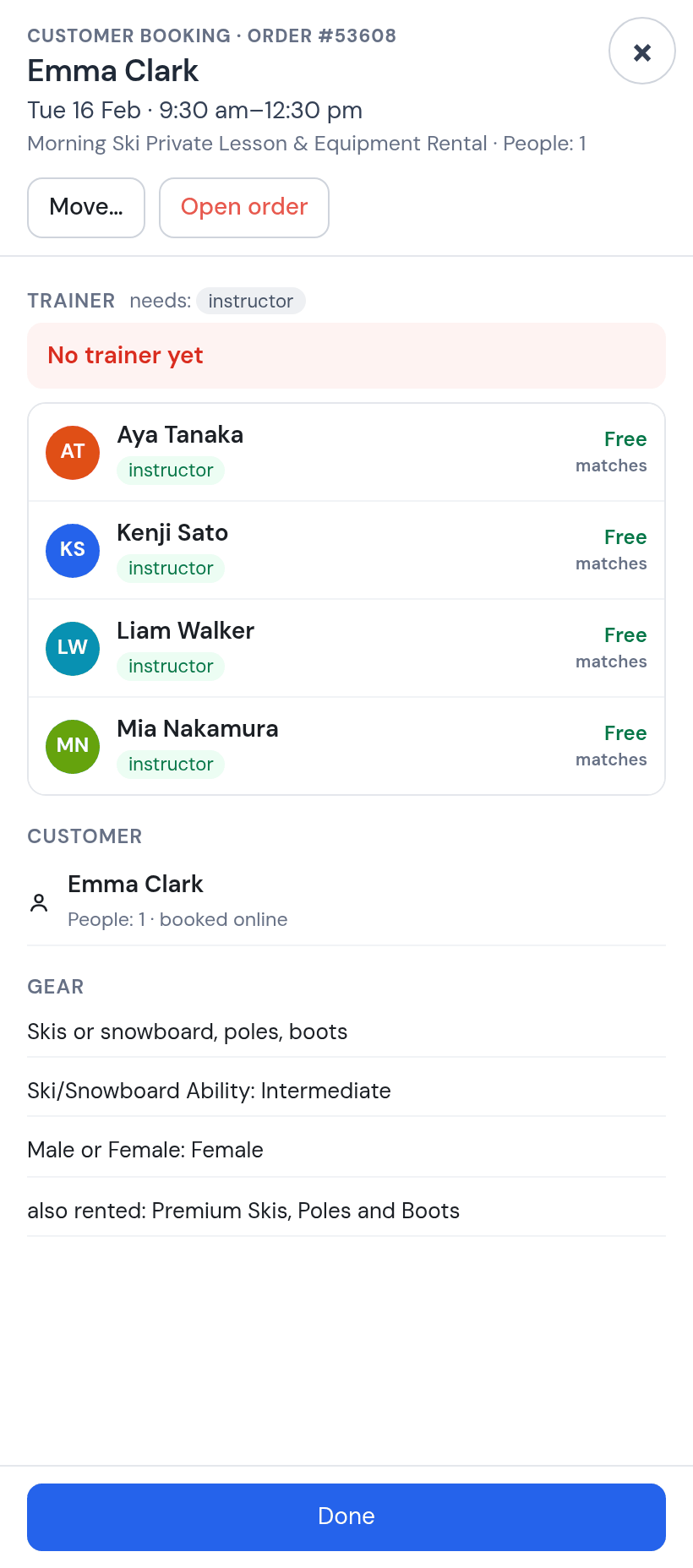
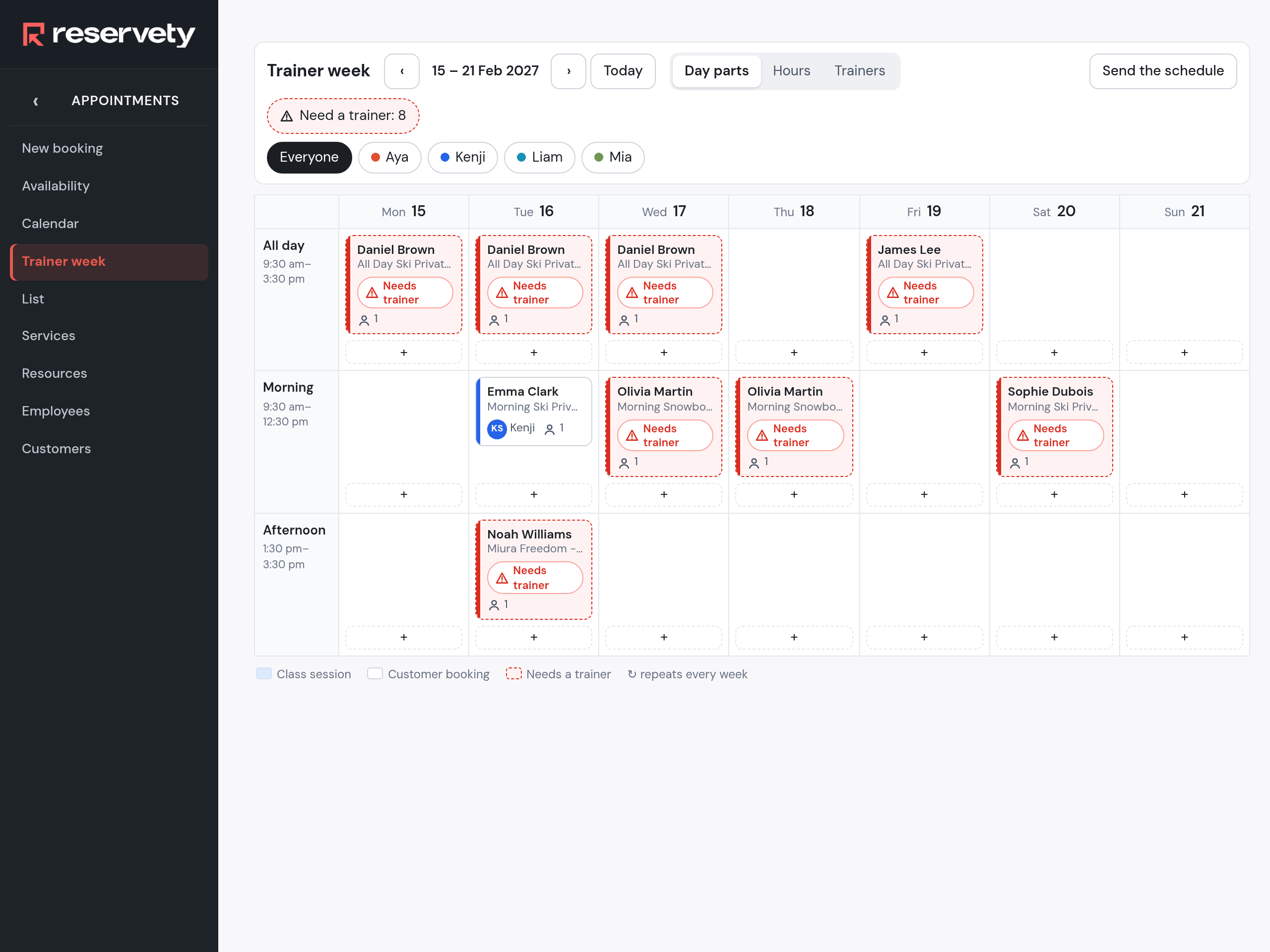
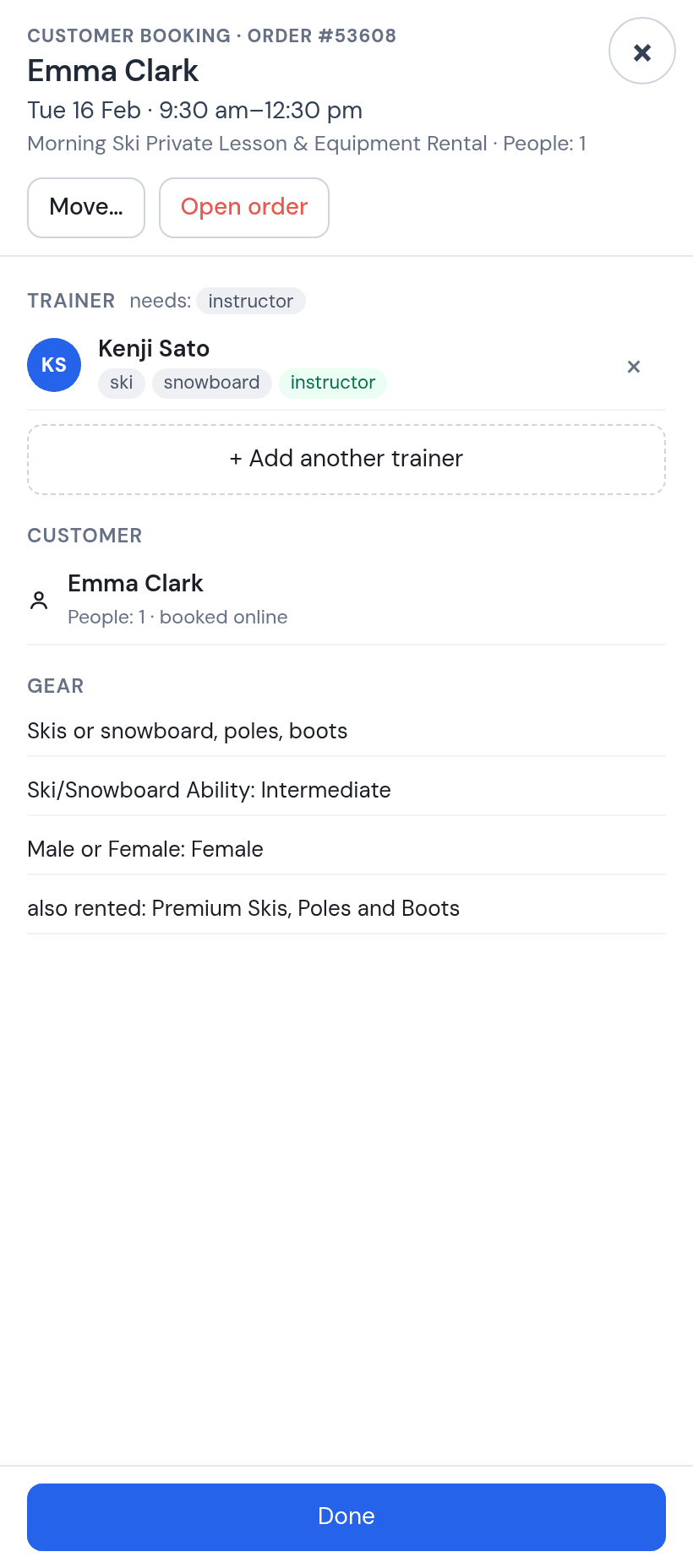
Tap a card and the sheet opens: the customer, the day and the hours, the product, and under Trainer what the rule needs (instructor) and the list of people. Each name says whether they are free at those hours and whether they match. Tap Kenji, then Done. His hold for Tuesday 09:30 to 12:30 is written, the card turns blue with his initials, and the counter drops to eight.
The sheet. All four are free on Tuesday morning. Move… and Open order sit at the top for later.One down. Emma’s card carries Kenji; the other eight are still red.
17. A lesson of three days
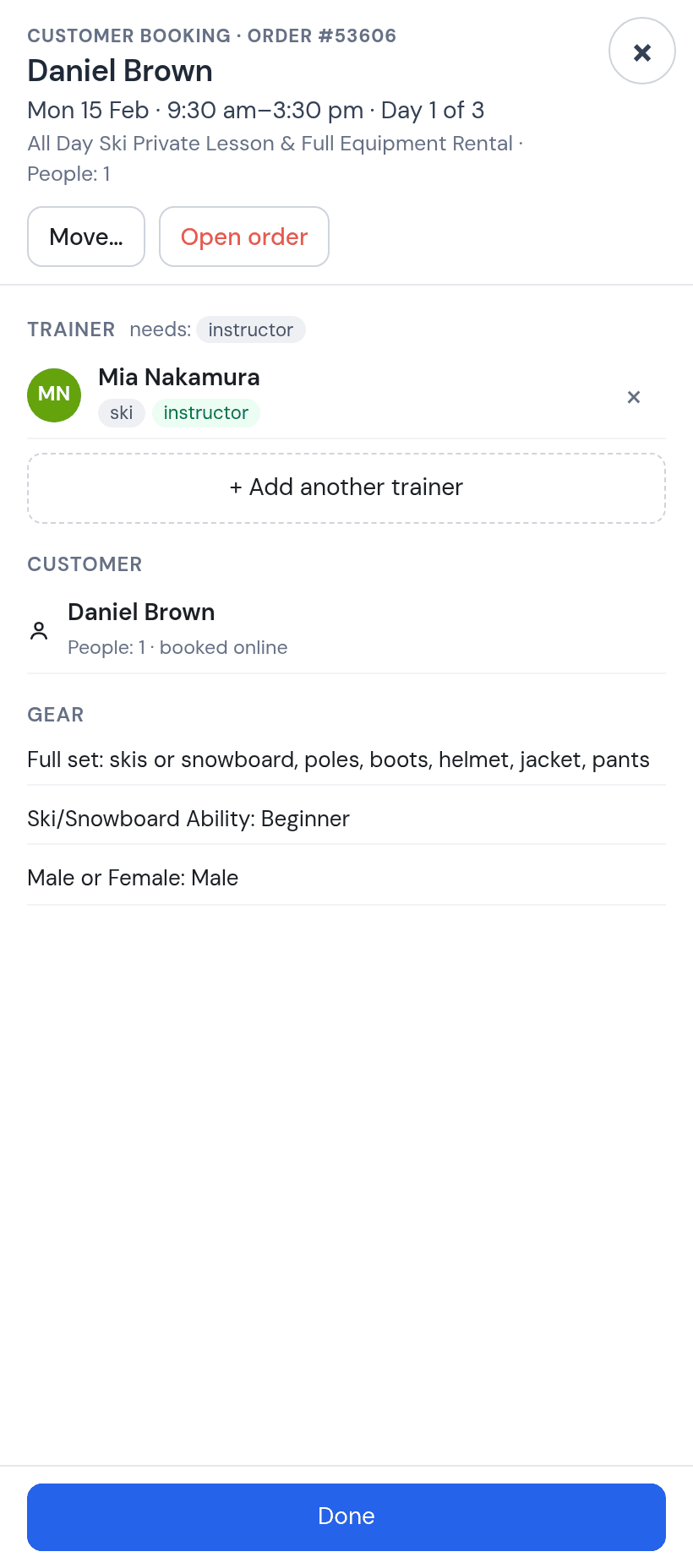
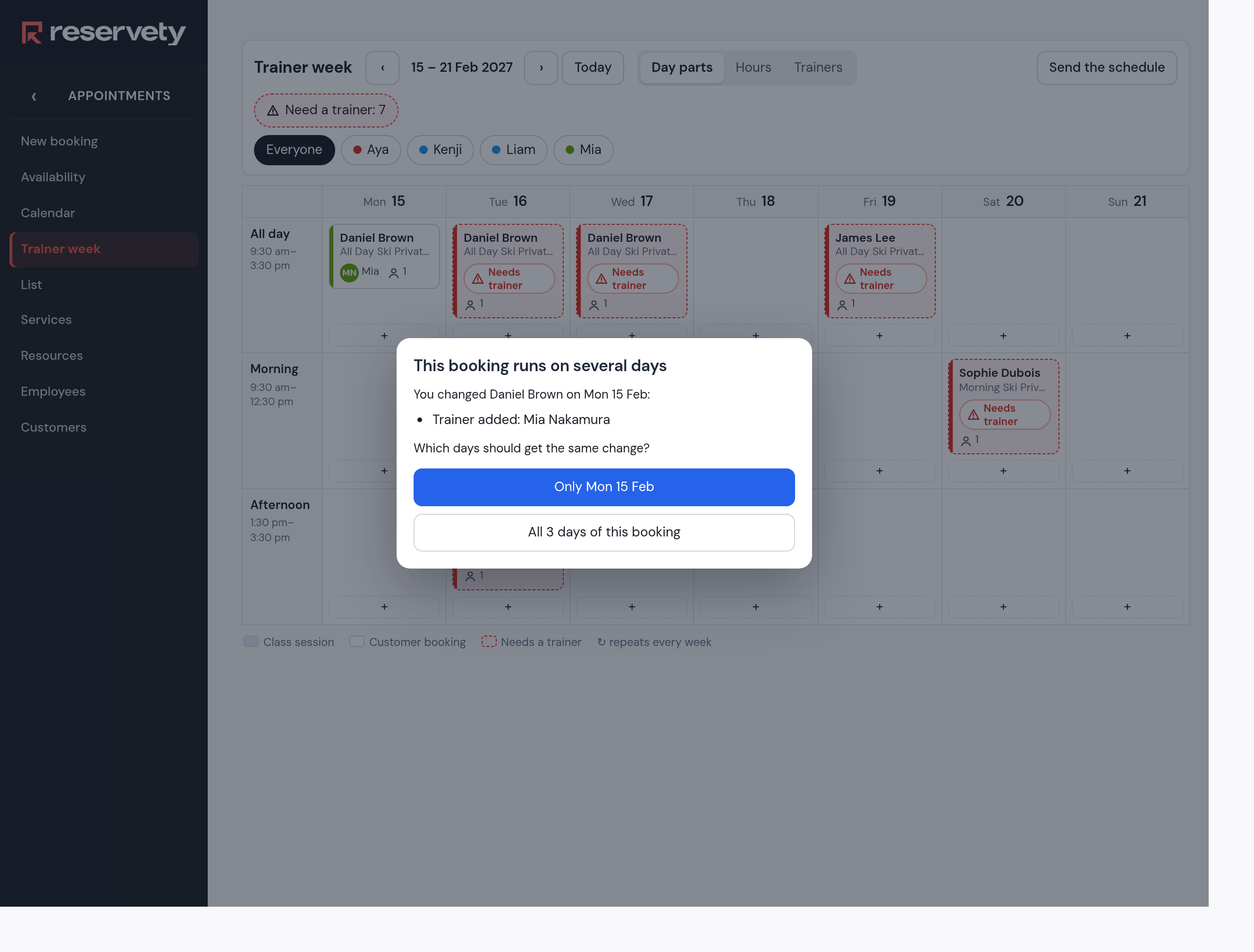
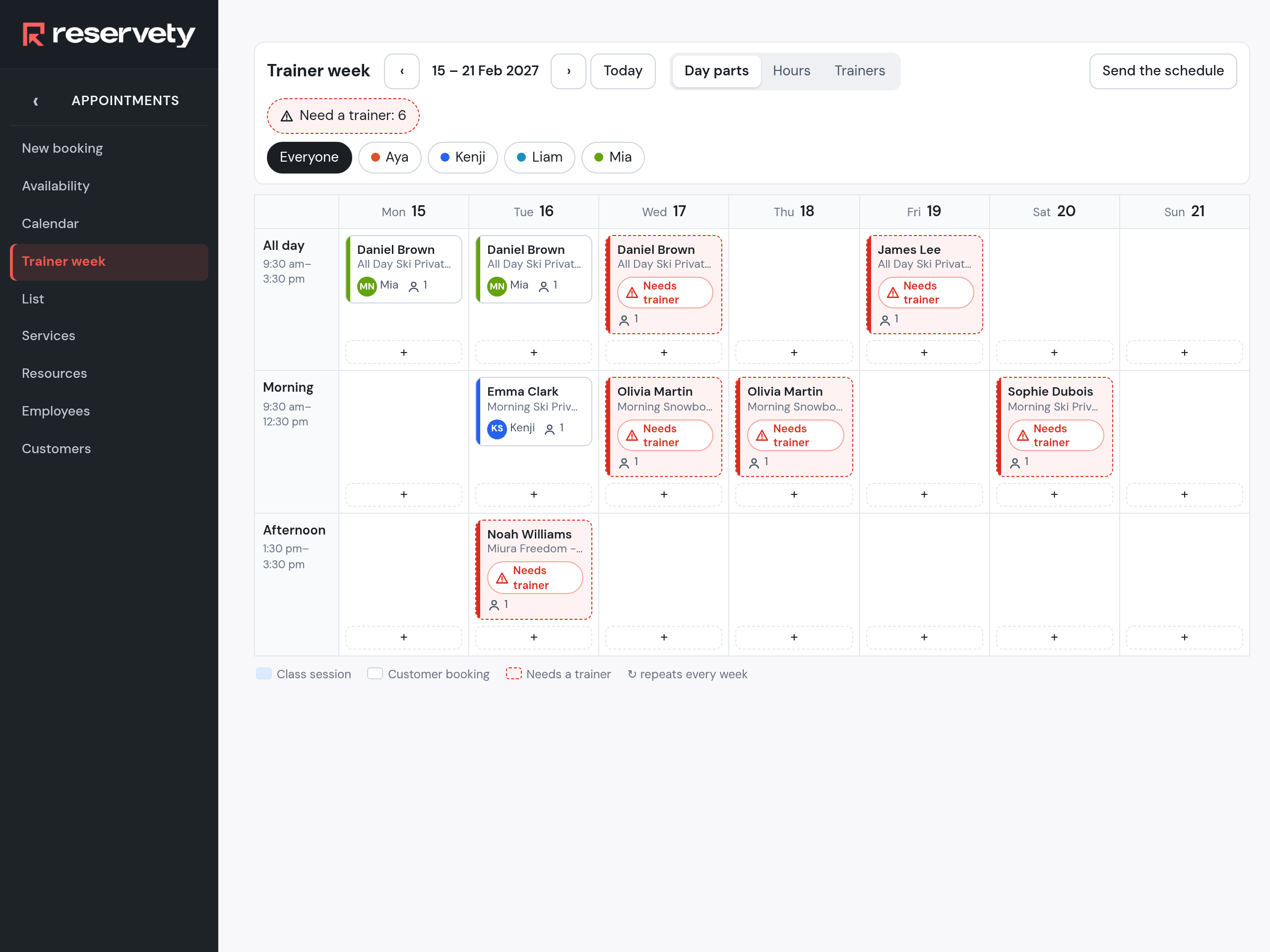
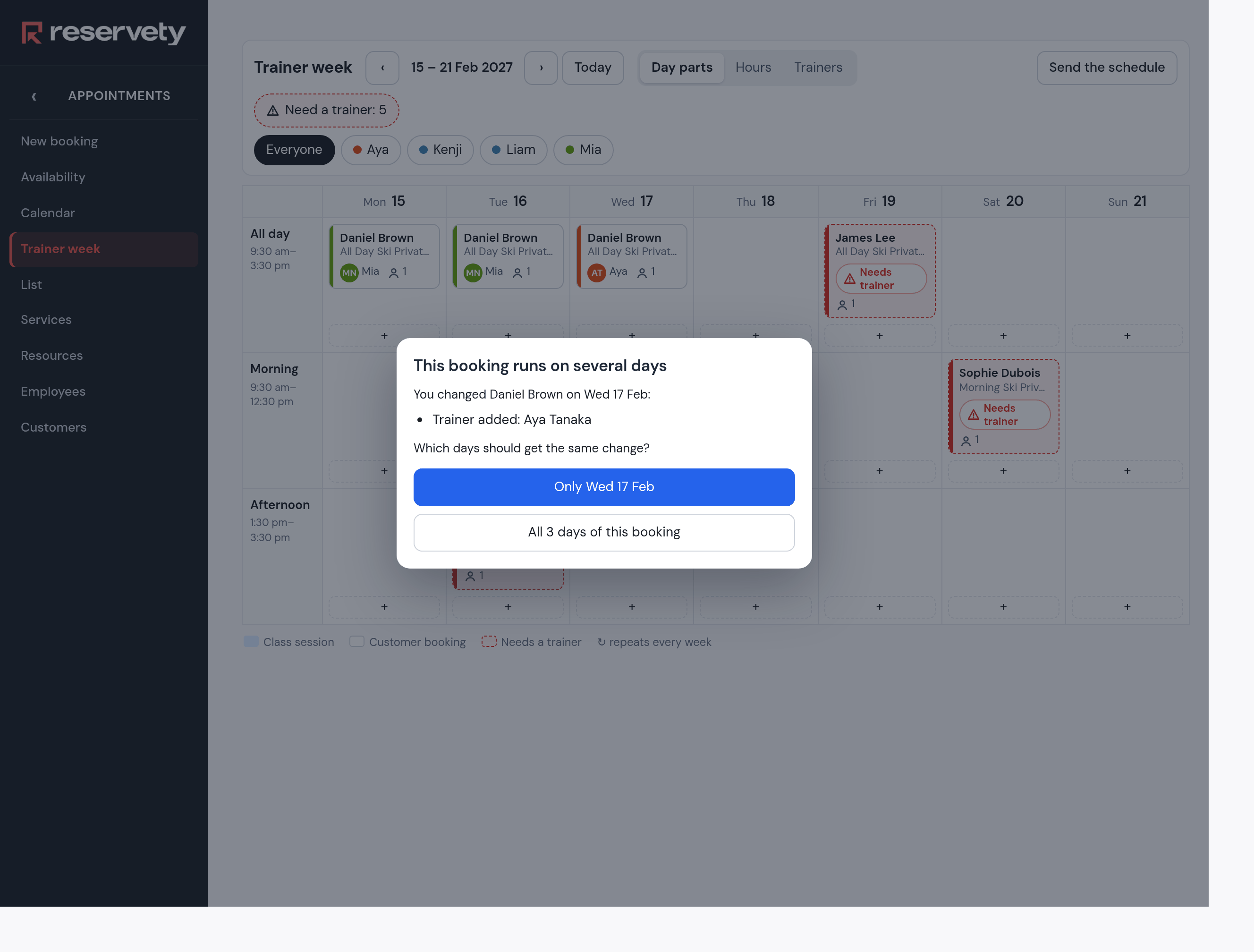
Open Daniel Brown on Monday. The sheet says Day 1 of 3. Pick Mia and tap Done: because the booking runs on several days, the screen asks which days should get the same change, Only Mon 15 Feb or All 3 days of this booking. Choose all three. Mia goes on Monday and Tuesday; Wednesday is skipped, because she is off that day, and the card stays red. One message tells her about the days she got, not one per day.
Day 1 of 3. Mia picked on Monday.The question. Only this day, or all three.Two of three. Wednesday is left for someone else.
18. Wednesday: a substitute
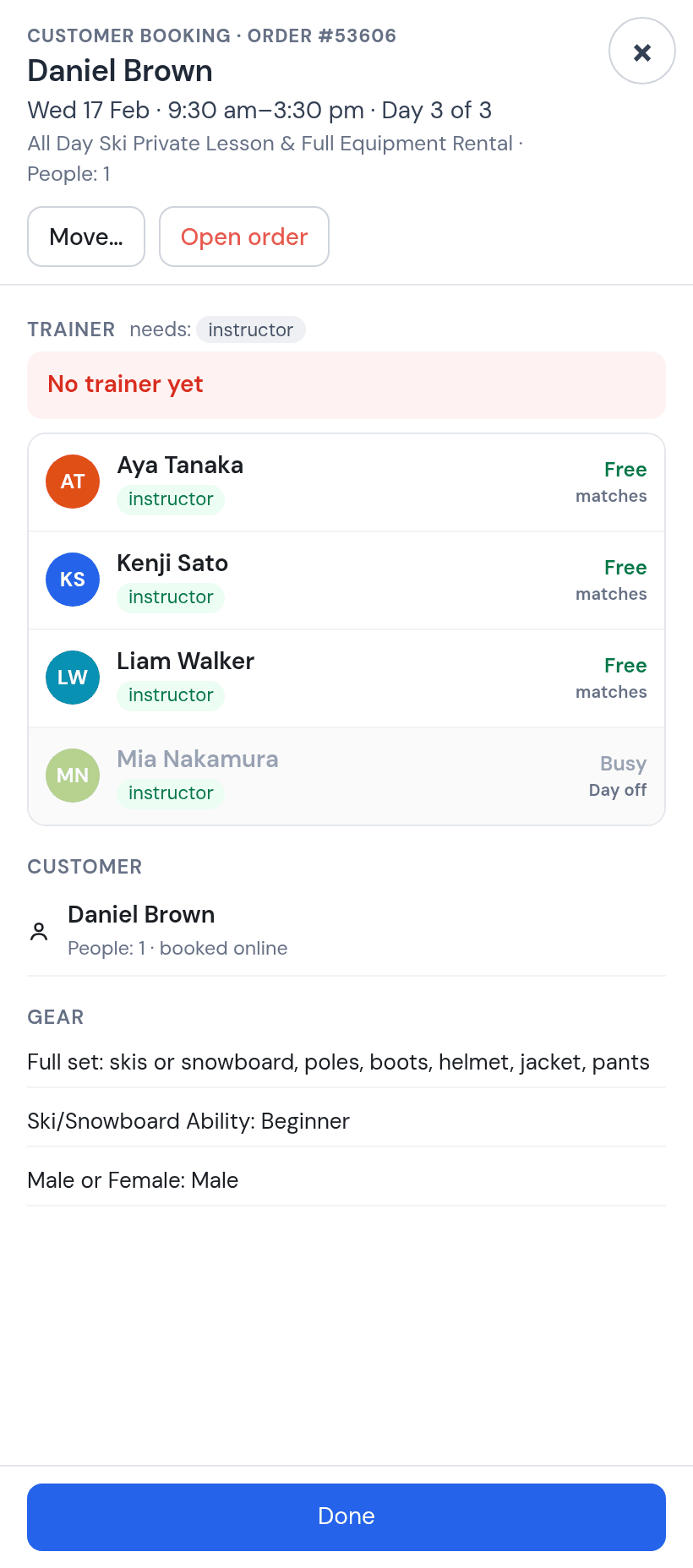
Open the Wednesday card, Day 3 of 3. Mia is greyed out, Busy, Day off. Pick Aya. The same question comes, and this time the answer is Only Wed 17 Feb: Mia keeps Monday and Tuesday, Aya takes Wednesday. Daniel’s family has Mia for two days and Aya for the third, and the week shows exactly that.
Day off. Mia cannot be picked on Wednesday.Only Wednesday. The other two days keep Mia.Staffed. Three days, two instructors, one booking.
Taking someone off works the same way. Tap the × next to the name on the sheet, then Done, and the same question comes. All days of this booking releases every day of that instructor’s, including days already taught, and their pay lines go with them. To keep the past, remove with Only this day on each remaining day instead.
19. What the instructor needs to bring
The bottom of every sheet is the Gear block. First the product’s note from step 8, then the customer’s answers (ability, gender), then anything else the same customer rented for that day. Emma Clark also rented Premium Skis, Poles and Boots for Tuesday, so the line also rented says so. Kenji sees the same block on his phone (step 25).
Gear. Note, answers, and the rental from the same customer on the same day. A product without a note shows no Gear block at all.
20. A customer cancels
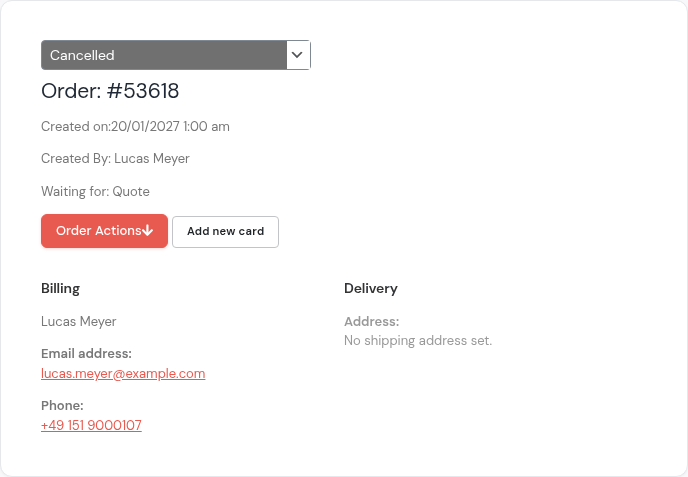
Lucas Meyer had a morning lesson on Thursday 18 February and cancelled. The order goes to Cancelled, and the card leaves the week: Thursday morning in the figures above shows Olivia Martin only. If an instructor had been on it, their hold for that morning is released with it and they are free again.
Order #53618. Cancelled is enough; nothing to do on the week screen.
21. A lesson booked by phone
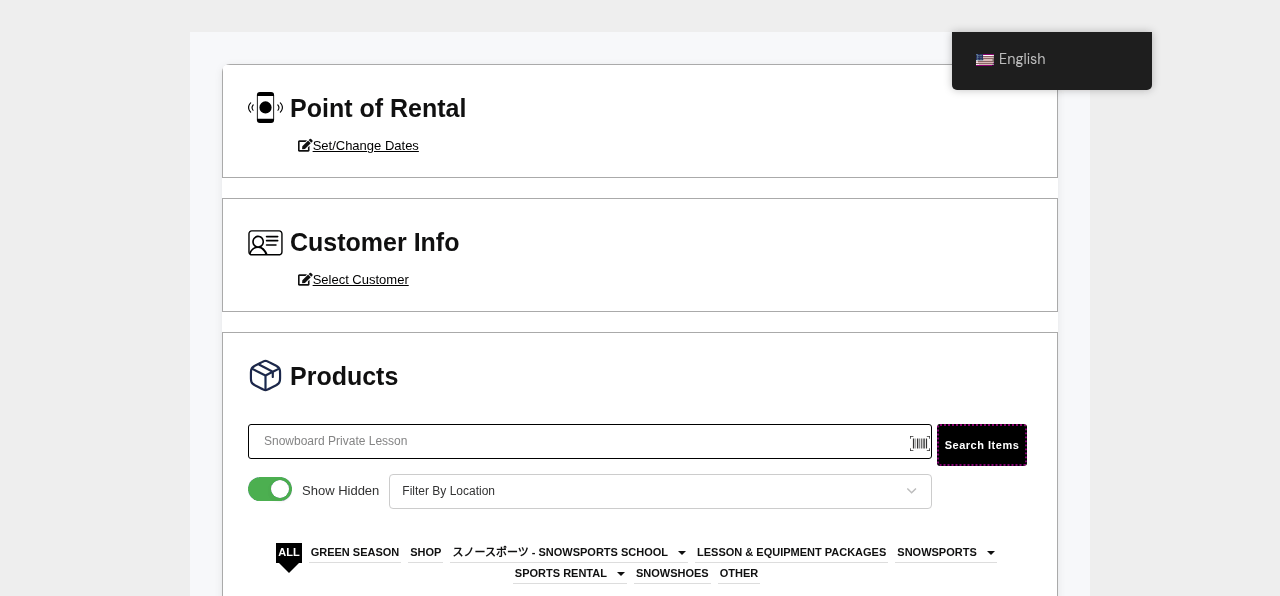
Hiroshi Mori calls on Monday for a morning snowboard lesson on Thursday. The desk books it on the Point of Rental page: set the dates, pick or create the customer, add the product, choose the order status. The lesson appears on Thursday morning of the week like any other, red until someone is picked.
Point of Rental. Dates first, then the customer, then the product by name or by category. Further down the same page, the amount paid and the order status are set before the order is saved.Thursday morning. Hiroshi Mori joins the week with the same hours as every morning lesson.
22. Moving a lesson to another day
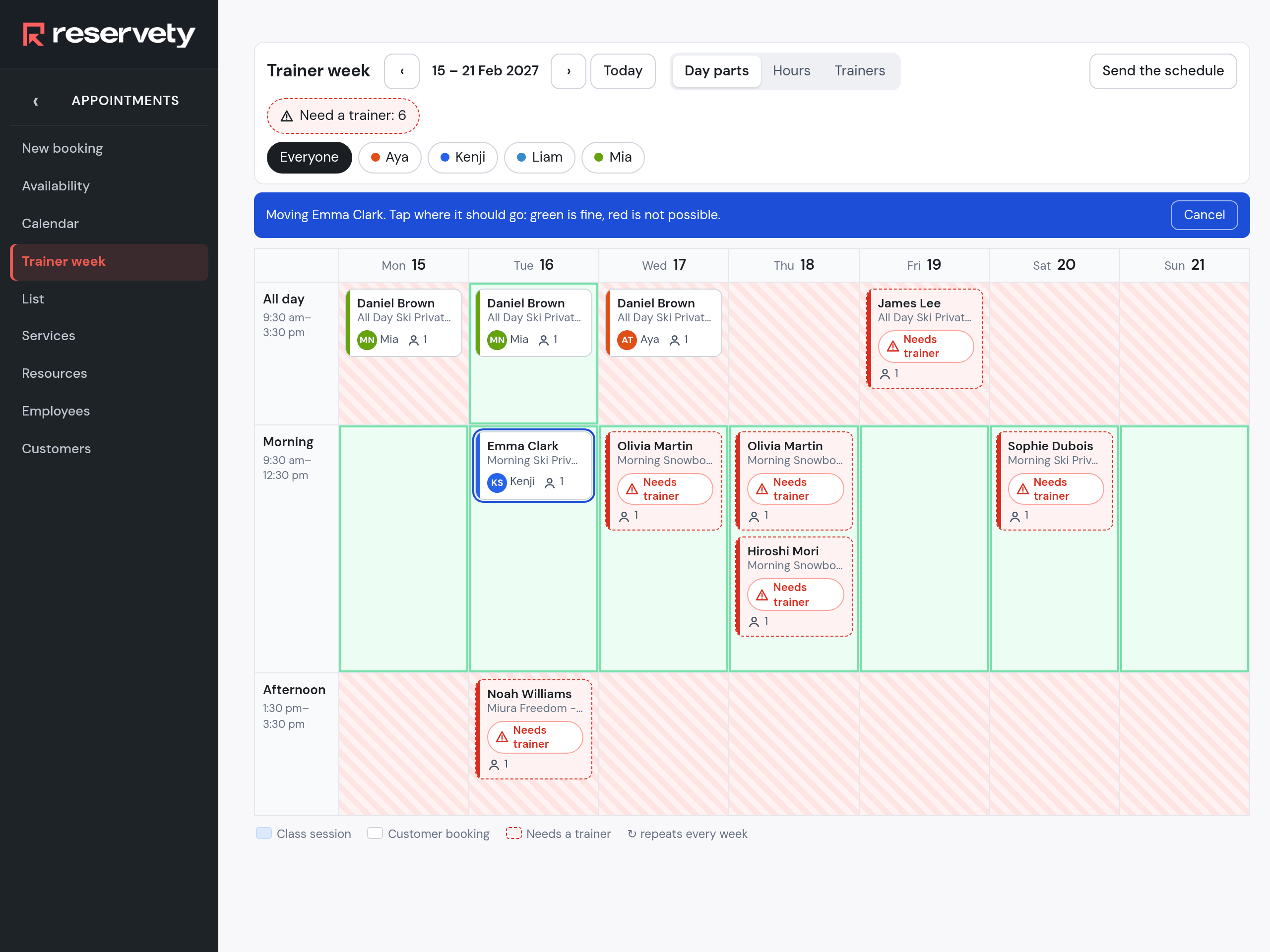
A one-day lesson moves from the sheet: Move…, then tap the day it should go to. The hours stay the product’s hours, so the only choice is the day; the order’s dates follow, and so does the instructor’s hold if they are free that day. A single day of a three-day lesson cannot be dragged away from its siblings: change the dates on the order instead, then look at the week again and pick instructors for any day that needs one.
Move mode. The Morning row is green on every day of the week, because a morning lesson keeps its 09:30 to 12:30; the other rows are red. Cancel leaves everything as it was.
PART 04
The instructor’s app
No download. The staff app lives at /bb-app/ on the site and is saved to the phone’s home screen. An instructor signs in with the login paired to their record and sees their own lessons.
23. Install it from the link
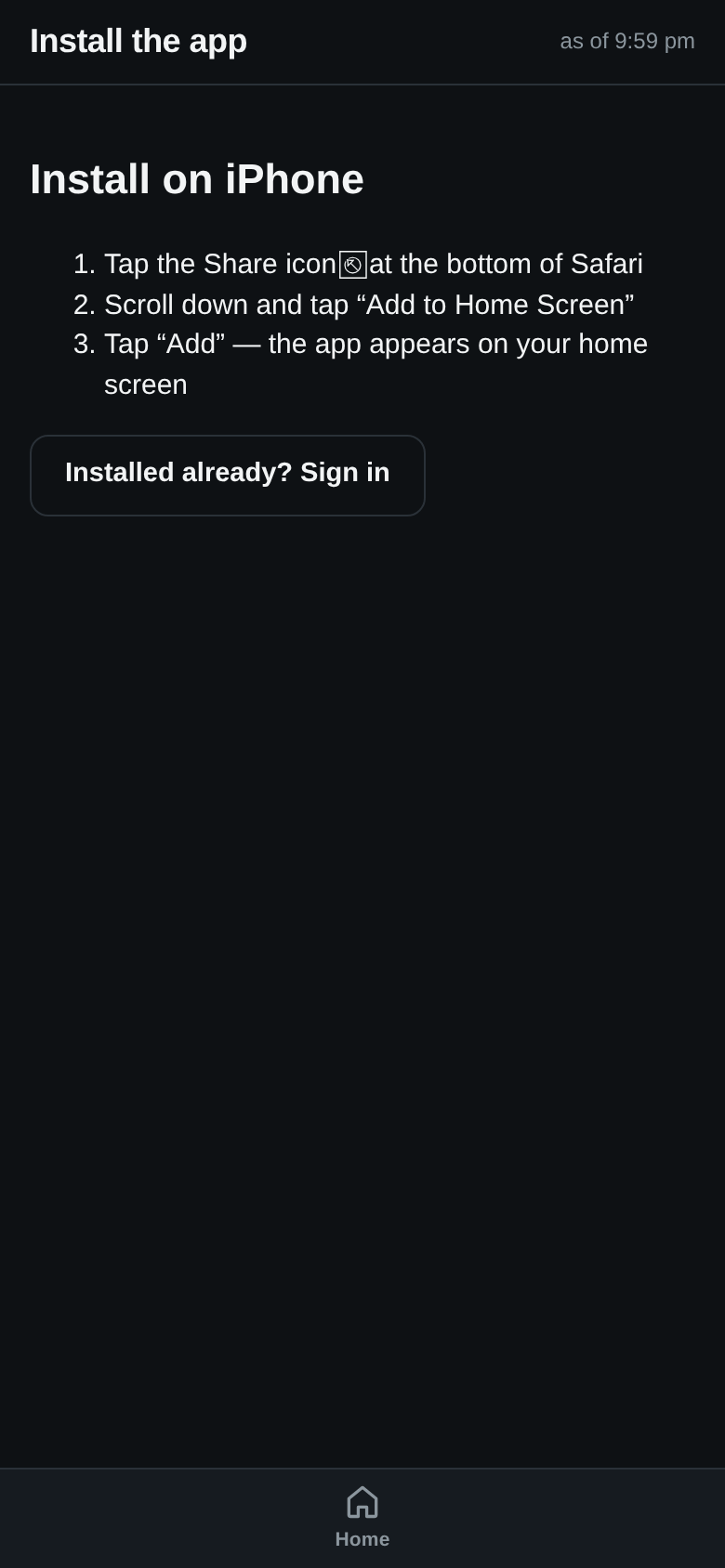
Send each instructor the link to /bb-app/install. On an iPhone: the Share icon in Safari, Add to Home Screen, Add. On Android the browser menu has the same Add to Home screen. Then Installed already? Sign in with their login.
Three taps. The app is the site itself, so there is nothing to update later.
24. Home
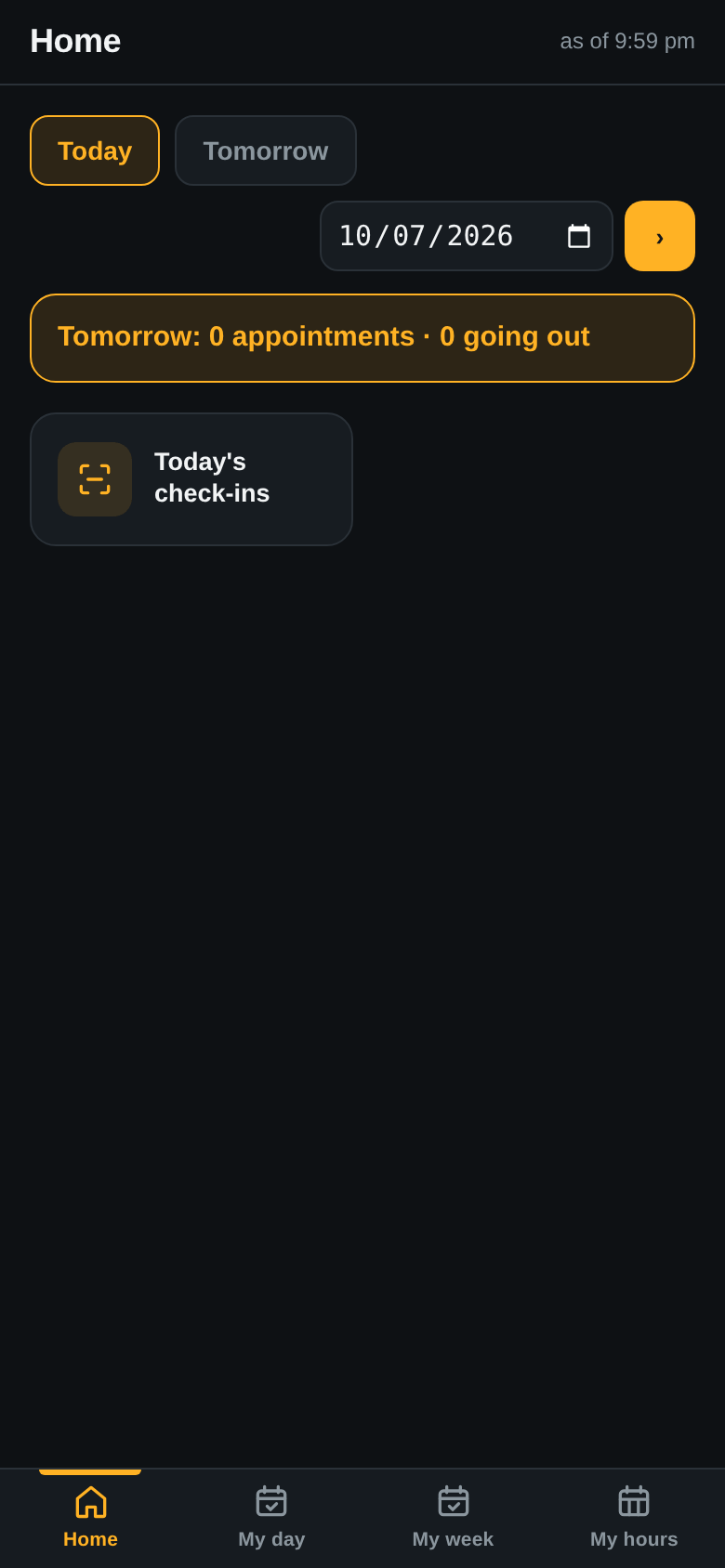
Kenji’s home screen: today or tomorrow, a date to jump to, a line with the day’s count, and the Today’s check-ins tile for customers who arrive. The tabs at the bottom are the whole app for an instructor: Home, My day, My week, My hours.
Home. The screenshot was taken in October 2026, so the counts for that day are zero.
25. My day
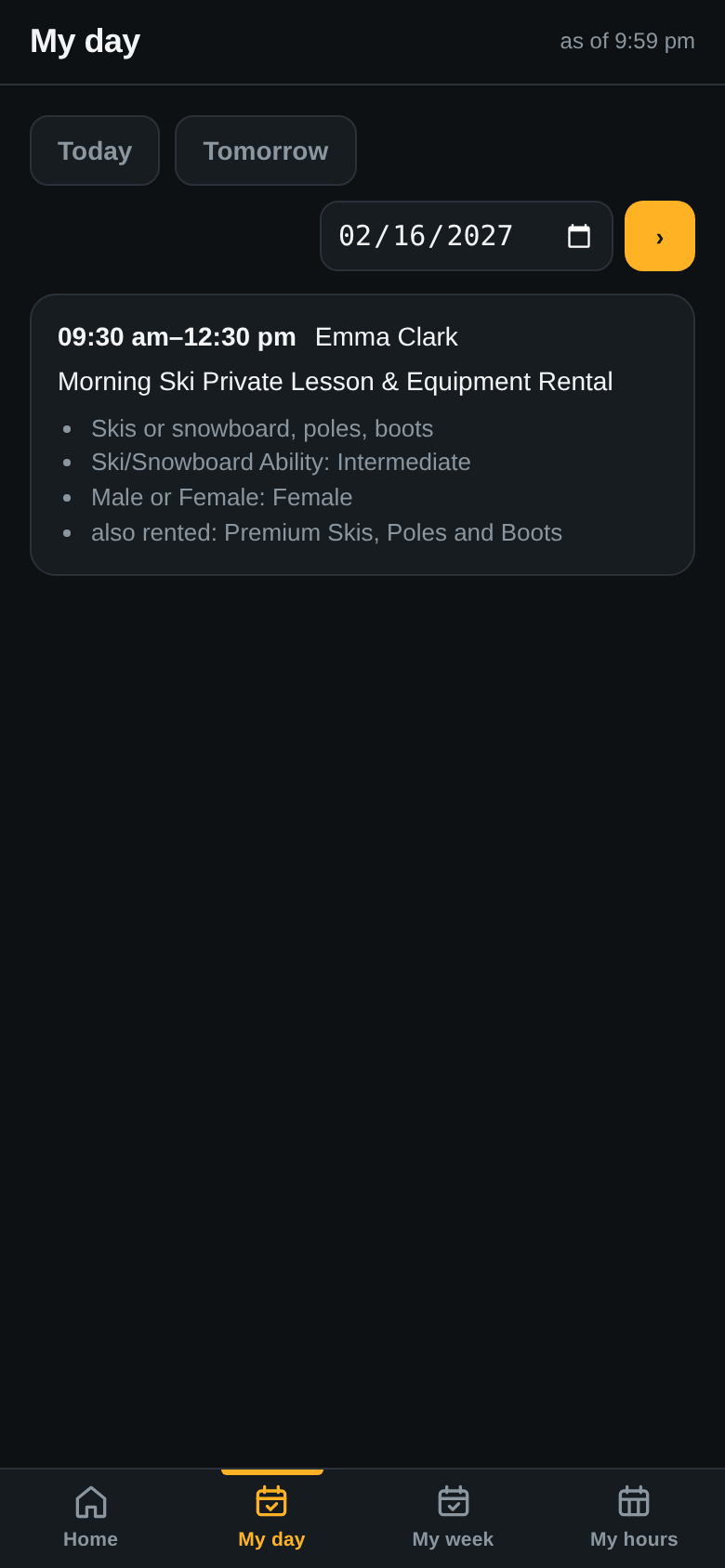
Kenji on Tuesday 16 February: one card, 09:30 am to 12:30 pm, Emma Clark, the product, and the same Gear lines the desk saw on the sheet. Everything an instructor needs before meeting the customer, nothing else.
Kenji’s Tuesday. Ability, gender, the equipment in the lesson, and the skis Emma rented on top.
26. My week
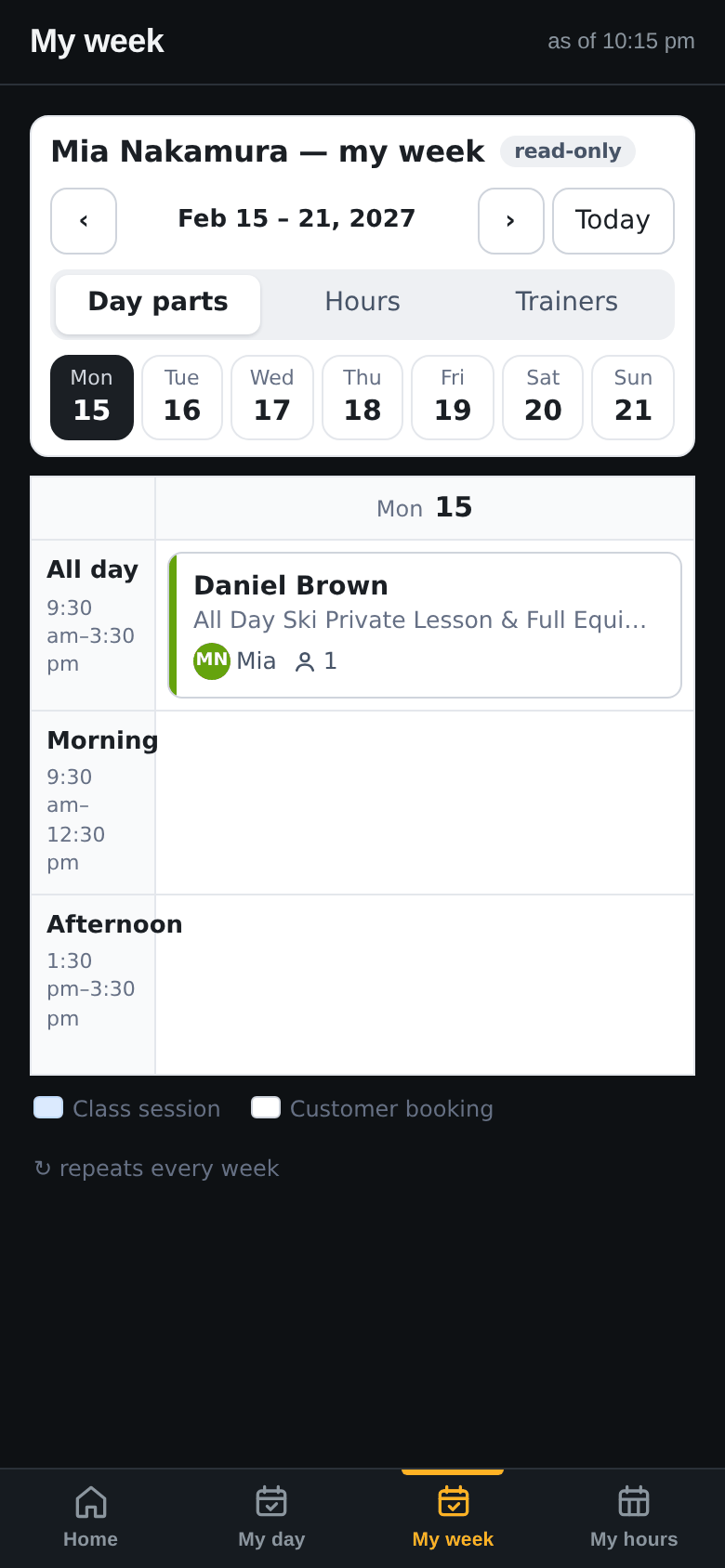
The same week screen the desk uses, read-only and filtered to one person. Mia taps a day at the top and sees her lessons in the Morning, Afternoon and All day rows; Monday 15 shows Daniel Brown.
Mia’s Monday. Read-only: she sees, the desk decides.
27. My hours
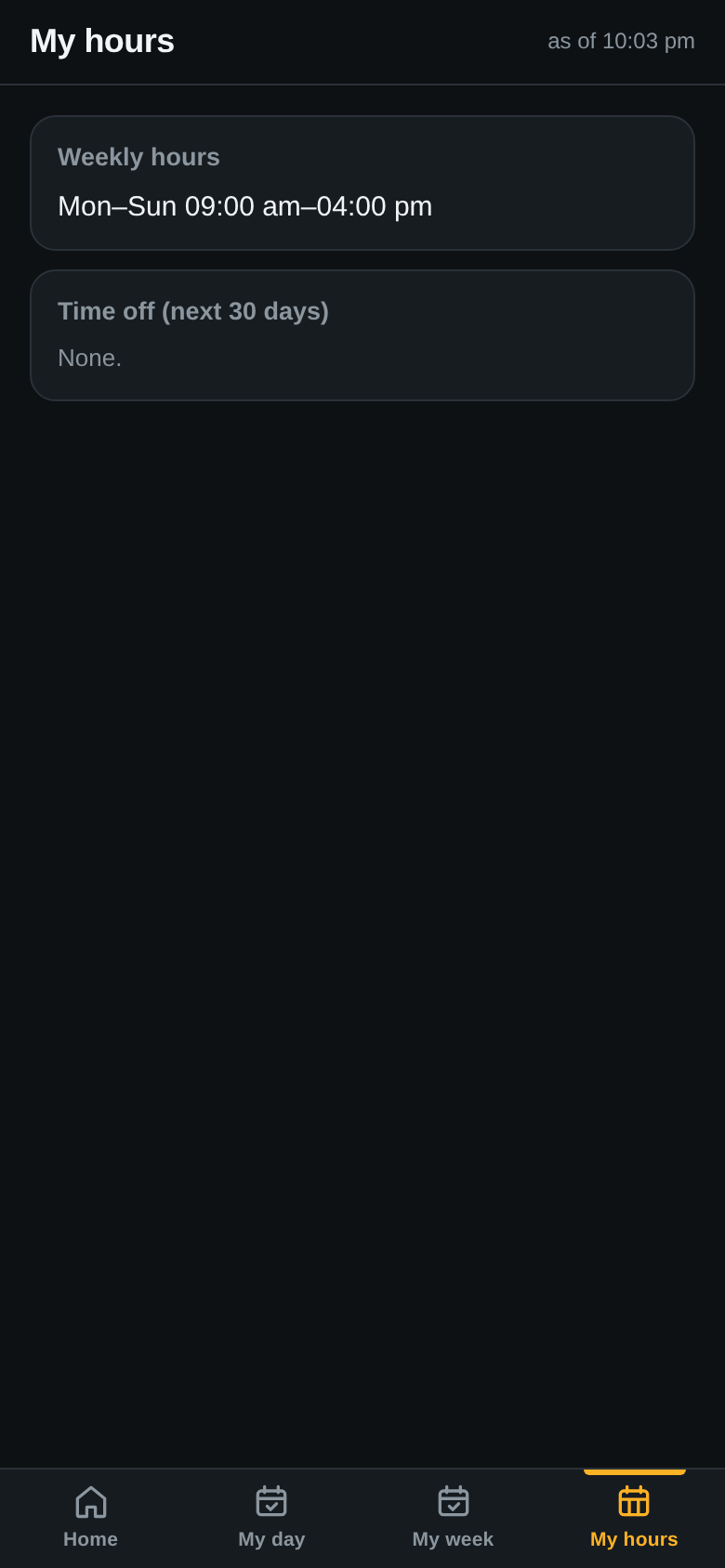
What the record from step 12 looks like from the other side: the weekly hours, and any time off in the next 30 days. Mia’s 17 February was further away than that on the day of the screenshot, so the list reads None.
Hours and time off. Read-only here too; changes go through the desk.
28. Check-in and the orders
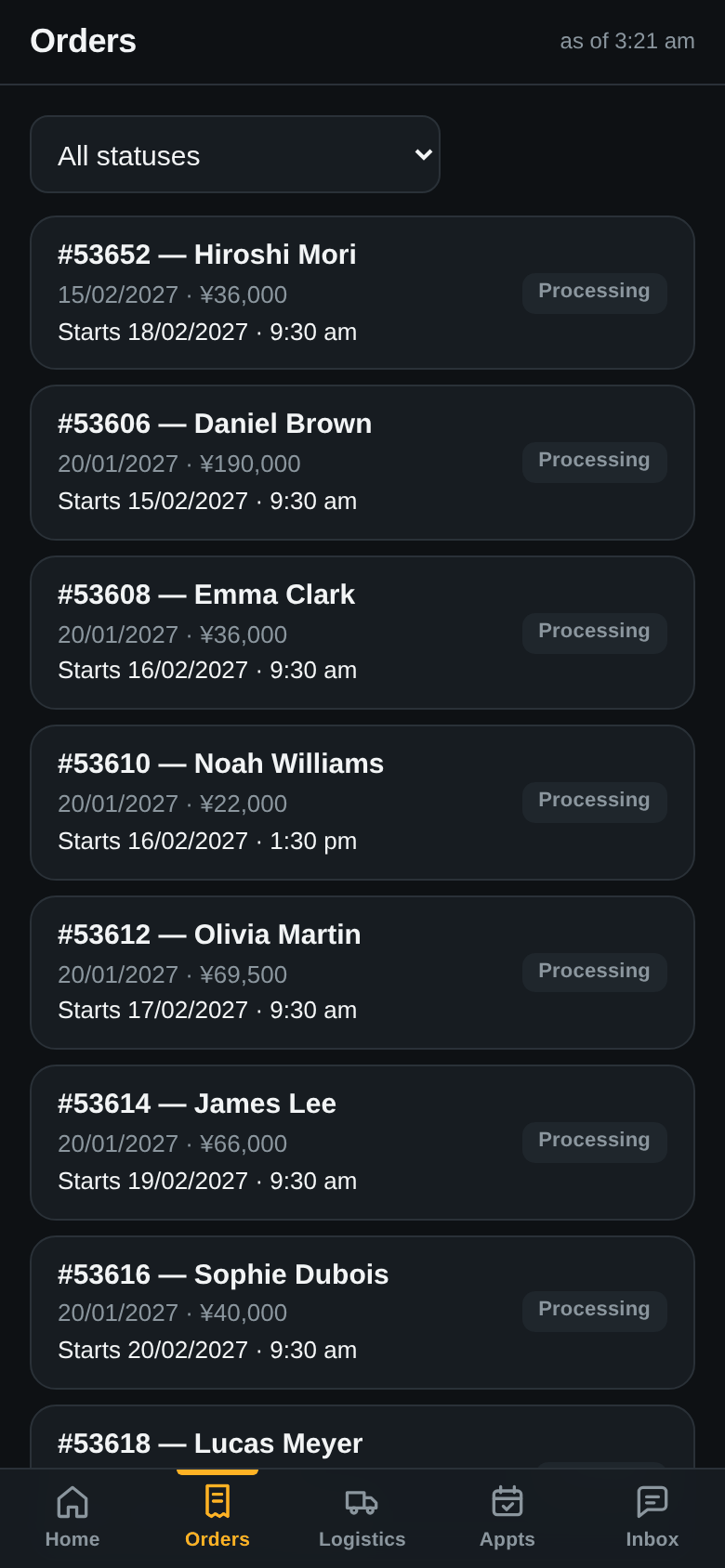
The Today’s check-ins tile on Home is where a customer’s arrival is recorded. The Orders screen, with every order and its start day and hour, belongs to the desk: the owner’s app has it next to Logistics, Appointments and the Inbox, an instructor’s does not.
The owner’s Orders. Each line shows when the lesson starts, 9:30 am or 1:30 pm, because the hours now live on the product.
29. What the app does not let them do
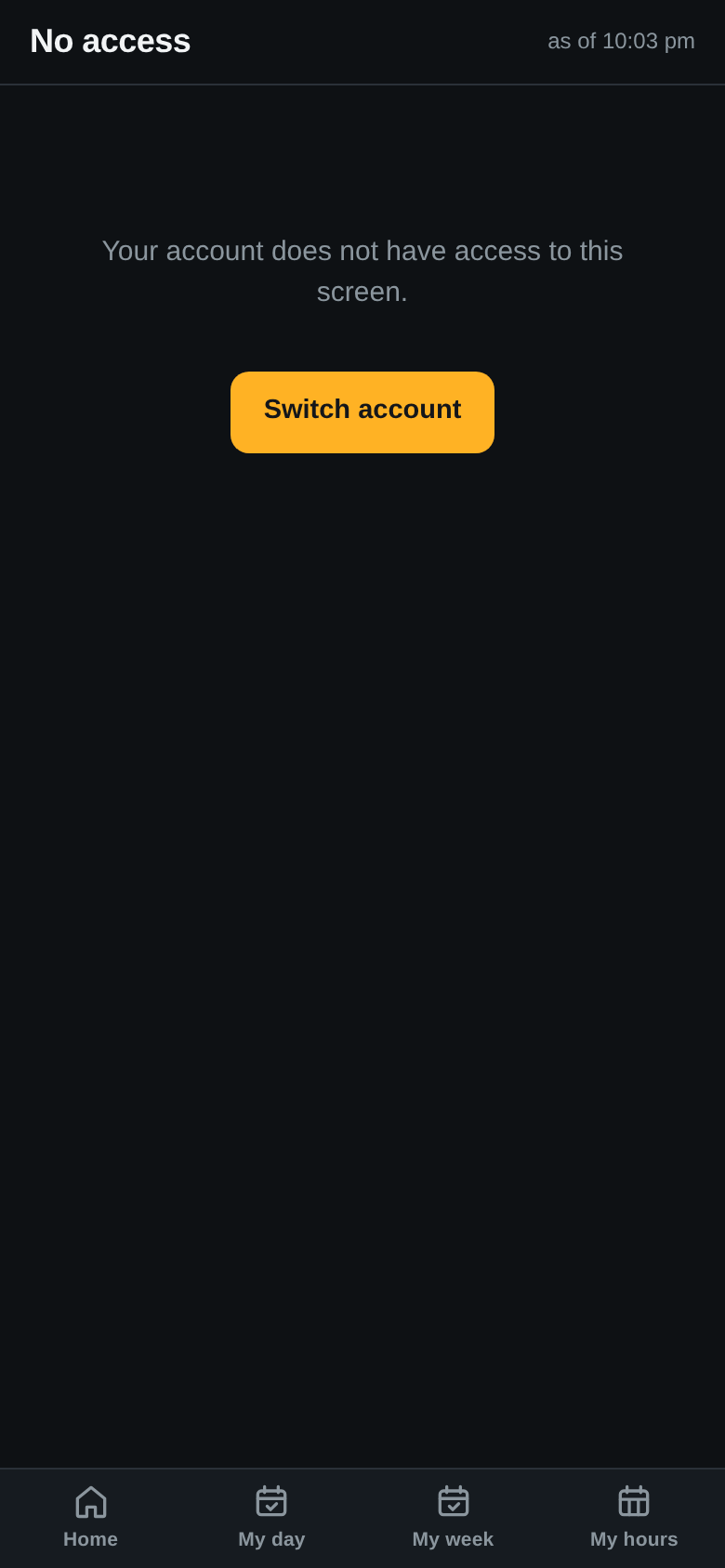
An instructor who opens a desk screen, here Orders, gets No access. They cannot move a lesson, pick or drop an instructor, see prices or payments, or open another person’s week. Their four tabs are the whole job: where to be, when, with whom, with what.
Aya on the Orders URL. The desk’s screens stay the desk’s.
PART 05
Every setting
Everything that was set on the test copy, with the value and the reason. No code was written for the school; these are switches.
Where
Setting
Value
Why
Rental Settings
Day parts
Morning 09:30–12:30 Afternoon 13:30–15:30
The rows of the week screen. All day is derived (09:30–15:30).
Rental Settings
Allow Different Dates In Cart
No (unchanged)
One order, one set of days. Same days with different fixed hours count as the same dates.
Rental Settings
Employee auto-assign rules (per order)
category Lesson & Equipment Packages → instructor ×1, Pick at the desk + one row per Miura Freedom lesson
Every lesson needs one instructor; nobody is chosen at checkout.
Each lesson product
Item Types: Is Bookable Product
Yes
Books by dates.
Each lesson product
Bookable Pricing
1d 36000 + 1d 33500 3d 99000 + 1d 33000
The price table on the page; yours per product.
Each lesson product
the two questions
ability radio stored with the product (copied with it); the product listed on the shared Male or Female form
The two questions on the page and on the instructor’s sheet.
Each lesson product
Use Default Standard Times / Use Standard Times
No / Yes
The product decides its own hours.
Each lesson product
Standard Start Time, Standard End Time (Use Default off on both)
09:30:00–12:30:00 morning 13:30:00–15:30:00 afternoon 09:30:00–15:30:00 all day
The hours of the lesson; the week screen matches them to a row.
Each lesson product
Use Default One lesson per day / One lesson per day
No / Yes
A booking of several days is one lesson per day.
Each lesson product
Equipment included (shown to staff)
“Skis or snowboard, poles, boots” or the full set; empty on Miura Freedom
The Gear block on the sheet and in the app. Empty means no block.
Rental products
everything
unchanged
Skis, boards and boots book as before.
Appointments → Employees
four records
name, phone, login; weekly session every day 09:00 AM × 420 min, max guests 1
The rule looks for instructor; the sport chips inform the desk.
Appointments calendar
block for Mia Nakamura
17 Feb 2027, Day off
Greyed out on the picker that day; listed in her app.
Staff app
/bb-app/
on
Instructors get Home, My day, My week, My hours.
Trainer week
longest lesson drawn per booking
31 days
A booking longer than that shows its first 31 days.
PART 06
What to remember
The hours live on the product. Use Standard Times, a start and an end, with the three Use Default switches off. A morning lesson is 09:30 to 12:30 because the product says so, not because the text does.
One lesson per day splits the days, not the order. A Monday-to-Wednesday booking is three cards and three holds; it stays one order line with one price.
Pick at the desk means pick at the desk. Checkout marks the lesson as needing an instructor and stops there. The red counter on Trainer week is the to-do list.
Only this day or all days. Every change on a lesson of several days asks. Days where the person is off are skipped and stay red.
Removing with “All days” also removes days already taught, and their pay lines. Use Only this day on each remaining day to keep the past.
If you change the dates of a multi-day lesson on the order, look at the week again. Holds for days the lesson no longer covers are not shown; pick instructors for the new days.
Lessons and rentals go in one order when they are on the same days. Different days are still refused, as before.
The instructor reads, the desk decides. My day, My week, My hours; no moving, no picking, no money.
Built on a test copy of the Miura Snowsports School site at Kamui Resort, with the school’s own products, categories and prices. The instructors, the customers, their phone numbers and e-mail addresses are invented, and the orders were paid at the desk on the test copy; no card was charged. Every figure is an unedited screenshot of the system while the week was being staffed; only the lesson-hours placeholder images and the header wordmark were added for the test.
Start Your Rental Business the Right Way
Reservety handles your website, bookings, inventory, and payments — so you can focus on growing your business.