Turn on sales tax, add the rates for where you rent, and see the tax on your customers' carts and in your reports. Reservety works out the tax on every booking from the customer's address by itself. Shown on Front Range Iron Rentals, an equipment rental yard near Denver.
1. Turn on taxes
Where: Settings → Store
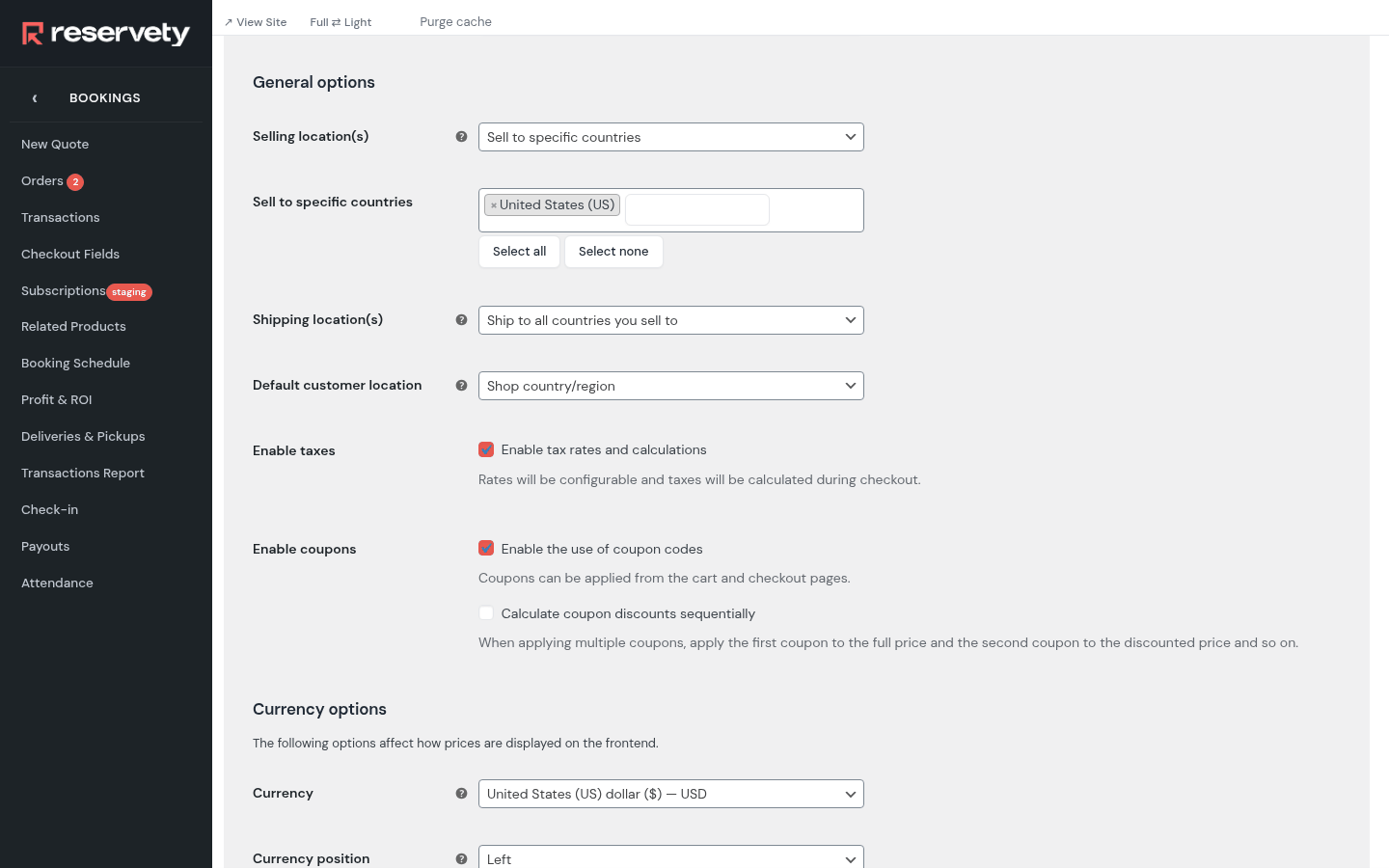
On the General tab, tick Enable tax rates and calculations and click Save changes. A Tax tab appears next to the others.
2. Choose how prices and tax show
Where: Settings → Store
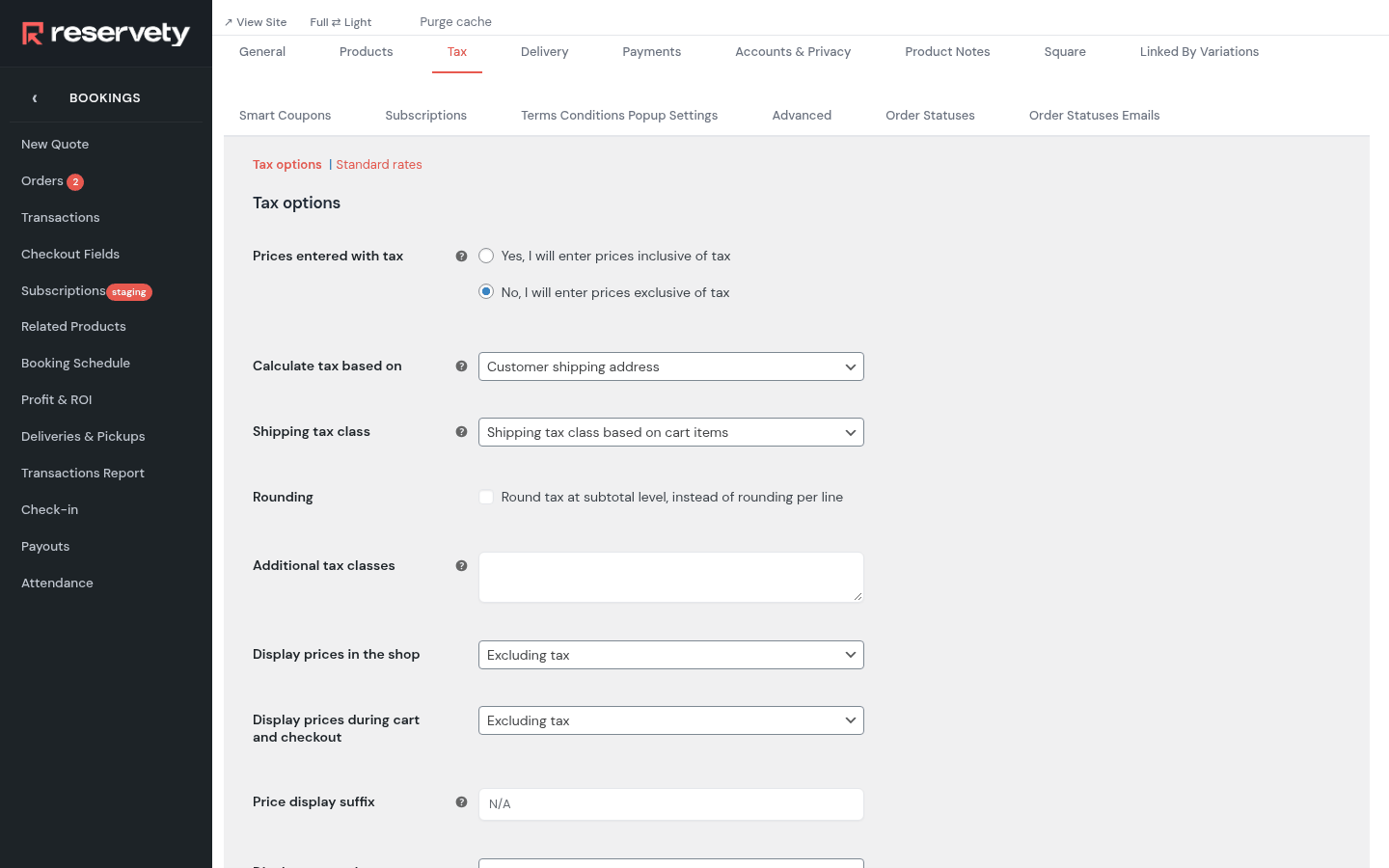
Open the Tax tab. Most US businesses type prices without tax and show tax as its own line: set Prices entered with tax to No, Calculate tax based on to the customer's address, and both Display prices in the shop and Display prices during cart and checkout to Excluding tax. Click Save changes.
3. Add your tax rates
Where: Settings → Store
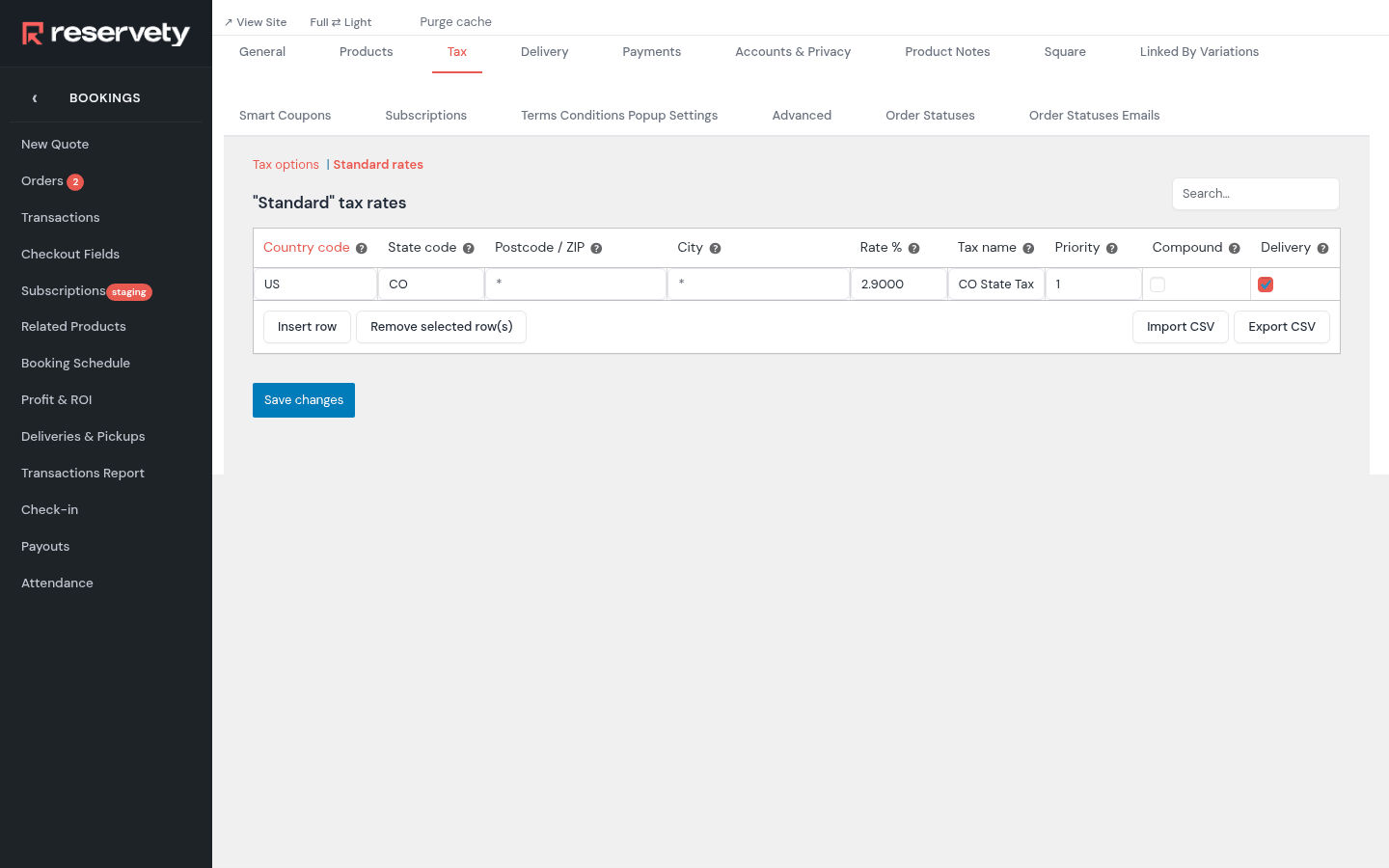
Click Standard rates, then Insert row for each rate: the Country code (US), the State code, the Rate %, a Tax name customers see on their bill, and a tick under Delivery if your delivery charges are taxed too. Front Range Iron adds Colorado's 2.9% state rate here. Colorado, like many states, also has county, city and district rates: you don't need to type those. Ask us and we import all of your state's local rates for you. Your accountant can tell you which rates apply to rentals. Click Save changes.
4. Check what's taxed
Where: Products → All Items
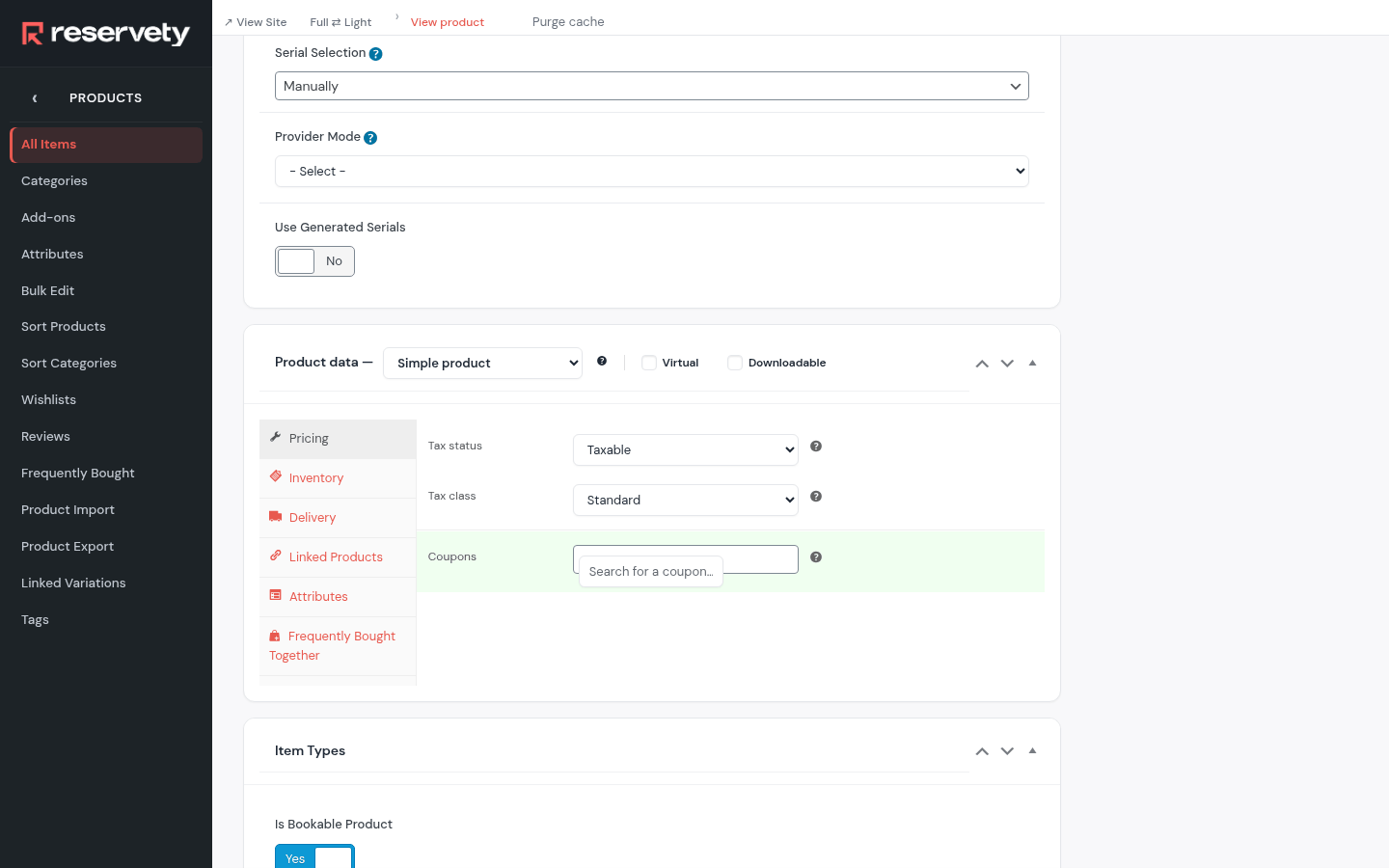
Every product is taxed at the standard rates unless you change it. In a product's editor, Tax status can be set to None for something you don't charge tax on, and Tax class picks another set of rates.
5. What your customers see
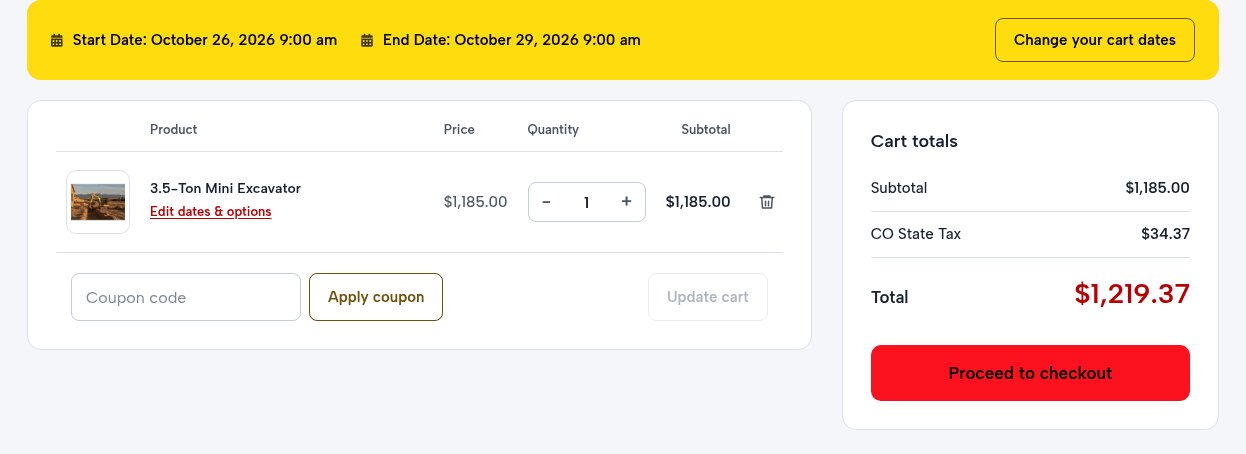
Reservety picks the rates by itself from the customer's delivery address: the state rate, plus the local rates for their city or ZIP code. The cart shows the tax as its own line: here CO State Tax on Mike Brennan's three-day mini excavator rental.
6. See the tax you collected
Where: Reports → Tax Reports
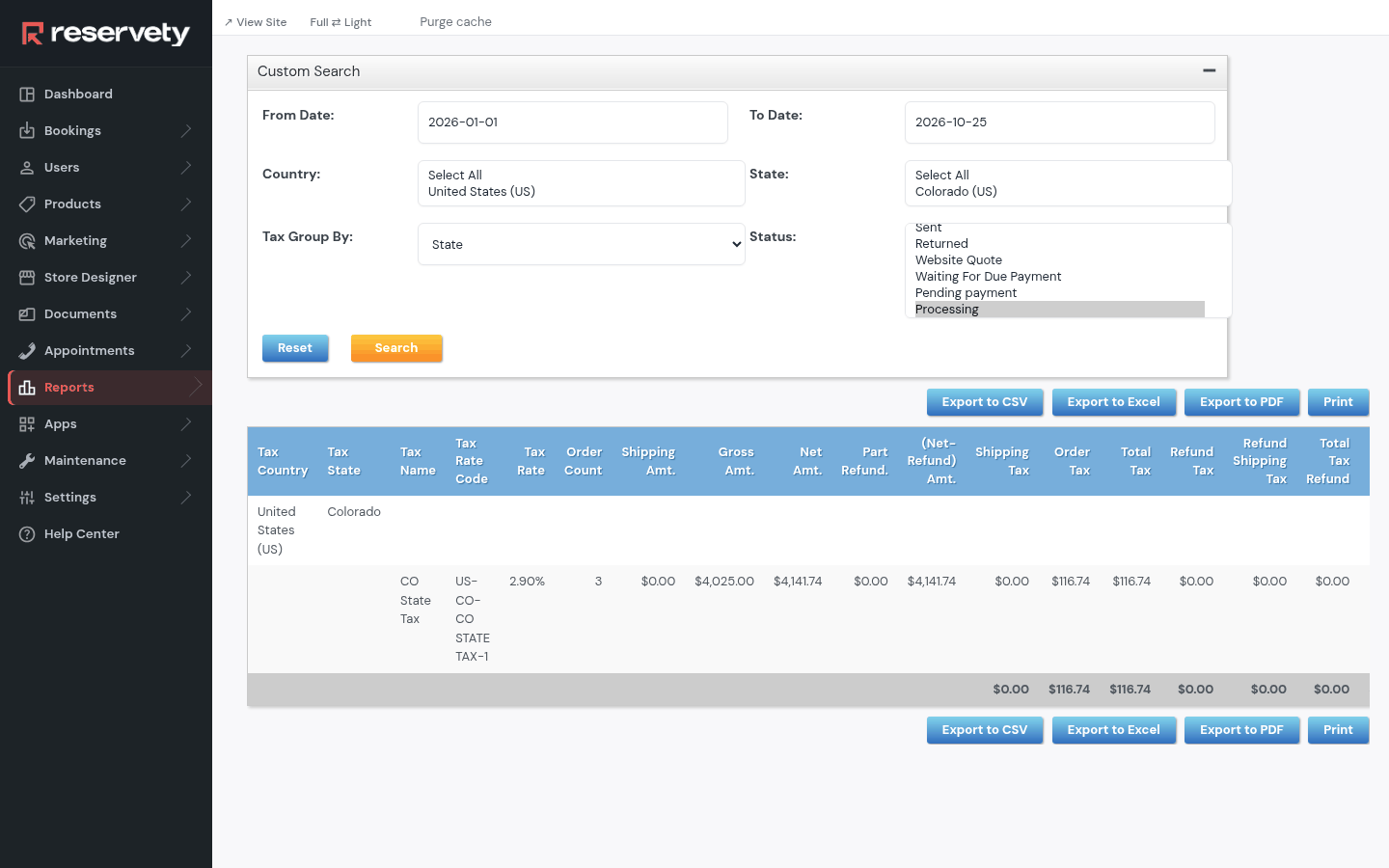
The tax report lists the tax on your orders by rate. Open Custom Search, pick the From Date: and To Date: and click Search.
Set it up on your own Reservety site
Reservety handles your website, bookings, inventory, and payments — so you can focus on growing your business.