Everything a club or studio sets up before its first week of classes: how the day is split, what a session costs, who coaches, what they're paid, the courts or rooms, the private lessons, and the first group with its children. Shown on Brookfield Tennis Academy in Columbus, Ohio, on the Light menu.
1. Name the parts of your day
Where: Settings
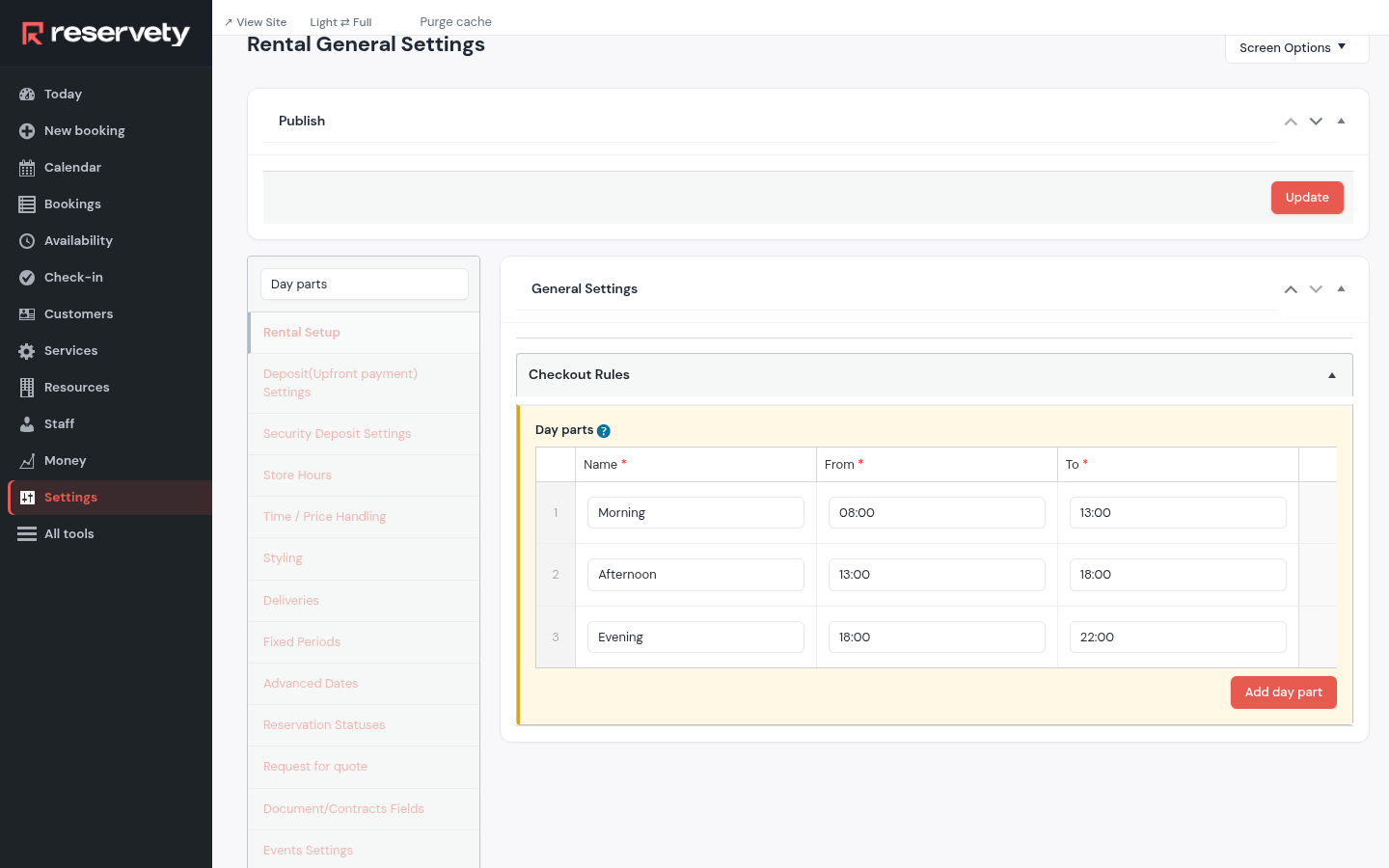
In Settings, search Day parts. Day parts splits the day into blocks with a name and hours, here Morning, Afternoon and Evening. Trainer week shows the week in these blocks, so a group is "Monday afternoon" rather than a time. Click Update.
2. Decide what a session costs
Where: Settings
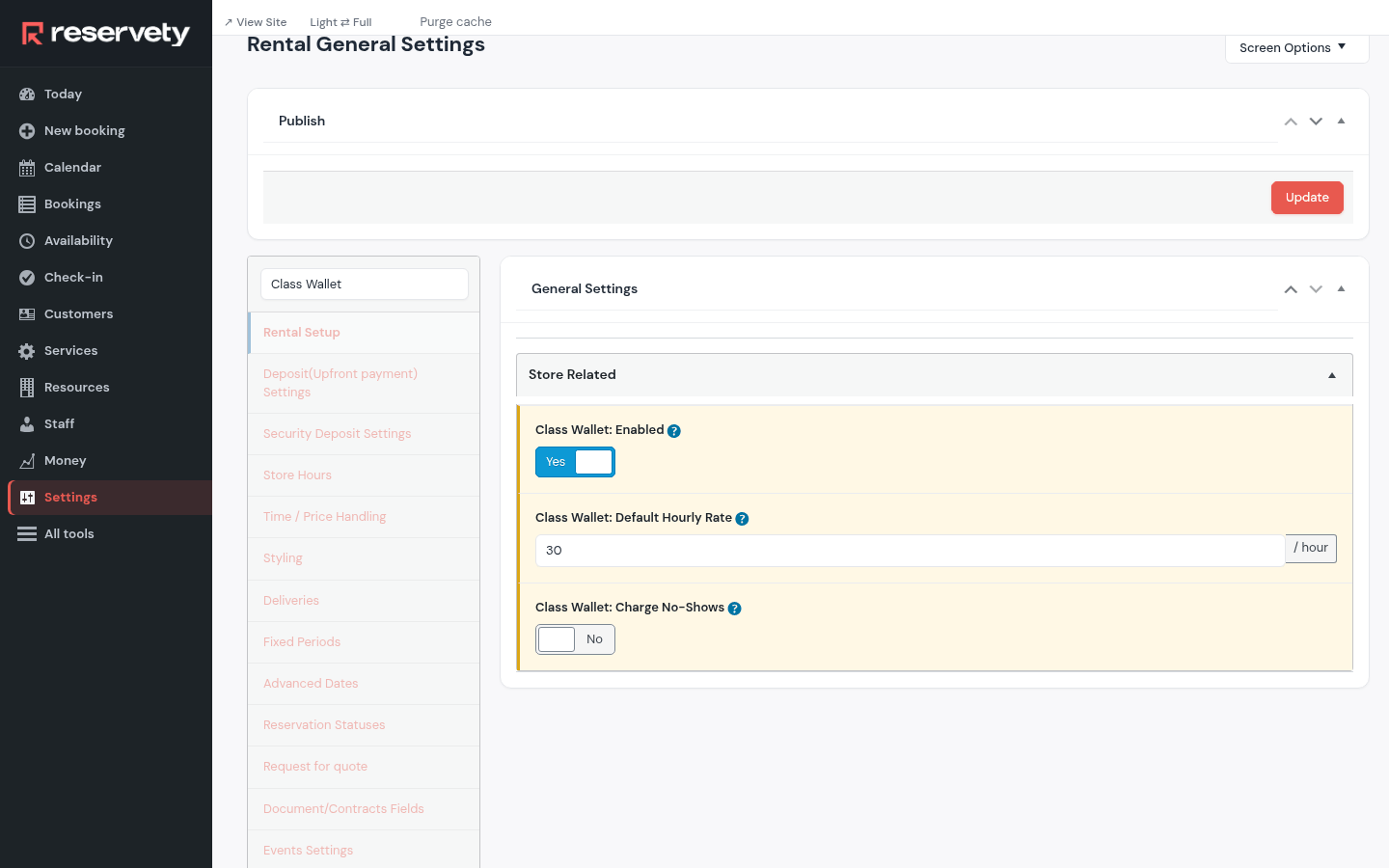
Search Class Wallet. With Class Wallet: Enabled on, each child has a wallet: what the family pays goes in, every session attended comes out. Class Wallet: Default Hourly Rate is the price of an hour unless a class or a child has its own. Class Wallet: Charge No-Shows also charges a session the child missed. Click Update.
3. Choose how families and coaches hear from you
Where: Settings
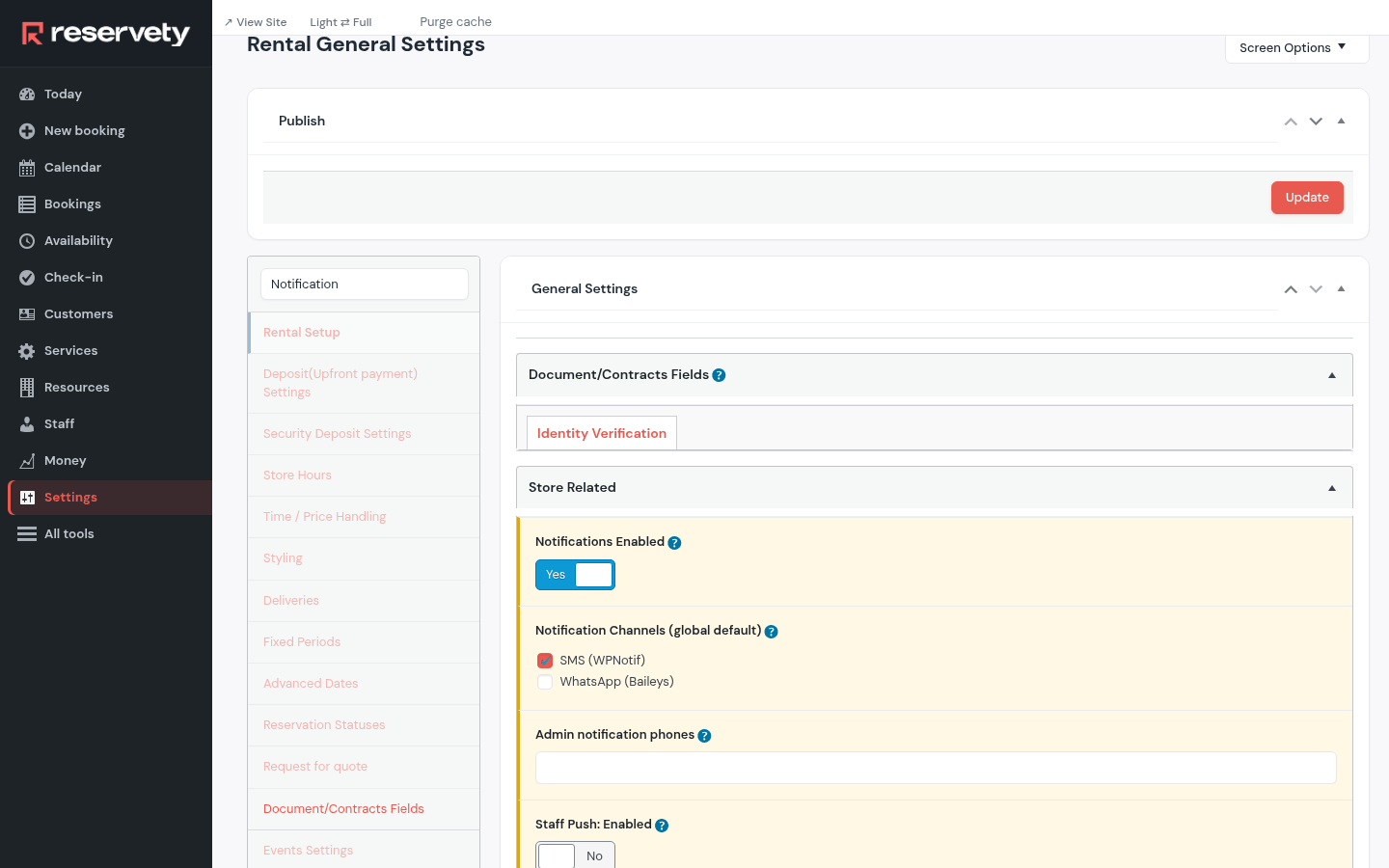
Search Notification. Notifications Enabled turns the weekly schedule and the reminders on; Notification Channels (global default) says how they go: e-mail, text or WhatsApp (text and WhatsApp require a module to be enabled). Click Update.
4. When the reminders go
Where: Settings
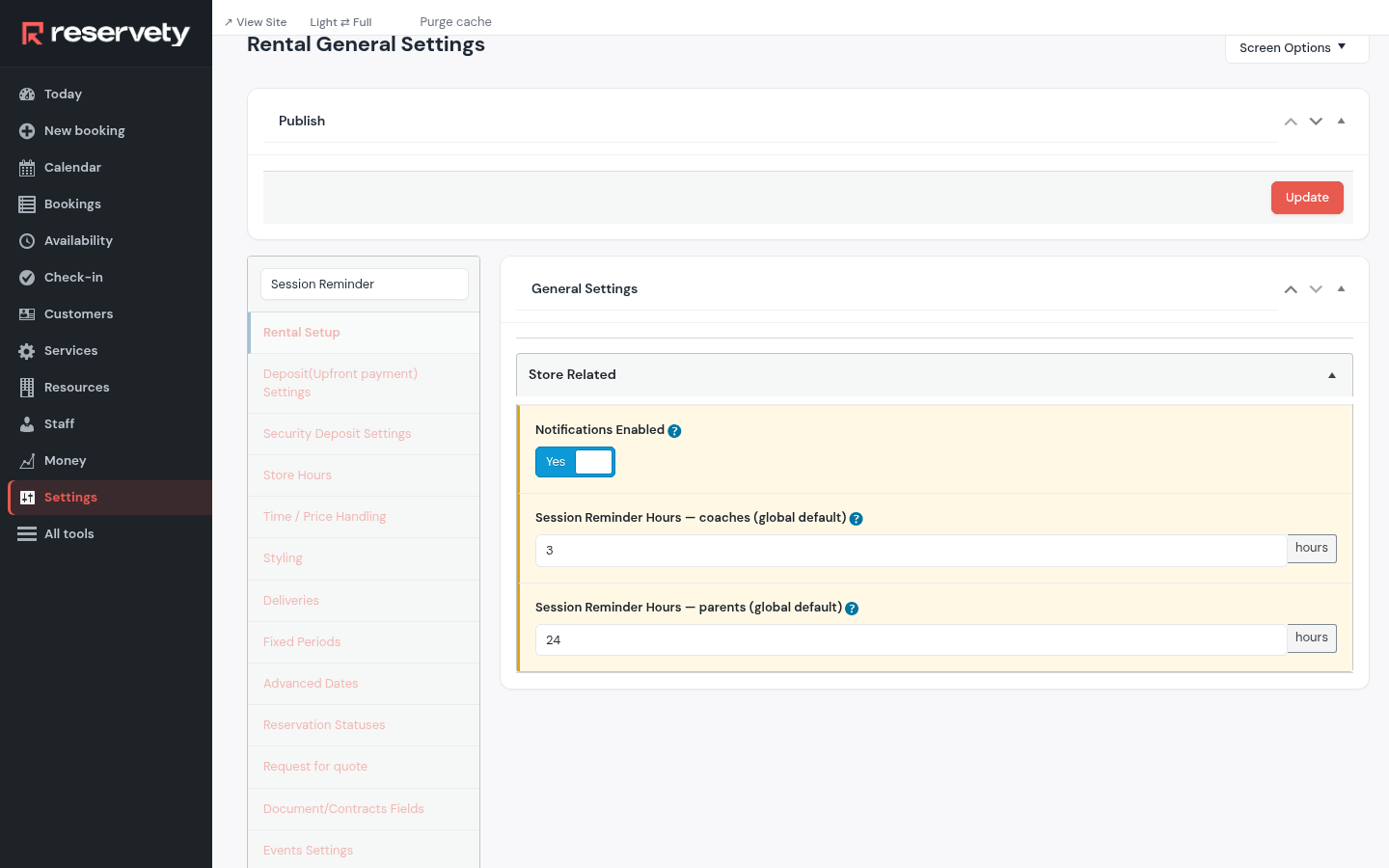
Search Session Reminder. Session Reminder Hours — parents (global default) and Session Reminder Hours — coaches (global default) say how many hours before a session each reminder goes. Click Update.
5. Load the ready-made texts
This screen is in the Full menu.
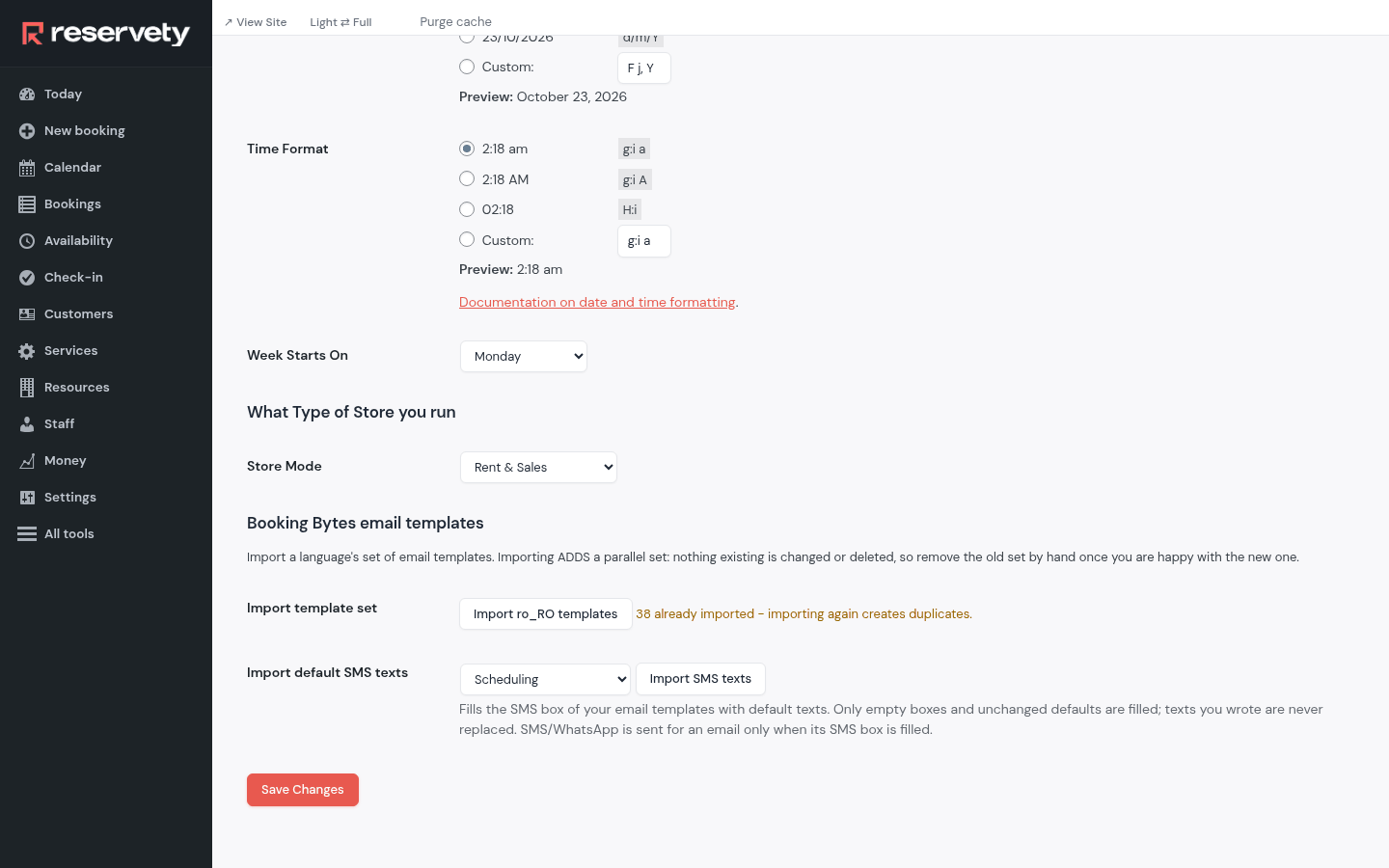
Settings in the Full menu, then Website: Import default SMS texts with the scheduling set fills every message template's text box with a short text you can edit. Run it once.
6. Add a coach
Where: Staff
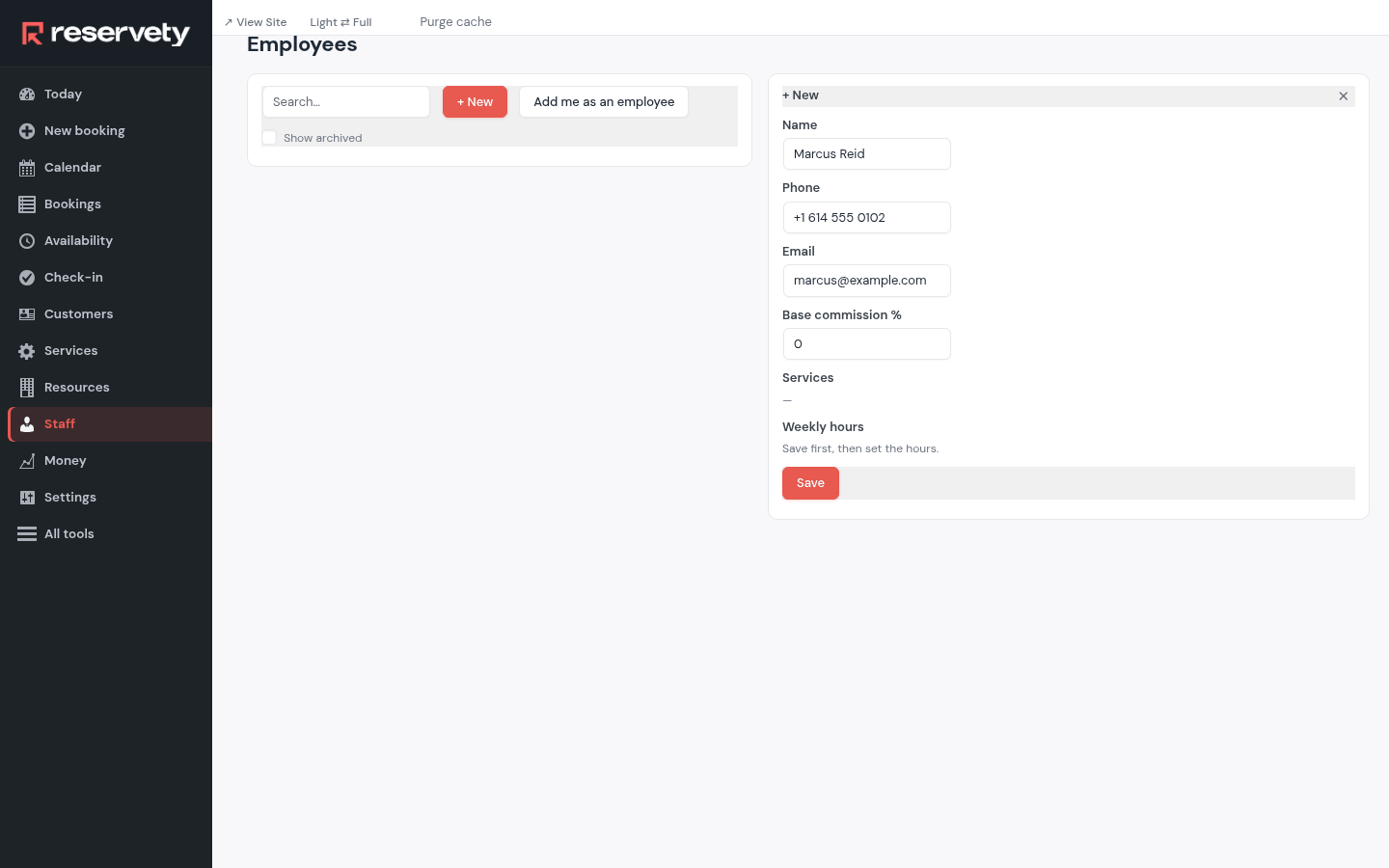
Open Staff and click + New. Type the coach's name, phone and e-mail. Click Save. Whoever coaches is on this list, you included (Add me as an employee).
7. Set the coach's hours
Where: Staff
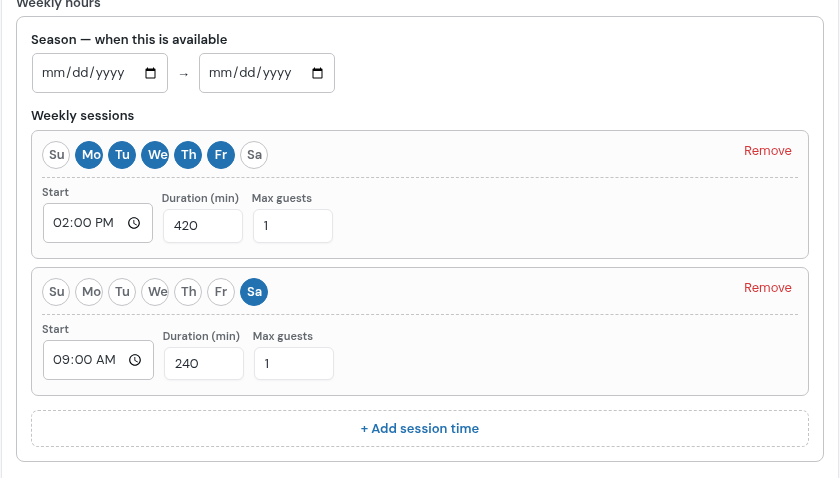
Click the coach, then under Weekly hoursRemove the shop's hours a new person starts with and set theirs: here Monday to Friday from 2 pm for 7 hours, Saturday from 9 am for 4. Click Save. A day off is blocked on Availability, as in the appointments guide.
8. What a coach is paid for a session
This screen is in the Full menu.
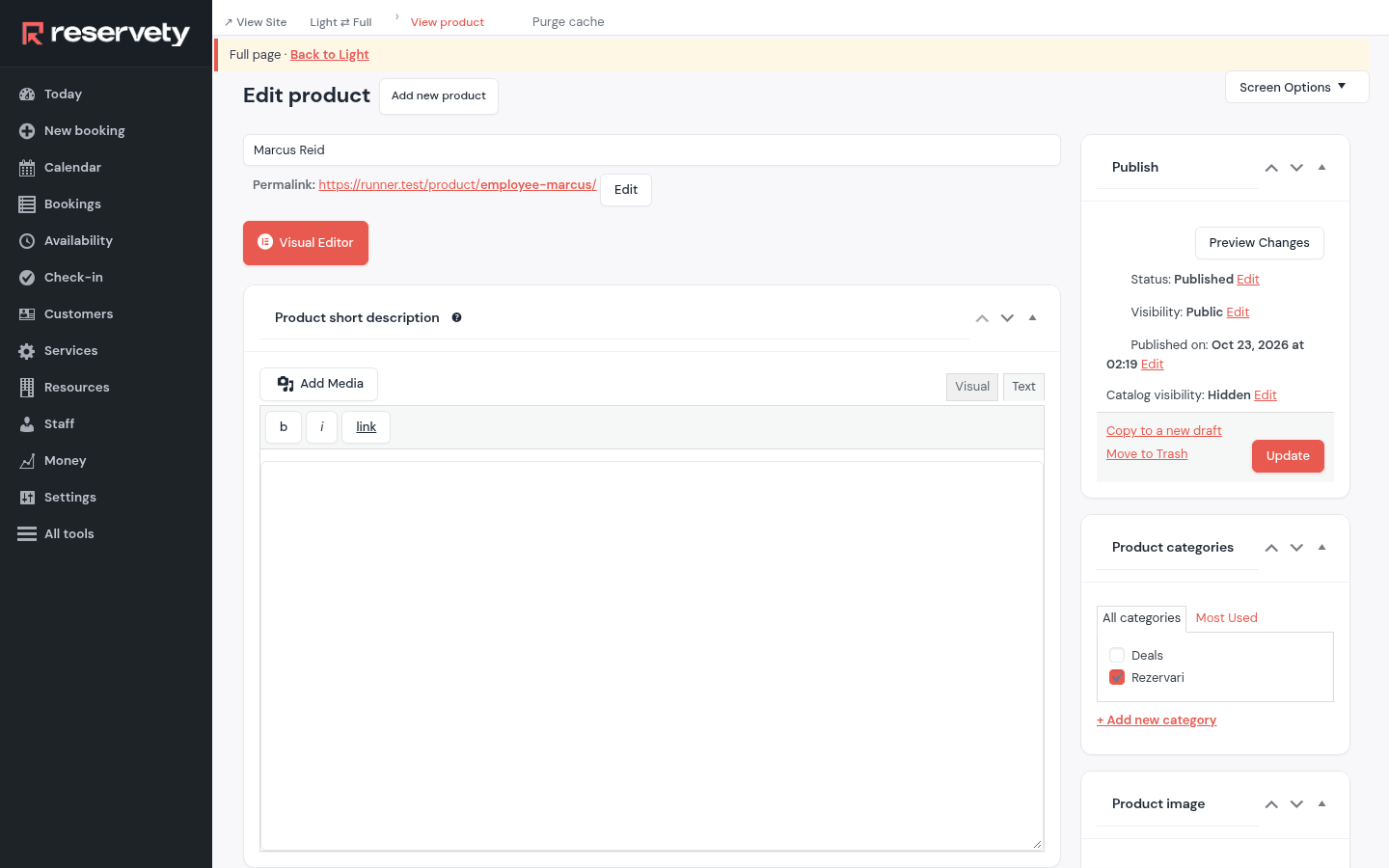
In the coach's panel, click Advanced →: the coach's full page opens. Employee Per-Session Rate is what they earn for each session they teach; Payouts adds it up. Click Update.
9. From when payouts count
This screen is in the Full menu.
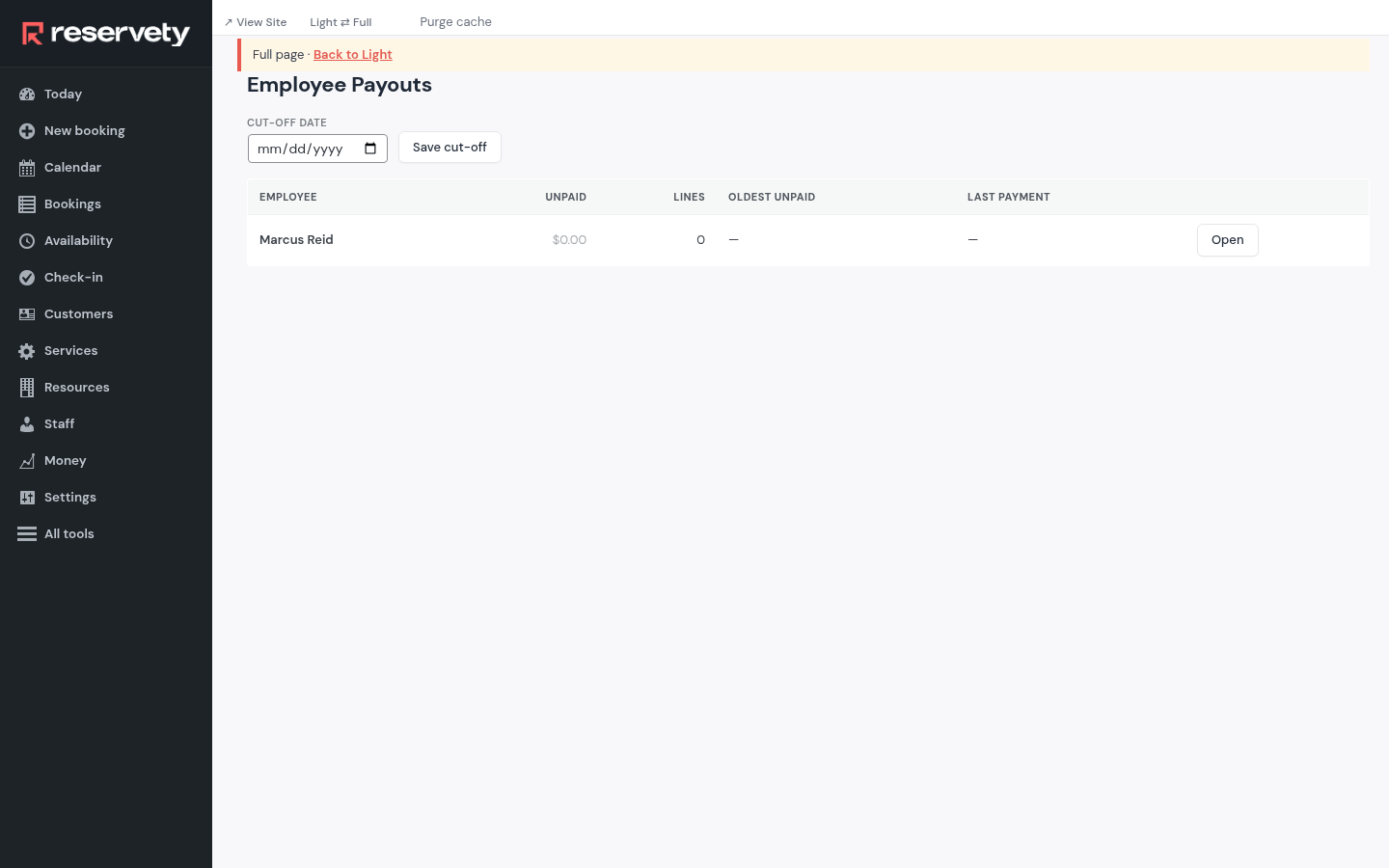
Employee Payouts in the Full menu. Before the first week, set Cut-off date to the day you start, and click Save cut-off: work before it was paid outside Reservety and isn't counted.
10. Add the courts
Where: Resources
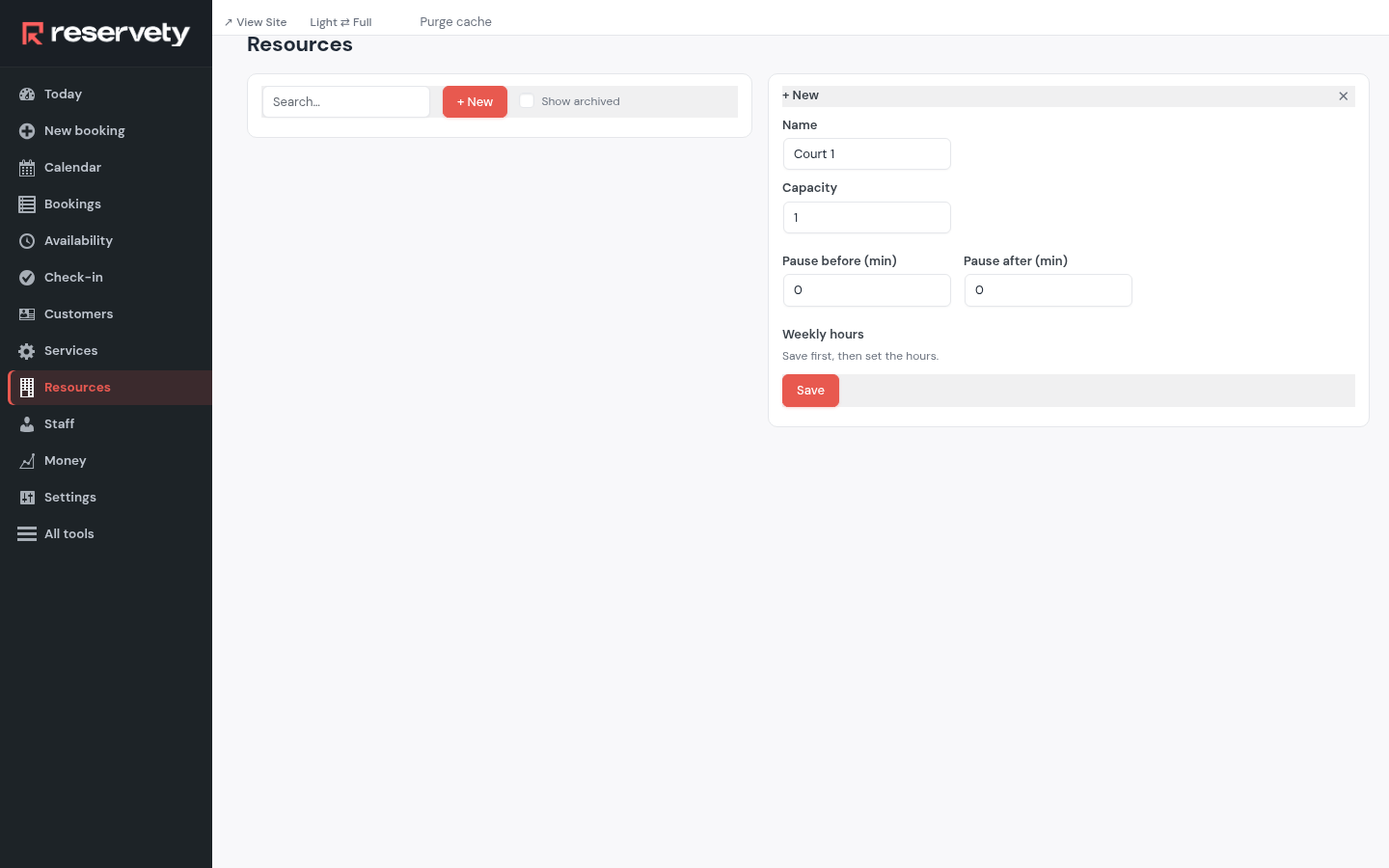
Open Resources, click + New, name the court and give it Capacity 1 (one group or lesson at a time). Click Save. Add every court, room or hall you teach in.
11. Add the private lessons
Where: Services
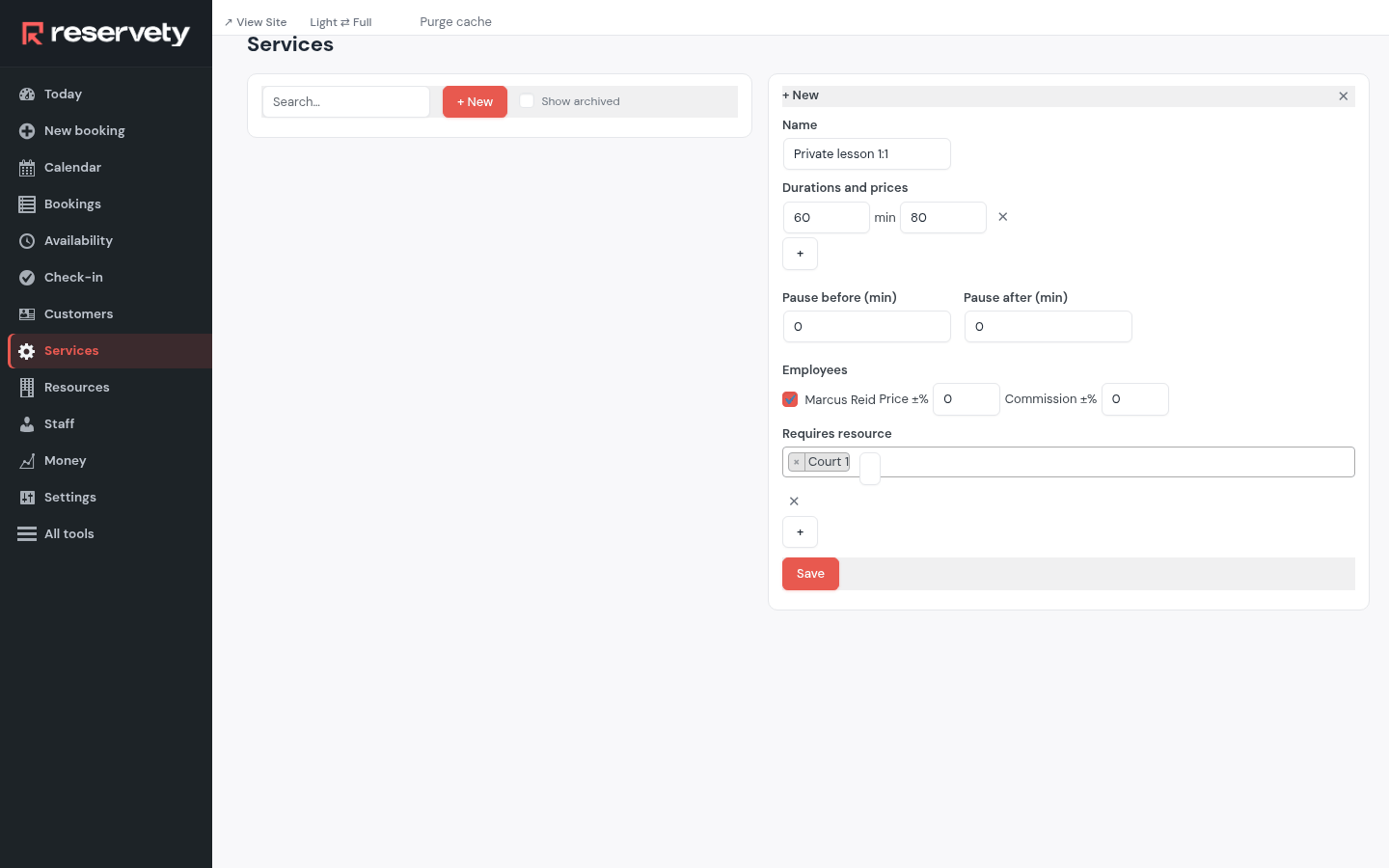
Private lessons are services. Open Services, click + New: the name, the length and the price under Durations and prices, the coaches under Employees, and the court under Requires resource. Click Save.
12. Who gets a private lesson booked online
Where: Settings
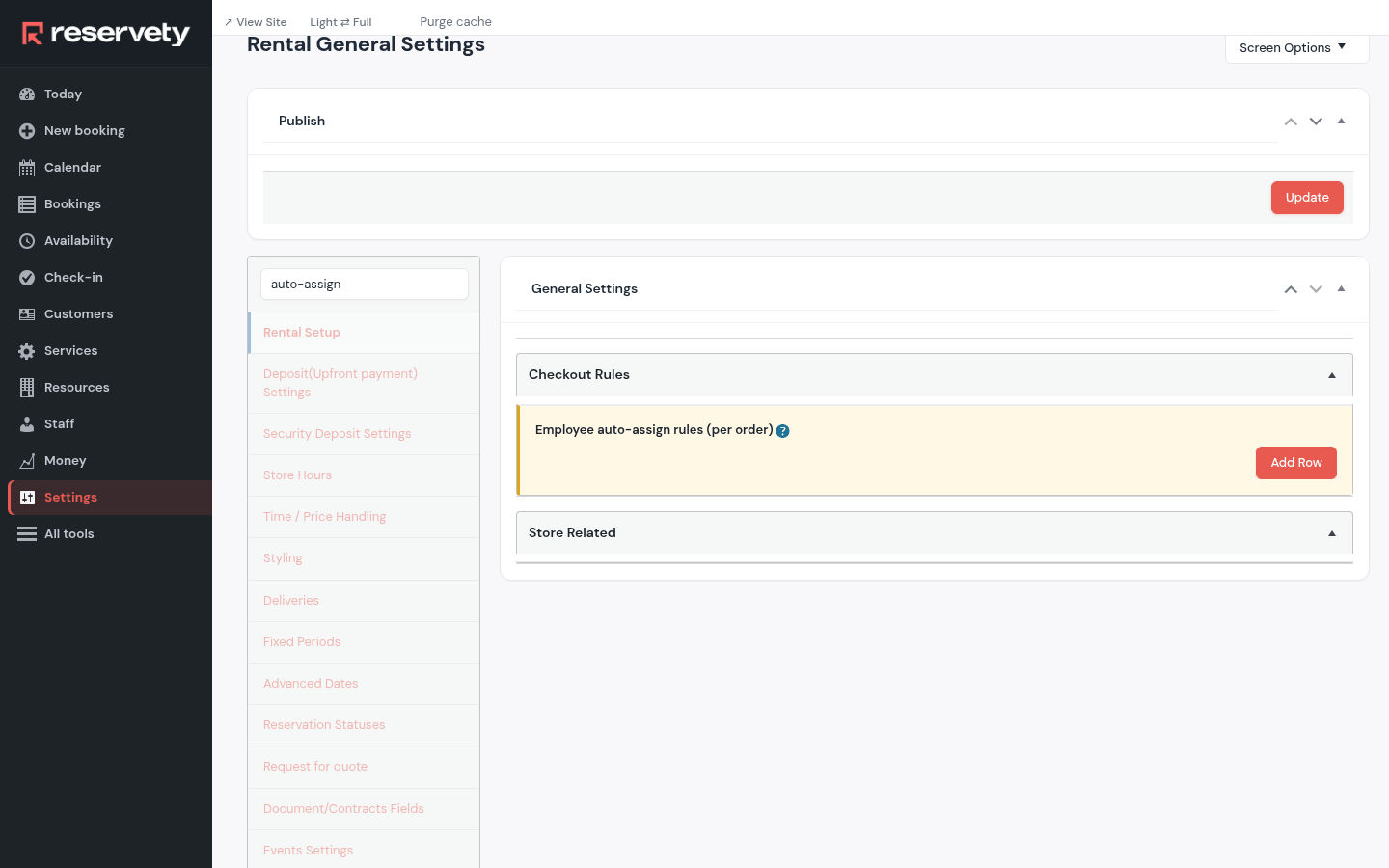
Search auto-assign. Employee auto-assign rules (per order) decides which coach a lesson booked online goes to when the customer didn't pick one. Click Update.
13. Make your first group
This screen is in the Full menu.
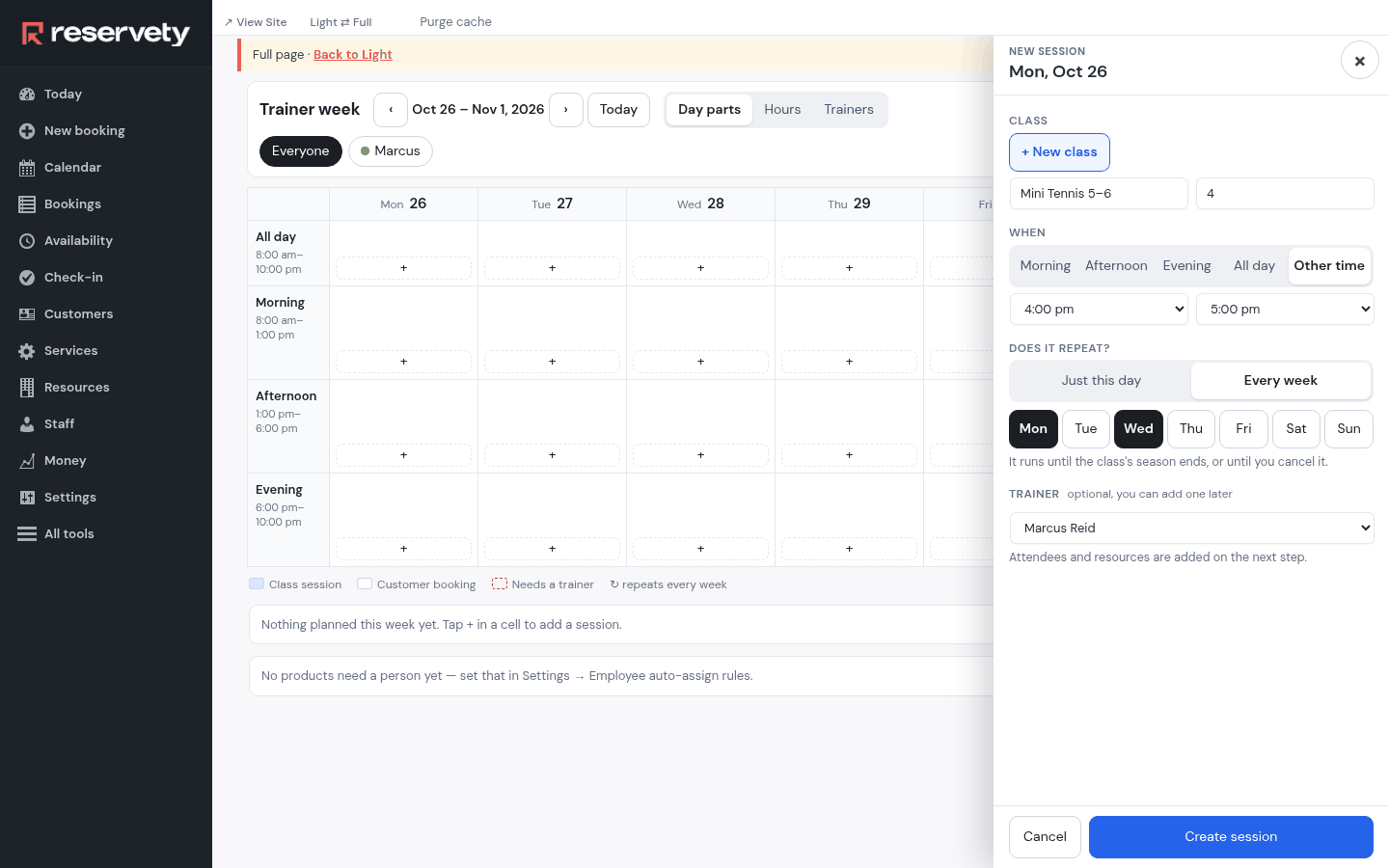
Open Trainer week (the Full menu has it until your first class exists; then the Light menu shows it too) and go to next week. Click + on the day and part of the day the group meets. Give it a name and the number of places, say it repeats, on which days, and pick the coach.
14. Give the group its court
This screen is in the Full menu.
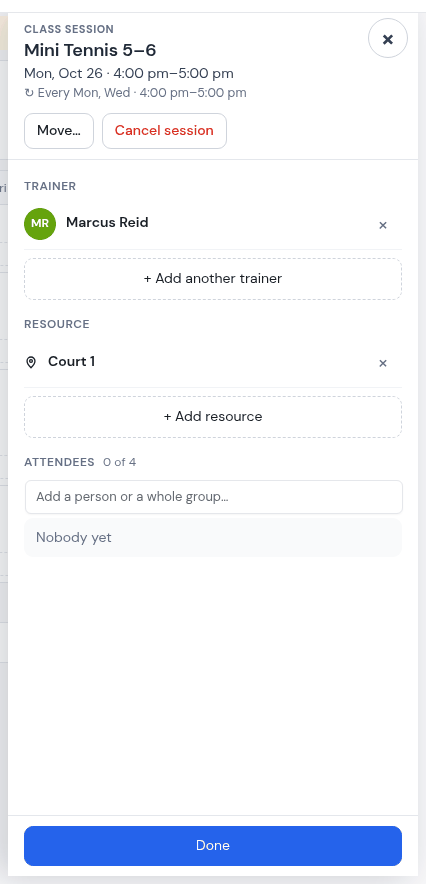
The new session's panel opens. Add the court the group plays on: search it and pick it.
15. Add the children
This screen is in the Full menu.
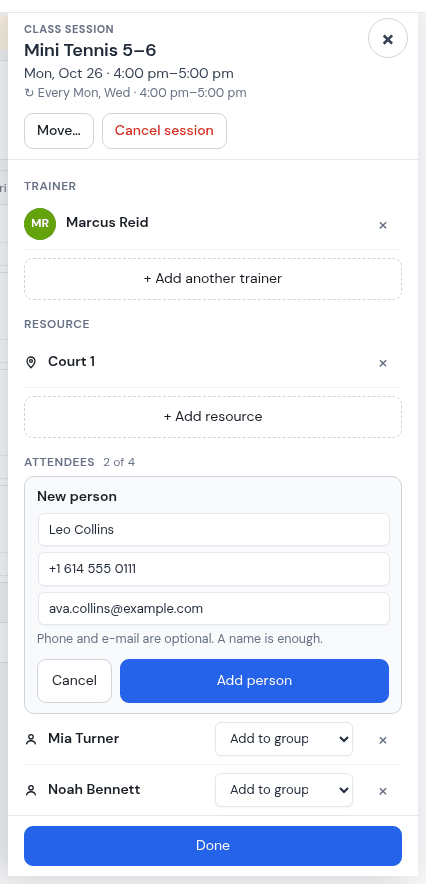
Type a child's name: someone new gets a short form with the parent's phone and e-mail. Fill in the e-mail too: the weekly schedule goes by e-mail (or WhatsApp), so a family with only a phone number doesn't get it. Add each child the same way.
16. Done: for every session of the group
This screen is in the Full menu.
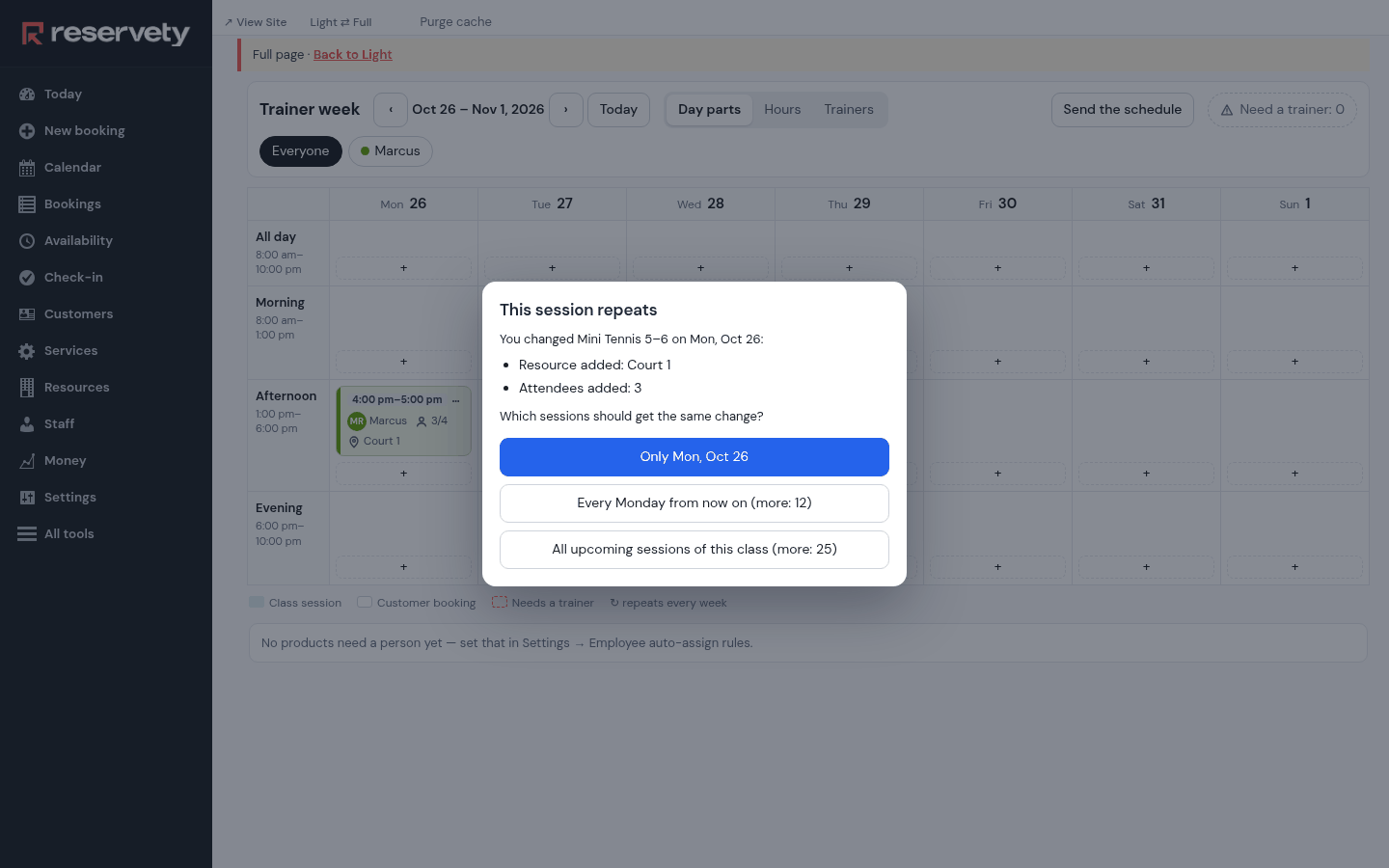
Click done. Reservety asks whether the court and the children are for this session only or for every session of the group: choose all, and the whole season is filled in at once.
17. A child's own rate
This screen is in the Full menu.
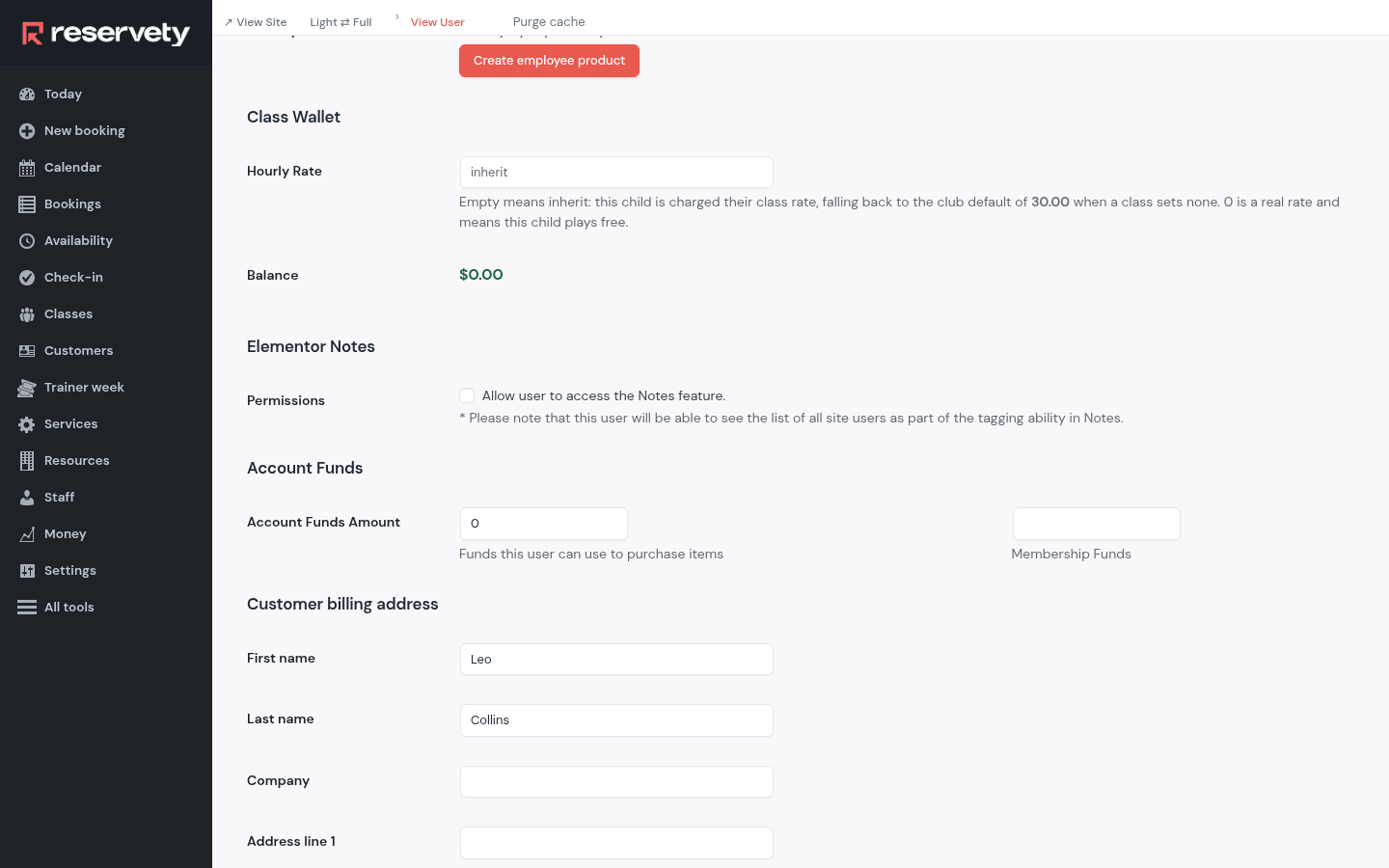
A sibling discount or a scholarship: open the child in Users (Full menu) and, under Class Wallet, give them their own Hourly Rate. Empty means the class's rate, or the club's default.
18. Coaches put the app on their phone
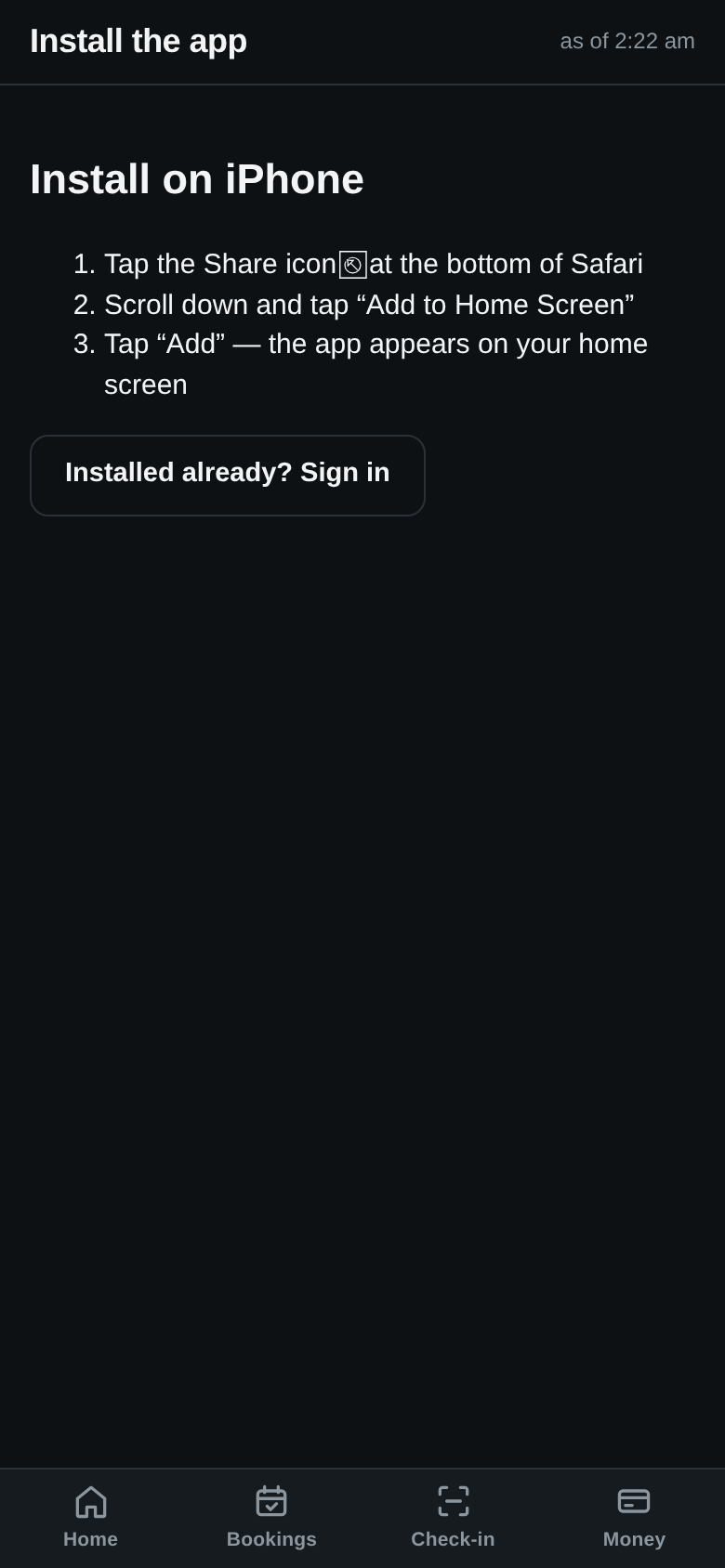
Each coach signs in on their phone (the appointments guide shows how they set their password) and opens the staff app. It offers to install itself on the home screen; from then on their week, their register and payments are one tap away.
Set it up on your own Reservety site
Reservety handles your website, bookings, inventory, and payments — so you can focus on growing your business.