Everything an appointments business sets up before the first booking: who works, what they do, when, what the customers book from, and what they hear back. Shown on Hartley's Barbershop, a three-chair barbershop in Columbus, Ohio, on the Light menu.
1. Choose what New booking opens
Where: Settings
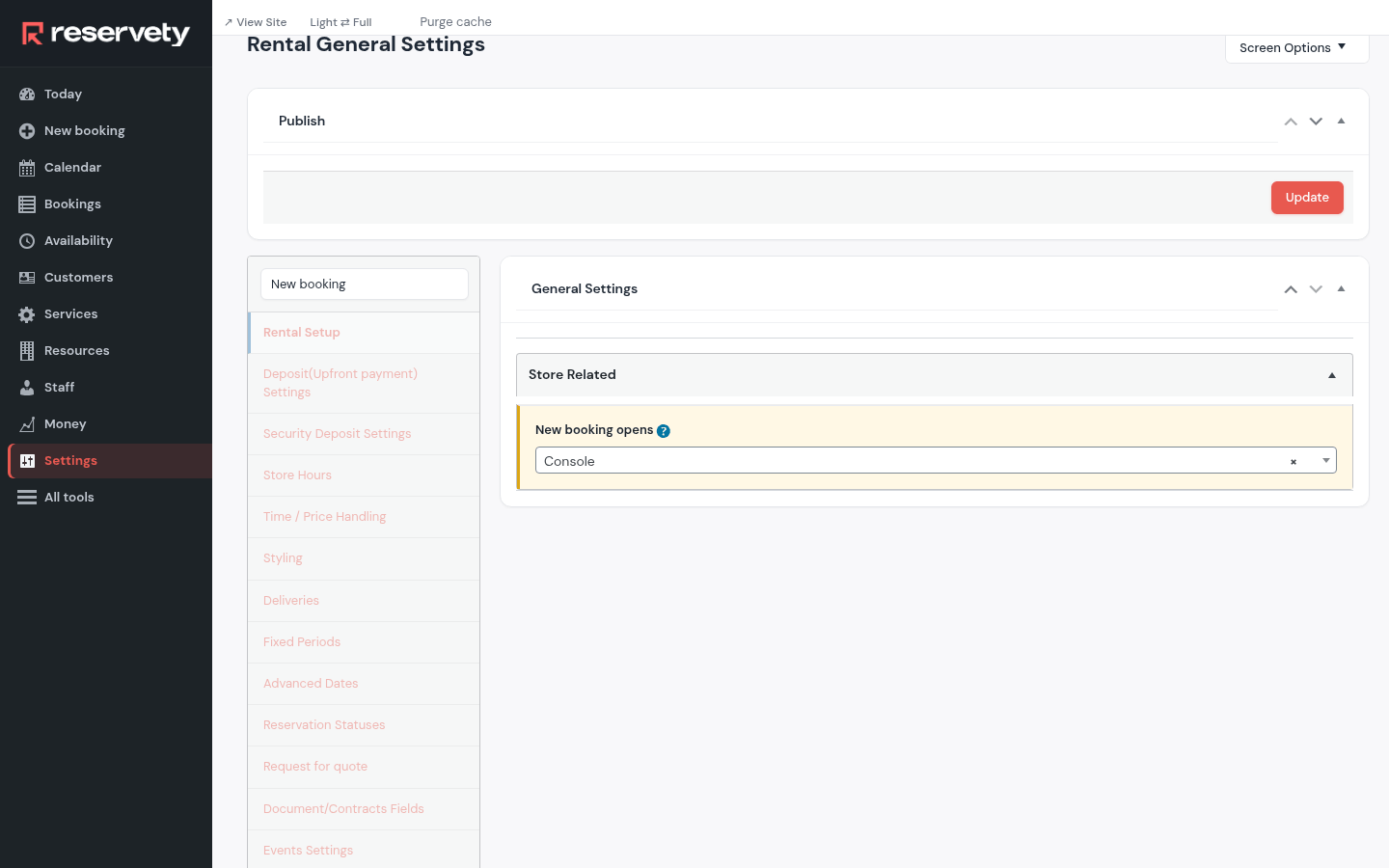
In Settings, type New booking in the search box. New booking opens decides what the New booking button at the top of the menu opens: the quick appointment console, or the full order form for multi-day rentals and quotes. Leave it on the console for appointments, then click Update.
2. Add your first employee
Where: Staff
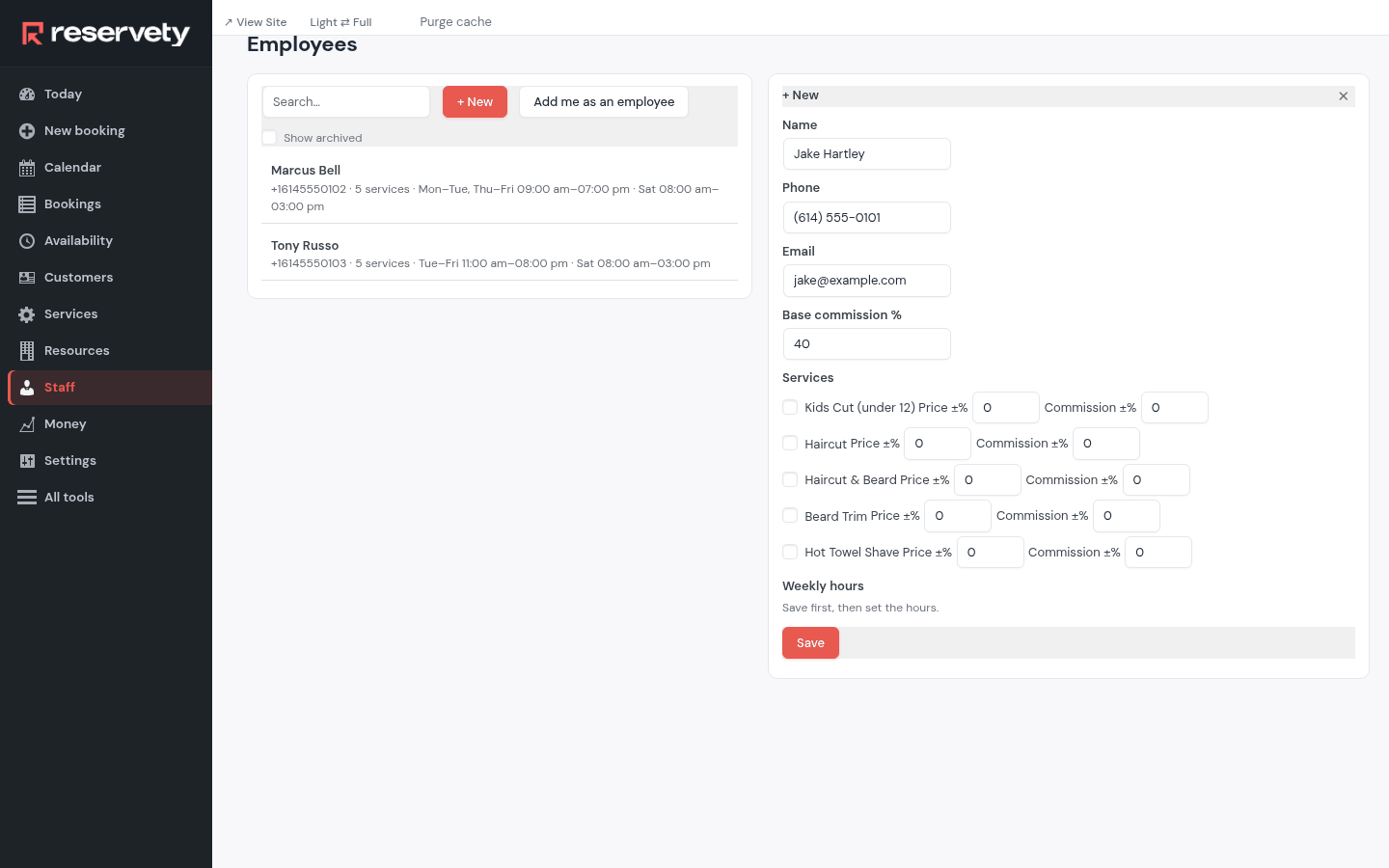
Open Staff and click + New. Type the name, the phone and the e-mail, and the Base commission % they earn on what they do. Click Save.
3. Pick the services they do
Where: Staff
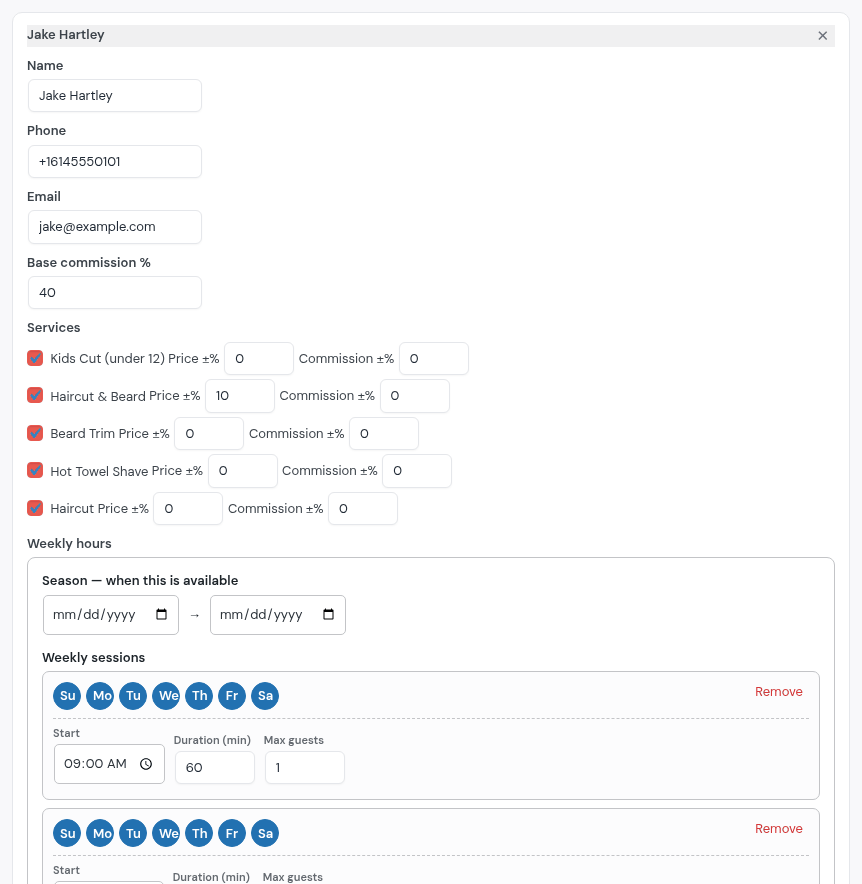
Click the employee in the list. Under Services, tick what they do. Price ±% makes their price higher or lower than the service's own (Jake charges 10% more for a haircut and beard); Commission ±% does the same for their pay. Click Save.
4. Set their weekly hours
Where: Staff
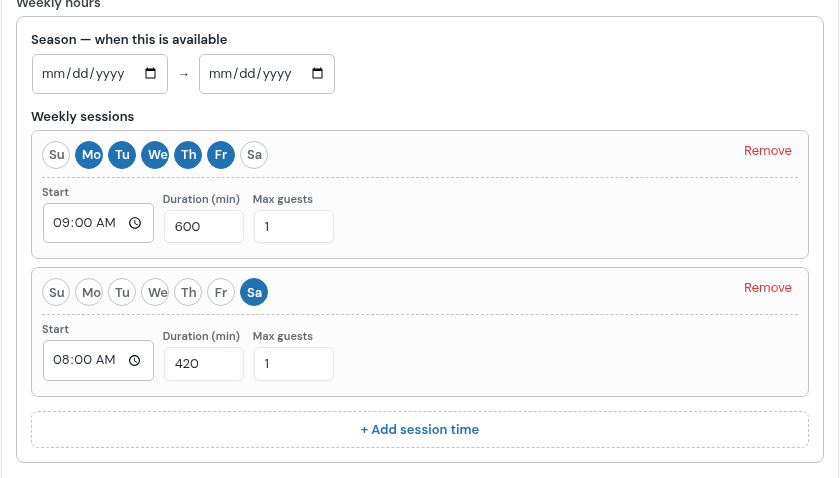
Still on the employee, under Weekly hours. A new employee starts with the shop's opening hours: Remove what doesn't fit, then tick the days, the Start time and the Duration (min). + Add session time adds a day with other hours: here Monday to Friday from 9:00 for 10 hours, Saturday from 8:00 for 7 hours. Click Save. Nobody can book them outside these hours.
5. Repeat for everyone who takes bookings
Where: Staff
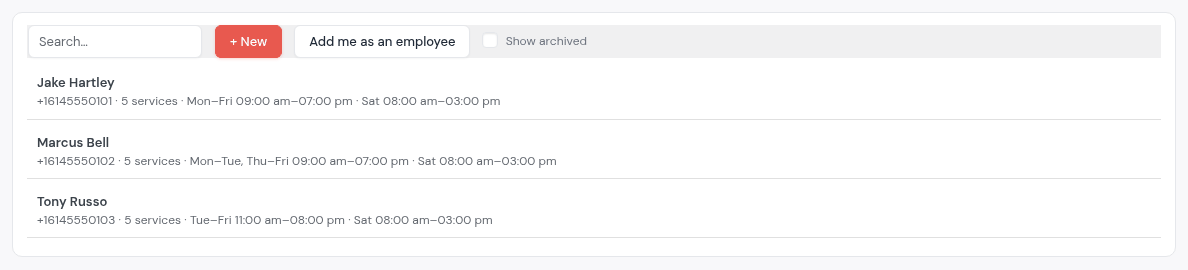
Add each person the same way. The list shows each one's phone, how many services they do and their hours. You can be on the list too: Add me as an employee puts your own account there.
6. Add the rooms and machines that can run out
Where: Resources
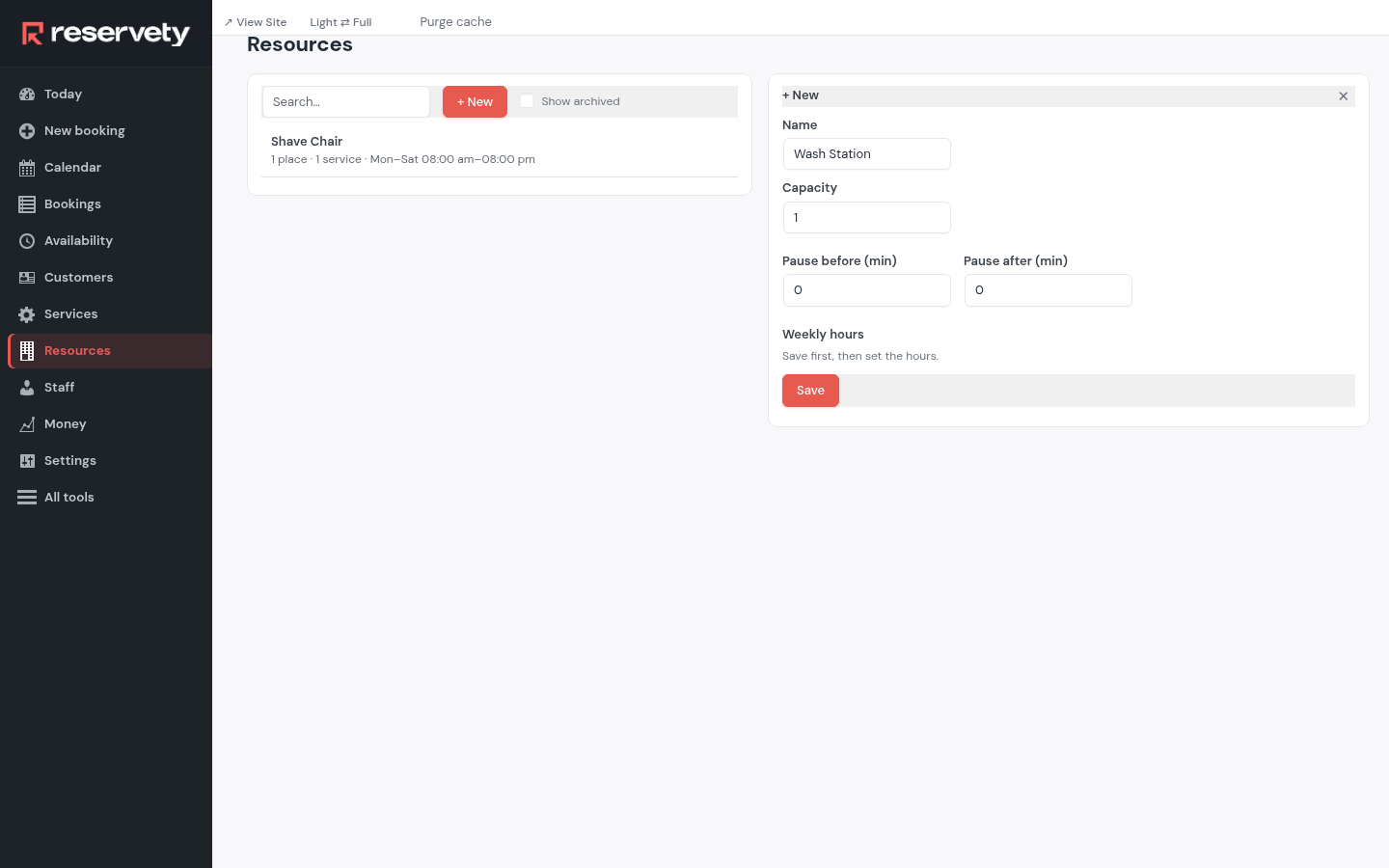
A resource is anything a booking holds that there is only so much of: a chair, a room, a machine. Open Resources, click + New, type the name and its Capacity (how many bookings it takes at once). Pause before (min) and Pause after (min) keep it free for cleaning. Click Save.
7. Add a service
Where: Services
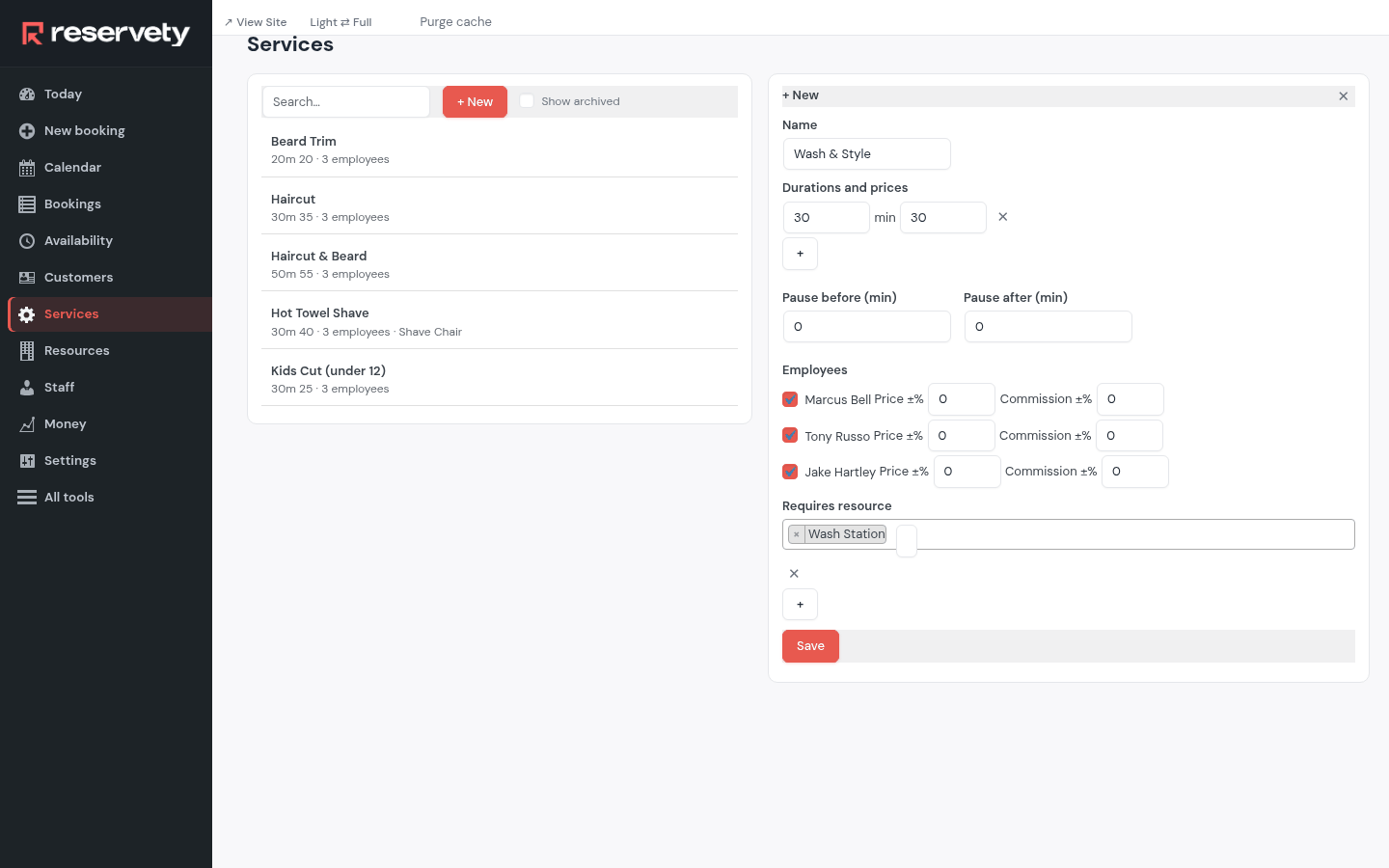
Open Services and click + New. Under Durations and prices, the length in minutes and the price (+ adds another length). Under Employees, tick who does it. Under Requires resource, pick what it holds: the wash station here, so two washes never overlap. Click Save.
8. Check the services list
Where: Services
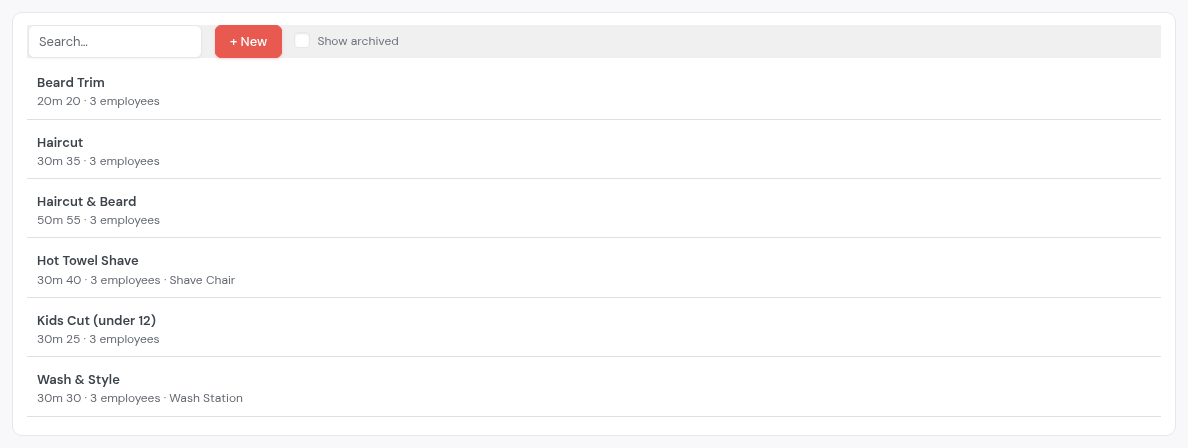
Each service shows its lengths and prices, how many employees do it and what it holds. Click one to change it; its panel's Advanced link opens every setting of that service.
9. Block time off
Where: Availability
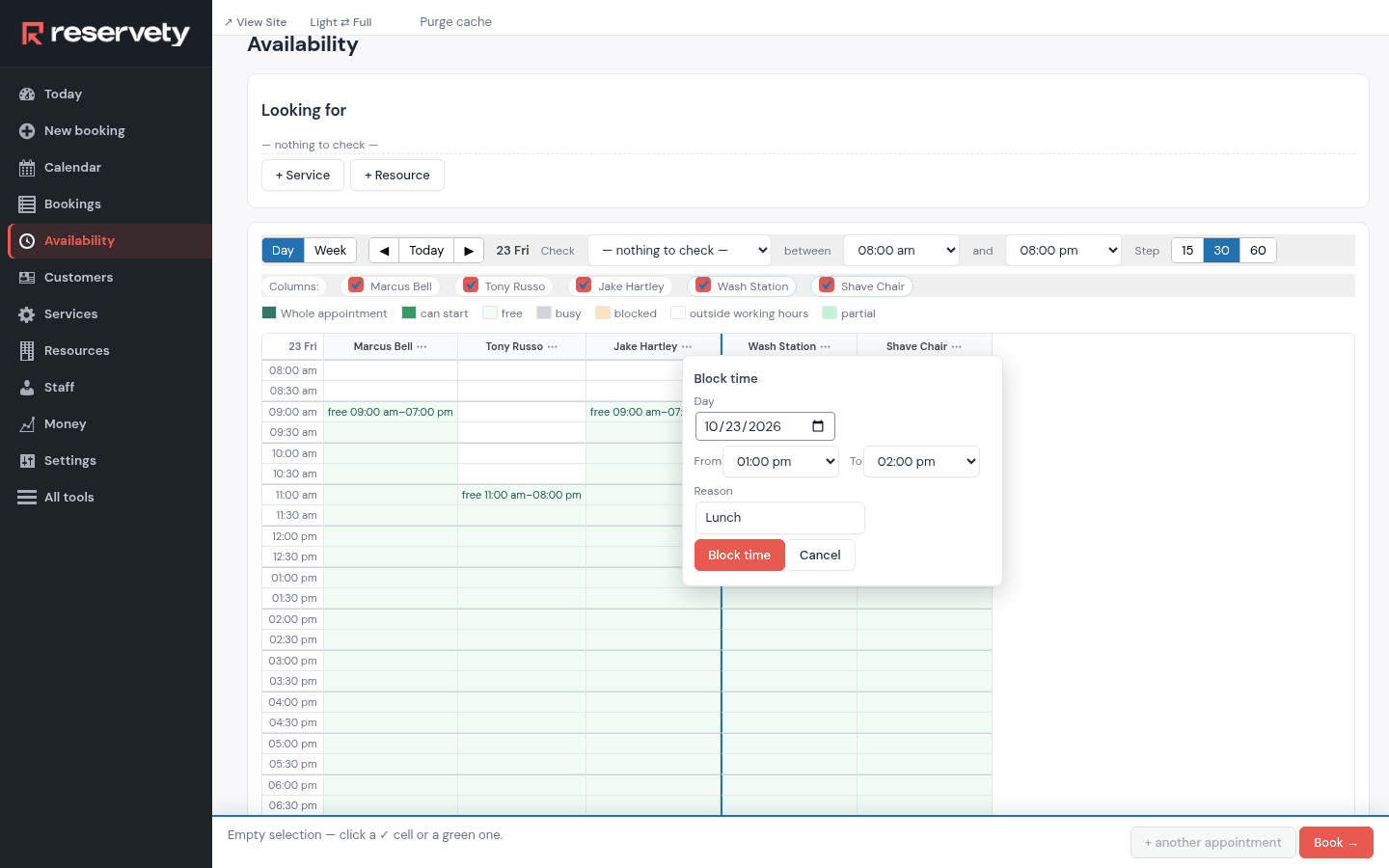
A lunch break, a dentist appointment, a day off: open Availability, click ⋯ beside the person's name and choose Block time. Pick the From and To times, type a Reason and click Block time. That time can't be booked.
10. The page your customers book from
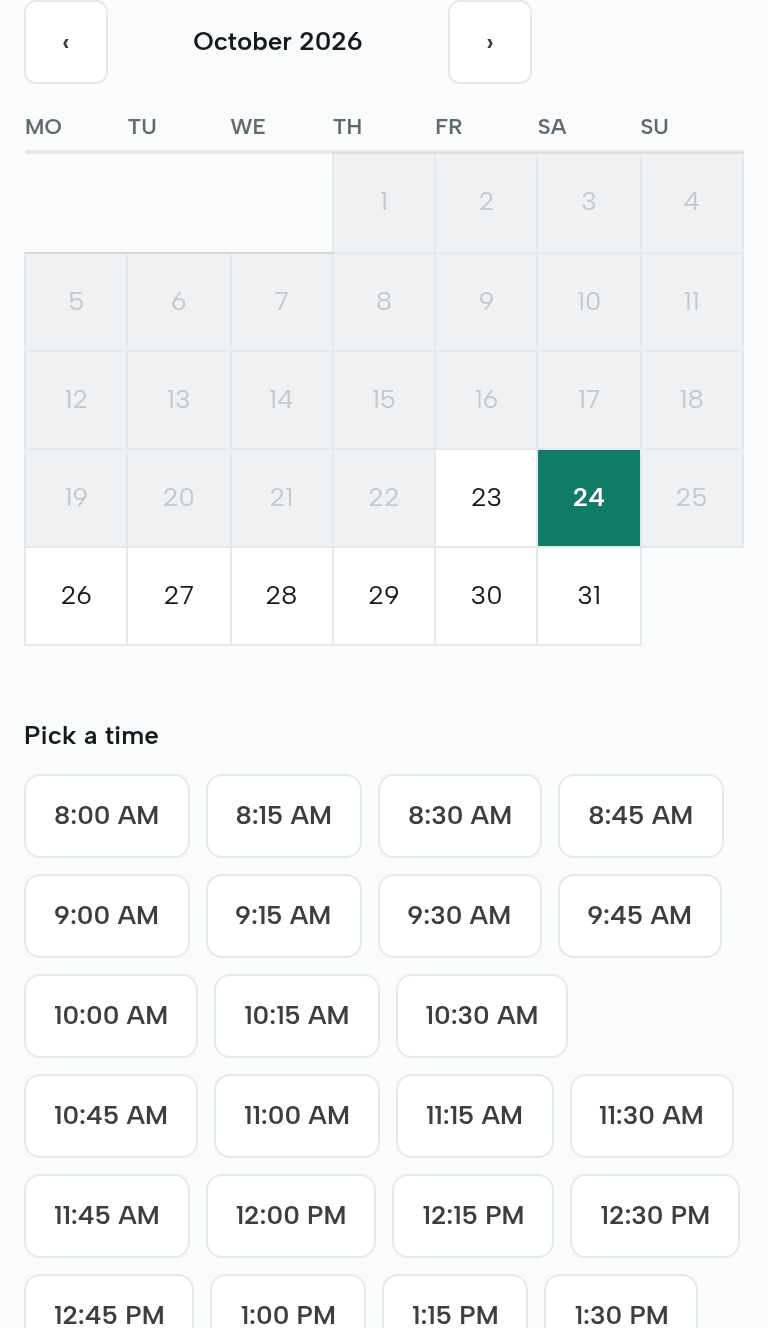
Customers book on your website. A page with the booking form shows the service's free times; the customer picks a day and a time and leaves a name and a phone. The chapter on pages shows how to add one: the form is the code [bb_appointment product_id="…"], with the service's number from its Advanced link.
11. Let customers move or cancel their own booking
Where: Settings
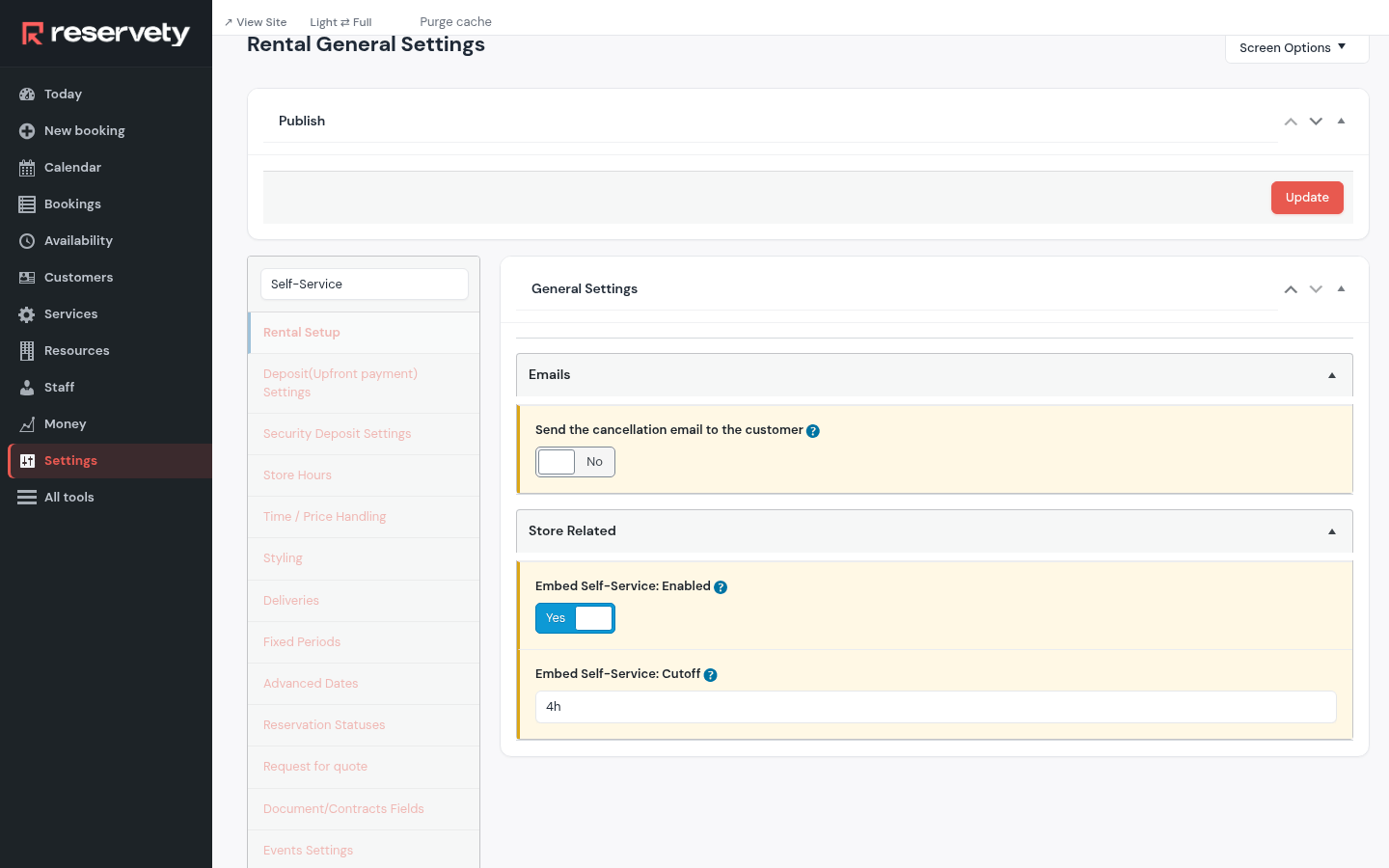
In Settings, search Self-Service. With Embed Self-Service: Enabled on, every confirmation carries a link where the customer moves or cancels the booking; Embed Self-Service: Cutoff says how long before the start that stops working. Click Update.
12. Decide what happens to the money when they cancel
Where: Settings
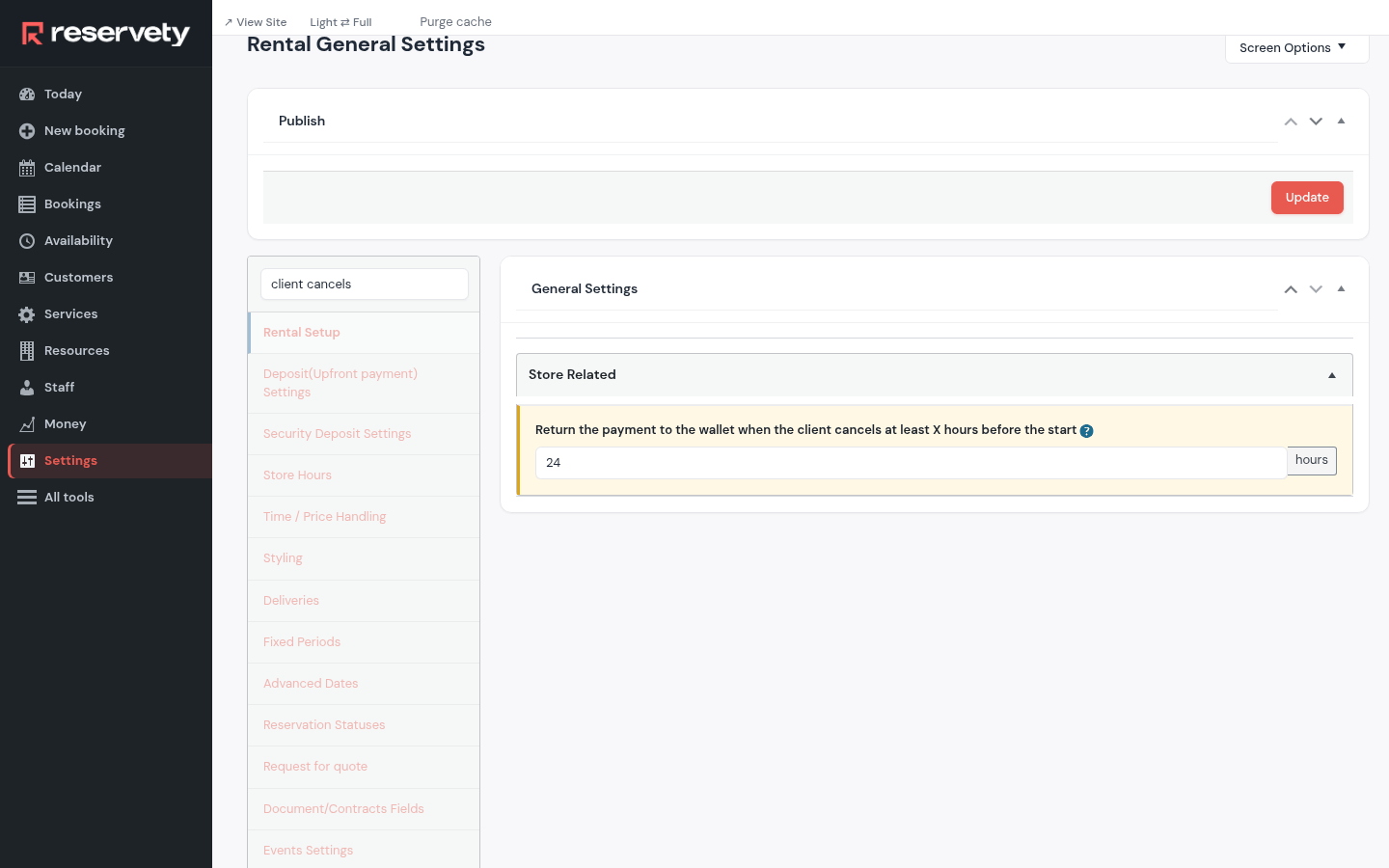
Search client cancels. Return the payment to the wallet when the client cancels at least X hours before the start keeps what they paid as credit for their next visit, when they cancel in time. Click Update.
13. Requests for a time that's taken
Where: Settings
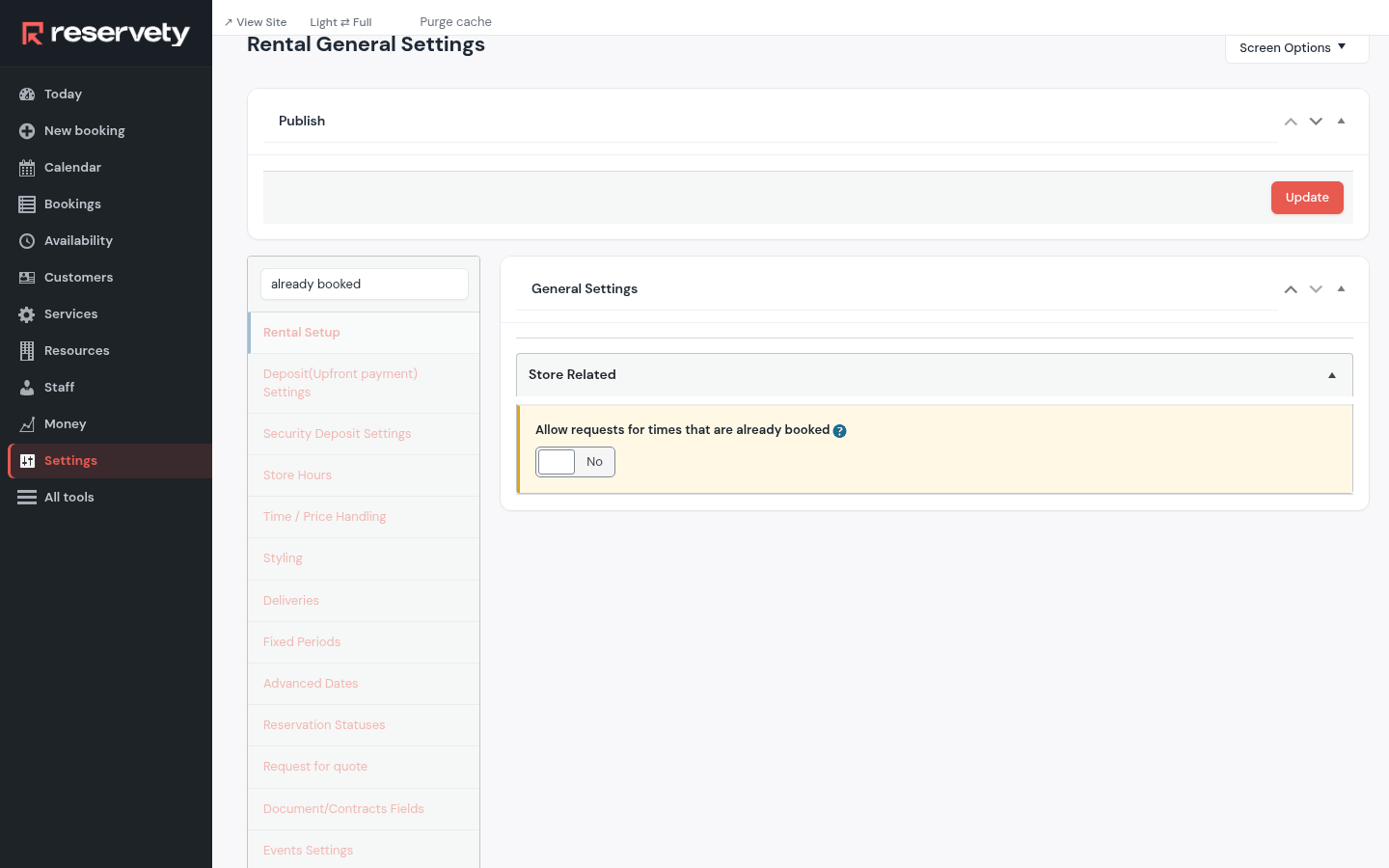
Search already booked. With Allow requests for times that are already booked on, a customer can still ask for a full slot; it arrives as a request you confirm or turn down. Click Update.
14. The messages customers receive
This screen is in the Full menu.
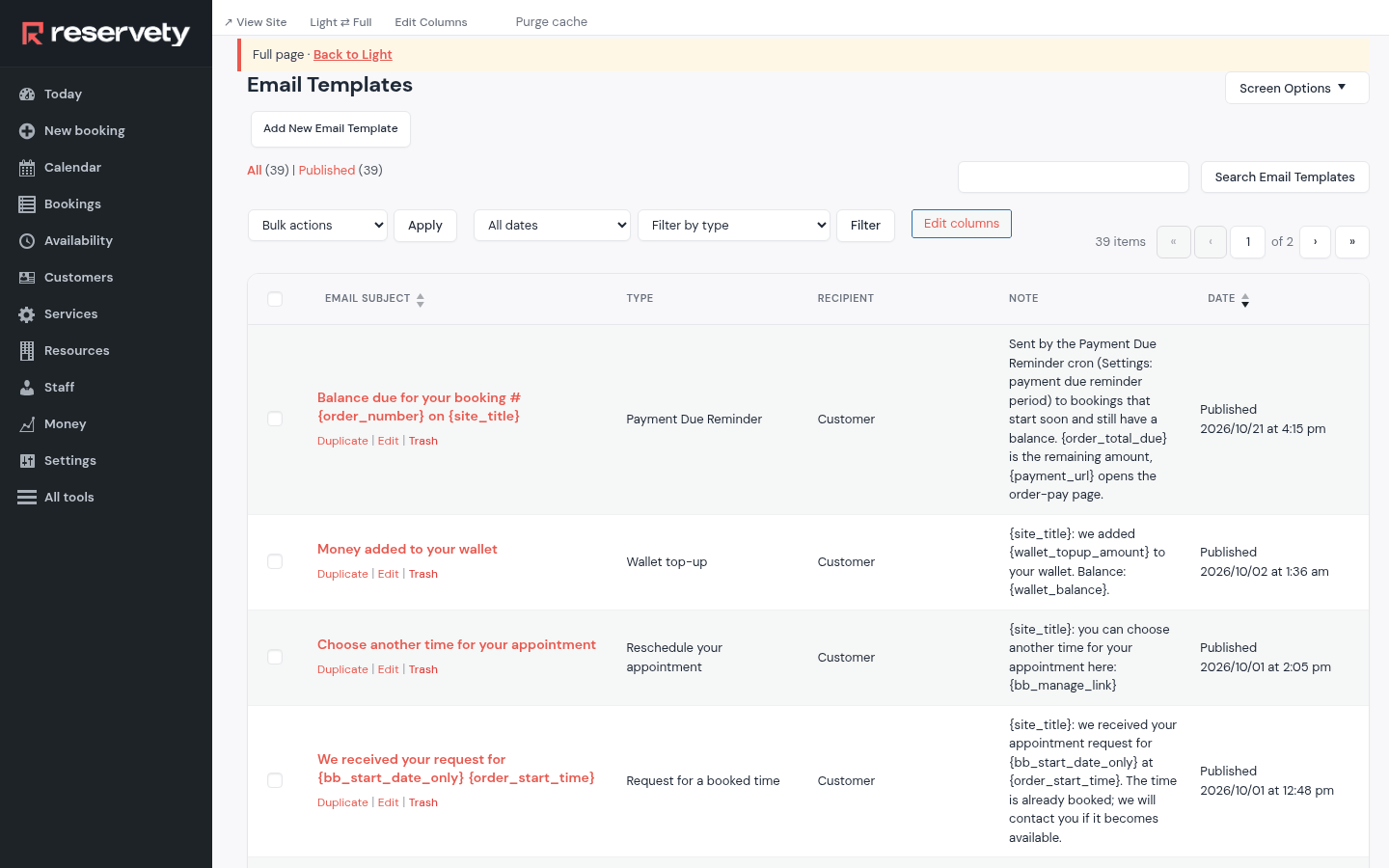
Every message has a template: the confirmation, the reminder, the cancellation. Open Email Templates from the Full menu and click a template to change its words; the text box under the e-mail is the SMS or WhatsApp version of the same message. SMS and WhatsApp require a module to be enabled.
15. Load the ready-made SMS texts
This screen is in the Full menu.
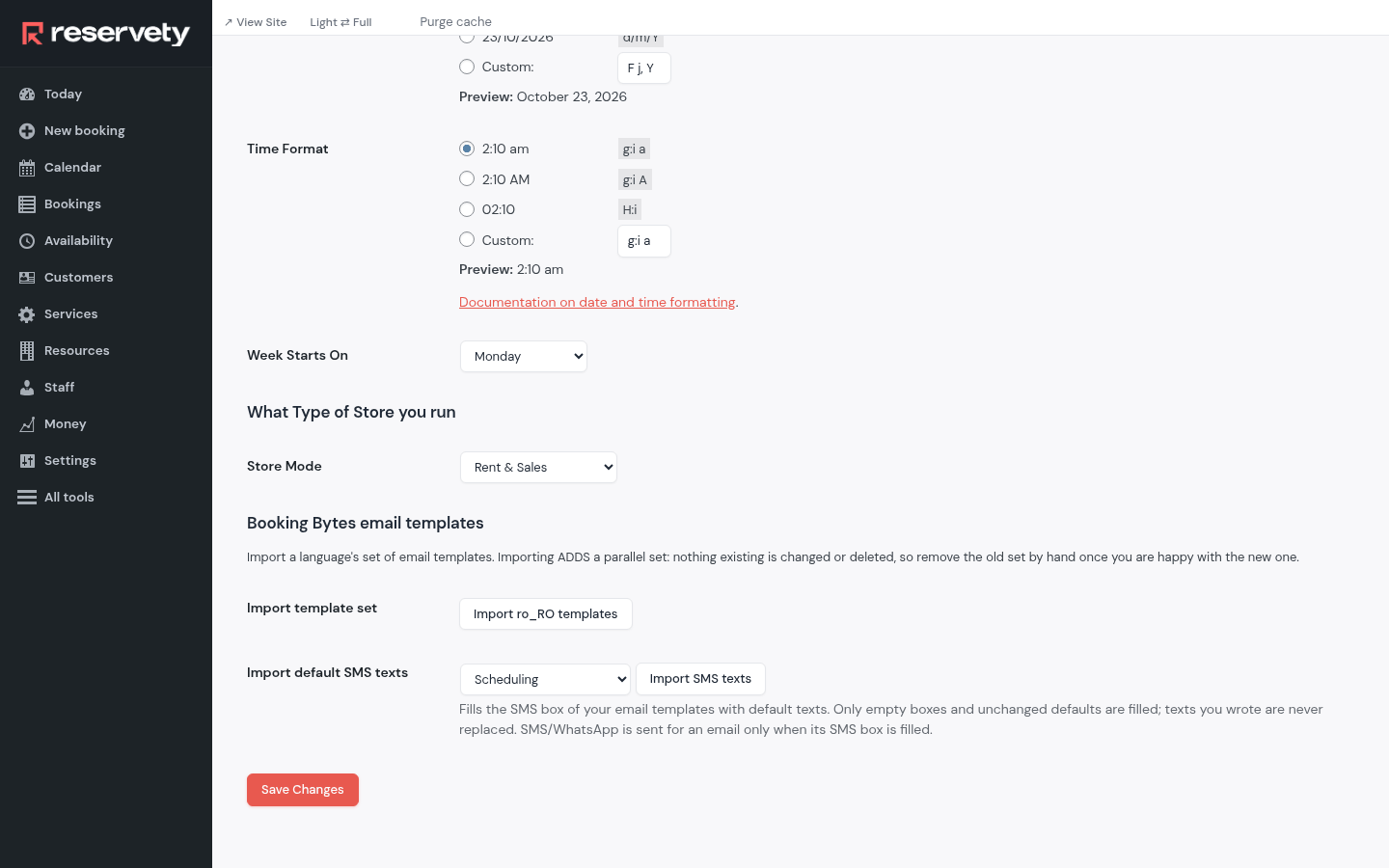
Settings in the Full menu, then Website: Import default SMS texts fills the SMS box of every appointment template with a short text you can edit. Run it once, after the templates are in place.
16. Tell your phone when a request comes in
Where: Settings
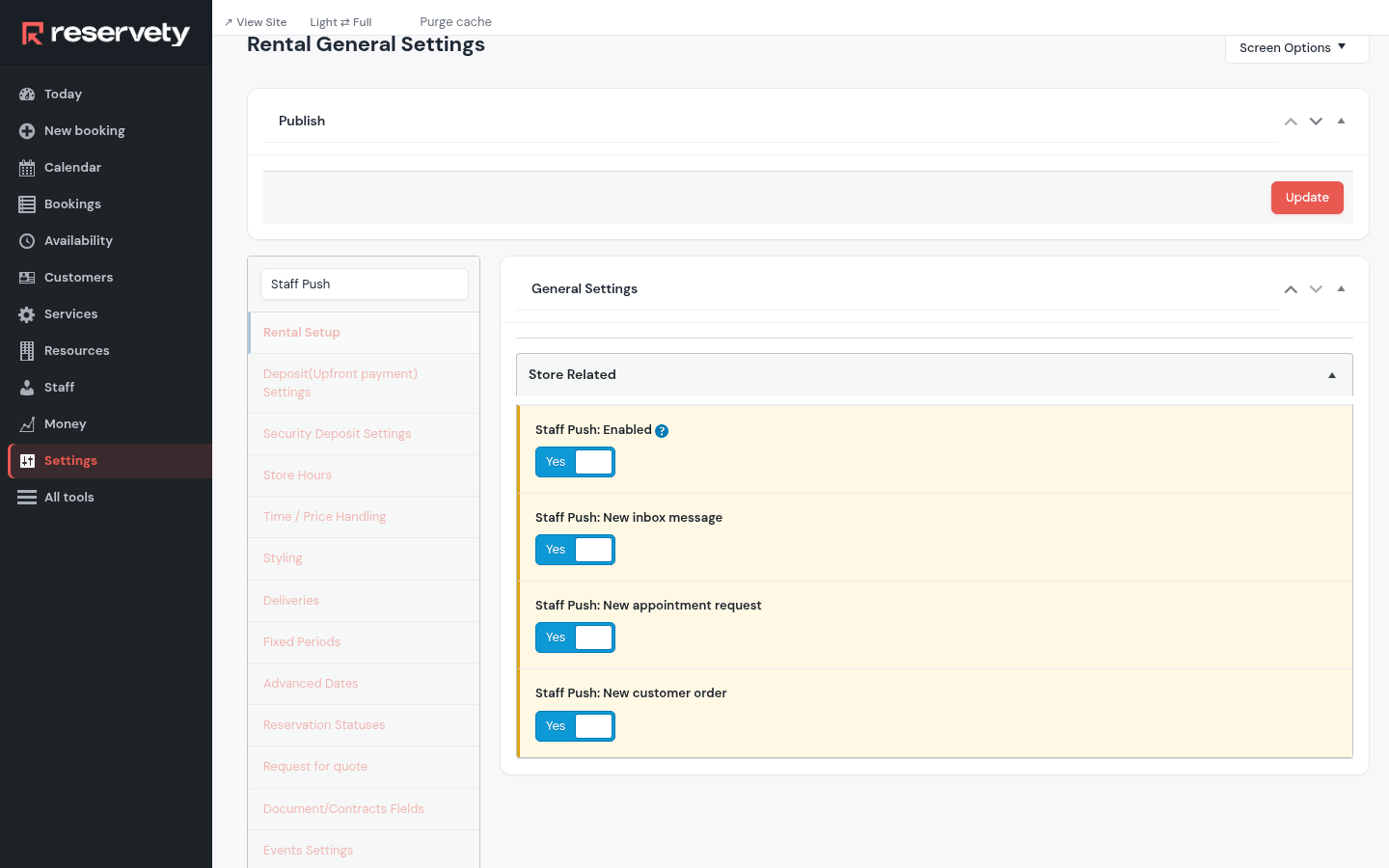
Search Staff Push and turn Staff Push: Enabled on. Staff Push: New appointment request then sends a notification to the staff app the moment a customer asks for a time. Click Update.
17. The phones that hear about every booking
Where: Settings
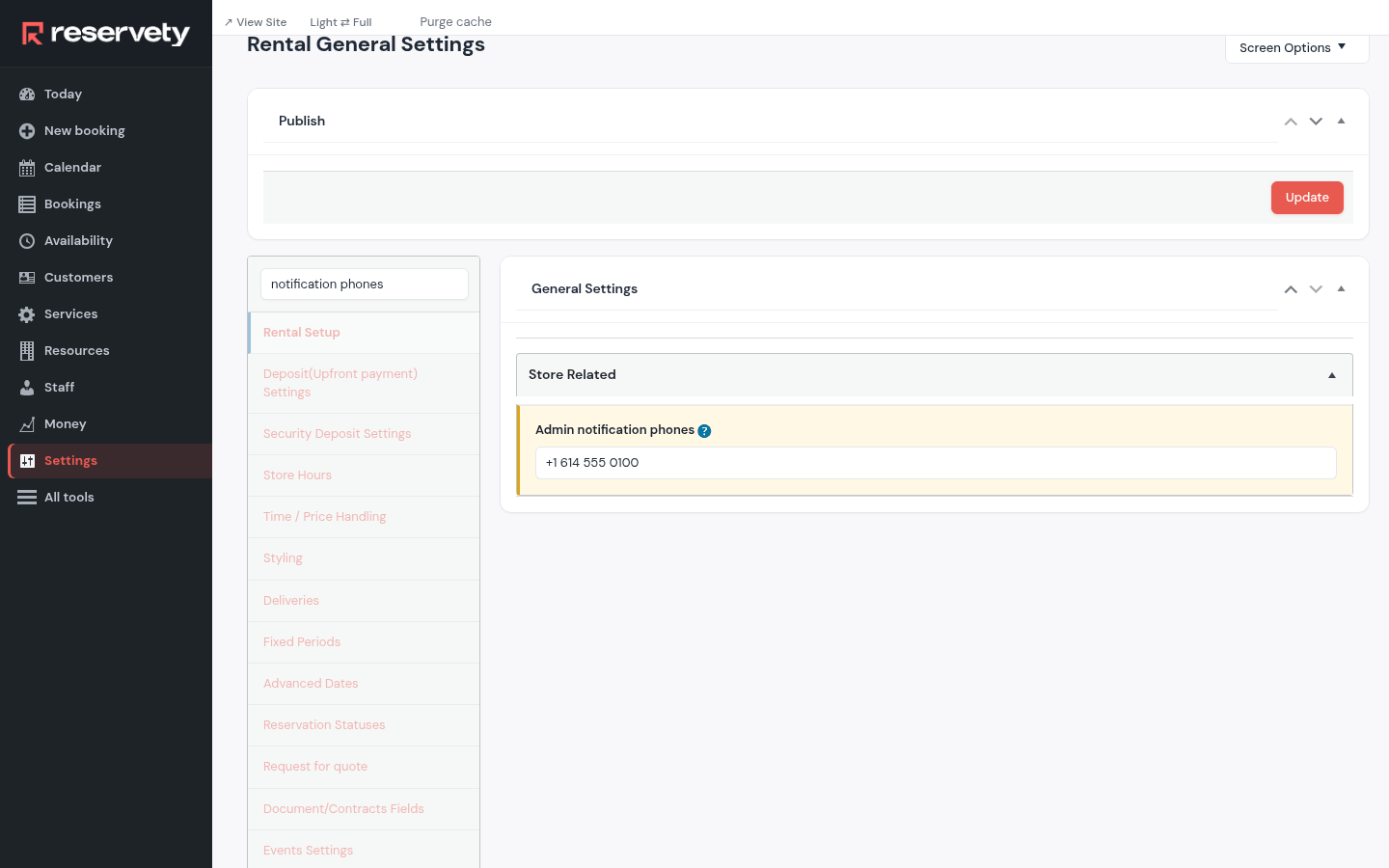
Search notification phones. Admin notification phones are the numbers that get a text about every new booking and request: yours, the front desk's. Click Update.
18. Your staff sign in to the app
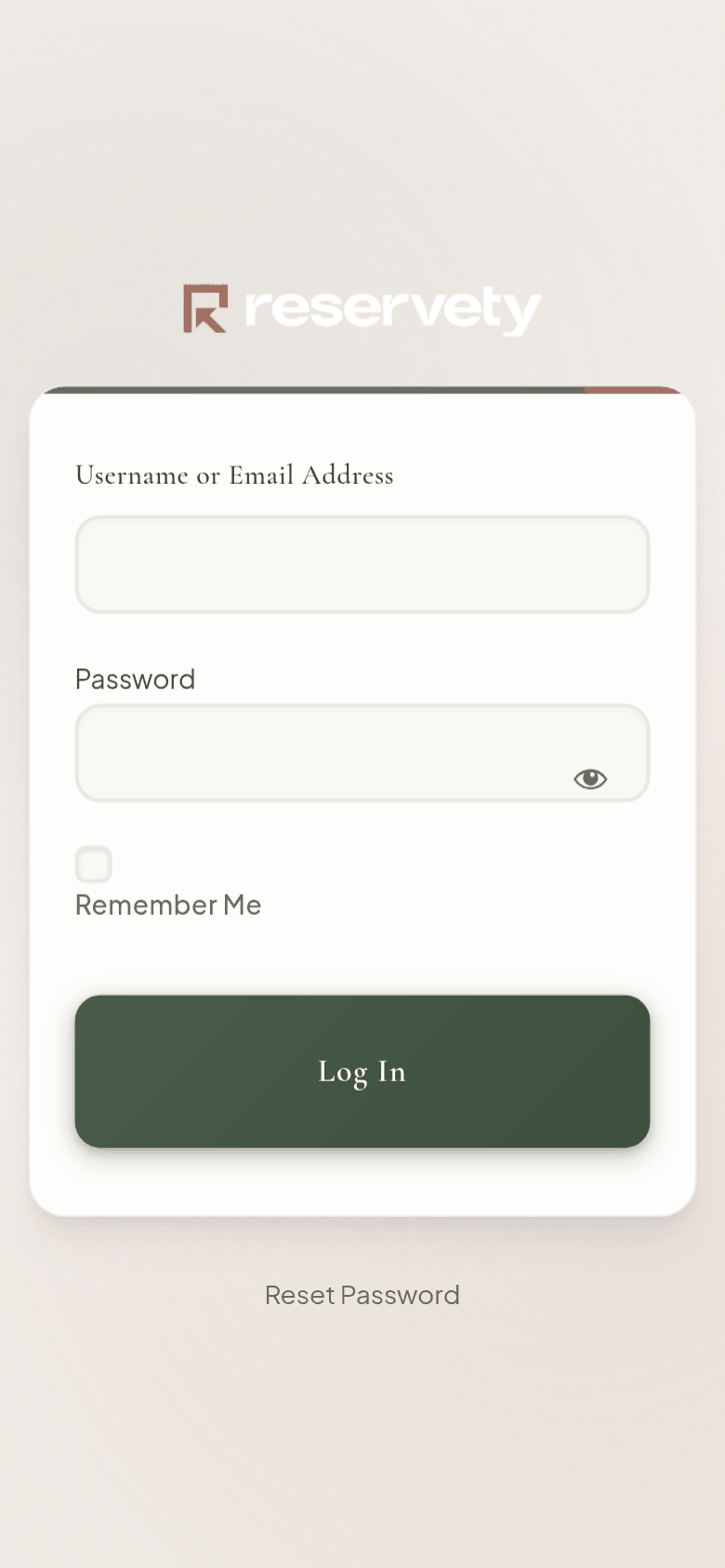
Adding someone under Staff makes their account with a password nobody knows yet. They open your site's sign-in page on their phone, tap Reset Password and set their own; then they open the staff app and add it to the home screen. The run-the-day guide shows the app.
Set it up on your own Reservety site
Reservety handles your website, bookings, inventory, and payments — so you can focus on growing your business.