
Google Business Profile is a free tool for adding a business to Google Maps to make it rank in area-specific searches.
Google Business Profile is a free tool for adding a business to Google Maps to make it rank in area-specific searches.
For example:
Open Google, type in surfing gear rental in Daytona Beach Florida, and view the results.
You should see the list of companies as shown below:
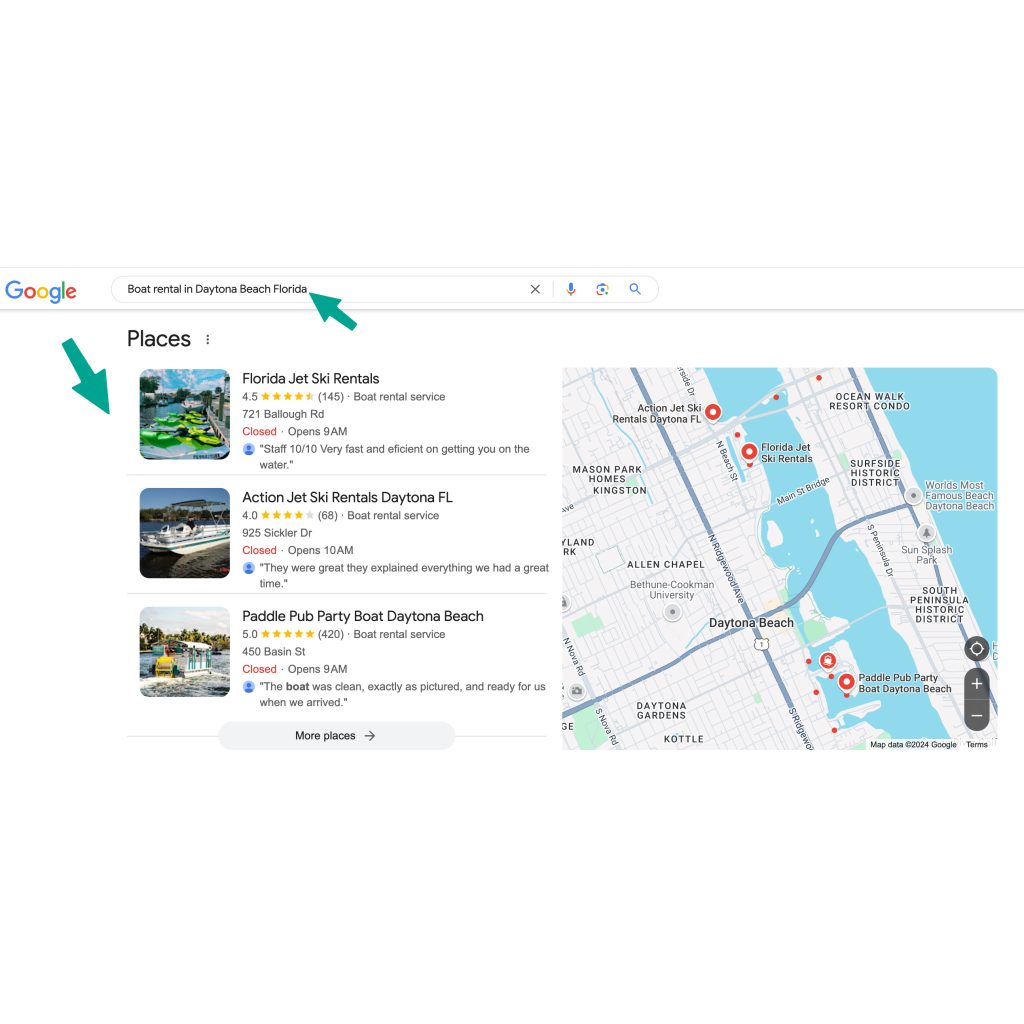
All those businesses are there because they have an account on Google Business Profiles.
It means your rental business will get greater exposure on local searches.
For instance, when people search keywords such as "rental near me" or "rental business in [place]", your business will be on the list as long as it complies with all GBP policies.
This means that 50 of 1000 people who view your company in GBP will book an item or service from you.
To increase conversion even further, build a professional website with Reservety and enable a 24/7 online booking system.
And the great majority of them use Google.
Think about the last time you searched for any local business, whether car repairs, cleaning service, or anything else.
We are pretty sure you found it through a Google search.
This is another reason why your rental business should be present in GBP.
Even if people heard about your business, they still Google it to find its contact details.
It implies that proximity is one of the major factors in local searches.
People prefer nearby businesses for convenience.
Think this way.
If your business is not listed on GBP, searchers will not find it among the nearby businesses or know its proximity to their location.
Step 1: Ensure you already do not have a Google Business Profile.
If you do, the duplicate account will lead to confusion and even restrictions.
Don't have it? Move on to the Step 2.
Step 2: Create a Google Account.
Even if you already have a personal account, we encourage you to set up one for your business.
Create a new Gmail account including your business name. And avoid using numbers or auto-suggested email addresses.
Step 2: Create a Google Business Profile Account
Go to https://Google.com/business and log in using the account you created in step 1.
Then, write the official name of your business.
If your business profile already exists, GBP may display the exact match while you type your business name.
In this case, claim your business and manage it.
Step 3: Choose Business Type.
It is a vital step, and your success on the platform will depend on it.
There are usually three options to choose from:
Select the ones that match your business model.
Online Retail is a suitable choice if they have a virtual rental store that accepts bookings online.
The physical Store option is for businesses that operate out of physical location, and have offices to serve their clients.
Service Business is the best choice if you offer your rental items as a service.
For example, an event rental business that offers tents, tables, chairs, and catering equipment as an event organizing service can select this option.
Step 4. Confirm your addresses.
If you selected "Physical Store" you must type in the exact business address so Google displays them on Maps with pins and directions.
If you select the "Service Business" type, you can enter up to 20 service areas.
Important Notice: Ensure you enter the service areas within a 2-hour driving range. Listing any area beyond that range may go against Google Policy.
Step 5. Complete the Verification.
Google needs to verify the legitimacy of your business before activating your profile.
Before you proceed with verification, ensure the verification process is done by yourself or someone you trust.
Otherwise, you give ownership of the profile to those who complete the process.
Phone number.
It is the fastest and the most straightforward method.
Once you enter your phone number, Google calls and gives a verification number, which you must input into the verification box.
Postcard by mail.
This method takes time as Google needs to mail out a postcard with a 5-digit code on it.
Once you get it, you must sign in to your profile and verify it with the code.
Video Verification.
It is becoming Google's primary method of verification.
It requires you to record one continuous video, including the following:
Current location - your building, street name, nearby businesses.
Business Equipment - Your office settings, furniture, and other displays.
Proof of Management - Business license, point-of-sale (POS) system, warehouse, etc.
Please note: Although Google does not publicly display your videos, it recommends not capturing sensitive documents and people's faces.
Email Verification
This verification method is not available for everyone. It will be allowed for businesses active on Profiles but remain unclaimed.
The process is simple. You need to enter your verified email address to complete the verification process.
Step 6: Add Services
Google will offer predefined services that match your category.
If they are compatible with your services, select them. Because predefined services are a good ranking factor.
If you do not see your services listed in autosuggest, add them manually.
Make sure to add all of your services for better visibility.
Step 7: List your business hours.
Firstly, select which day of the week you are open. Then, type in the business hours.
You can set different hours for each day.
For example, if you are open 8 am to 6 pm on Monday through Friday but open only 9 am to 1 pm on Saturdays, you can set them accordingly.
Please note: Google uses open hours as ranking factors. Concisely, Google ranks your business during your work hours and drops its ranking during your off hours.
Do not list your business as open 24/7 unless it is.
If Google finds out the discrepancies between your actual work hours and the hours you list on GBP, your account will be restricted.
Step 8: Activate Messaging.
This feature is activated by default, but you have the option to disable it.
We recommend keeping it active as more people like to contact the businesses via messaging.
Good old phone calls are getting out of style among the young generation of consumers.
However, if you think you will be slow to respond to messages, it will be better to disable it as the slow response can lead to customer frustration.
Step 9: Add Description
A description is one of the things potential customers read. So, make it concise, readable, and free from promotions because you have only 750 characters to work with.
Please note: It is against Google's policy to include promotions, phone numbers, giveaways, and links in your description.
Instead, include the following:
Step 10: Add Images.
Long text is not attractive anymore since people's attention spans get a lot shorter.
Also, adding images to your Google Business Profile page is a sign of credibility and it helps with conversion.
According to Google, profiles with photos have 42% more requests and 35% more clicks to a business website than profiles that do not have them.
You can add photos of:
Do not use:
Also, keep your profile photos updated. Google likes fresh content and may increase your ranking based on the content of your profile.
At the same time, recent photos are attractive to customers as they show the current state of your business.
1. Avoid creating duplicate accounts.
It can lead to confusion and restrictions.
2. Your GBP profile information should match your business details.
Ensure your address, business name, contact details, and other important information match the real business information. Google does not like discrepancies.
3. Ask your customers to leave reviews.
Reviews are also a ranking factor. To be on the top of local search results, you should also focus on your review volumes and qualities.
4. The work hours you put on the Profiles should match your actual business hours.
It is worth mentioning again. The discrepancy will lead to a loss of revenue and bad reviews. Yes, it is good to set your open hours longer as Google prioritizes open business at the time of the search. However, it does not give you a reason to manipulate the search engine setting your business 24/7 open when you are not.
5. Add your business to the right category.
Google has many categories, so you should choose the most relevant one. Being featured under the right category helps to improve your business credibility and target high-quality customers.
6. Add Frequently Asked Questions (FAQs).
When FAQs are properly displayed on your profile with clear answers, you help customers sort out their concerns quickly. In addition to FAQs, you can enable customers to ask questions. In this case, you need to answer the questions as quickly as possible, otherwise, customers will take their business somewhere else that provides quicker responses.
7. Do not employ keyword stuffing.
Keyword stuffing is filling your content with target keywords to rank higher. This method is no longer effective as Google gets smarter to detect such schemes. Google's suggested keyword density is 1% or one keyword per 200 words. We recommend focusing on customer experience rather than keywords while writing GBP descriptions.
8. Use Photos and Videos.
When people learn about new businesses, they want to see more than blunt text. Adding photos and videos of your products, your staff, or your business in action, may win more hearts. Sharing photos is also a sign of business transparency and credibility. We also recommend adding fresh photos and videos regularly as the images can boost customer confidence.
9. List all your products and services.
It is silly not to list everything you rent. More rental items or services means more opportunity.
When you add them, ensure each product and service is described clearly to avoid confusion and customer conflicts.
10. Link Your Google Business Profile with Your Rental Website.
It will lead you better conversions as people like to explore more about a business by visiting their website. It means your website should be clean, informative, and free from errors. It would be even better to have a rental website with an online booking system which will allow customers to book your items fast.
Please note: If you do not have a rental website, or your existing website missing an online booking system, Reservety will create a new one for you or transform the existing one with over 200 features, including an online booking system. Plus, it equips your business with a convenient dashboard to manage all your rental operations from one place.
Sign up for a 14-day free trial to test Reservety. No long-term obligation or credit card requirements.
Reservety handles your website, bookings, inventory, and payments — so you can focus on growing your business.