A six‑seat golf cart is booked online with a $25 deposit, and everything else happens at the counter: the renter scans a QR code, pays the balance, signs the rental agreement, and both sides sign the condition sheet before a key changes hands. Every screen below is the live system, in the order the shop actually touched it.
ORDER
#29099
RENTER
Marcus Webb
UNIT
GC6-01
OUT
Tue 22 Sep
BACK
Fri 25 Sep
PICKUP
Dauphin Island, AL
A golf cart shop on a barrier island has a specific problem. The money is easy — people book online weeks ahead. The risk is the ninety seconds at the counter: has this person paid the balance, have they signed the liability release, is anyone recording what the cart looked like before it drove away, and can you prove any of it six weeks later when a bumper turns up scratched.
Reservety puts that whole ninety seconds behind a QR code on the counter. The renter does their half on their own phone; staff do their half on the prepare screen; the condition sheet is signed by both, in that order, and the order will not move to Sent with a gap in it.
This page follows exactly one hire — order #29099 — through all of it. The cart is real inventory in the demo, the order is a real order paid through a real gateway, and every figure is a screenshot taken while the run was happening.
PART 00
How it is wired
Done once, before any renter sees the counter. Three settings carry the whole flow: the check‑in page itself, which documents are staff‑first, and when a physical cart gets attached to the booking.
0.1 The check‑in page, and the code that points at it
Store check‑in is a shortcode on an ordinary page. Point the setting at that page and the system prints the link and a QR code ready to laminate. The window is the part worth thinking about: twenty‑four hours either side of the rental start, so somebody arriving the evening before is recognised, and somebody arriving a week early is told when to come back rather than being told their booking cannot be found.
The whole feature, configured. Contract and balance are required before a renter can announce themselves; the security‑deposit hold is switched off for this shop. The QR is generated from the link, so it can never point at the wrong page.
Worth knowing. Leaving Check‑in Page empty is quietly expensive. The QR panel stays blank, and a renter who pays the balance from the kiosk is returned to the ordinary thank‑you page instead of back to their checklist — so they have to find the counter code and look themselves up a second time. One field.
0.2 Documents that staff fill in first
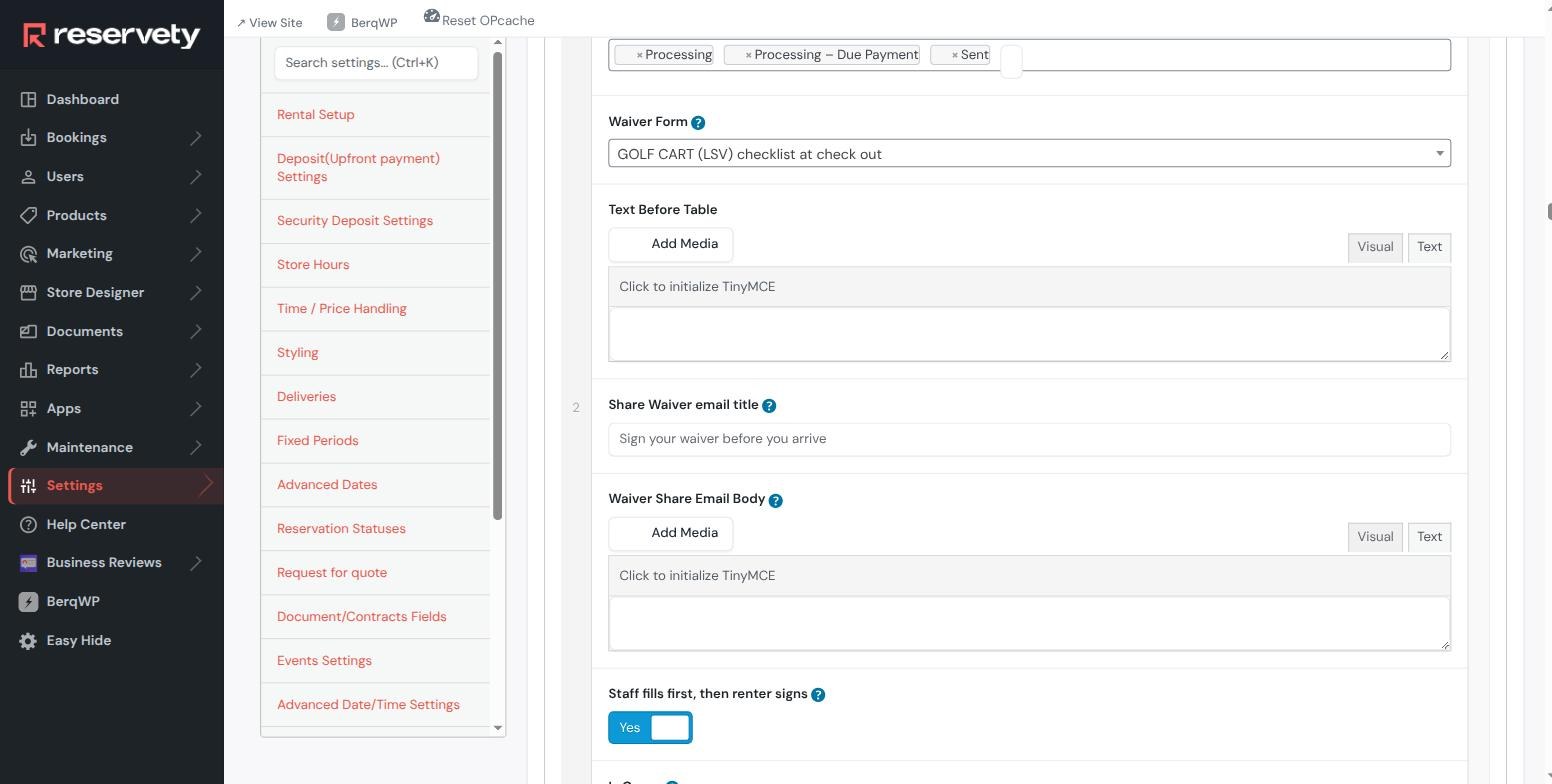
Three documents are attached to golf cart hires: the rental agreement, a condition checklist at check out, and a condition checklist at return. The agreement is the renter’s alone. The two checklists are marked Staff fills first, then renter signs — an inspection nobody has carried out is not something to ask a customer to sign.
The check‑out checklist rule. Note the statuses along the top: Processing, Processing – Due PaymentandSent. A document has to be mapped to the statuses on both sides of the transition it guards, or it stops applying halfway through the hand‑over and the renter’s signature is lost.
The setup trap. The return checklist is mapped to Sent and Returned for the same reason. Nothing blocks Mark as sent or Mark returned if you get this wrong — the paperwork simply goes quiet, which is worse than an error.
0.3 Which cart, and when it is decided
Twenty carts sit behind one bookable listing. Renters book “a 6‑seater”, never a specific one. The question is when a physical unit gets attached, and for a shop whose contract names the vehicle there is only one right answer: at check‑in, before the agreement is rendered.
Assigned at the counter. The alternatives are at checkout (weeks early, when you cannot know which cart is serviceable) or manually at hand‑over (too late for the paperwork). This setting picks the first free unit the moment the booking is found.
PART 01
Books online, pays a deposit
Three days over a long weekend, taken on the shop’s own site. The shop asks for a small non‑refundable deposit now and the rest at the counter.
1.1 Pick the days
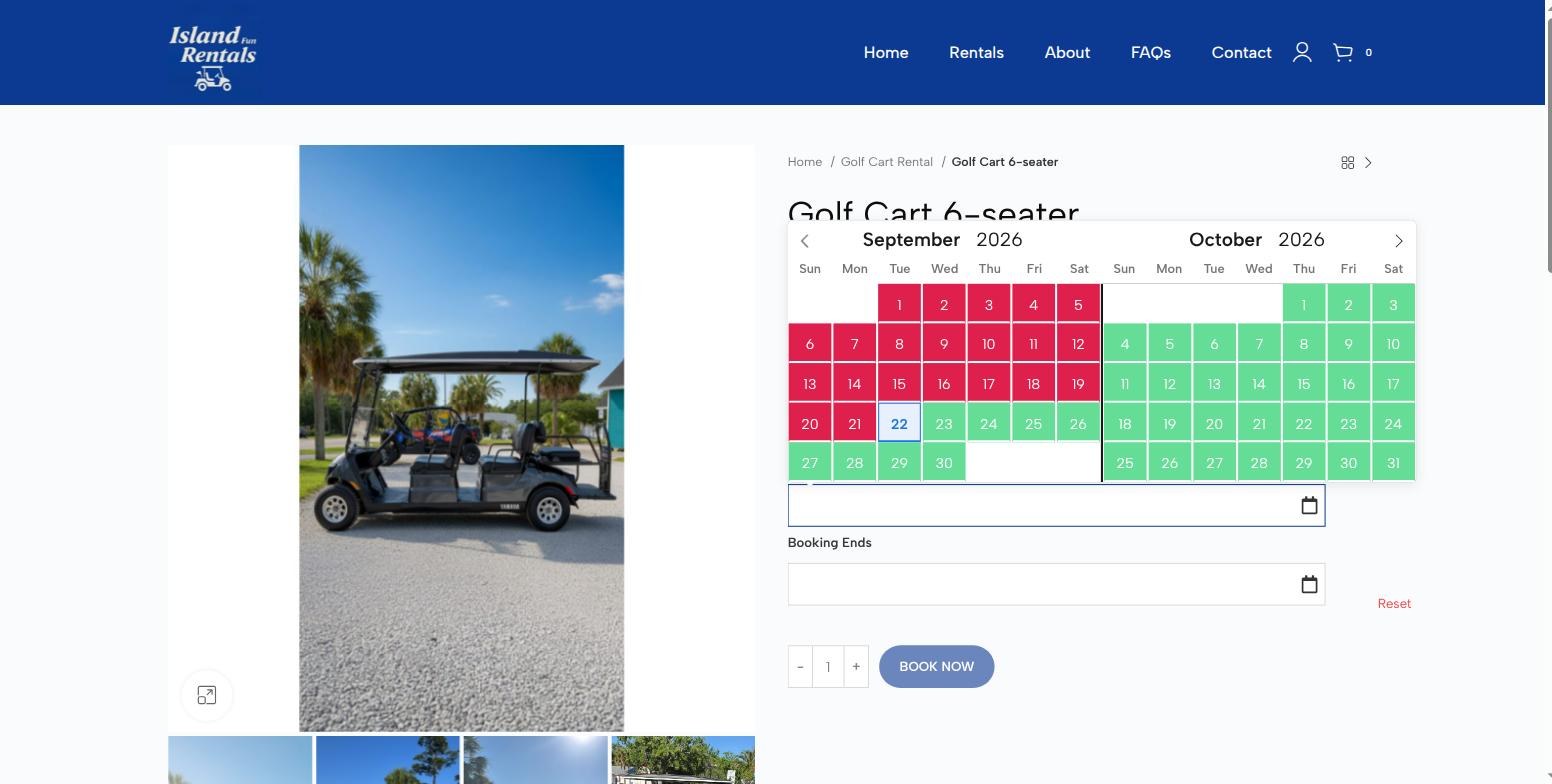
The calendar is availability, not decoration — green is a day with a free cart on it, red is a day already gone or in the past. Twenty units behind one listing means the shop is only sold out when all twenty are out.
$150 the first day, $120 each day after. The two‑month calendar is drawn from live availability across the whole fleet.
1.2 Pay the deposit, not the lot
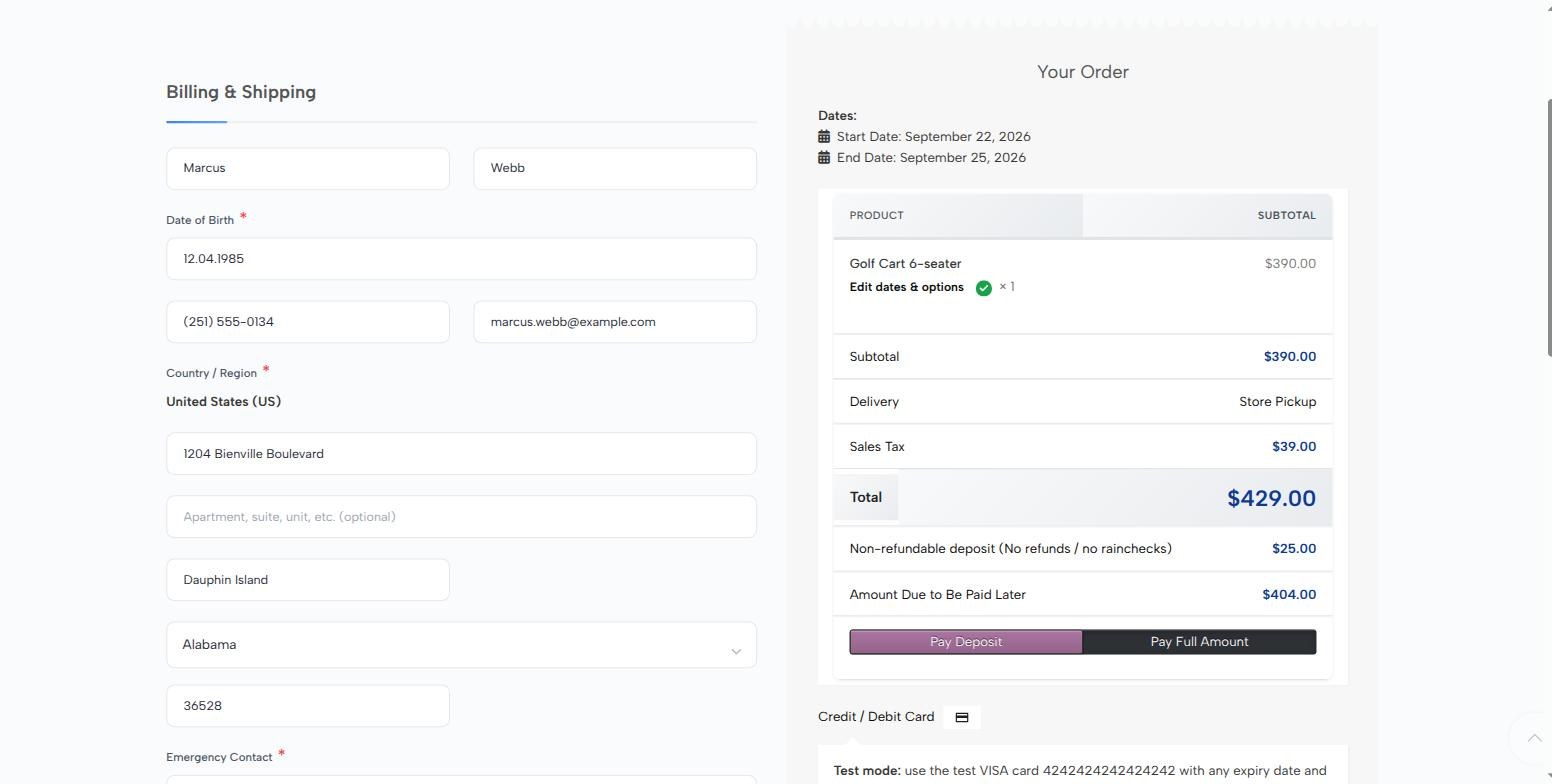
Three days comes to $390 plus $39 tax. At checkout the shop offers a choice, and the default is the deposit: $25 now, $404 at the counter. That is the number the kiosk will chase later, and it is why the order does not sit in plain Processing after checkout.
Split at checkout.Pay Deposit is the selected option; Pay Full Amount is there for anyone who would rather be done with it.
1.3 The consents a cart shop actually needs
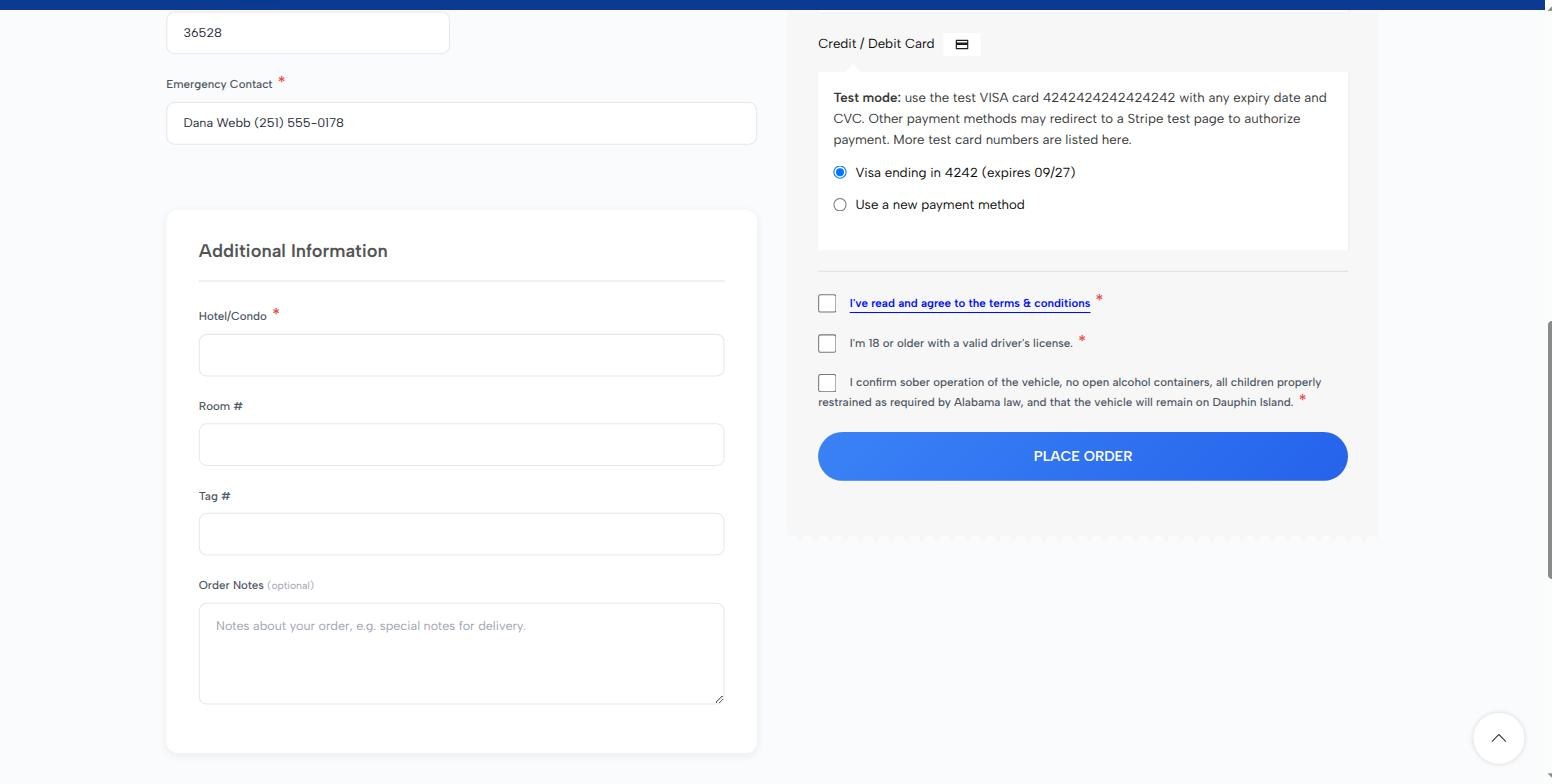
Low‑speed vehicles on public roads carry obligations an ordinary rental does not. Three tick boxes sit above the pay button, and every answer is stored on the order where staff can read it back.
Age, sobriety, and where the cart may go. The third box is specific to this island. The card is saved at the same time, which is what makes the balance payable in one tap later.
1.4 Booked, and told what is still outstanding
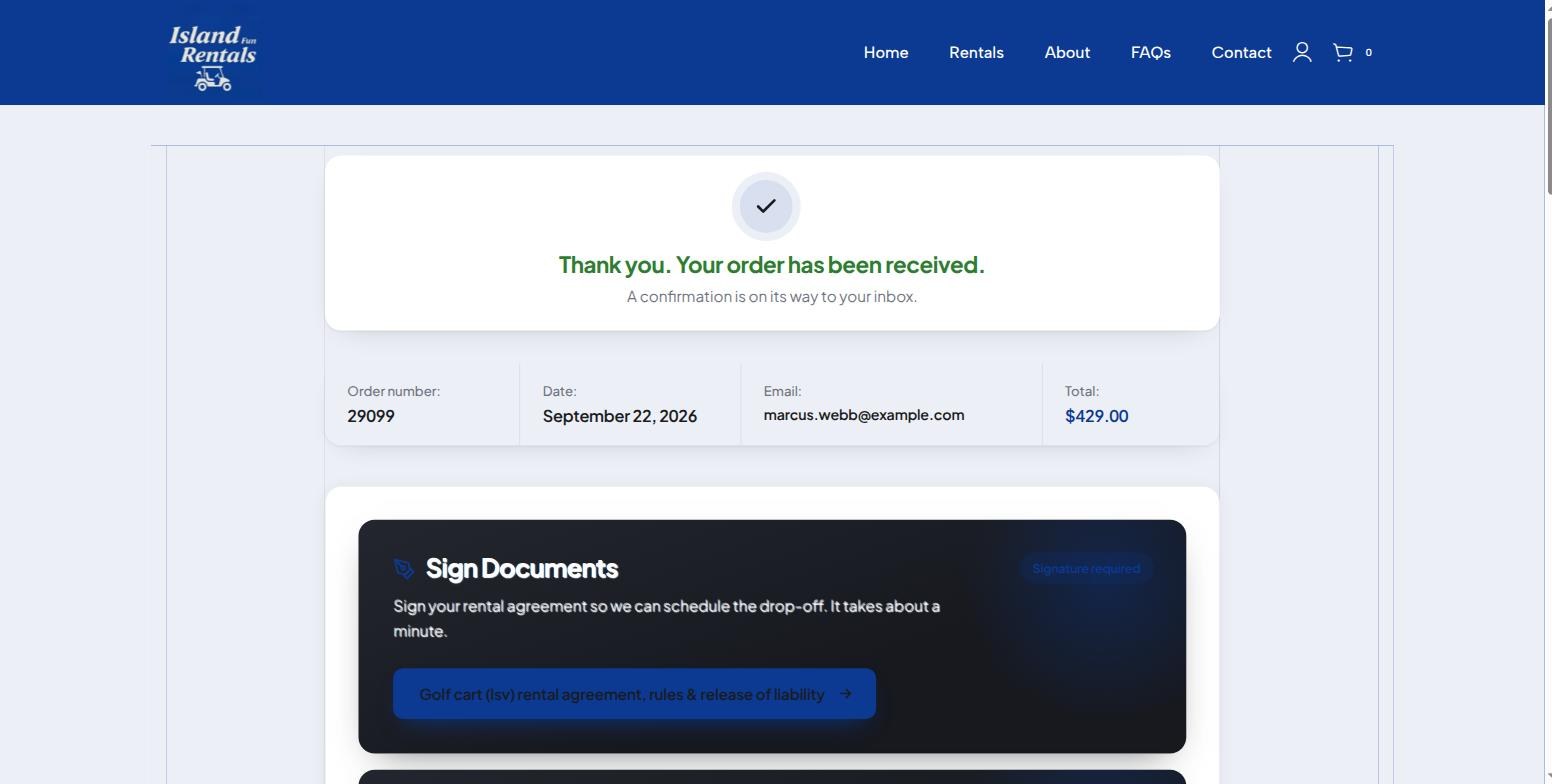
The confirmation does not pretend the job is done. The rental agreement is unsigned, and the page says so with a link to sign it there and then. Marcus does not — which is the interesting case, because it is what most renters do.
Order #29099.Signature required, with a one‑tap link. Everything the renter skips here simply reappears at the counter.
PART 02
Scans the code at the counter
Tuesday morning. The cart is due out today, so the check‑in window is open. There is no app to install and nothing to log into.
2.1 One code on the counter
The code below is the live one for this shop. Scanning it opens the check‑in page on the renter’s own phone.
Printed once, used by everyone. It encodes nothing but the page address, so it never expires and carries no customer data.Two doors.New reservation is the ordinary shop, for walk‑ins with no booking. Marcus has one, so he takes the other.
2.2 Order number and the contact on the booking
Two fields, and deliberately no others. The e‑mail or phone is the part that matters: an order number on its own is guessable, and the system will not confirm that a booking exists until the contact matches too.
The lookup. Every failure before the contact matches gives one identical message, so the screen cannot be used to farm order numbers.
2.3 Found — and a cart is now attached
This is the moment the booking stops being generic. Cart 01 — 6‑seater is picked from the free units and added to the order, before anything is shown to the renter, so every document from here on can name the vehicle.
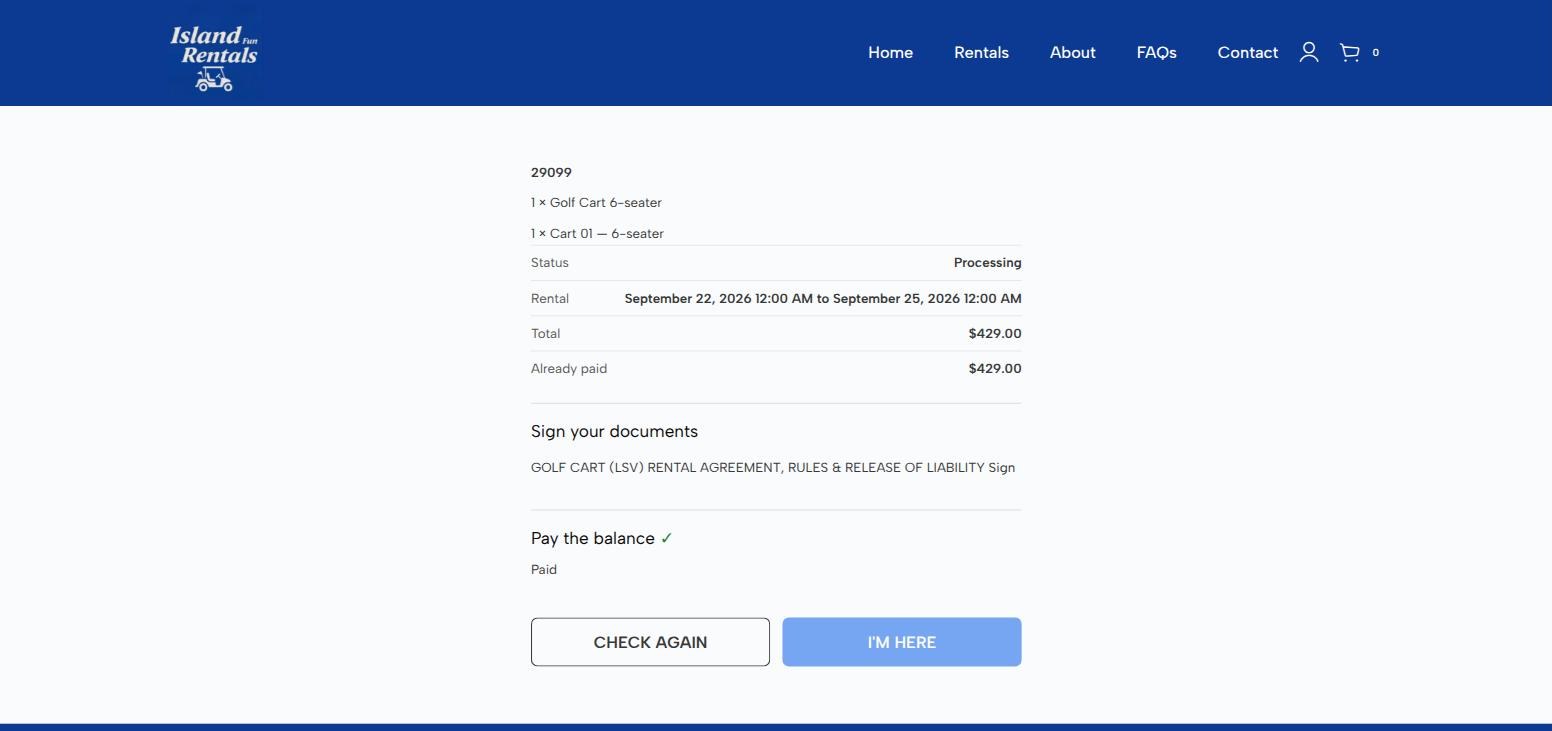
What the renter sees. The unit, the dates, the total, and the $25 already paid. Note what is not here: no delivery address. An order number plus an e‑mail is weak proof of identity, and an address is exactly where a wrong match becomes a privacy problem.
Why it happens here. Assignment fires on the lookup, not on the final button. It has to: the last button is gated behind a signed contract, so assigning the cart there would attach it after the renter had already signed for it.
PART 03
Clears what is outstanding
Two things stand between Marcus and the counter: $404 and a signature. Both are done from the phone in his hand, without leaving the page.
3.1 The balance, on the card already on file
Pay now opens the real payment page inside the check‑in screen, so the renter never loses their place. The card saved at checkout is offered — and because reusing a stored card on nothing more than an order number would be too easy, the screen offers to send a one‑time code to the address on the booking before it will use it. Typing a fresh card needs no code, because a new card only ever adds money.
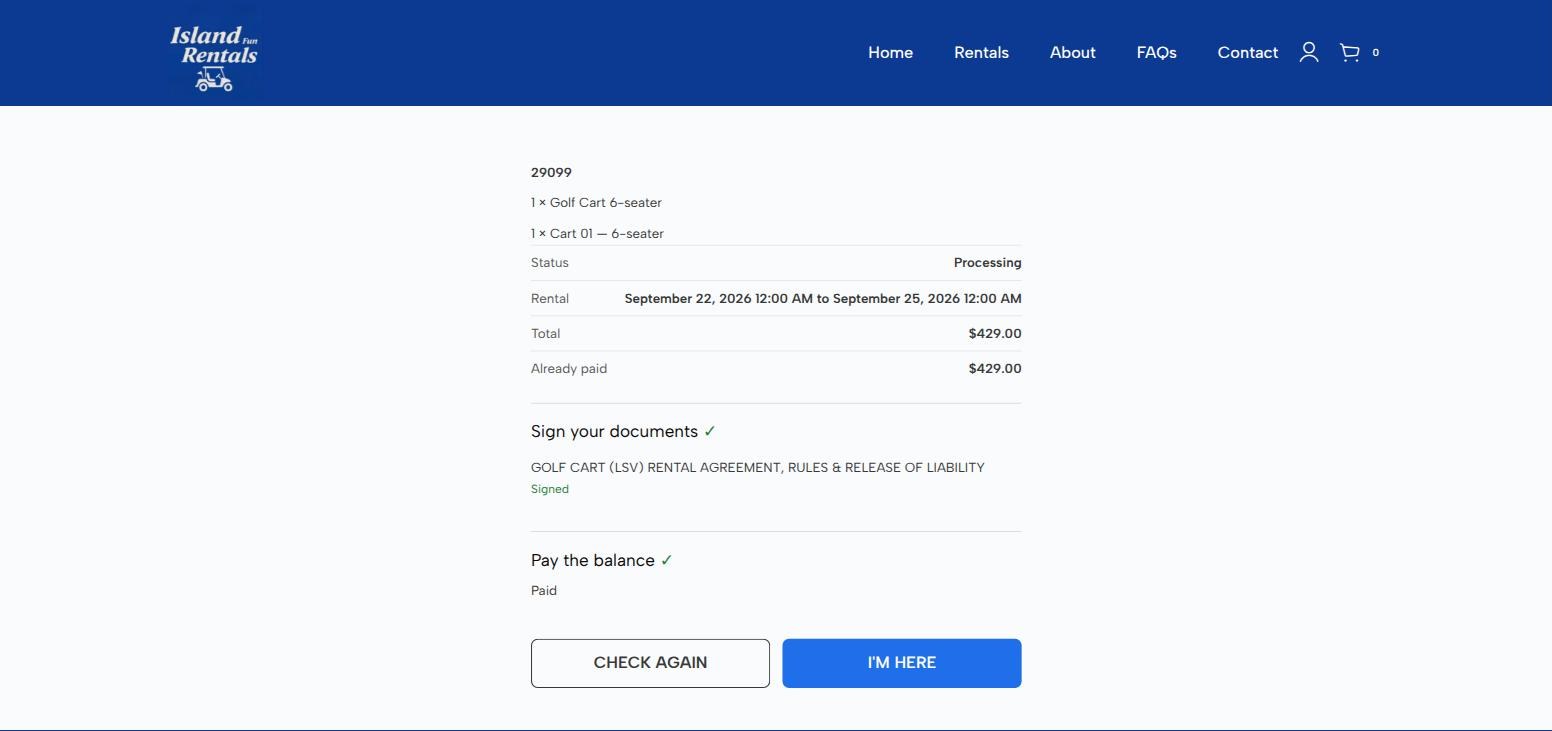
Paid, and back where he started.Already paid now reads the full $429 and the status has moved off Processing – Due Payment. The renter was returned to their checklist automatically — that is the Check‑in Page setting from part 00 doing its job.
3.2 The agreement, already filled in
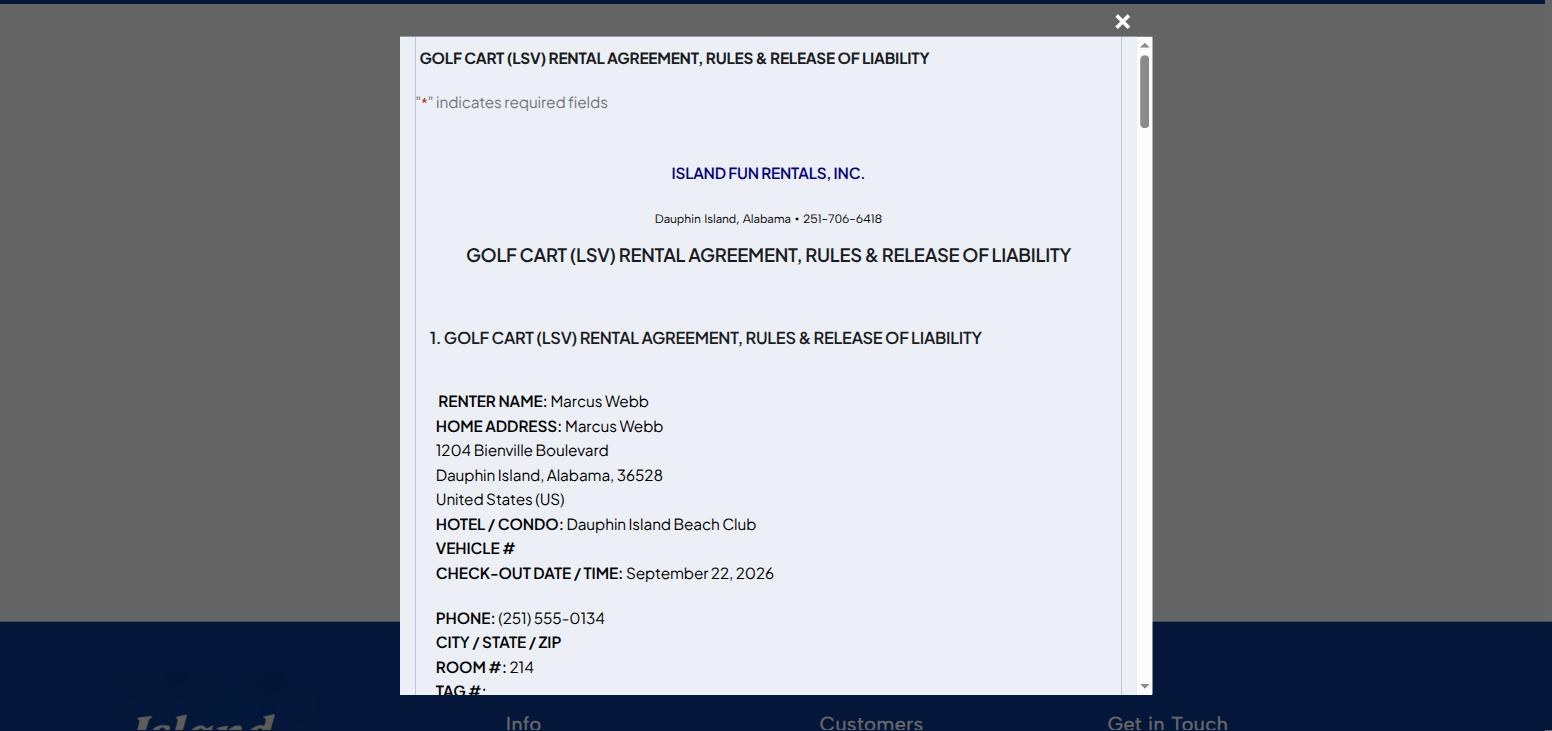
The rental agreement opens in the same frame with everything the shop already knows merged into it — name, address, hotel and room, dates, date of birth, emergency contact, the lot. The renter reads and signs; they do not re‑type their own booking.
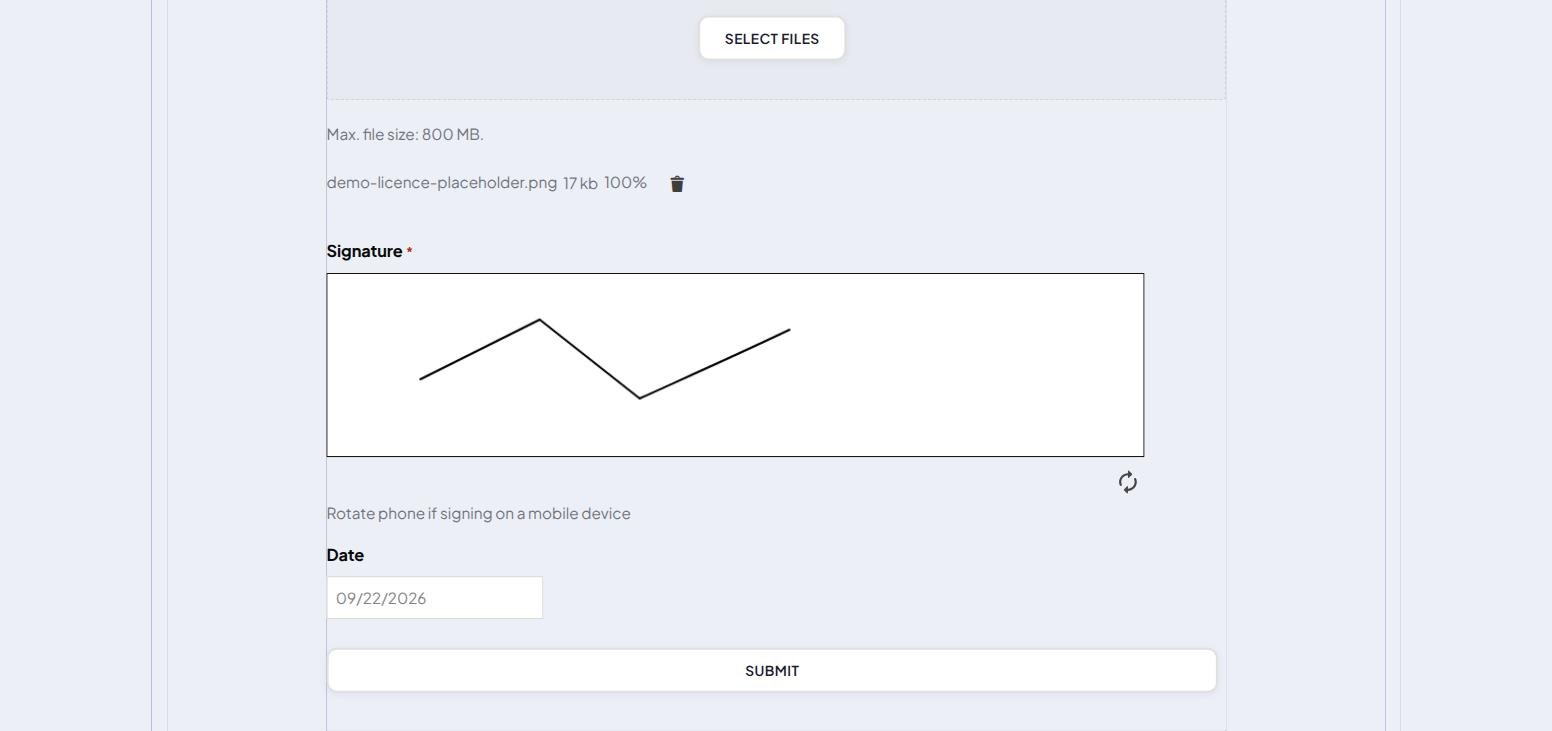
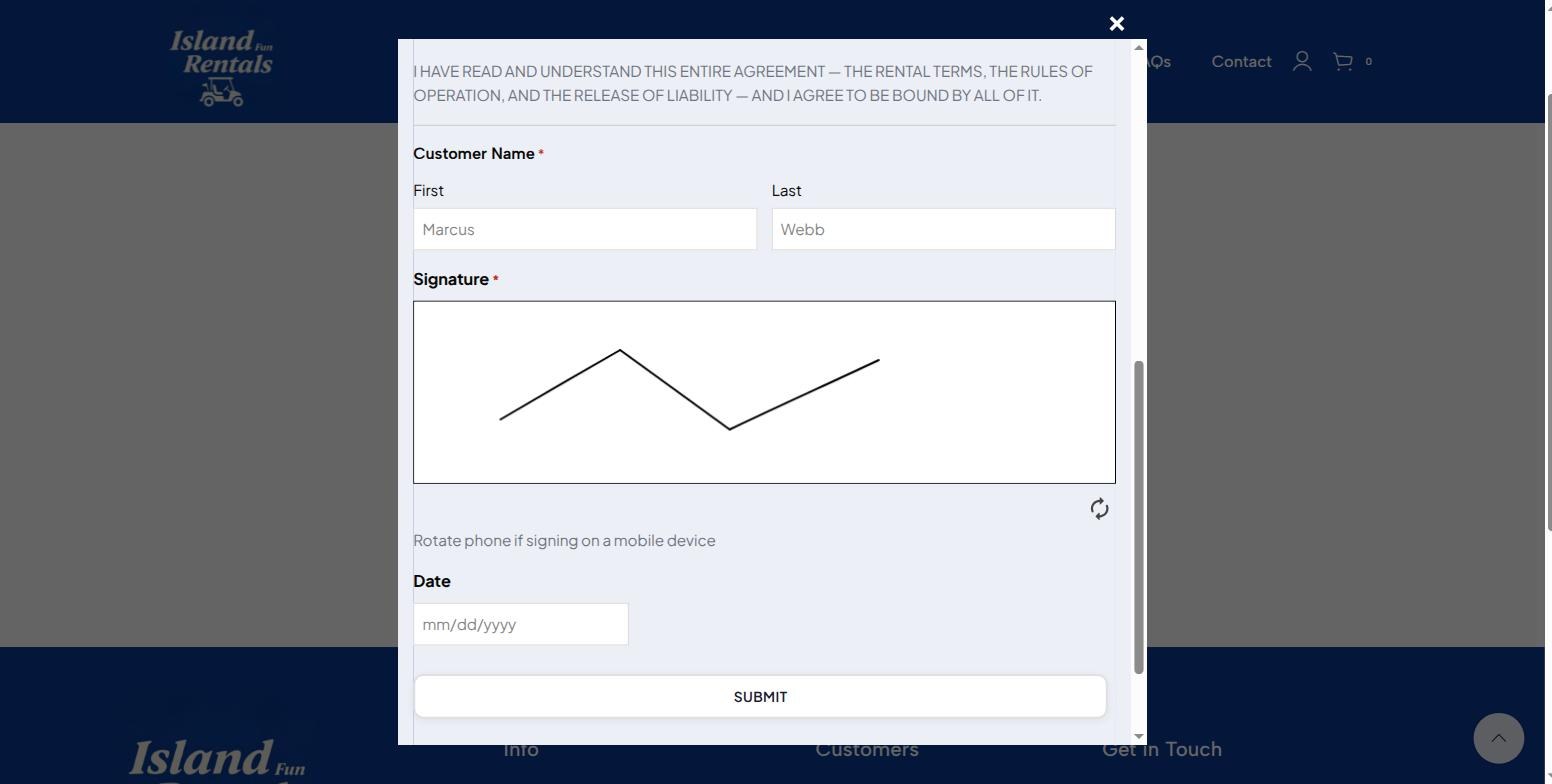
Nine sections, pre‑filled. Driver eligibility, rules of operation, the fee schedule, the release of liability and the jury‑trial waiver — the shop’s own document, not a generic one.Signed on the glass. A photo of the driving licence is a required upload, and the date fills itself. (The licence image here is a labelled placeholder — this is a demo booking, not a real person.)
3.3 “I’m here”
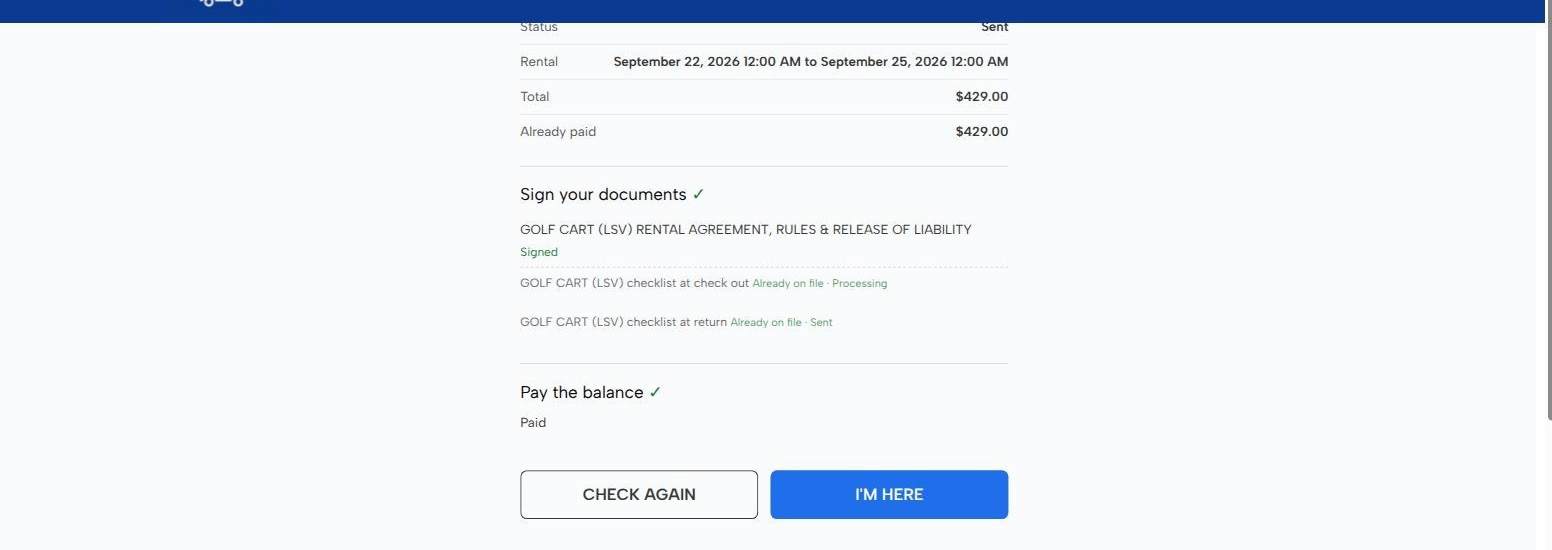
With both items ticked the button comes alive. It is worth being precise about what it does and does not do: it records an arrival and nothing else. It moves no status, touches no stock, and hands over no keys. A customer cannot promote their own order.
Both green. The condition checklist is deliberately absent from this list — nobody has inspected the cart yet, so there is nothing for the renter to countersign and it would be wrong to make them wait on it.
PART 04
The shop sees them arrive
Nobody has to be watching a screen for this to work, but if somebody is, it lands in front of them within seconds.
4.1 A live queue for the counter
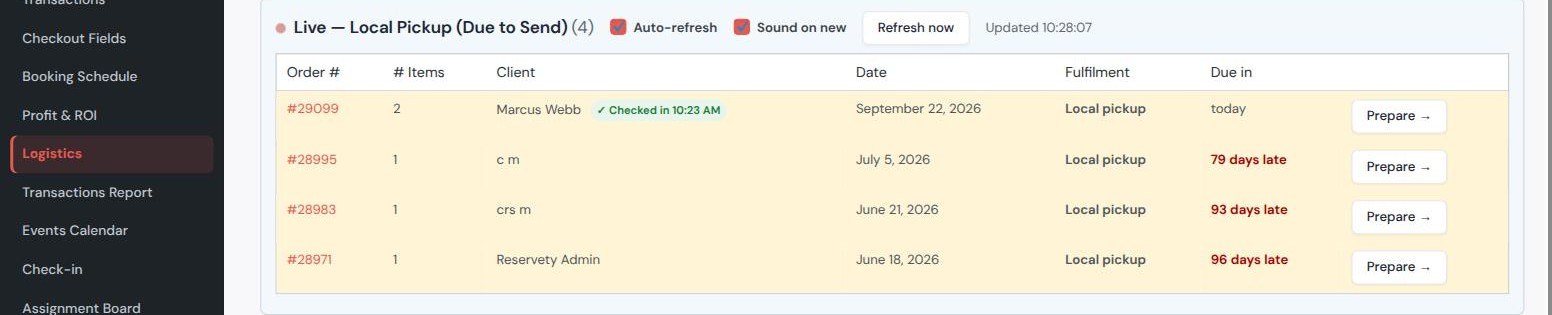
The Logistics dashboard keeps a self‑refreshing panel of local‑pickup orders due out, with an optional chime on anything new. Marcus’s row now carries a green Checked in 10:23 AM badge next to his name, and a Prepare button straight into the picking screen.
Top of the queue. The three rows beneath are older demo bookings left unclaimed — the panel scores by how overdue each one is, so a genuine no‑show does not quietly disappear.
PART 05
Prepare order, assigned unit
One screen for the person actually fetching the cart. It answers the two questions that matter at a counter before anything else: are they paid, and which vehicle is theirs.
5.1 The header says it first
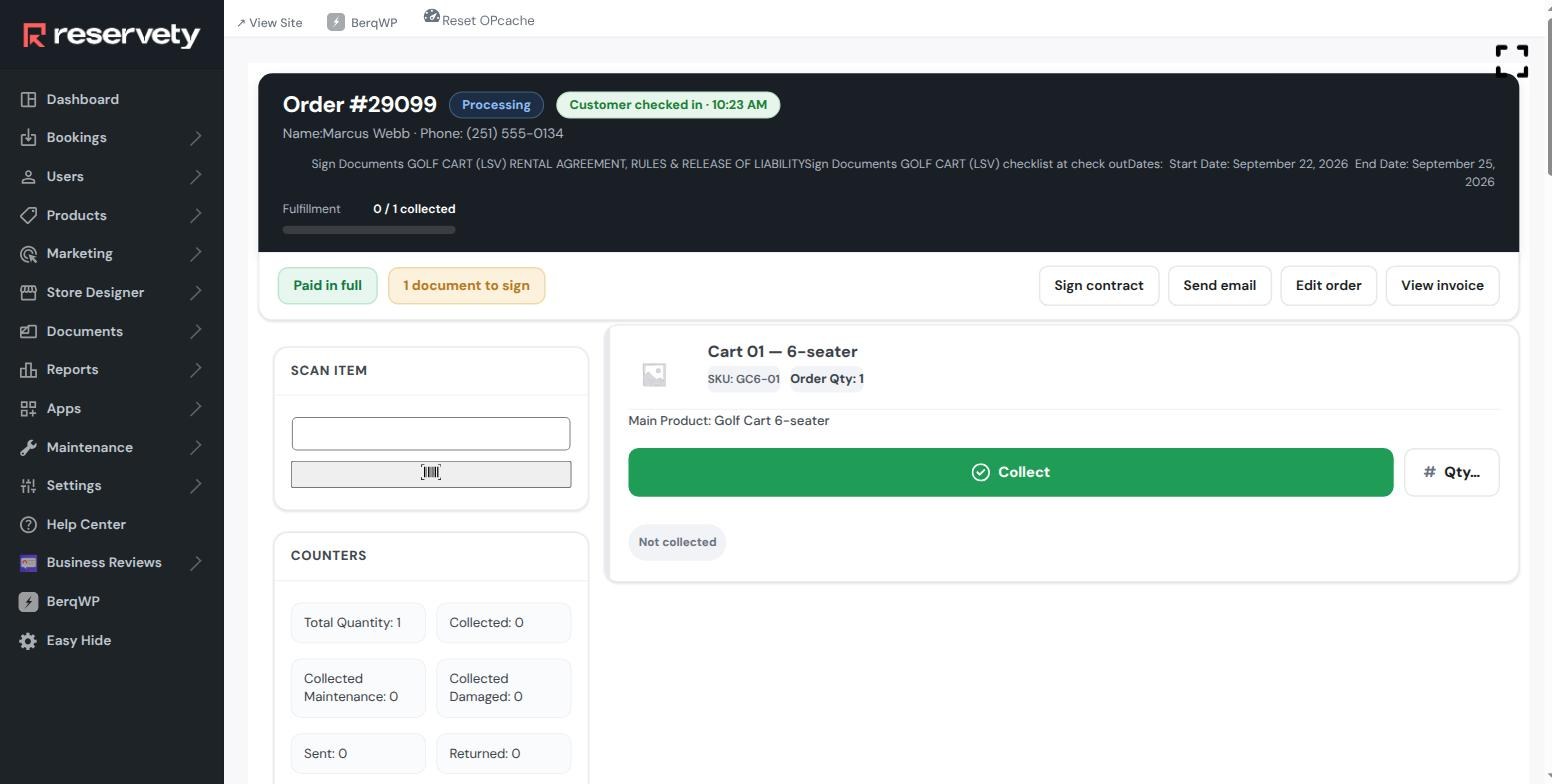
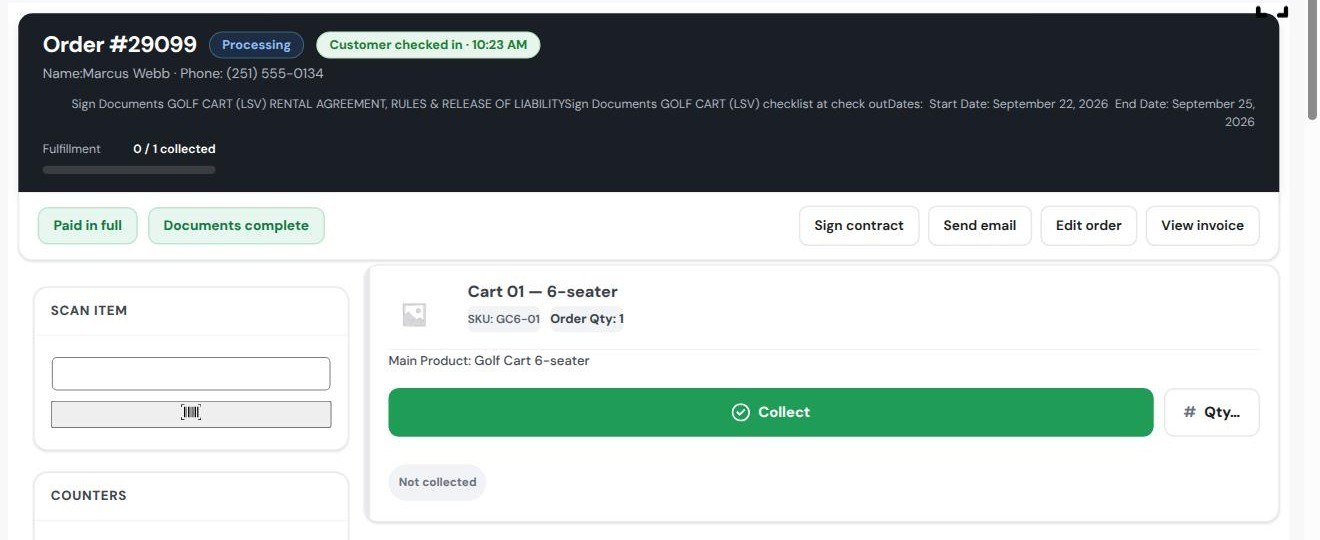
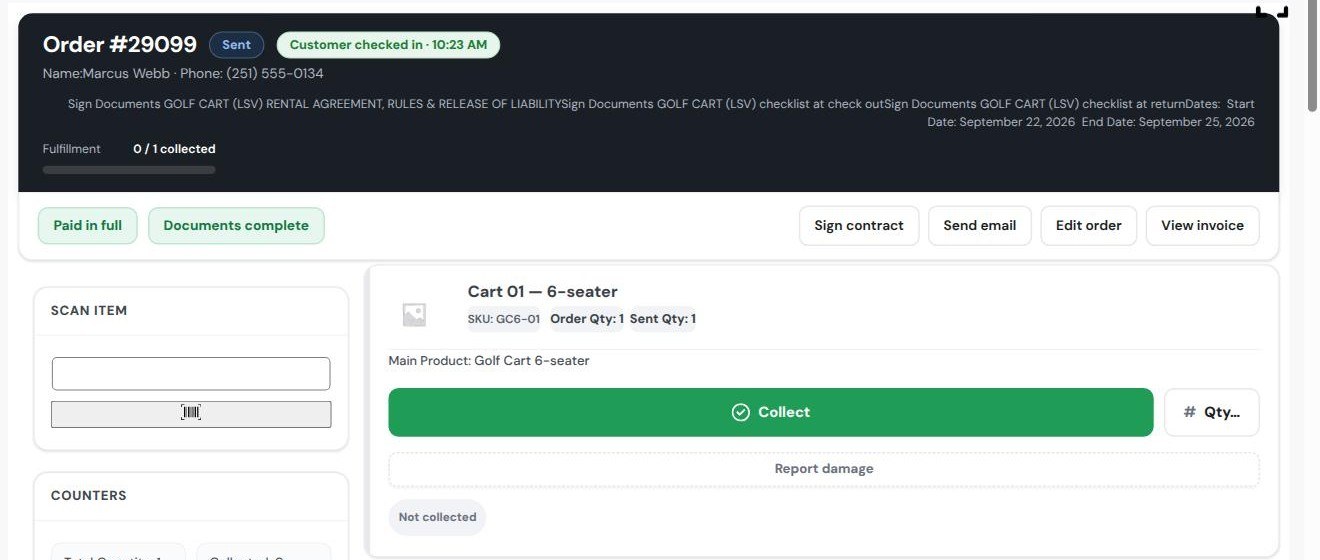
Arrival is a pill in the header bar, beside the status — not buried in a sidebar card that staff have to scroll to. Underneath it, two badges: Paid in full, and a warning‑coloured 1 document to sign.
Cart 01 — 6‑seater, SKU GC6‑01. Staff are told which physical cart to walk out to, and the scan box beside it will accept its barcode instead if the shop prefers to scan.
5.2 The document that is waiting on staff
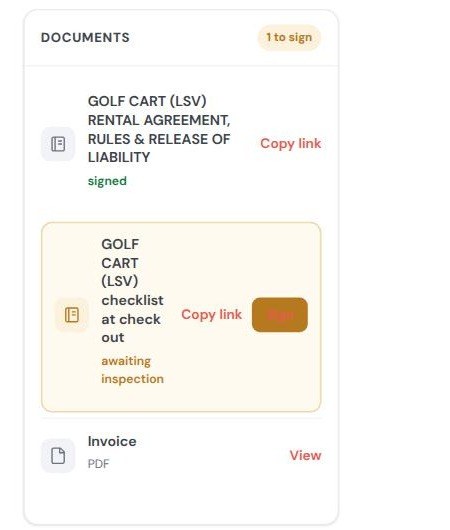
The documents card carries the state of each piece of paperwork separately. The agreement is signed. The check‑out checklist reads awaiting inspection — it is the shop’s turn, not the renter’s.
Per document, not per order. One signature on one form no longer marks an unrelated second form as done — each row is resolved against its own signatures, across every status the order has been through.
5.3 What the order itself has recorded
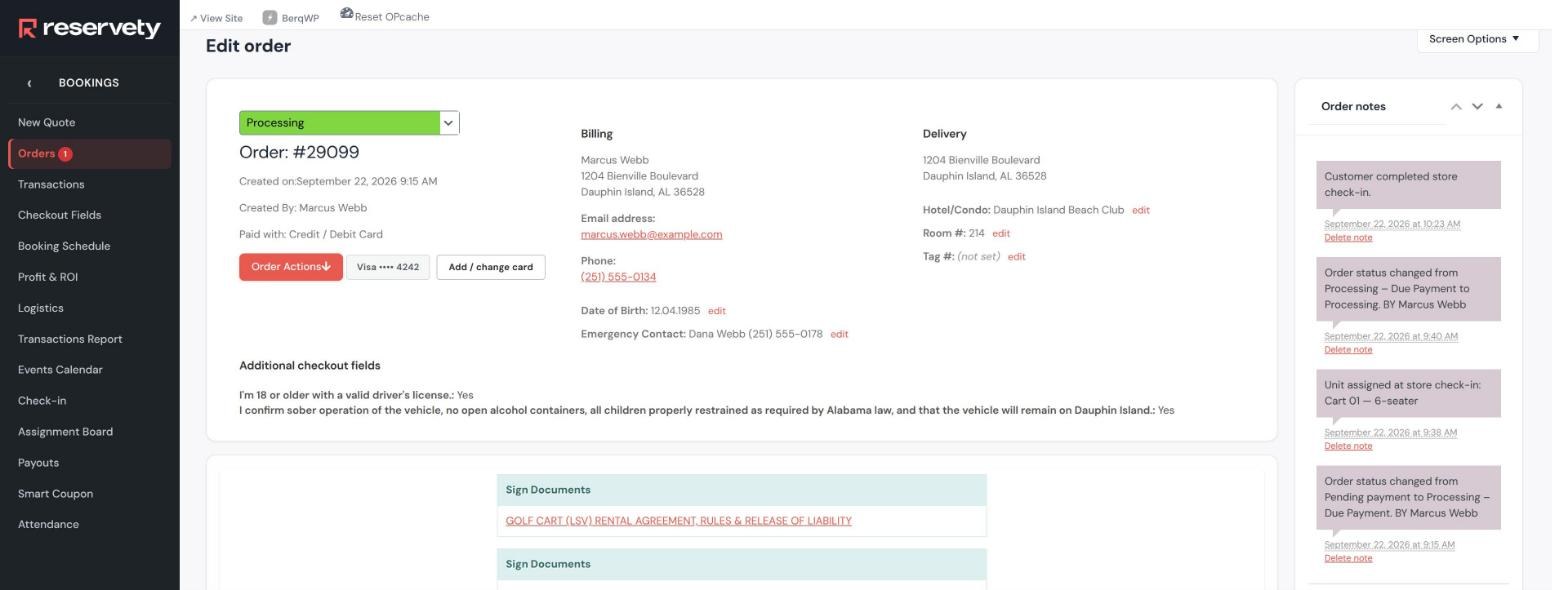
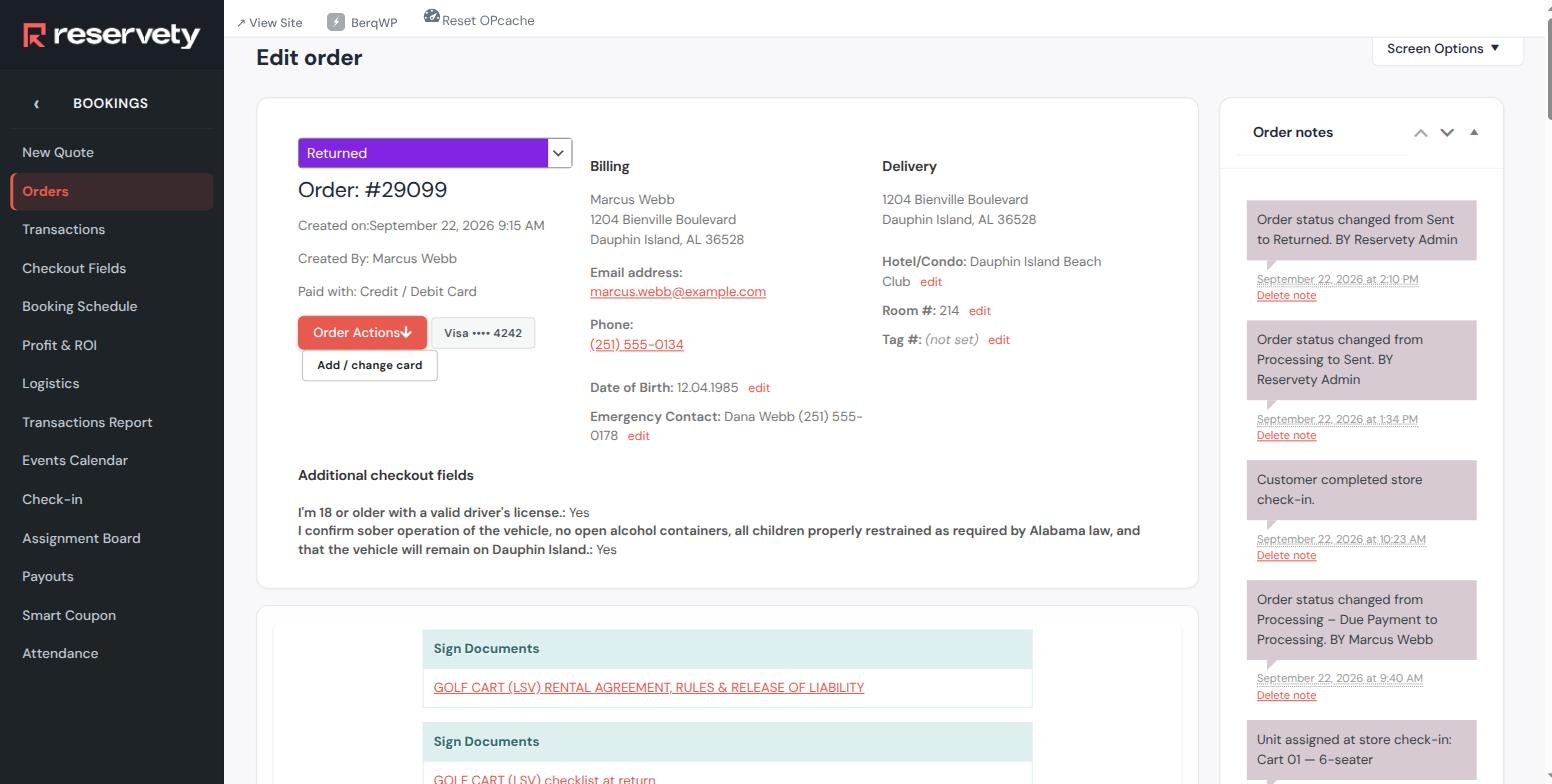
Nothing above is a special case that only the picking screen knows about. The ordinary order view has the same story in its notes, in order, with the card on file and the checkout consents alongside.
The audit trail so far.Unit assigned at store check‑in: Cart 01 — 6‑seater at 9:38, the balance at 9:40, Customer completed store check‑in at 10:23.
PART 06
Inspected, then co‑signed
The part most rental software leaves to a clipboard. Staff record the cart’s condition, the renter agrees to that record, and the two signatures live on the same document.
6.1 Staff walk the cart
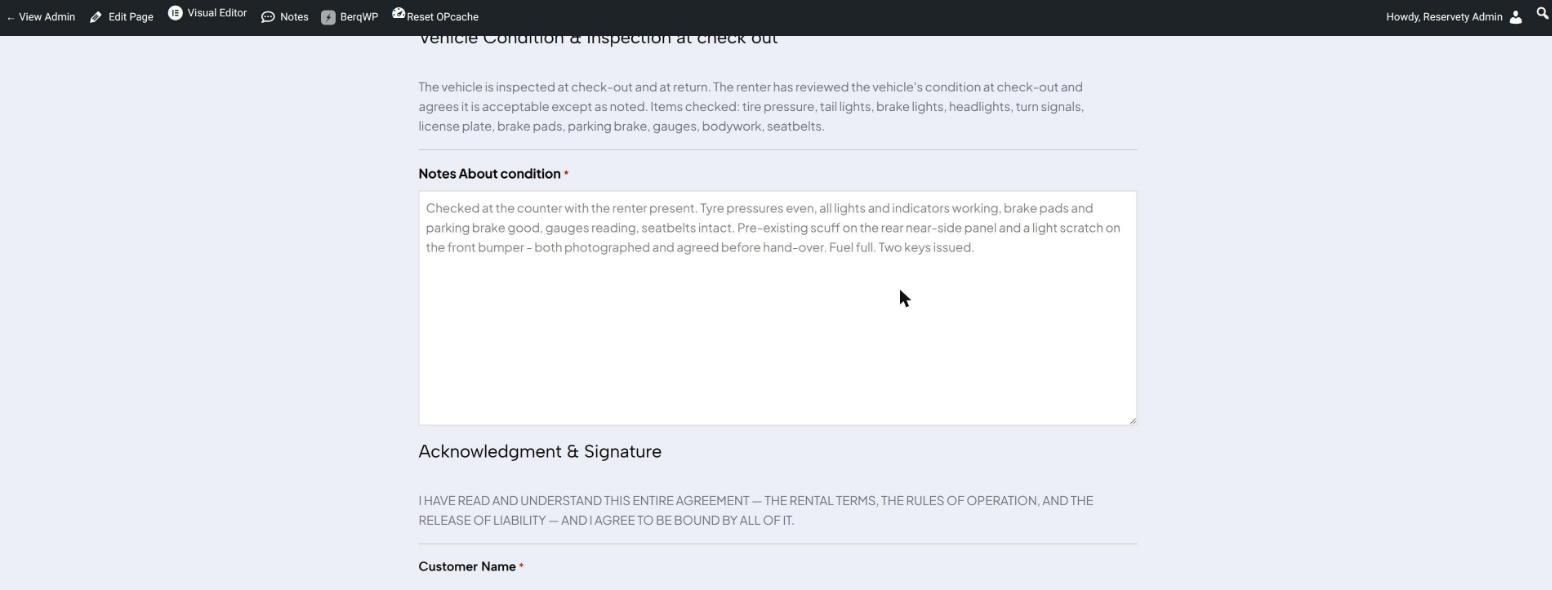
The checklist is the shop’s own: tyre pressure, lights, indicators, plate, brake pads, parking brake, gauges, bodywork, seatbelts. What goes in the notes is the thing worth having — existing damage, recorded before the cart moves.
The sentence that settles arguments. “Pre‑existing scuff on the rear near‑side panel and a light scratch on the front bumper — both photographed and agreed before hand‑over.”Signed by the member of staff. The system classifies the signer by their account, so this is recorded as the shop’s signature, not the customer’s.
6.2 The card flips to the renter’s turn
Back on the prepare screen the same row has changed state: inspected — awaiting renter, and the button now reads Renter signs.
Three states, one row.awaiting inspection → inspected — awaiting renter → complete. Staff can tell at a glance whose move it is.
6.3 It appears on the renter’s phone
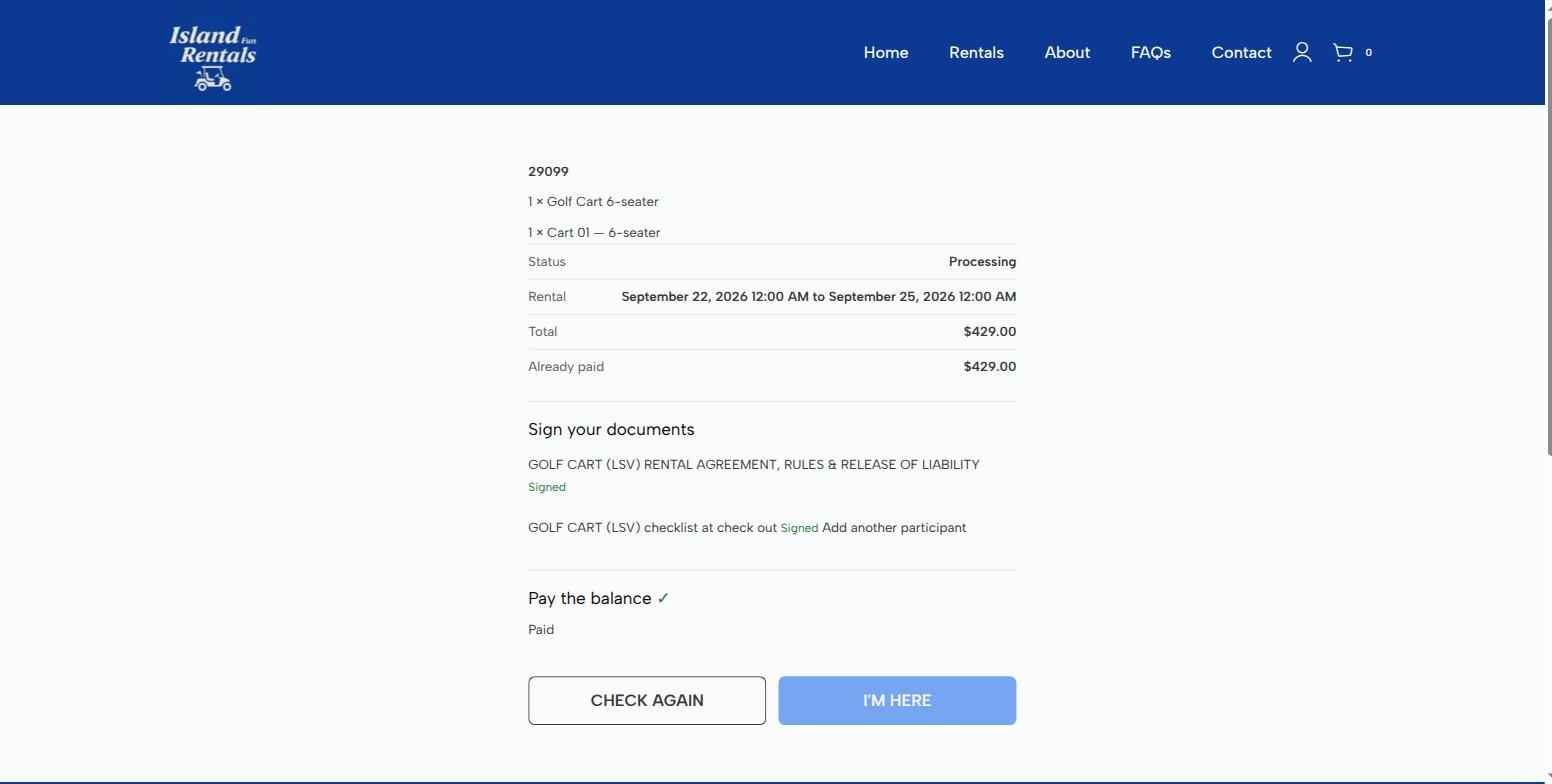
Nothing is pushed to the renter, so the kiosk has a Check again button for exactly this moment: staff finish the inspection while the customer is standing there with the page open, and one tap pulls it through.
The checklist has arrived. The renter’s own signature is still outstanding, so the row stays listed and the button is greyed out until they sign it.
6.4 They sign what staff actually wrote
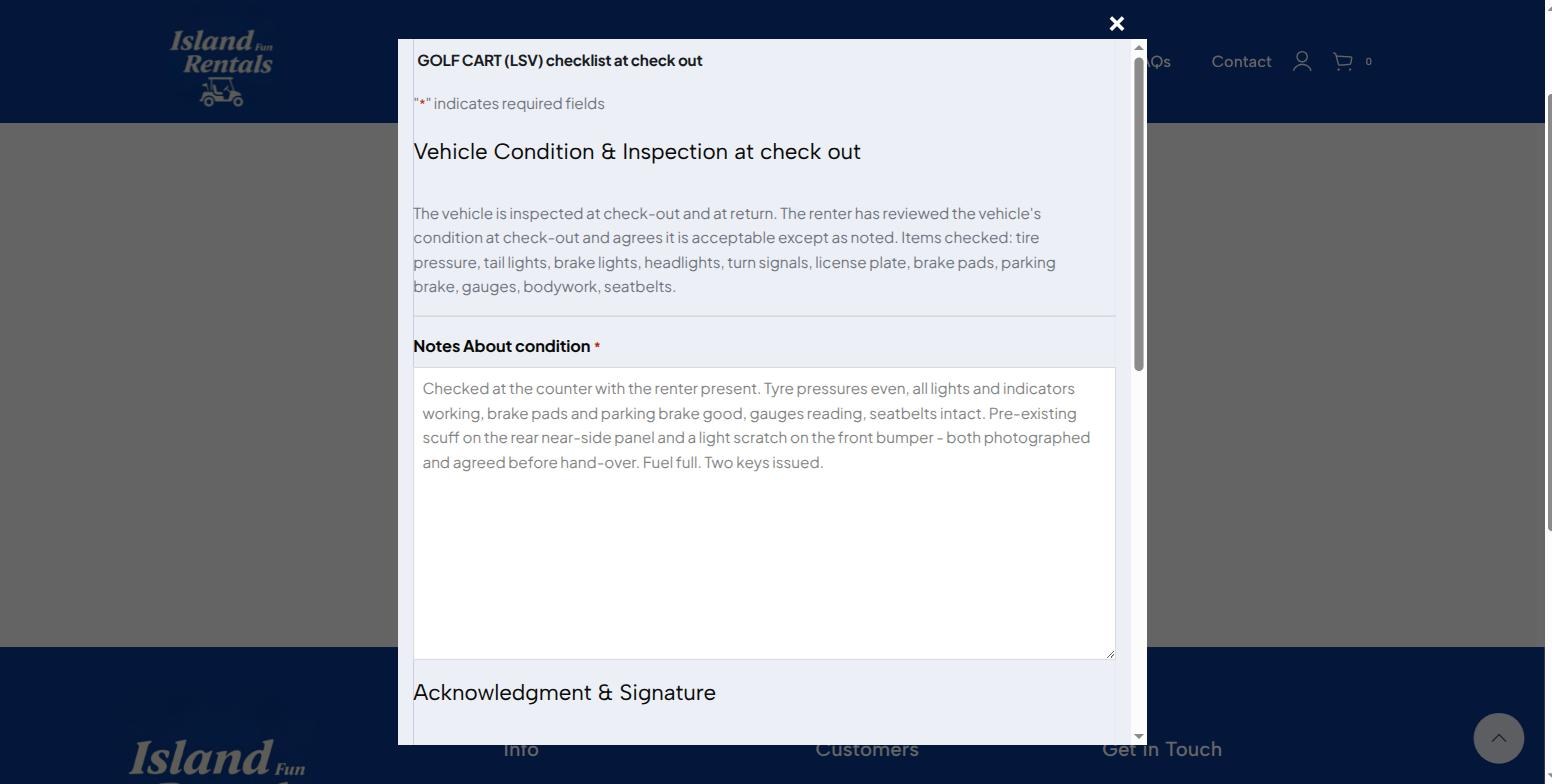
This is the point of the whole mechanism. The renter’s copy opens with the inspection notes already in it — they can read exactly what the shop recorded about the cart’s condition. Only the name, signature and date are blank.
Not a blank form. A renter asked to sign an empty inspection has agreed to nothing; a renter shown “scuff on the rear near‑side panel” and signing under it has agreed to something specific.The second signature. Same document, same entry trail — not a separate form that has to be matched up later.
6.5 Everything clear
Co‑signed, and filed. The checklist drops to the read‑only Already on file list with the status it was signed under. There is nothing left to collect, so there is no link to reopen it.
PART 07
Keys out, marked sent
Only now does the order move. Every gate is green, and the staff member is the one who moves it.
7.1 Both badges green
Paid in full · Documents complete. The amber “1 document to sign” from part 05 has gone green without anybody editing a status by hand.
7.2 Collect the cart, then hand it over
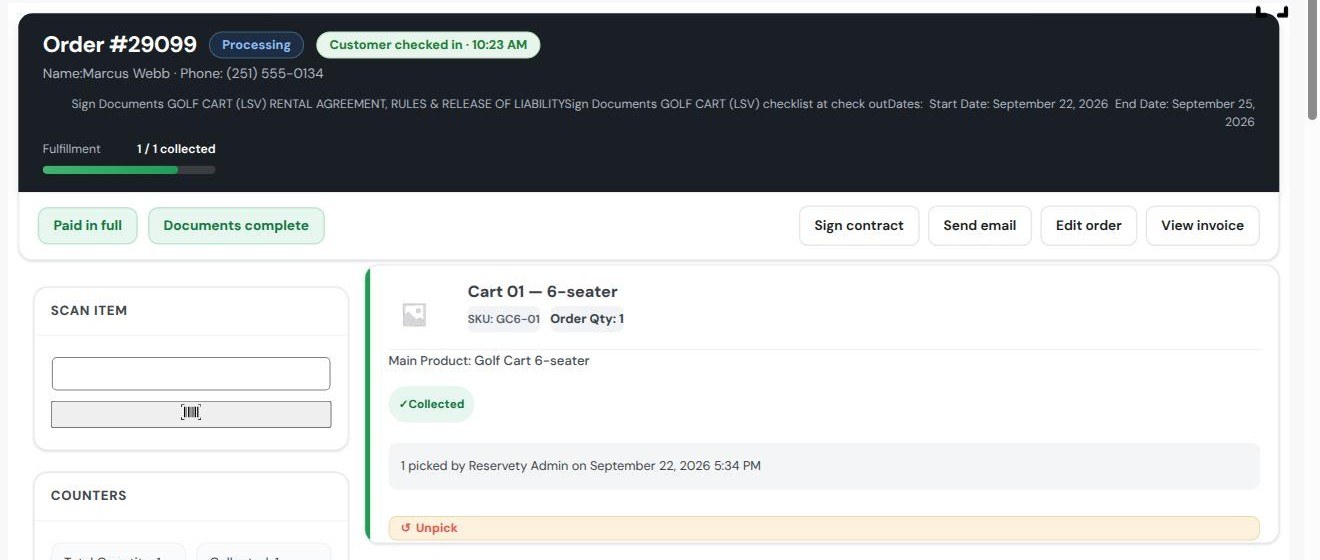
Collecting is the physical act — this cart, off this rack, by this person, at this time. It is recorded separately from the status change so the shop can tell the difference between “fetched” and “gone”.
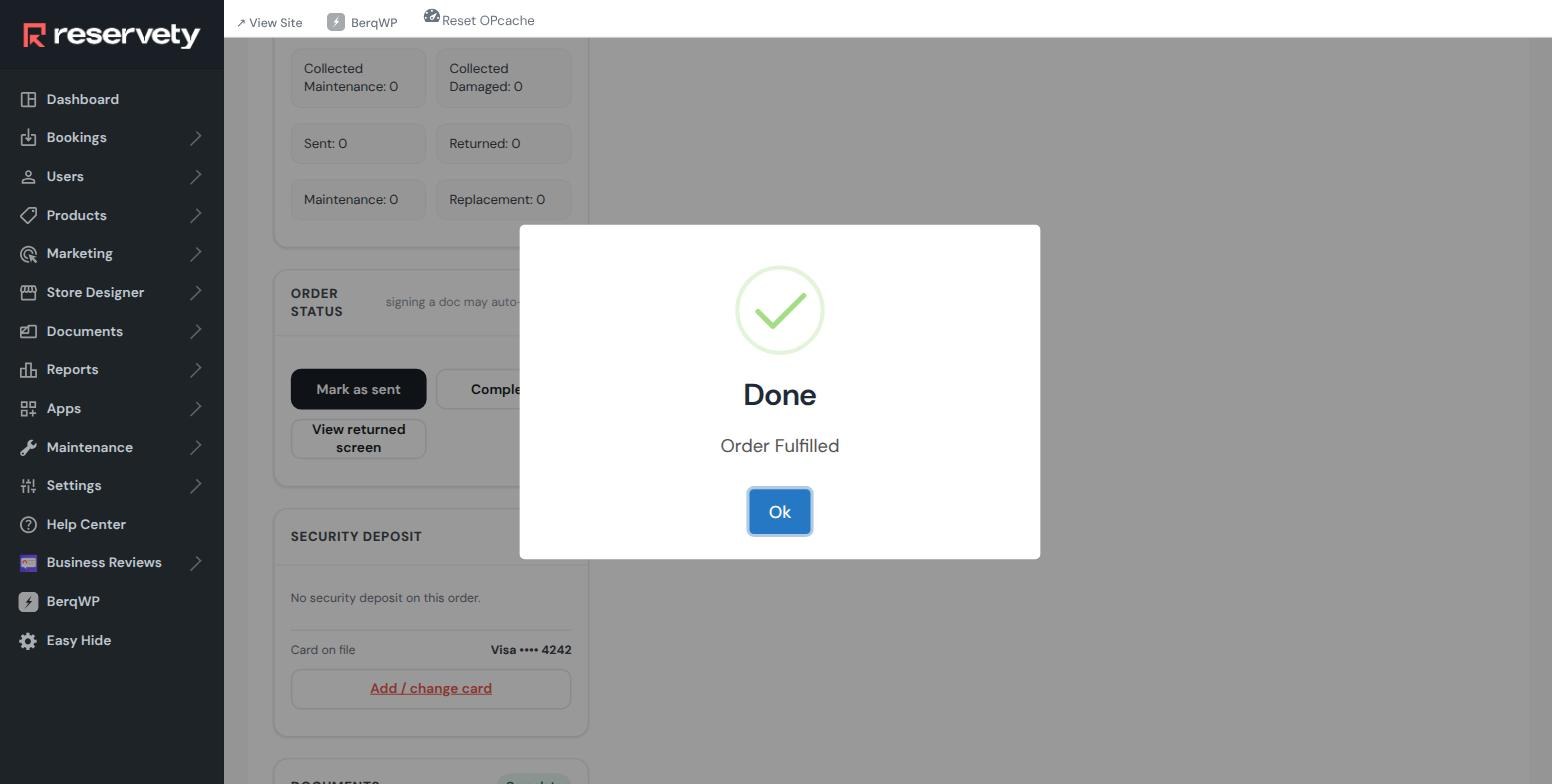
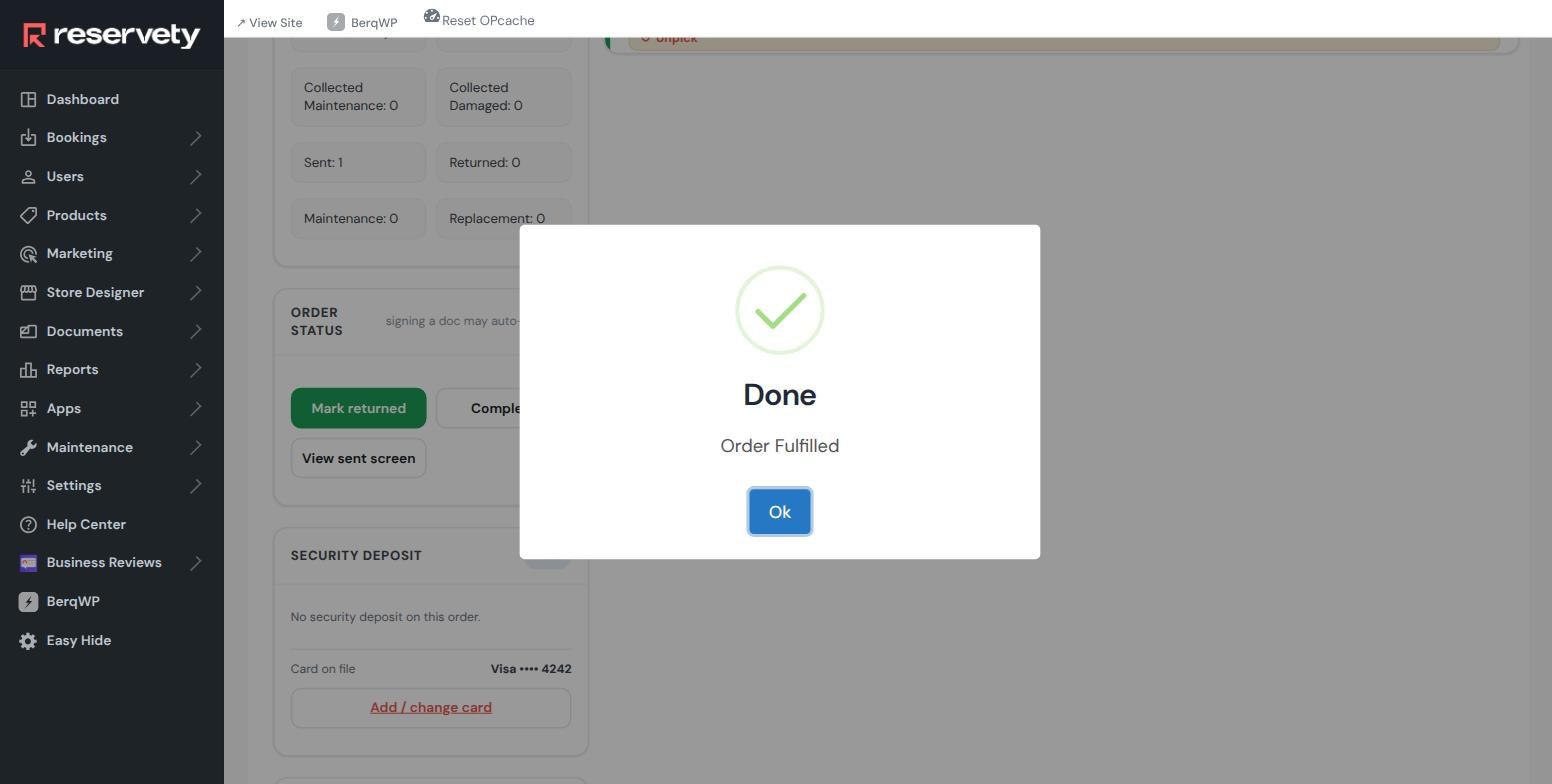
1 / 1 collected. Picked by a named member of staff, with a timestamp.Marked sent. An in‑page dialog, not a browser alert — a native pop‑up would block the screen and can swallow an unsaved meter reading behind it.
PART 08
The cart comes back
Friday. The same mechanism runs in reverse, and it starts on its own.
8.1 The return sheet appears by itself
Nobody switched anything on. The return checklist is mapped to the Sent status, so the moment the cart went out it became the next thing waiting for the shop.
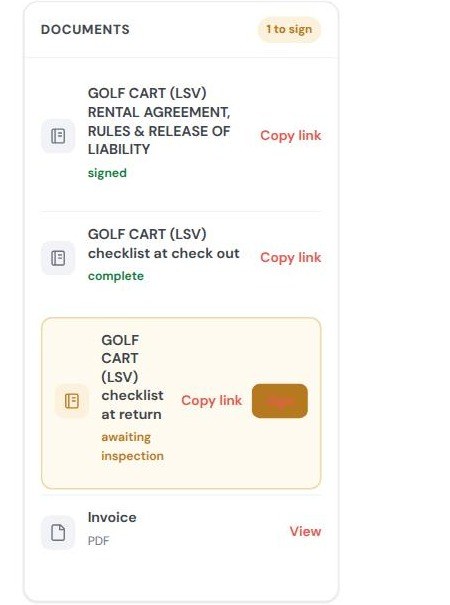
Three documents, three states.signed, complete, and a fresh awaiting inspection for the return.
8.2 Staff inspect against the check‑out notes
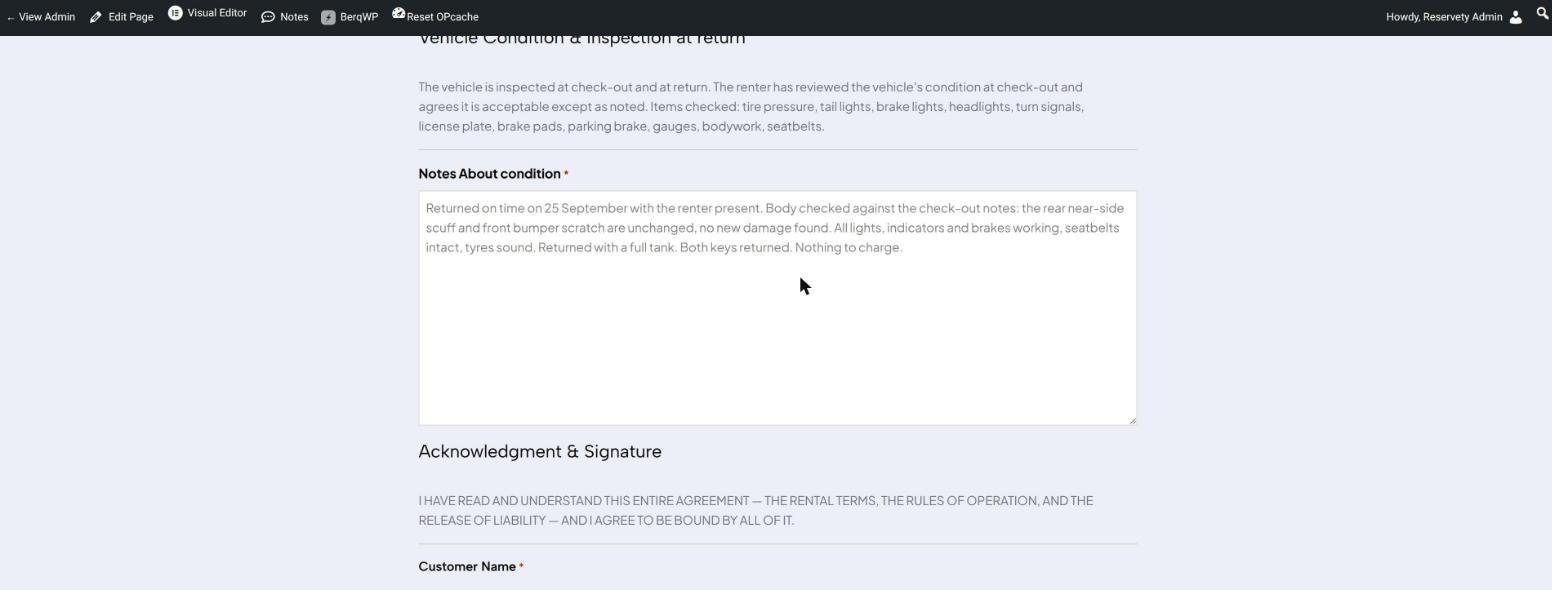
The return inspection is the check‑out inspection’s twin, and the useful thing is that the earlier notes are on the same order, a click away. The question is never “is there a scratch” — it is “is this scratch new”.
“Unchanged, no new damage found.” Full tank, both keys, nothing to charge — and if there had been, Report damage sits on the same screen and the card is still on file.
8.3 The renter signs the return too
Same flow as the hand‑over: the renter looks the booking up on the counter code, and the return sheet is waiting with the shop’s findings already written into it.
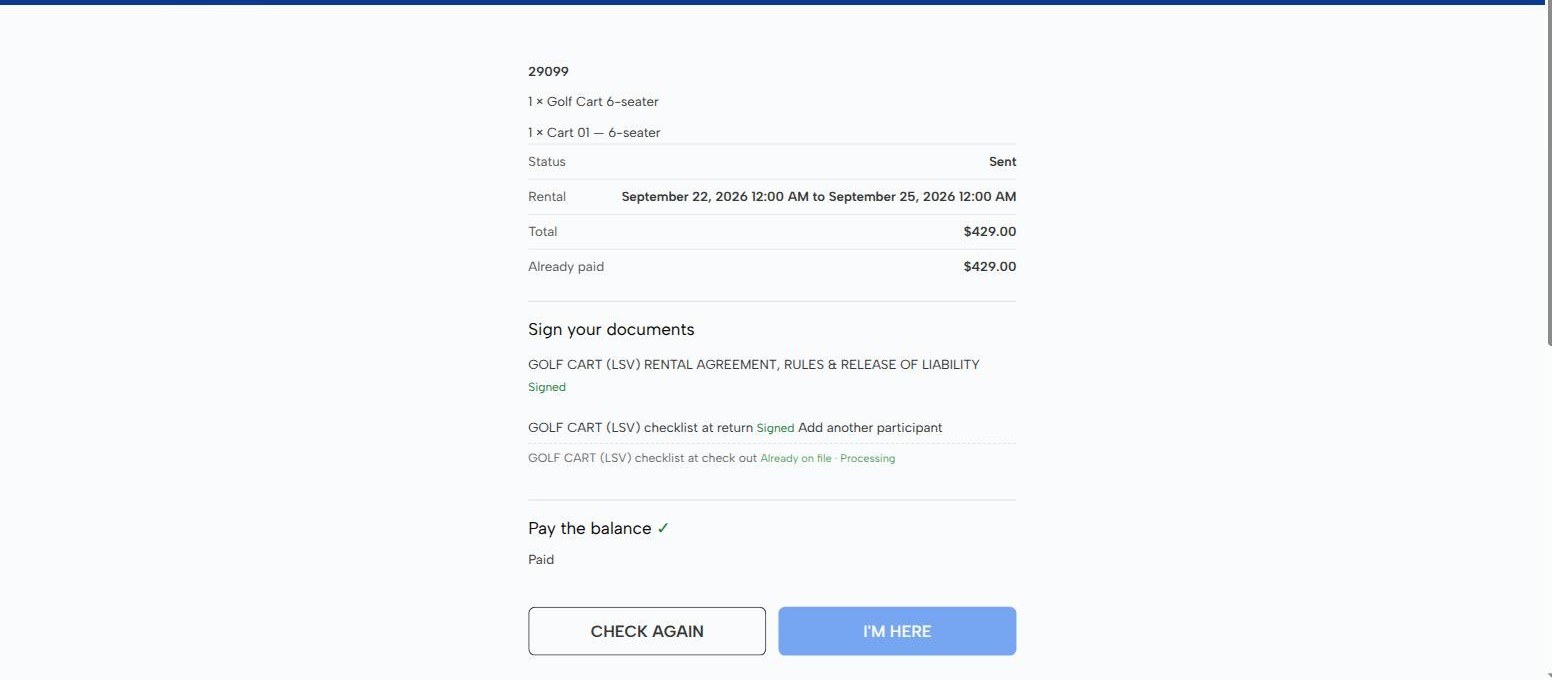
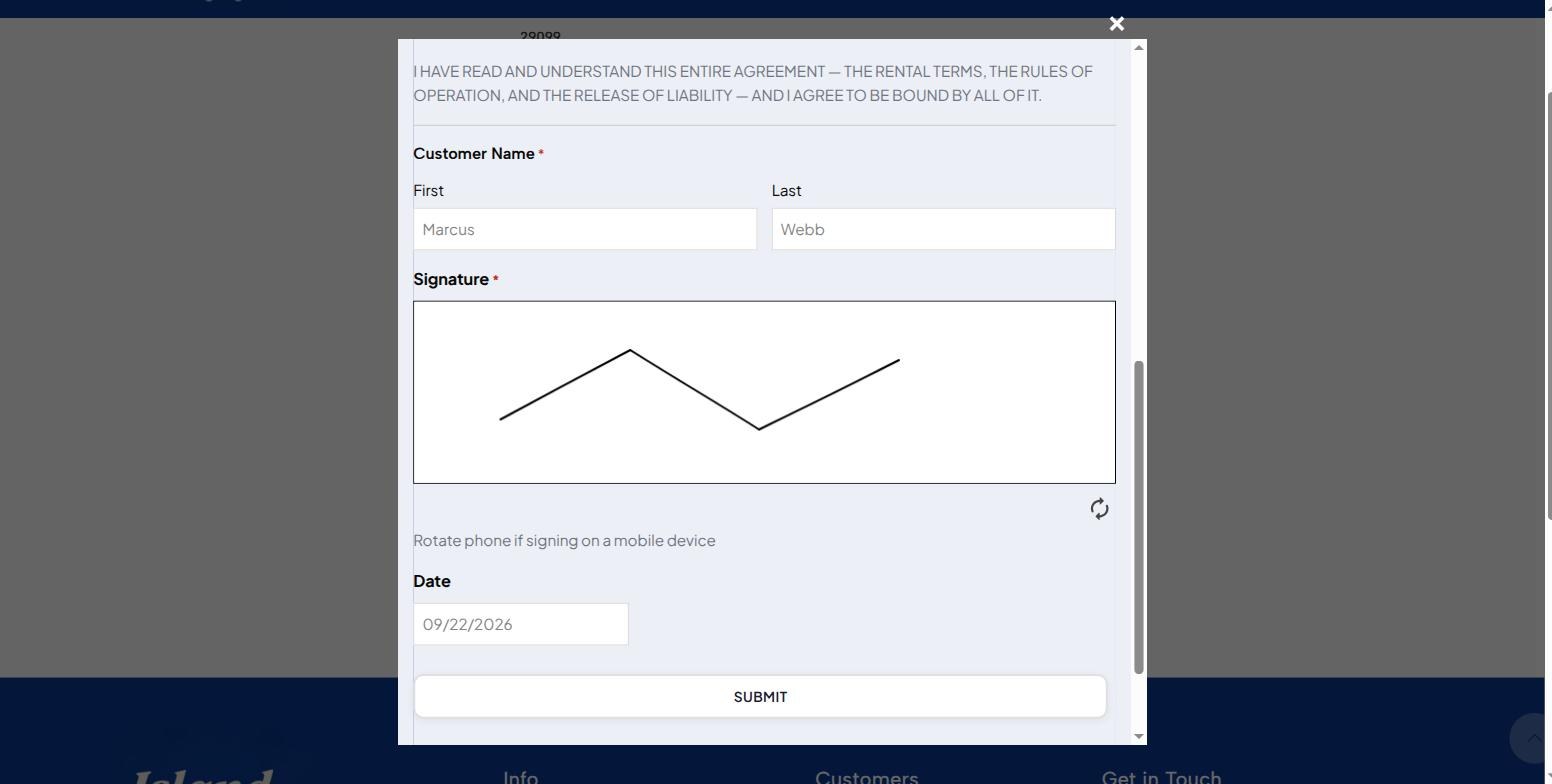
Status Sent, return sheet outstanding. The check‑in window stayed open for this: it does not close while a cart is still out or an inspection is still half signed, so an early return on day two and a return four days late both still work.Signed off on the way out. The renter leaves having agreed, in writing, that the cart came back undamaged.Both inspections on file. Each one labelled with the status it was signed under — Processing for the hand‑over, Sent for the return.
PART 09
Marked returned
The last action of the hire, and again it belongs to staff.
9.1 Booked back in
The return desk. Same screen, different job: Sent Qty: 1, a Collect to book the cart back in, and Report damage if it is needed.Mark returned. The cart goes back into availability from this moment, which is what stops a returned unit sitting unsellable for the rest of the day.
9.2 The whole hire, in six lines
Order #29099 — Returned. Pending payment → Processing – Due Payment → unit assigned → balance paid → check‑in completed → Sent → Returned, each with a time and a name against it.
PART 10
What this proves
One hire, one afternoon, no special cases.
The ninety seconds at the counter
The renter does their own paperwork. Balance, agreement and condition sheet, from their own phone, without an app, an account or a queue.
A physical cart is attached before anybody signs for it. Assignment happens at lookup, so the agreement and the inspection both name Cart 01 — GC6‑01.
Arrival is a flag, never a status. “I’m here” records that somebody is at the counter. It cannot move the order, release stock, or hand over a key.
Both sides sign the same condition sheet, in the right order. Staff record the cart’s state; the renter reads that record and signs under it. Neither half is a blank form.
The paperwork survives the status changes. A document signed under Processing is still signed after the order moves to Sent — nobody is asked to sign anything twice.
Staff keep every decision that matters. Mark as sent, mark returned, report damage and charge the card are all on the staff side of the counter.
It reads back. Six order notes, two signed inspections, a signed agreement with a licence photo, and a named member of staff against each physical act.
Built on the Island Fun Rentals demo. Order #29099 is a real order taken through the payment gateway in test mode; the renter, e-mail address and phone number are fictional. Every screenshot is the running system, unretouched.
Start Your Rental Business the Right Way
Reservety handles your website, bookings, inventory, and payments — so you can focus on growing your business.